After the release of WordPress 4.2 in April, development of the next major release WordPress 4.3 started in full swing. We have been following the development closely and are excited to report that WordPress 4.3 is expected to be released next month. In this article, we will show you what’s coming in WordPress 4.3 with features and screenshots.
Note: You can try out the beta version on your computer or on a staging environment by using the WordPress Beta Tester plugin.
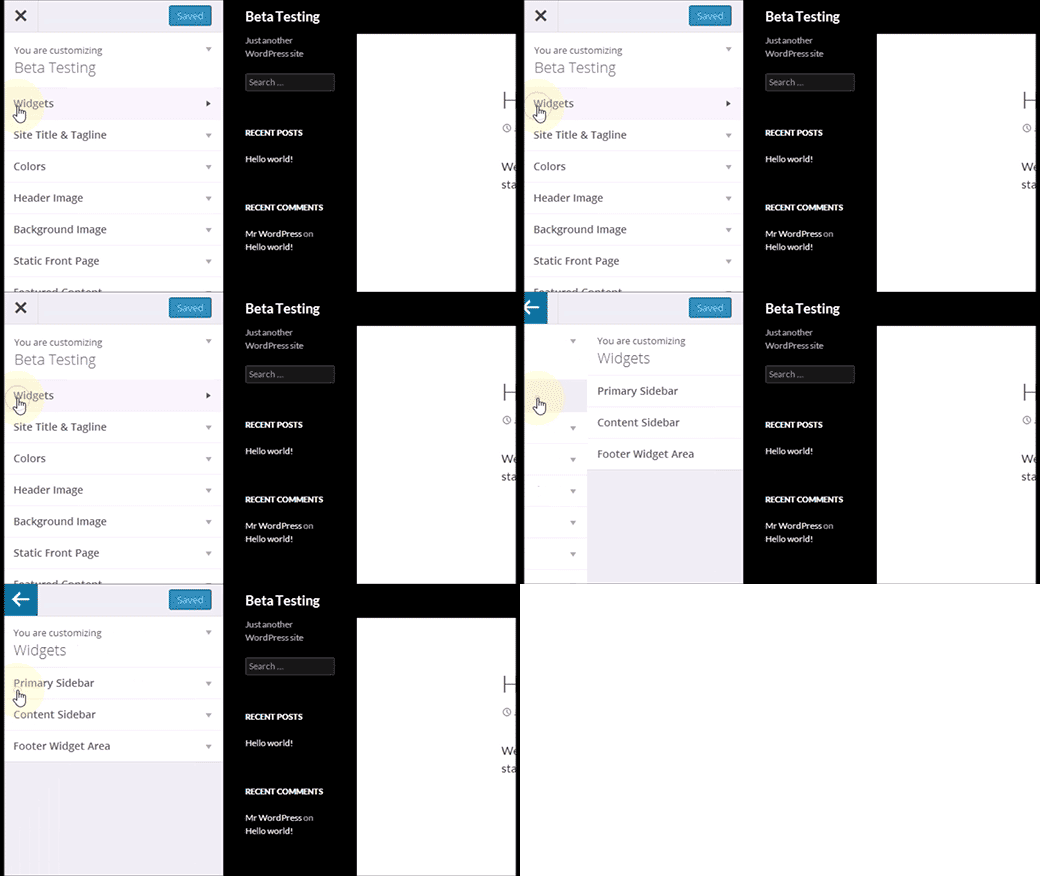
Editing Menus in Customizer
With a heavy push for the theme customizer adoption, WordPress core team is slowly moving all theme options one by one to the customizer screen.
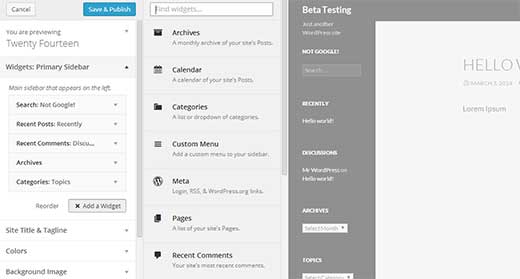
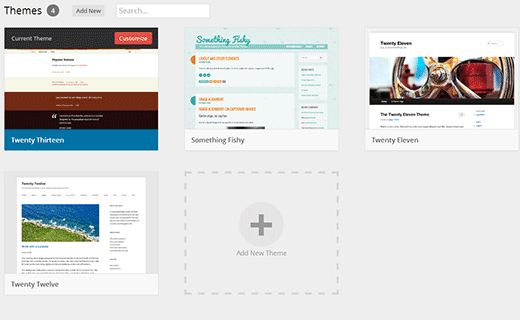
Widgets management was added to the customizer in WordPress 3.9, and theme switching was added in WordPress 4.2.
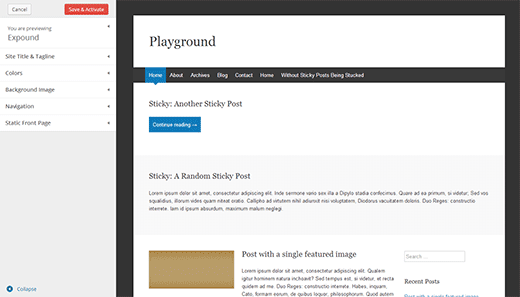
WordPress 4.3 will allow you to manage your navigation menus from the theme customizer.
While you can still manage and edit your menus using the old interface, the goal of this new addition is to allow users to customize all their theme settings from one settings page with a live preview.
This change was met with heavy resistance by some very notable members of the community. It would be interesting to see how the customizer evolves in the next versions.
Adding Site Icon or Favicon
Favicon or site icon is the tiny icon that you see next to a site’s name in your web browser. In the past, WordPress users had to use a plugin to add a favicon or add it manually by editing their theme files.
WordPress 4.3 will allow you to upload your site’s favicon or site icon from the WordPress admin area. Simply visit Settings » General and upload an image for your site icon.
WordPress will allow you to crop the image and will also show you a live preview of how it will look in browsers and as a mobile icon.
Better Passwords
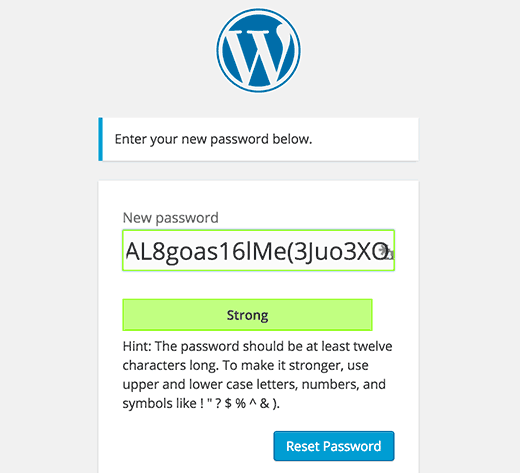
WordPress 4.3 will introduce a new user interface for the password reset screen. It will automatically fill in the new password field with a strong password.
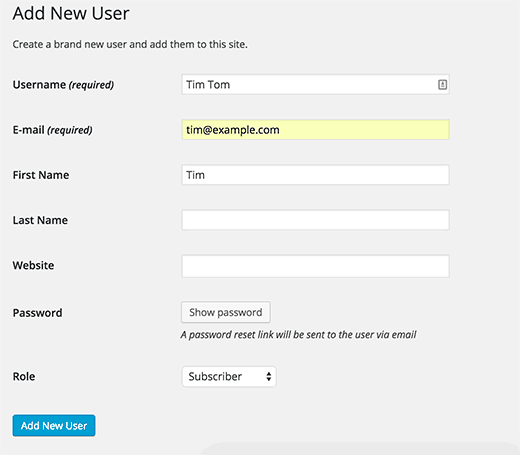
When you add a new user, WordPress will now send them a password reset link instead of a pre-selected password in plain text. During the process you also have the option to click on the show password button and add a password for the new user. WordPress will show a strong password auto-filled when you click on the show password button. You can change that to your own password if you want.
The goal here is to make sure that users understand the importance of using strong passwords. You may also want to take a look at our tutorial on what’s the best way to manage passwords for WordPress.
Editor Improvements
Many WordPress site owners spend most of their time writing posts. If you use the visual editor, then you will notice that moving your mouse to click on formatting buttons slows down your writing pace.
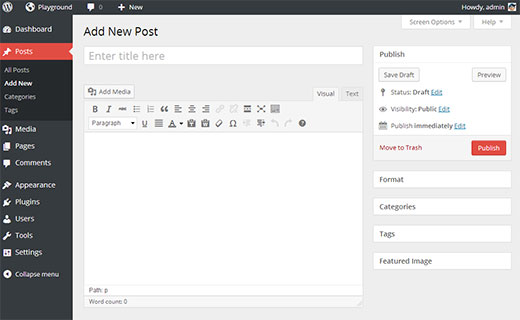
With 4.3, WordPress is introducing inline text shortcuts. These shortcuts are similar to Markdown which allows you to format text and add element using simple markup in the text. However, unlike Markdown these text patterns will immediately transforms patterns into HTML.
Using * or – will start an unordered list. Using 1. will start an ordered list. Using # will transform into h1. ## for h2, ### for h3 and so on. Using > will transform into blockquote.
This is surely going to speed up writing for power users.
Visual/Text Editors in Press This
In WordPress 4.3, the Press This tool will get a full featured visual and text post editor. This will make it easier to create posts quickly with proper formatting tools.
Under The Hood Developments
In WordPress 4.3 shared terms on multiple taxonomies will now split up. This is part of the ongoing taxonomy improvement roadmap. (#30261)
In WordPress template hierarchy, singular.php file will now act as the default fallback template for single.php and page.php. (#22314)
WordPress 4.3 will allow developers to select a primary column when using list tables like on the Posts, Pages, or Media Library screens. (#25408)
Just 3 days after the release of WordPress 4.2, a security researcher found a Zero day XSS Vulnerability that affects WordPress 4.2, 4.1.2, 4.1.1, 4.1.3, and 3.9.3. This allows an attacker to inject JavaScript into comments and hack your site. WordPress team responded fast and fixed the security issue in WordPress 4.2.1, and we strongly recommend that you update your sites immediately.
Jouko Pynnönen, a security researcher at Klikki Oy, who reported the issue described it as:
If triggered by a logged-in administrator, under default settings the attacker can leverage the vulnerability to execute arbitrary code on the server via the plugin and theme editors.
Alternatively the attacker could change the administrator’s password, create new administrator accounts, or do whatever else the currently logged-in administrator can do on the target system.
This particular vulnerability is similar to the one reported by Cedric Van Bockhaven which was patched in the WordPress 4.1.2 security release.
Unfortunately, they did not use proper security disclosure and instead posted the exploit publicly on their site. This means that those who do not upgrade their site will be in serious risks.
Update: We have learned, that they tried contacting WordPress security team but failed to get a timely response.
WordPress 4.2 was released just a few minutes ago. This is the first major WordPress release of 2015. It fixes many issues and adds some great new features to WordPress. Sadly, some really cool features were dropped because they were not yet ready to be shipped. In this article, we will show you what’s new in WordPress 4.2 and which features you should try after updating your sites.
This is a major WordPress release, which means your site will not get automatically updated unless you are using managed WordPress hosting. You will have to initiate the update from your WordPress dashboard. As always, don’t forget to backup your WordPress site before updating.
New and Improved Press This Tool
WordPress 4.2 comes with the new and improved Press This tool.
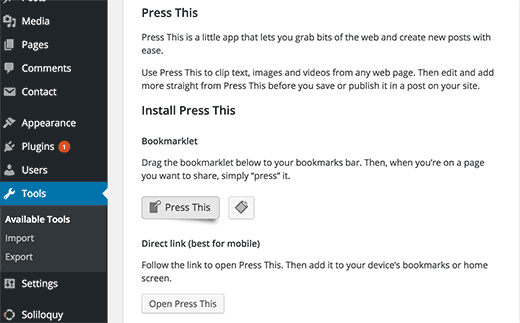
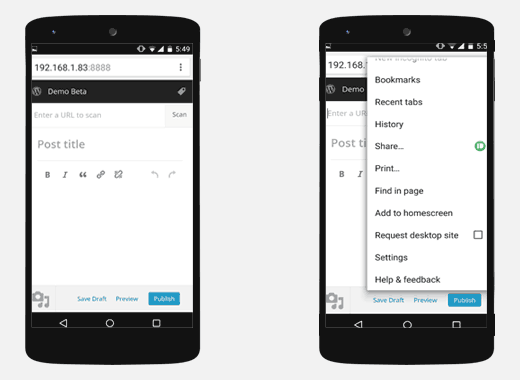
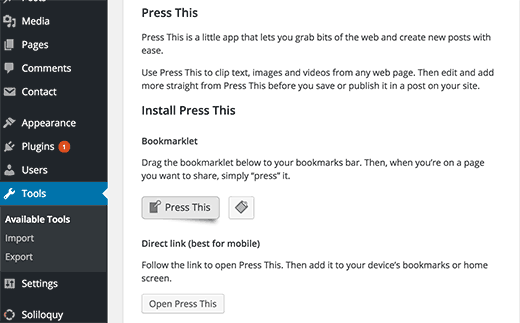
It is a simple bookmarklet that you can drag and drop to your browser’s bookmarks bar or add to your mobile homescreen. This allows you to easily share any content from anywhere on the web to your WordPress site with a simple click or tap.
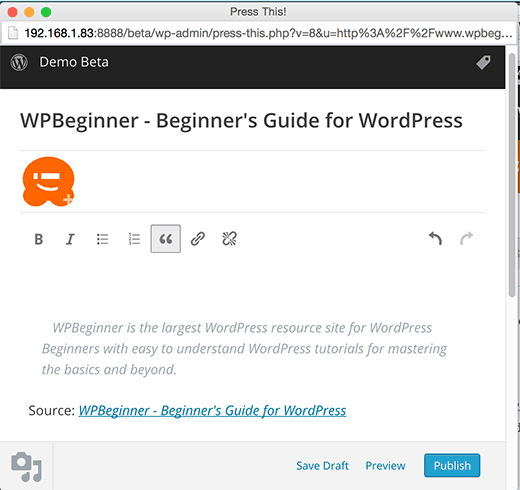
Press This will now automatically find images, excerpt, and title for the content you are sharing and embed it to a post on the fly. This will make sharing content a lot faster and easier for many users.
New Characters & Emoji Support in WordPress 4.2
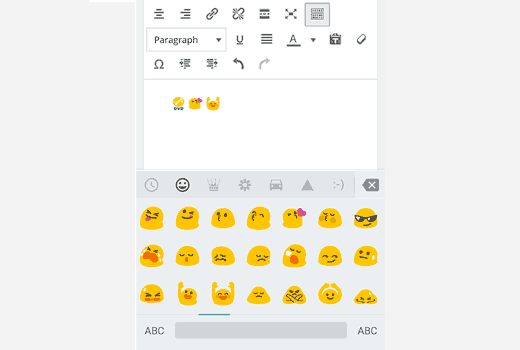
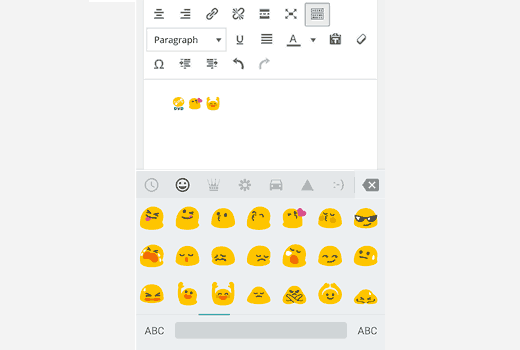
Emoji are natively available on all modern devices including mobile phones. WordPress didn’t support emoji natively. WordPress 4.2 resolved this by adding the native support for emoji. You can now use emojis anywhere on your WordPress site.
The support for Emoji was made possible by the underlying work done to add native support for Chinese, Japanese, Korean characters. WordPress 4.2 will automatically switch your utf-8 database to utf8mb4. This change will also allow musical and mathematical symbols and even hieroglyphs.
While many users may not be as excited about Emoji support, the support for more language characters is a huge improvement for a very large global WordPress user base.
Faster Plugin Updates
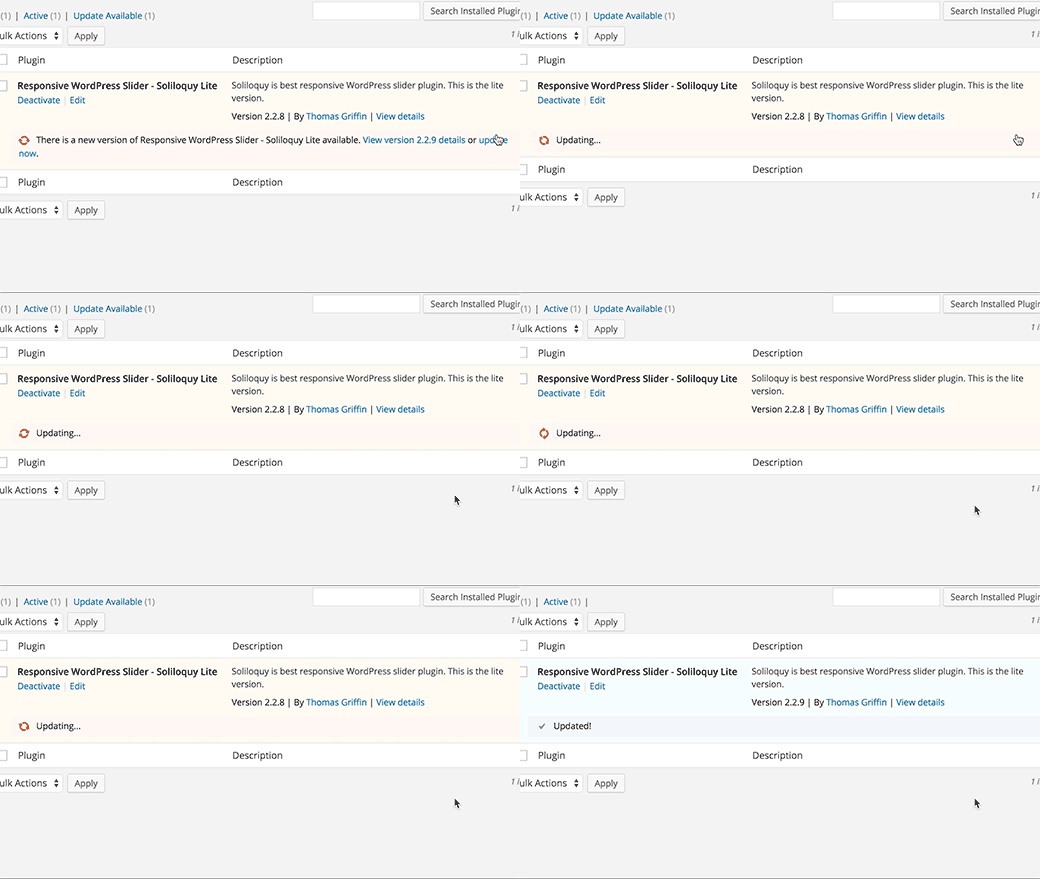
Plugin updates required you to click on the update link and wait for a page to load which showed update progress. Then after the update you were able to move on to do whatever you were doing. This will change in WordPress 4.2 which now comes with a faster one-click plugin updates.
Earlier in our What’s coming in WordPress 4.2 article, we showed you faster plugin install feature. It was similar to the update feature but allowed users to install plugins without reloading page. This feature was dropped during the beta.
More Auto Embeds
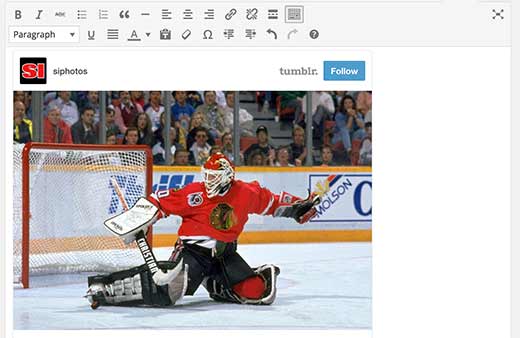
Just like YouTube videos, Tweets, and many other services, Tumblr and Kickstarter are now included into oEmbed whitelist in WordPress. You can now paste a link from Tumblr or Kickstarter and see it automatically embedded into the post.
Theme Switching in Customizer
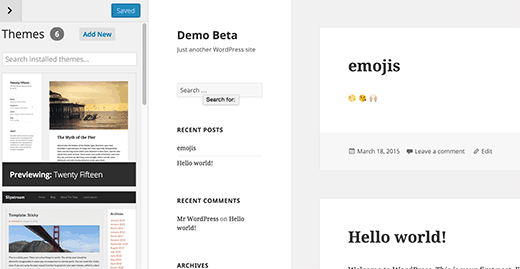
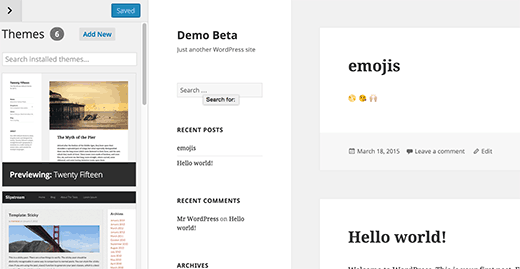
WordPress 4.2 comes with some great improvements in the customizer. You can now switch themes directly from theme customizer and make changes. This will enable users to quickly preview themes and customize themes without even activating them.
Under The Hood Changes
Messages generated by JavaScript calls to the server will now be readable by screen-readers. Plugin authors and developers can use wp.a11y.speak() to send audible notifications.
Terms shared by multiple taxonomies will now be split when one of them is updated.
Complex ordering support with meta query clauses is now supported by WP_Query, WP_Comment_Query, and WP_User_Query.
There are some minor changes in the default WordPress color scheme.
There are many bug fixes and other under the hood improvements. You can see a full list of changes here.
We hope you liked this overview of what’s new in WordPress 4.2. We are particularly excited about faster plugin update feature. What are you excited about?
If you liked this article, then please subscribe to our YouTube Channel for WordPress video tutorials. You can also find us on Twitter and Facebook.
After the release of WordPress 4.1, the development of the next major release started in full swing. WordPress 4.2 will be the first major release of 2015, and it is planned to be released by end of April. There are a lot of exciting things happening around it. In this article, we will show you what’s coming in WordPress 4.2 with features and screenshots.
You can try out the beta version on your computer or on a staging environment by using the WordPress Beta Tester plugin.
New and Improved Emoji Support
Do you use Emoji’s in your text messages, facebook statuses, etc? Well, now you can use it in your WordPress blog posts as well.
Emojis are cool and fun way to express your feelings in a text-based communication. WordPress had basic emoticons for a long time, and even though it was possible for users to add emoji support to WordPress, it was not supported by the core.
With WordPress 4.2 your WordPress sites will have built-in emoji support. If you are using a mobile device, you can easily add emojis to your posts, comments, categories, and in most places where you can write text. This includes post slugs as well.
Update: We realized that a lot of users weren’t as excited about Emojis and would have preferred other features. We wanted to highlight that Emoji support came out from the underlying work that had to be done to improve WordPress database and make it possible to use Han characters (Chinese, Japanese, Korean, etc) natively in WordPress.
As you can imagine, this is a huge thing for a large population of the world.
Switching Theme in Customizer
WordPress 4.2 will bring improvements to the way you install, browse, and preview themes using the WordPress customizer. You will now be able to switch, preview, and activate themes from the theme customizer screen.
You can also click on the ‘Add New’ button to browse and install new themes.
Faster Plugin Installation and Updates
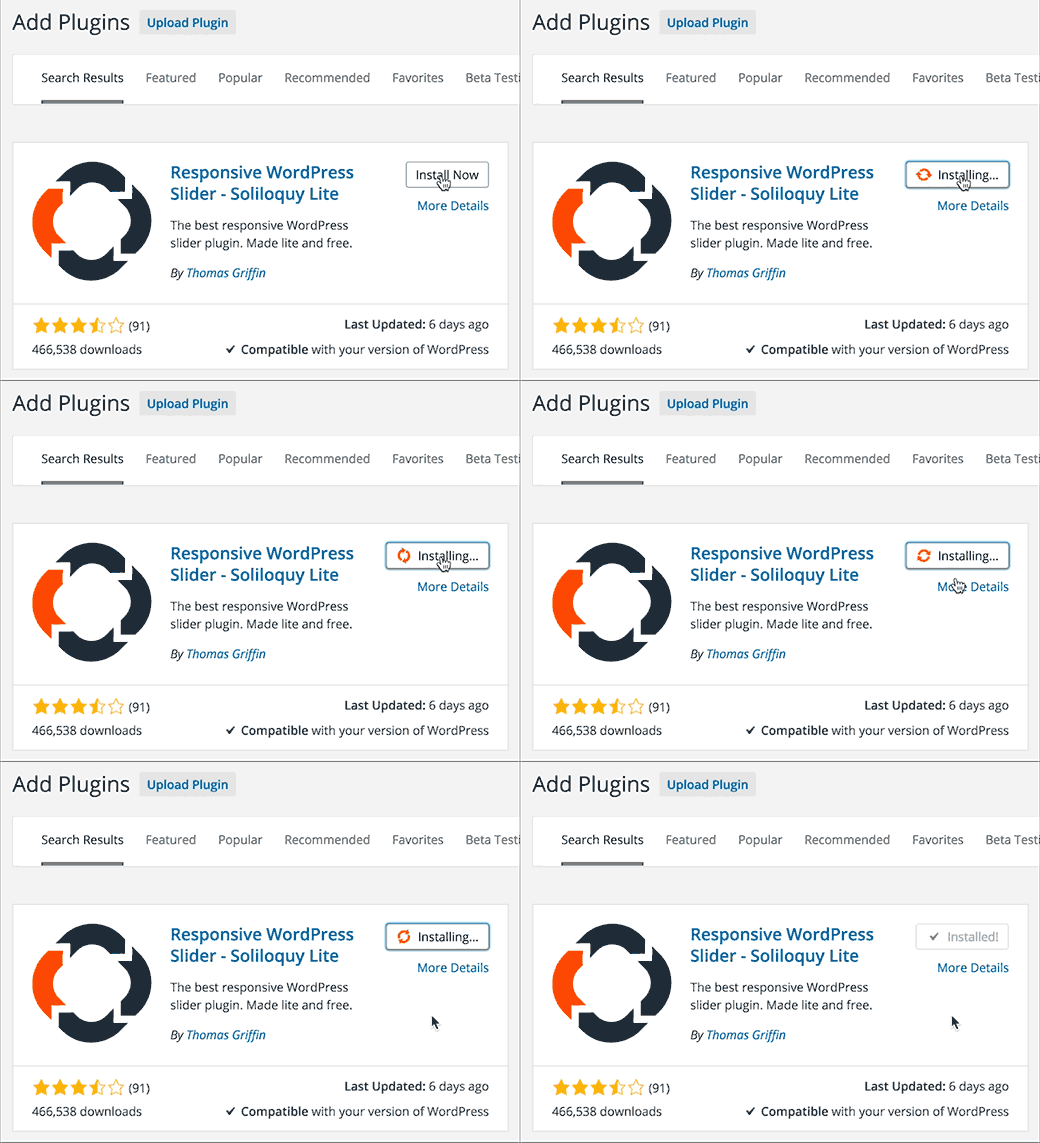
Plugin installation will be streamlined in WordPress 4.2. Now users will be able to install plugins directly from the ‘Add New Plugin’ or search results.
Plugins will not only be installed, but they will also be activated. This will reduce one step and two page loads from the plugin installation process.
If you want to install a plugin and not activate it, then you will have to go back to Installed Plugins screen and deactivate the plugin.
Same goes for the updates, users will be able to update plugins from the Installed Plugins screen without leaving the page.
New and Improved Press This Button
Press This is a little-known tool in WordPress that is gaining a rebirth in WordPress 4.2. There are two major improvements.
The first one is the bookmarklet that you can drag and drop to your browser’s bookmarks bar. Simply click on the Press This bookmark when you want to post about a topic you are viewing on the web. It will open your WordPress post editor inside a popup, and it will automatically fetch the page title, image, and an excerpt from the page with a link back to the original source.
You can use it anywhere on the web. If you are on an oEmbed enabled site like YouTube, Twitter, Vimeo, Instagram, then it will automatically fetch the embed code as well.
The second Press This tool is a simple link which you can open in your mobile browser and add it to your home screen / bookmark it.
Under The Hood Improvements
There are some minor changes in the default color scheme for the WordPress admin area. (#31234)
Shared terms across different taxonomies will now split when one of them is updated. This will resolve the issue of shared terms showing updates from different taxonomies. (#5809)
New feature in wp.a11y.speak() function will allow screen readers to be able to read response generated by JavaScript. (#31368)
WordPress 4.1 was released today with many new features and improvements. This release will be the last WordPress release for the 2014, and it comes with a shiny new default theme for 2015. In this article, we will show you what’s new in WordPress 4.1 and which features you should try after updating your sites.
Please note that WordPress 4.1 is a major release, so it will not get automatically updated. You will have to initiate the update. Don’t forget to backup your site before update.
Video Tutorial
Subscribe to WPBeginner
If you don’t like the video or need more instructions, then continue reading.
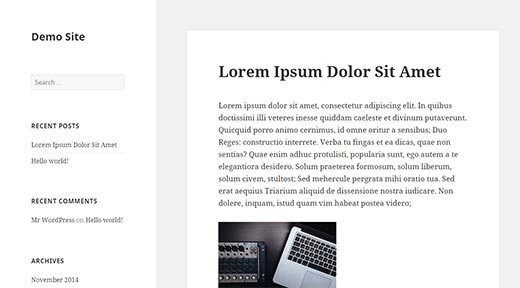
Twenty Fifteen – The New Default Theme
WordPress 4.1 comes with a new beautiful default theme called Twenty Fifteen. It is an elegant, clean, but very customizable blogging theme. It was designed with a mobile first approach and it looks great on all devices. Twenty Fifteen also comes with improved support for internationalization by using Google’s Noto Font Family. The Noto font family project aims to support all unicode supported languages and scripts.
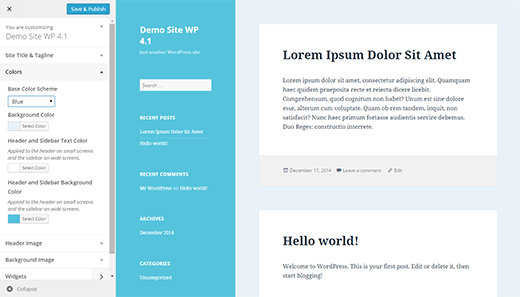
Twenty Fifteen is designed to maximize the usage of tools available in the Customizer. Users would be able to fully customize the appearance of their theme from the Customizer. Twenty Fifteen also comes with 6 color schemes to choose from.
Revamped and Rejuvenated Distraction Free Mode
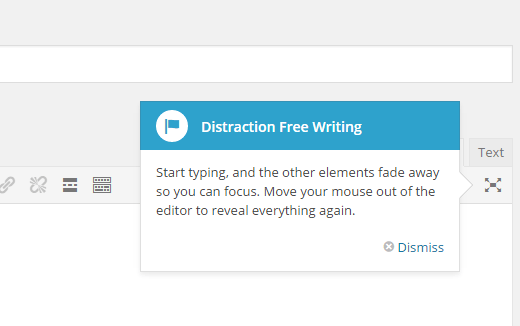
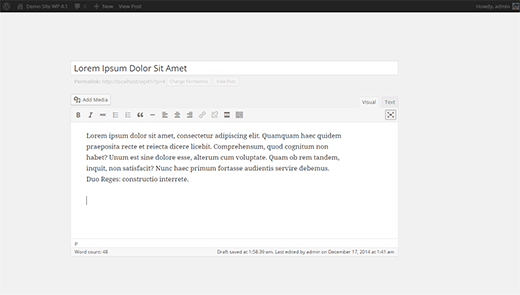
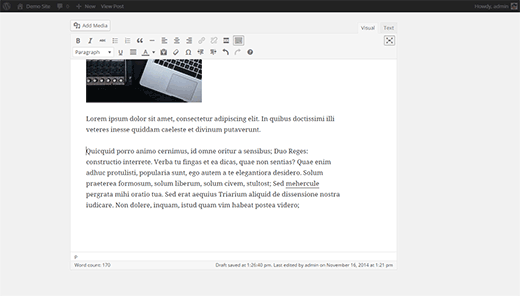
WordPress 4.1 comes with a totally revamped distraction free writing mode. Simply click on the distraction free editor button to launch and just as soon as you start writing, all the distractions on the screen will fade away.
The concept behind the new distraction free writing mode is that the distractions on the post editor screens are actually very useful tools that users need while writing posts. The previous version took those tools away and in order to access those tools user had to switch back and forth.
The new distraction free editor simply fades away the meta boxes from the post edit screen, all the meta boxes fade back in as soon you move the mouse or move out of the post editor.
Inline Image Editing Toolbar
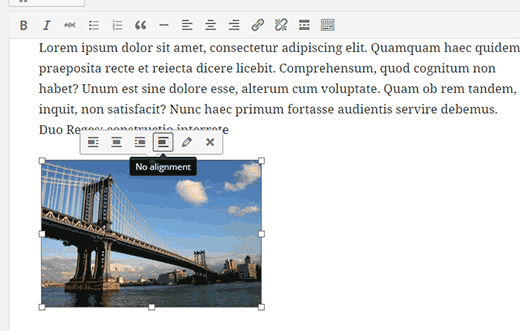
Many WordPress beginners have trouble understanding how to align images inside the post editor. WordPress 4.1 comes with a new inline image editing tool bar that allows users to easily align images without opening them in media editor.
Install Language Pack and Switch Language from Admin Area
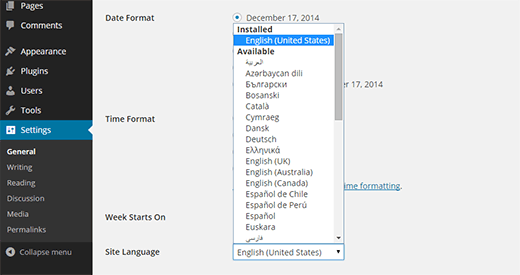
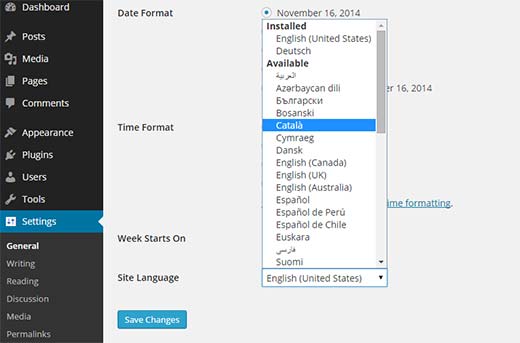
If you didn’t choose the language during installation, WordPress 4.1 allows you to change the language from the Settings » General screen. Simply select your language from the drop down menu and WordPress will install the language pack for you.
Plugin Recommendations
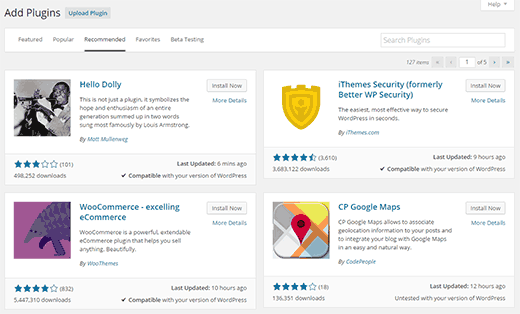
Since 4.1, WordPress will try to recommend you plugins to try. Recommendations are based on what other plugins you have installed and what others are using. You can see the suggestions on Plugins » Add New screen by clicking on the Recommended tab.
Improvements for Developers
WordPress 4.1 comes with some very exciting developments aiming the developers.
Complex queries – Theme and plugin developers can now use advanced conditional logic, nested clues, and multiple operators in their meta, date, and term queries.
Title Tag – WordPress will now allow theme developers to control document title and not clash with WordPress generated title tags.
Customizer API – WordPress customizer API is aiming to build a complete JavaScript API for customizer. There are lots of improvements for contextual panels, controls and sections.
There are many more under the hood bug fixes and improvements. You can take a look at the full list of changes here.
Nearly two months ago WordPress 4.0 was released. It came with tons of new improvements like an enhanced post editor, improved internationalization support, embed previews, etc. WordPress 4.1 is expected to be released in the second week of December, 2014. It is coming with lots of changes and a new default theme. In this article, we will show you what’s coming in WordPress 4.1 with features and screenshots.
You can test the beta version on your computer or in a staging environment by using the WordPress Beta Tester plugin.
Focus – The New Distraction Free Writing Mode
WordPress 4.1 will arrive with a new and improved distraction free writing mode. Many beginners usually don’t know about the distraction free editor, and those who know about it don’t find it very helpful. The new distraction free writing mode makes it much simpler to switch back and forth between normal writing mode and distraction free editor.
You will notice that the metaboxes and WordPress admin bar will slide out of view and will remain hidden as long as you are writing. As soon as you move the cursor away, the admin bar and meta boxes will slide back in.
This feature is enabled by default in the beta version. However, it will not be enabled by default in the final release and users will have to click on the distraction free button on the screen to enable it.
Inline Image Editing
WordPress beginners often find it difficult to align images in WordPress post editor. With 4.1 users will be able to click on an image and instantly see alignment options along with a button to remove alignment. The pencil button is still there which will open the image into a popup where users can further edit an image.
Twenty Fifteen – The New Default Theme
Keeping up with the tradition of at least one new default theme every year, WordPress 4.1 will ship with Twenty Fifteen the new default theme for WordPress.
Twenty Fifteen is a simple blog theme with emphasis on typography. It uses Google’s Noto Serif and Sans fonts which support many languages. This makes Twenty Fifteen ready to be used with any language without changing fonts.
Using theme customizer, users will be able to select from different color schemes, add background image, change header, etc. Allowing users to quickly and easily modify the default theme and make it their own.
Install Language Packs From Admin Area
WordPress 4.0 introduced language selection during the installation process. Which provided an out of box localized experience for users. WordPress 4.1 will make it even more easier, as users will now be able to change the language from Settings » General screen.
Simply select the language you want to install from the dropdown menu and save settings. WordPress will automatically download and install the language packs for you.
Improvements for Developers
WordPress 4.1 has many new features for developers to play with.
Customizer API – WordPress customizer API is aiming to build a complete JavaScript API for customizer. There are lots of improvements for contextual panels, controls and sections.
Title Tags – New title tag for WordPress themes will allow theme developers to explicitly define a site’s title and avoid conflict with the WordPress title tags.
Query Improvements – Rewritten and improved meta, date, comment, and taxonomy queries in WordPress 4.1.
WordPress 4.0 Beta 1 was released yesterday. This is a major release with some really cool features and improvements. In this article, we will show you what new features are coming in WordPress 4.0 along with their screenshots.
Please note that WordPress 4.0 is still in beta. Some of the features mentioned here may not make into the final release.
You can test WordPress 4.0 beta on your PC, Mac, or in a staging environment by using the WordPress Beta Tester plugin.
Having that said let’s take a dive into what’s coming in WordPress 4.0.
Better Internationalization From The Start
If you wanted to install WordPress in other languages, then you would have to install a localized version of WordPress or manually upload the translation files.
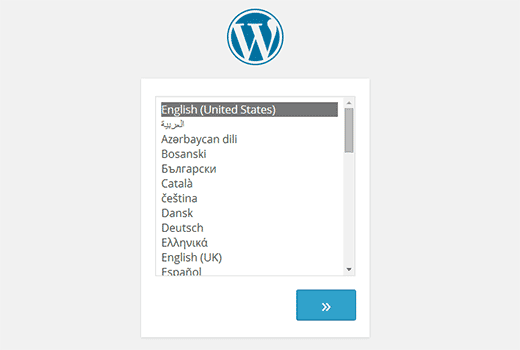
In WordPress 4.0, installing WordPress in other languages will be a lot easier. Users can choose the language for their site as the first step of the install process, and the rest of their installation will continue in user’s chosen language.
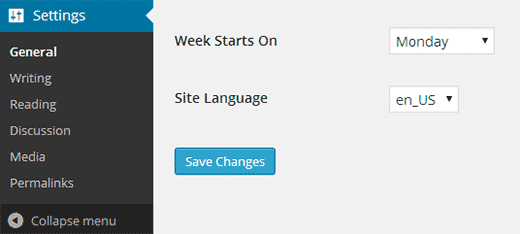
WordPress 4.0 will also allow users to switch/change the site language from WordPress admin area by going to Settings » General and choosing a language from Site Language drop down menu.
Users will also be able to to search for plugins and themes available in their selected language.
Hopefully this will encourage more users to contribute translations for their favorite themes and plugins. Here is how to find translation ready themes and plugins for WordPress.
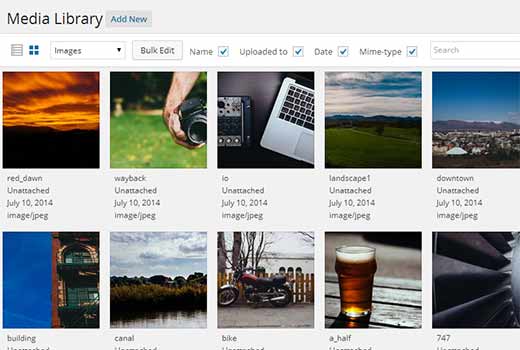
Media Grid View
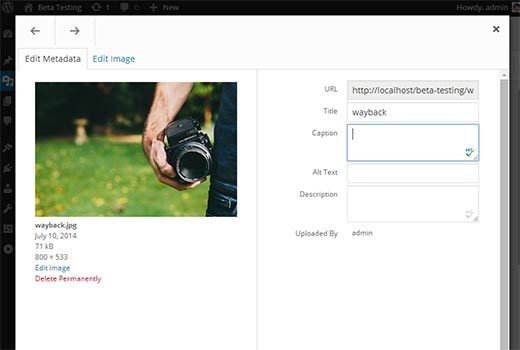
Media Grid started as an standalone project, and is going to enter the core with WordPress 4.0. As the name suggests, it allows you to view your media library in a grid view.
This modern interface will provide a faster way to view and manage your media files in WordPress. Clicking on a media file will open it in a modal popup where you can edit file information. You can also browse media files in the modal popup using the arrow keys.
Post Editor Improvements
WordPress 4.0 will bring some very useful improvements to the post editor.
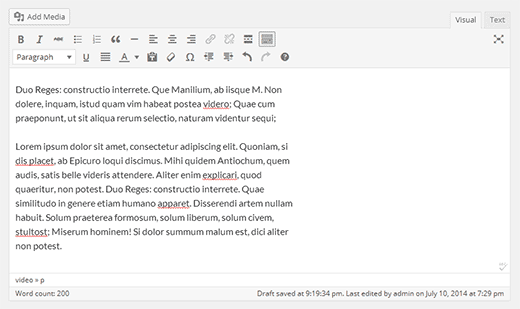
First of the menu bar in the editor will now stick to the top as a user writes a post. It was really annoying for new users who had to scroll up to click buttons. The editor will now resize itself as you write. The scroll bar in post editor is also gone providing a much better writing experience.
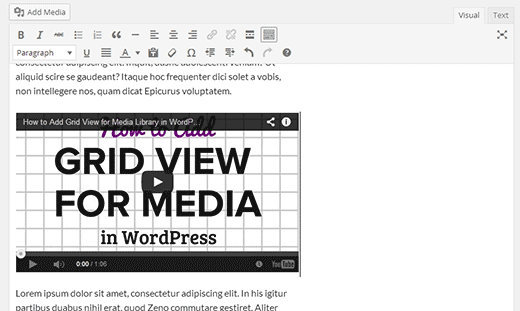
Another improvement in post editor is displaying embeds. Users will be able to see the actual embed in the post editor when they paste a URL from a supported site like YouTube, Twitter, WordPress.tv, etc.
In this release, several other oEmbed providers were added like: TED Talks, Mixcloud, CollegeHumor, YouTube Playlist URLs, etc.
Improvements in Theme Customizer
In WordPress 3.9, widgets were added to Theme Customizer. In WordPress 4.0, Widgets are moved to their own panel in Theme Customizer.
Plugin Install Experience
An improved user experience for plugin install screens is another important change in WordPress 4.0. Plugin search results as well as popular and featured plugin details are changed to show plugins in a nice grid.
The plugin install experience is still work in progress, so hopefully there will be more improvements in the final release such as plugin headers and more.
For Developers
Customizer and Panel API has several changes which will allow theme and plugin developers to create custom panels and user interface elements in the customizer.
WordPress 4.0 is going to be an exciting new release. Let us know what are your favorite features in WordPress 4.0 and what features you would like to see in upcoming releases.
If you liked this article, then please subscribe to our YouTube Channel for WordPress video tutorials. You can also find us on Twitter and Google+.
WordPress 3.9 arrived yesterday with lots of improvements and new features. At WPBeginner, we followed the development closely, and published an article about what’s coming in WordPress 3.9 with screenshots. We are glad to report that all the features we were excited about made their way into the final release. In this article, we will show you what’s new in WordPress 3.9, and what cool new things you should try out after updating your sites.
Please note that WordPress 3.9 is a major release, so it will not get automatically updated. You will have to initiate the update.
TinyMCE aka Visual Editor is Overhauled
WordPress ships with its own version of TinyMCE Editor. Just like WordPress, TinyMCE is also an open source software which recently got some cool new improvements. In WordPress 3.9, those improvements are imported into WordPress. Some of our favorite improvements in the post editor are:
Drag and Drop Image Uploads
You can now simply drag and drop images into the post editor, and they will get uploaded to your site. You can also drag and drop multiple image files for quicker upload.
Live Gallery Previews
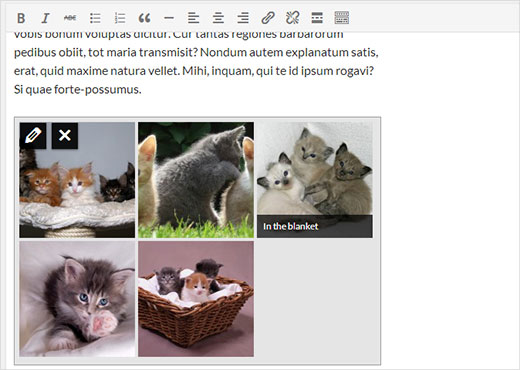
Before WordPress 3.9, when you added a gallery in WordPress, it showed a placeholder to indicate the gallery’s position. Now when you add a gallery, you can see actual gallery preview right inside the visual editor.
Resizing and Editing Images in Post Editor
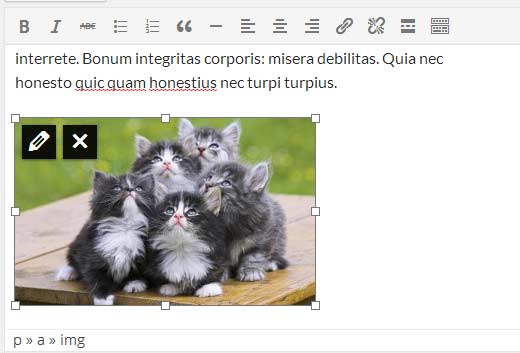
Another image related feature that you are going to love is live image resizing. Just click on an image and drag the handles on the corner to resize your image.
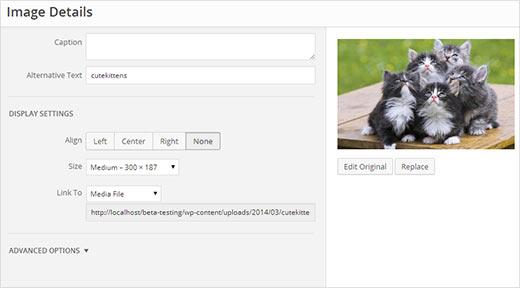
Click on an image inside the post editor and then click on the pencil icon to edit image attributes. A brand new Image Details popup will appear. It is much better looking and has some cool new features.
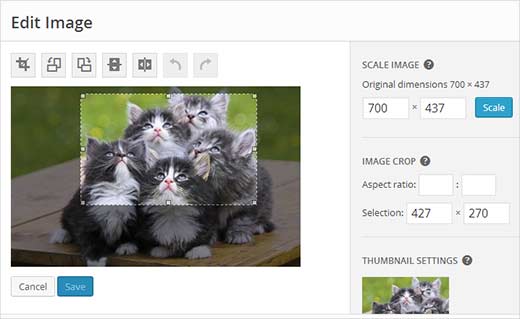
You can click on Replace button to replace the image or click on the Edit original button to launch the new improved image editor without leaving the post you were editing. On the edit image view, you can crop, scale, rotate image and save your changes.
Copy Paste Directly From MicroSoft Word
Don’t be alarmed if you can’t see the Paste from MS Word button in your post editor. It has been removed in WordPress 3.9, as it is no longer needed. Previously users had to click on paste from Word button when they needed to paste their posts from MS Word to WordPress post editor. Now there is no need to do that. The post editor will now clean up any mess created by MS Word. We know that many of our beginner users write their posts in MS Word. This feature will help them avoid dreadful code that came along.
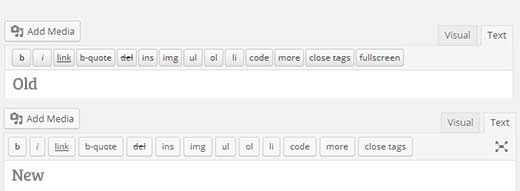
Flat Plain Text Editor Buttons
If you are like us and use plain Text editor to write your posts, then there are some tiny changes for us in the text editor’s toolbar. First change is the buttons are now flat and match rest of the WordPress buttons. Another change is that fullscreen button is replaced with an icon button.
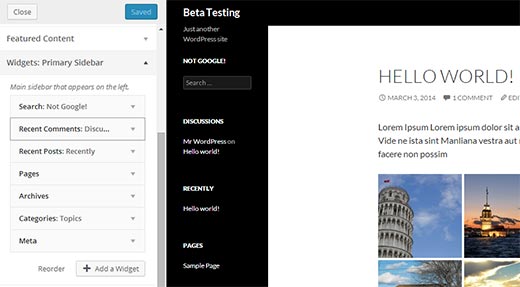
Live Widget Previews in Theme Customizer
Another much anticipated feature of WordPress 3.9 is Live Widget Previews. This feature will allow users to add, remove, edit and customize their Widgets from Theme Customizer. It is a lot easier to use, and you can see your changes live in action in the preview pane.
The old widgets screen will still be there under Appearance, for users who would rather use the old familiar interface to manage their widgets.
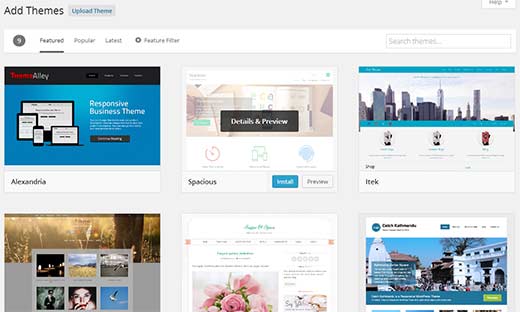
Improved New Theme Screen
In WordPress 3.8, we got a new user interface for the admin area. However, some parts of the admin area felt out of place. Add new theme screen was one of those areas. The new interface for Themes was developed separately as part of THX38. In WordPress 3.9, Add New Theme area got a new prettier and more user friendly interface. Searching for Themes hosted on WordPress themes directory is a lot easier now.
Audio/Video Playlists
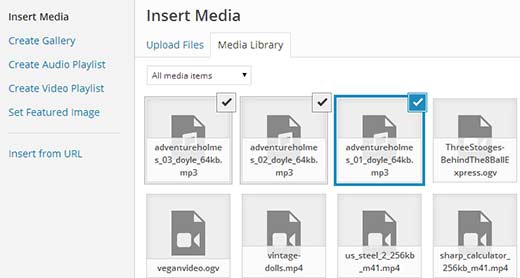
With WordPress 3.9, you can create audio and video playlists the same way you create galleries. We do not recommend our users to upload their videos to WordPress, but here is how to try this feature out. Simply click on Add Media button and upload your Audio/Video files. On your left hand, you will see a link to create video playlist.
Please note: in some cases you may not see a link to create an audio or video playlist unless you have an audio/video file in your media library, or you upload an audio/video file.
Clicking on it will show your uploaded audio/video files already selected. All you need to do now is click on Create New Audio/Video Playlist button. On the next screen, you can add titles and captions to your playlist just like image galleries. Once you are satisfied click on Insert Playlist button.
There are many other under the hood improvements, such as new versions of libraries, improved autosave, and bug fixes.
We hope that this article helped give an overview of WordPress 3.9.
For more updates about WordPress, you can follow us on Twitter, or join us on Google+.
WordPress 3.9 Beta 1 was released yesterday. This is a major release, developed under the plugins-as-features development model. In this article, we will show you what new features are coming in WordPress 3.9 along with their screenshots. WordPress 3.9 is still in beta, so some of these features may not make into the final release.
You can test the beta version on your computer or in a staging environment by using the WordPress Beta Tester plugin.
Live Widget Previews in Theme Customizer
With WordPress 3.9, you will be able to see live previews of widgets in the theme customizer. Widget Customizer will allow you to edit widgets, rearrange them, and even add new widgets.
The exciting part is that you can see all this happening in the live preview pane on the same screen. In the earlier versions of WordPress, users were able to edit most theme features from Customize screen except widgets. Now with this feature, theme customizer looks complete and much more powerful. In case you are wondering the old Widgets screen will still be there, so you can manage widgets the old fashioned way as well.
To try out this feature, you can install and activate the Widget Customizer plugin. Upon activation simply go to Appearance » Customize, where you will notice a Widgets section for each widget ready area and sidebar supported by your theme.
Audio / Video Playlists
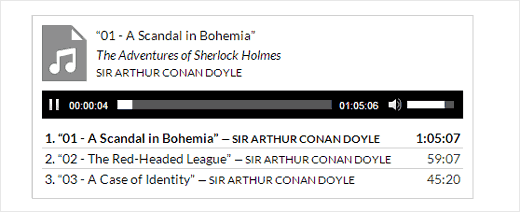
With WordPress 3.9, users will be able to create audio/video playlists. The audio/video playlists will work as a shortcode just like image galleries. You will be able to upload multiple audio/video files and add them as a playlist right from WordPress media uploader.
WordPress will also try to get the attached media’s cover and album information using the ID3 tags, but this will fall under a theme feature. It will be a very useful feature for WordPress Themes for bands and musicians.
TinyMCE aka Visual Editor Updated
Visual Editor in WordPress is based on TinyMCE editor which is another open source software. TinyMCE recently released a major update to the software, so in this release WordPress TinyMCE will be updated. This update resulted into many improvements in the Visual Editor. In fact, you can say that WordPRess 3.9 is focused on improving the writing/editing experience in WordPress. Some of these improvements are:
You will be able to see live gallery previews in the visual editor. When you add a gallery to your posts, images will be displayed in a beautiful grid right inside the post editor.
You can also drag and drop images to the editor directly, and they will be automatically uploaded (this is pretty awesome).
Many more improvements are made into adding and editing images while writing a post. Like if you want to crop and edit an image while writing a post, you don’t need to open another window for that. You can do that directly by clicking on an image and resizing it by dragging the handles on the corner.
Pasting text directly from Microsoft Word will not result into weird characters. You don’t need to press ‘paste from Word’ button anymore. We’re sure many beginners will be excited to hear that.
Improved Add New Theme Screen
You will also notice further improvements in Themes screen. There will be a new, sleek and stylish UI to add new themes in WordPress. It fetches screenshot of the featured themes. You can also click on tabs to switch between popular tags, filters and search for new themes from the official theme directory.
For Developers
Aside from the notable features above, there were several under-the-hood updates that our developer users might find useful. Below are the two that we were interested in:
WordPress Image Crop position – Up until now additional image sizes were cropped to center horizontally and vertically. In this recent release, there will be an image crop position that will allow developers to decide the crop position. (#19393)
Autosave Refactored – Autosave had lots of “moving parts†and over the years many additional functions were “pinned†to it. In WordPress 3.6 most of the additional functionality was moved to heartbeat, like logged out warning, nonces update, etc. In this release, saving of post data is moved over to heartbeat as originally planned. (#25272)
It is going to be a exciting a new release. We are particularly excited about the visual editor updates. It will greatly improve post writing experience for many WordPress users. Let us know, what features you like in WordPress 3.9, and what you would like to see in the upcoming releases by leaving a comment below.
Less than a month ago, WordPress 3.7 made its debut. A lot of under the hood features were added like automatic updates, but nothing that the user could see. WordPress 3.8 which is expected to be released in December will be different. This release is focused on improving the user interface for WordPress admin area meaning a lot of visual improvements. In this article, we will show you what’s coming in WordPress 3.8 and how you can try some of these features right away.
Many of the proposed features for WordPress 3.8 are already available for testing and development purposes as plugins. This features-as-plugin approach allowed contributors and developers to work on their projects simultaneously. You can try these plugins in a development environment. However, since most of them are highly experimental, it is not recommended to use them on a production site.
New User Interface For WordPress Admin
We wrote about how MP6 could become the future of WordPress. It is official now. The MP6 plugin will become part of WordPress core in 3.8. It is already in use on WordPress.com sites, and you can give it a try by installing the plugin. It gives WordPress admin interface a modern, optimized, and polished new look that it deserves.
MP6 features a streamlined and improved admin user interface with flattened icons and beautiful color schemes. You can choose a color scheme from Users » Profile.
The current default admin interface comes with only two default color schemes which makes it feel ancient, so these new refreshing colors will be a nice change. MP6 uses Open Sans font which will be shipped with WordPress 3.8. MP6 also brings great improvements to buttons, forms, and the overall appearance of the admin interface making it prettier and user friendly.
A New Less Bloated Dashboard
The dashboard screen will also get a face lift in WordPress 3.8. Based on the Dashboard plugin by @lessbloat and the team, the new WordPress dashboard will have fewer and more relevant widgets.
For example, the incoming links widget will be removed. ‘Right now’ widget will be replaced by ‘Activity’ widget. QuickPress on the dashboard screen will be renamed to Quick Draft and will be much simpler.
Better Live Previews of Themes
Themes screen in current WordPress has too much text. WordPress 3.8 will bring theme experience plugin (codename Thx38) into core. This will transform the theme screens in WordPress admin area. It has larger theme screenshots and a clutter free user interface. Theme search is moved to the top right corner of the screen. To try this as a plugin on WordPress 3.7 or earlier, you would need to install MP6 plugin first.
The new theme experience will greatly improve the theme preview experience. You can still see theme previews in WordPress 3.7 without activating a theme. However the new theme experience will provide a better user interface to do that. You can completely collapse the sidebar and see the full screen theme previews. It is also much faster and prettier than previous theme screen.
A Friendlier and Easier Widget Area Chooser
Widgets are an easier way for users to drag-drop elements into their sidebars and other widget ready areas. This allows theme developers to build themes with multiple widget ready areas, so the users can create their own website layouts. With multiple widget ready areas and tons of widgets to choose from, sometimes it becomes difficult to drag and drop a widget into the right sidebar.
With WordPress 3.8, this problem will be solved with a new User Interface for the widgets screen. The new Widgets screen will allow users to easily choose the sidebar they want to add a widget to without dragging it across different sidebars. The new widget interface will be cleaner, clutter free, and visually appealing.
A New Default Theme – Twenty Fourteen
Twenty Fourteen will be the new default theme for next year which is expected to be released in WordPress 3.8. It is a magazine style theme with support for featured content to be prominently displayed across the site. If your site does not use featured images, Twenty Fourteen makes sure that it looks pretty out of the box without featured images as well.
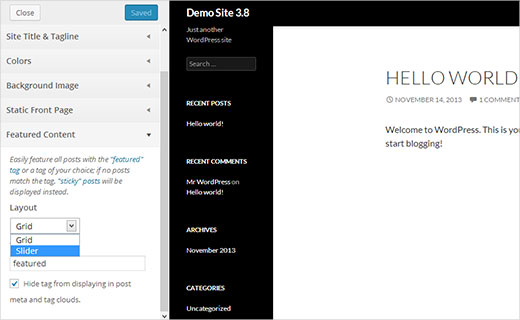
Twenty Fourteen will allow users to customize the featured content area. They can choose to have a grid style layout or a slider. Users can choose which content to be featured by adding a tag in the theme customizer. Twenty Fourteen will then look for posts with the tag and display them in the featured content area.
You can see a demo of currently under development version of the theme here.
We’re not huge fans of this left aligned layouts, but we’ll see if it starts to grow on us. From the current looks, this theme looks extremely crowded.
It was just a few months ago when WordPress 3.5 was released (December 11, 2012 to be exact). Well, the next major release, WordPress 3.6, is already underway. WordPress 3.6 is expected to be released in late April 2013. We have been following the developments of WordPress 3.6 and decided to share with you what features to look forward to. In this article, we will discuss what features are coming in WordPress 3.6.
Better Editorial Controls
WordPress 3.6 will be a great update particularly for bloggers and content publishers. It is focused on post edit area, providing better tools and support to improve the editorial process of creating content with WordPress.
Post Lock
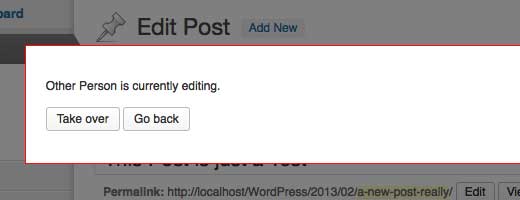
WordPress 3.6 will have an editorial control feature, called post lock. This will allow website administrators and authors to lock a post so that other users can not work on the same post until it is unlocked. If the other user has the rights to edit a post, then they will be prompted to either go back or take over. This is a very neat feature for blogs with multiple authors.
Improved Autosave
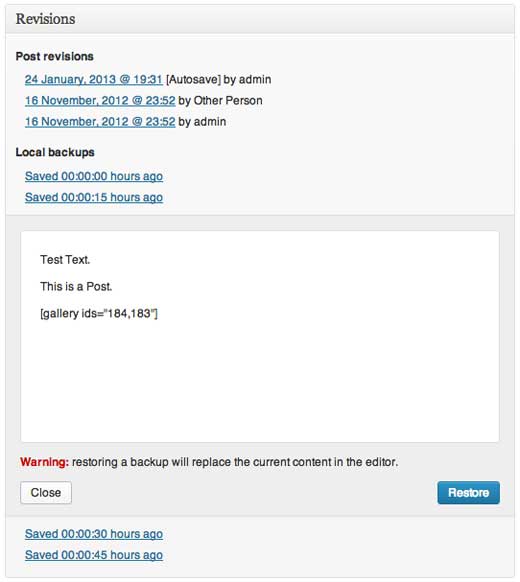
WordPress 3.6 will be focused on content editing, so the auto-save feature will see some great improvements. There are talks about saving unsaved changes in browser’s local storage. This will be very helpful because it will prevent you from losing posts due to expired cookies, loss of internet connection, inadvertent navigation, plugin or core errors on save, browser crashes, OS crashes, cats walking on keyboard, etc. If any of those happen, you would be able to resume editing exactly where you left it.
The goal is to get people to trust WordPress with their posts. The autosave feature was introduced for this vary reason because people were afraid of losing their work. This is the reason why many use third-party applications like Windows Live Writer to write their WordPress posts. The hope is that by enhancing the auto-save feature, many users will begin to trust the WordPress autosave capabilities.
Better Handling of Post Revisions
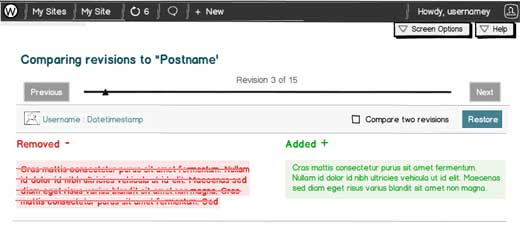
Post Revisions will now reflect the changes between different versions. Changes will be highlighted with colors and visual elements, so you will be able to quickly notice the difference between them.
Editorial Workflow
There were talks of integrating one of the best editorial workflow plugin into core. However due to time constraints, this feature will not be added in WordPress 3.6. The efforts weren’t wasted because it brought to surface many challenges involved in the process. This will allow the core team to prepare in advance for next release. (See Mark Jaquith’s Explanation). Well nothing to worry about. You can still use Edit Flow plugin (we’re using it).
New and Improved UI for Post Formats
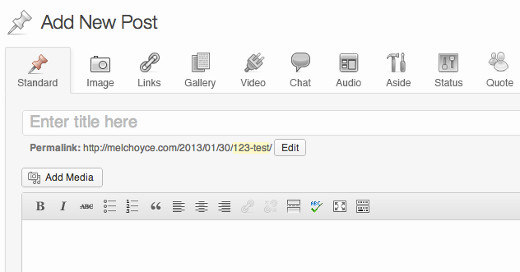
As you know that WordPress has support for Post Formats and custom post formats. However, the old interface was not very noticeable. In WordPress 3.6, there will be a new user interface for post formats. Users will be able to choose and switch between post formats, and the edit area will change based on the post format. Inspiration for these changes comes from Alex King’s post format UI plugin, we showed you earlier how to install Post Format UI Plugin in WordPress 3.5. Folks are submitting ideas and wireframes as to what Post Formats UI should look like. Below is a mockup submitted by Mel Choyce:
Twenty Thirteen
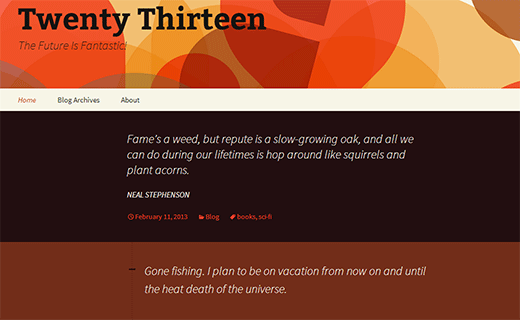
WordPress 3.6 will also come with Twenty Thirteen, the new default WordPress theme. Twenty Thirteen will have great support for post formats. Unlike previous WordPress default themes, Twenty Thirteen will be using lots of bold colors. It will use different background color for each post which looks great when a user scroll downs the page. Twenty Thirteen will be fully responsive and will look equally great on different screen sizes, resolutions, and devices. See the live demo.
A New GUI for WordPress Menus
The WordPress Menu editor will also get a new and more intuitive user interface. At WPBeginner, we noticed that a lot of WordPress beginners don’t understand the menu system. The tabs, menu drop down, choosing multiple menus and switching between them is trivial to most new users. Hopefully this will change in WordPress 3.6, and it will become easier to create and manage Menus in WordPress.
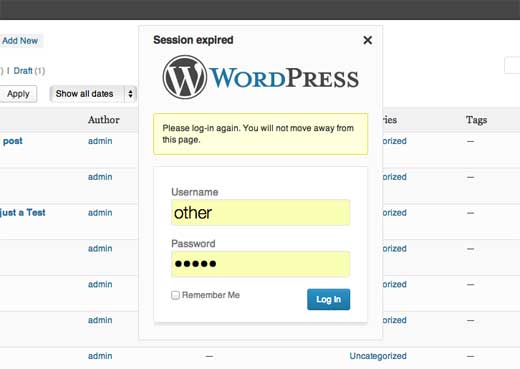
Improved Login Notifications
Sometimes a user session expires right in the middle of something important. The new login notification system will ask a user to login without leaving the page they were working on.
There is still some time left in the release of WordPress 3.6. This is a major release so apart from these new features, there will be several improvements to the core code, bug fixes, security updates, etc. Remember you can always submit your ideas for WordPress, the highest voted ideas will be included in upcoming versions of WordPress. What new features you would like to see in WordPress? What’s your favorite feature of this WordPress 3.6 release? Let us know in the comments below.
When I started WPBeginner back in 2009, I made a decision to not include dates on any of my blog posts. I did that because I thought I was clever than the rest. My theory was that WPBeginner is NOT a blog. It is a resource like the WordPress codex or Wikipedia neither of which have dates on their articles. Besides my thought was that removing the dates from blog posts would trick the users into thinking that my content is evergreen. Boy was I dead wrong. In the recent months, I’m noticing a trend that more and more internet marketers and self-proclaimed “SEO experts†are advising their users to remove dates from their WordPress blog posts. In this article, I will provide in-depth details on why I chose not to include dates at first and what changed my mind later. I will also cover if/what are the SEO impacts of having dates on your blog posts (post-penguin and panda). Lastly, my goal is that after reading this entire posts you would understand that your problem is not with dates, rather it is with published date. I have found a solution that would please you, your users, and search engines.
Reasons Behind Removing or Not Including Dates
When I first started WPBeginner in 2009, I always saw it as a resource site similar to the WordPress Codex or Wikipedia. If you have used either of the two, then you know that they do not have time-stamp or dates on their entries. You are probably wondering what could be the possible advantage of that? Well, as users we have a built-in prejudice towards outdated content. The moment we see a date, we are programmed to classify it in one of the two categories: outdatedORrelevant. In theory just because the content is old doesn’t mean it is not relevant, but users make that assumption. As a blogger that thought was disturbing for me because I wanted everyone to read my content. So what did I do? I decided not to include dates on my blog posts. My thought was that people read Wikipedia even when it has relevant information which may or may not be up to date. Since the user never know the original published date, they give it a benefit of doubt.
In the past few months, I have seen numerous internet marketers and SEO’s giving out their verdict against having dates on blog posts. Each have their own reasons, but all follow along the same buzz-word evergreen content. When popular blogs like CopyBlogger decide to remove dates, it sets an example for others to follow.
I have gone down this road already, and I can tell you why it is a wrong path.
Why I Would Never Remove Dates Again
I don’t make the same mistake twice. Not having dates at first was a mistake, and I don’t think I would be repeating that mistake. My hope is that after reading this, you would do the same. When starting WPBeginner, my main priority was to help users with my WordPress tutorials. Like other bloggers, I wanted to think that my content was evergreen. But in reality it is NOT. Even though I go back and update articles, it is just not possible to keep everything up to date all the time.
In the beginning, I had no issues or complaints regarding the date. However, 6 months down the road I started receiving emails from users complaining about an older article. At first, I would simply go and update the article right away. However as the site grew, updating all articles seemed to become more and more unlikely. It came to a point where I would receive several emails, tweets, or facebook messages regarding the dates on a regular basis. It took me a year and half to give up on my stubbornness and add the dates in the post.
In hindsight, I realized how big of a disservice I was doing to my users and the larger WordPress community by not having dates on the site. I wanted to help WordPress beginners, but sometimes I ended up misguiding them or causing more confusion because they didn’t know that they were looking at an older screenshot or tutorial.
Overtime, I have also learnt that very few posts are evergreen. You always learn something new and your methods change. It hits you when someone quotes your own words at a session where you are speaking and contradicting an older post. Guess what, if that post doesn’t have a date on it, then you can’t say well that article is old.
Bottomline is if you truly value your readers, then you would not remove dates. Blogs by the very definition are meant to be outdated. Whether you have dates or not, you still show your posts in a reverse chronological order. If you truly believe that your content is evergreen, then why don’t you change that order and display posts in a random order (yup now that’s a challenge).
Wait, how could I be satisfied by knowing that my blog posts are outdated? Doesn’t google penalize outdated content? Am I missing out on readers because of user prejudice towards older posts? Well I’m satisfied because I have found an alternative way to display dates that keep me and my readers happy. I suppose it keeps the search engines happy too.
New Dates Method, Readers, and Search Engines
I realized that my problem was not with dates. It was with “published date†feature because it didn’t accurately reflect the amount of work I put into the site. Published date feature is relevant for books because book authors don’t go an update the original book. They come out with version 2 instead. As a blogger, I personally go back to update one or two posts every day on WPBeginner yet that post still shows published on older date. Well luckily, WordPress also has the ability to show “last updated date†which in my opinion was the solution I needed all along.
In the post mete data of WPBeginner, we have decided to replace published date with the last updated date. The code looks like this:
Last updated on <time datetime="<?php the_modified_time('Y-m-d'); ?>"><?php the_modified_time('F jS, Y'); ?></time>
The modified time function in WordPress checks for the last time you went an updated the post. If the last time you updated the post was the time you published it, then it shows the date you published it on. However, if you went back to update that post six months later, then it will show the last updated date.
I believe that in today’s world, last updated date is more valuable to readers than the actual published date. The published date is irrelevant when you have gone ahead and rewritten the whole article.
Now as for search engines, if you think that removing dates from your design would trick them, then you are very naive. Your WordPress sitemap contains the last modified date of each article, and chances are that you probably have submitted your sitemap into Google Webmaster Tools. I personally write for my users, and I value their thoughts a lot more than some search engine. However, the code above follows proper schema markup that tells search engines the last updated time of the post. Yes that means that Google will show the last updated date next to your entry rather than the original published date.
Lastly, the modified time feature satisfies me as a blogger. I hold myself to a pretty high standard, and I know that my users don’t let me slip either (Thank you everyone for being hard on me). Even though all blogs are meant to be outdated, WPBeginner audience do not allow for that. We get regular reports on outdated articles, and we do our best to update them as soon as we can. If you see an outdated article, then please let us know by tweeting at us @wpbeginner or by using the contact form.
Yup this solution keeps everyone happy.
Today, I still see WPBeginner as more than a blog. I see it as the best WordPress resource site, and by adding date I think I have made it even better. Having time relevance doesn’t make us a bad resource rather it makes us a more helpful resource site. My hope is that with my opinion, I have convinced you to not remove dates from your WordPress blog posts. I am always open to feedback and criticism. Please share your thoughts on this topic in the comments below.
WordPress 3.5 is less than a month away. This will be the second major release for 2012 (last one being WordPress 3.4 on June 13, 2012). Expected to be released on December 5th, 2012, WordPress 3.5 is already in the third beta release. This means a release candidate is very close. This is why we thought we should give you a heads up on some of the exciting new features that are coming in WordPress 3.5.
Links/Blogroll is Hidden
We wrote about this in September that Link manager aka Blogrolls will be hidden in WordPress 3.5. In the past, we used the wording “sort of removed†which confused the heck out of people. If you are using the link manager currently, then it will stay as is. However, for those users who do not use it or have a fresh install of WordPress 3.5, the link manager will be hidden by default.
You can enable the link manager feature by using the plugin Link Manager.
This decision was made to make the core of WordPress lighter and leave specific functionality to plugins.
New Welcome Screen
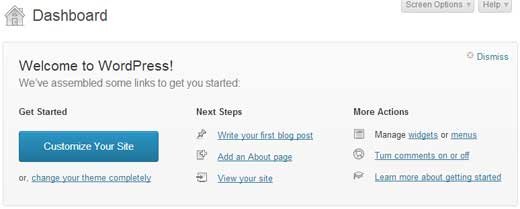
WordPress admin panel can be pretty complicated for beginners. This is why we have the free WordPress videos course that guides you through the entire dashboard. In the continuous efforts of improving the user experience, WordPress team has decided to improve the welcome screen. The idea is to highlight all the basic tasks that the user may need.
Easy Plugin Install with Favorites
Often regular users and developers complained that installing the same list of plugins on multiple sites was difficult. Folks used to say, it would be really nice if we can just pull all of our plugins at one place in the dashboard. Then install them to our heart’s content. Well that wish has come true thanks to Otto. WordPress.org repository has a feature called Favorites. When you go to a specific plugins page, you see a favorite button below the download button.
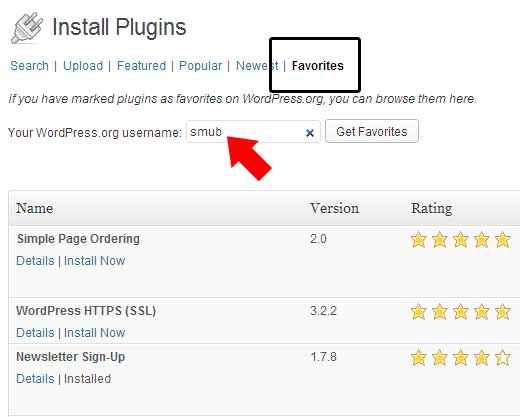
You can favorite all the plugins you like and have them displayed on your profile. In WordPress 3.5, you can now see the list of favorite plugins of any WordPress.org user in your backend. All you have to do is go to the plugins tag and click Add New. Click on the favorites tab. Type your WordPress.org username or anyone else’s username. For example, if you type “smubâ€, you will get our favorite plugins.
Media Enhancements
WordPress Media uploader got a major overhaul. The user interface was improved to make it easy for WordPress beginners and average users. For example, there was no button to click Upload/Insert media. It just showed text with an icon. When training a client, we would say click on the add media button, and they will say where is that? Little things like these go a long way.
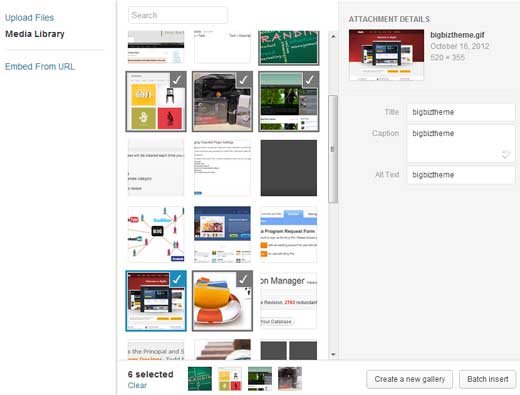
The big overhaul happened with the actual uploader. If you click on the Add Media button, you are taken to a new lightbox.
If you look at the screenshot above, you will see quite a few things that are different. The entire layout is different to make it all work. When you click on an image, instead of opening a tab with all the image settings, this keeps everything visible by showing image specific settings on the right. In the past, it was really hard for users to use built-in galleries. You could only use the images that you upload in the specific post, you would have to use all the images you uploaded unless you utilized the gallery shortcode and exclude each image manually. With this new interface, this problem is solved. You can select images using a visual interface (even fro the media library), and then create a new gallery. This gives you the option to exclude or include images at your will. You can also batch insert images in your post if you want.
The entire media experience is improved. It’s totally awesome.
Twenty Twelve Theme
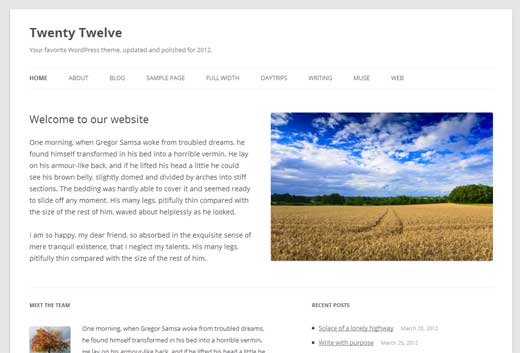
A brand new default theme will be shipped with WordPress 3.5. Twenty Twelve is already available for download in the WordPress theme repository for those who want to use it. It features a clean responsive design using all the basic WordPress features.
Other Enhancements
Ofcourse there were tons of other enhancements and bug fixes. We will try to highlight some of them:
Improved Static Front Page UI under Settings » Reading.
Rename the “HTML†editor tab to “Textâ€
Bug fix: Prevent child categories from being visually promoted to the top level after quick edit.
HiDPI (retina display ready) dashboard.
New Color Picker for Live Theme Demos
Improved keyboard navigation and screen reader support.
XML-RPC enabled by default
Native oEmbed support for SoundCloud, Slideshare, and Instagram. It also supports SSL links now. But again, if you followed WPBeginner, and used our tutorials for Slideshare, Instagram, and SoundCloud, then you should probably remove them in WordPress 3.5. Because the core supports it already.
Updated External Libraries – TinyMCE 3.5.6. SimplePie 1.3. jQuery 1.8.2. jQuery UI 1.9 (and it’s not even released yet). They have also added Backbone 0.9.2 and Underscore 1.3.3, and you can use protocol-relative links when enqueueing scripts and styles.
WP Query can now ask to receive posts in the order specified by post__in.
Improvement to Posts API – Major performance improvements when working with hierarchies of pages and post ancestors. Also, you can now “turn on†native custom columns for taxonomies on edit post screens.
Comments API – Search for comments of a particular status, or with a meta query (same as with WP_Query).
So how do we know all of this? Nope, we are not any special than any other WordPress user. If you want to try the beta version of WordPress 3.5, then all you have to do is use the WordPress Beta Tester plugin. We DO NOT recommend that you use this plugin on a live site. Create a demo site, and use it there.
Which feature do you think is the best in WordPress 3.5? What are you looking forward to? Which feature you wish would’ve made it, but didn’t? Let us know in the comments.
Earlier this month, we wrote an article on our vision for a better and more engaging WordPress plugin directory. This weekend, we are at Tybee Island, GA for the first ever annual WordPress Community Summit organized by the WordPress foundation. Otto (@otto42) finally unveiled the reviews for the WordPress.org themes and plugins directory.
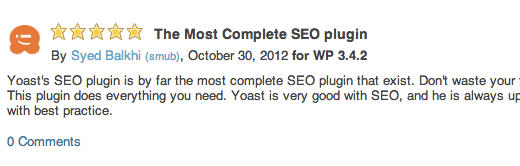
As mentioned in our last article, one of the problems we identified was that people were not held accountable for their actions. They would rate something 1 star and leave. This could be done by a competitor plugin author and since there was no accountability, it was really easy to do it. With the addition of reviews, we will get rid of that problem because it adds accountability to each rating.
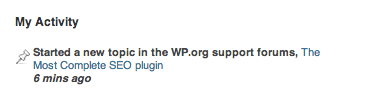
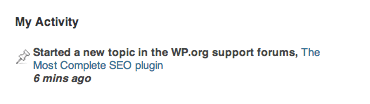
A user MUST write a review in order to make their rating count. The profile design is still not updated entirely to integrate this. Currently it just adds your rating in the activity tab where it says: “Started a new topic in WP.org forumsâ€.
It would be neat if it says: Rated a plugin “Name of Plugin†– title of rating. Another nice addition would be if it shows rating + reviews under user favorite plugins list.
The reviews feature is really nice because you can always edit your review in the future if need be. Reviews are also threaded, so users can leave a comment on your review if they want. It would be nice to see a functionality like Amazon’s “Did you find this review helpful†to feature top reviews.
We understand that this is the first step in the right direction. Additional feature enhancements will be added in the future. Now the WP.org team has done their job. WordPress is nothing without its community. Please help others by rating and reviewing plugins that you use.
Often when you purchase a WordPress theme, it comes with usually one theme that has some configurable items through the WordPress backend. Some theme providers like Themify are now putting a creative touch by selling numerous color variations with one theme purchase, so you can use the same theme (different colors) for different sites. But that still does not give you a lot of control because you are getting one theme with pre-defined color variations. The folks over at Catalyst theme are providing a rather unique touch for their users. When you purchase Catalyst, you get 22 different skins in addition to the main theme for the price of just one theme. Now these skins are more than just color variations. In this article, we will give you an overview of the Catalyst Theme which comes pre-equipped with 600 No-Coding Design option that lets you create your own skins in a matter of minutes.
You have the option to customize everything from your header, wrap, body, navigation, content, sidebar, widgets, breadcrumb, author, and everything until the footer. Below is an example of the admin panel:
Just by having this feature, Catalyst theme is a perfect theme for any affiliate marketer or blogger who is thinking about launching products. You can pretty much create custom landing pages, and entire sites without knowing how to code. Aside from this, you also get other cool features such as:
The Most Comprehensive Font Control Offered In A WordPress Theme!
Catalyst Theme is fully integrated with the Google Font Directory API, giving you loads more choices for web-safe typography on your sites. There is universal font control option along with custom override option to have custom fonts just for specific things.
Full SEO Optimization
Catalyst provides all the SEO options that any theme needs. However we recommend that you use WordPress SEO Plugin by Yoast.
A Custom CSS Building Tool That Writes Custom Code For You!
You don’t have to worry about writing CSS, you just need to know what you want and how to copy/paste the automatically-generated code out of the CSS Builder and into the appropriate slot in your site.
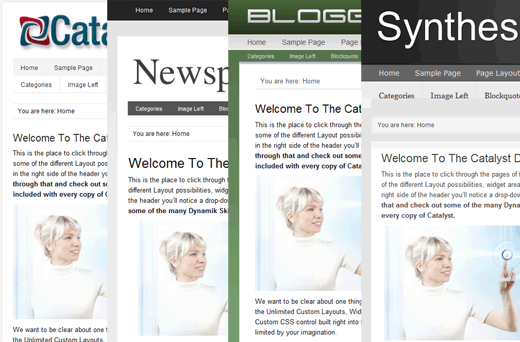
Below are the demos of some of the Catalyst Theme Skins
You can create a skin of yours within a matter of few minutes.
Catalyst theme has two packages Personal license that goes for $97 and the Developer edition for $174. If you are one of those users who want to have an ability to easily modify the look and feel of your site without writing a single line of code, then Catalyst Theme is for you.