Category: News

  • Whats New in WordPress 6.7 (Features and Screenshots)

    Whats New in WordPress 6.7 (Features and Screenshots)

    WordPress 6.7 was just released today. Like many of you, we get excited about new WordPress releases, and 6.7 is no exception. It’s packed with exciting new features that we can’t wait to share with you.

    This release builds on user feedback, bringing updates to boost your site’s performance, usability, and accessibility. The site editor has received many enhancements, and there’s even a brand-new default theme.

    Join us as we dive into WordPress 6.7 and explore its standout features and improvements designed to enhance your WordPress experience.
    Exploring WordPress 6.7 new features and improvements

    Note: If you’re not using managed WordPress hosting, then you’ll need to update your WordPress version manually. We have a complete guide on updating WordPress safely to help you through it.

    ⚠️Important: As always, remember to create a full WordPress backup before updating to the new release.

    Now, let’s look at what you’ll find in WordPress 6.7 after the update. Here is a quick list of the major features we will explore:

    • Introducing the Twenty Twenty-Five Theme
    • Site Editor Improvements
    • New Zoom Out View for Easier Editing
    • Enhanced Data Views for Better Content Management
    • Improved Font Library and Typography Controls
    • New Additions and Improvements in Block Library and Patterns
    • Expanded Design Tools for More Blocks
    • Managing Block Bindings in WordPress 6.7
    • Preview Options API
    • Interactivity API Enhancements
    • Media File Improvements in WordPress 6.7
    • Under the Hood Changes in WordPress 6.7

    Introducing the Twenty Twenty-Five Theme

    WordPress 6.7 brings a brand-new default theme: Twenty Twenty-Five. WordPress releases a fresh theme each year, focusing on simplicity and ease of use.

    The theme follows a straightforward approach: “Simple things should be easy, and complex things possible.”

    Twenty Twenty-Five comes with multiple pre-designed block patterns and style options, making it easy to customize a website without starting from scratch.
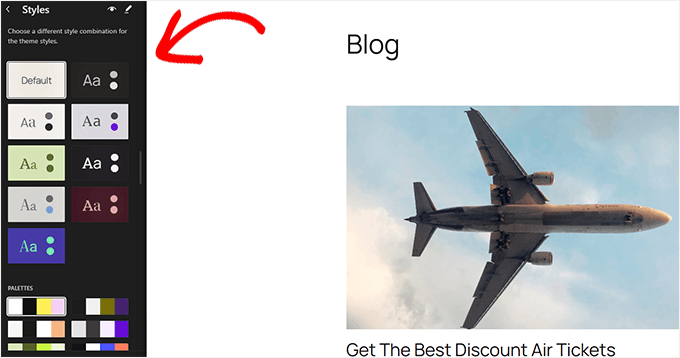
    Styles in Twenty Twenty-Five

    Designed with Bloggers in Mind

    Unlike recent default themes focused on business and multipurpose use, Twenty Twenty-Five’s default layout is tailored for bloggers.

    We liked the simplicity of a simple blog theme as the default experience. This signals the growing trend of building online communities and blogs as hubs for independent publishing and human-generated content.
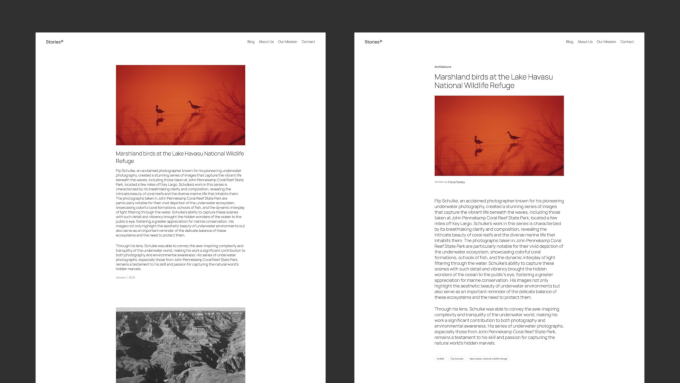
    Twenty Twenty-Five personal blog view

    Responsive and Customizable

    The theme is lightweight and works smoothly on any device, focusing on accessibility.

    Customizing Twenty Twenty-Five is easy—you can adjust colors, fonts, and layouts with just a few clicks. It’s designed to help you create a personal, polished look without hassle.
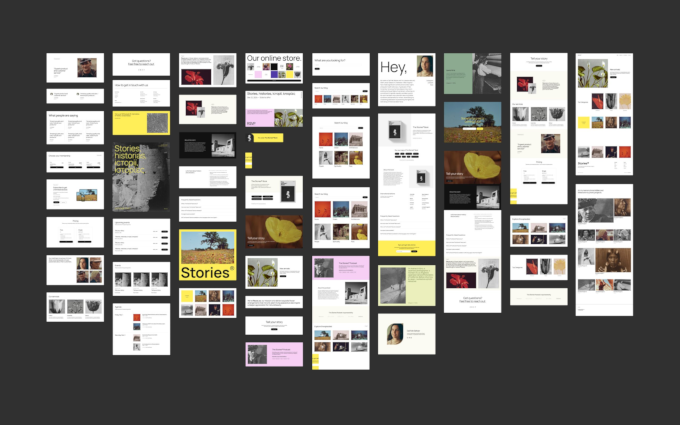
    Patterns in Twenty TwentyFive

    We felt that it goes very well with WordPress’s site editing tools. Its plain layout acts as a canvas for users to fill with their designs.

    Site Editor Improvements

    WordPress 6.7 brings a ton of improvements and new features to the full site editor, making it even easier to use.

    These enhancements provide consistency between site editing and content editing areas. They also improve user navigation to help new users quickly find their way around.

    New Zoom Out View for Easier Editing

    As we’ve worked with long pages with many sections and patterns, we’ve often found that all the scrolling makes editing challenging. WordPress 6.7 addresses this with a useful new “Zoom Out” feature.

    Now, with a simple click on the Zoom Out button in the top-right toolbar, you can see a bird’s-eye view of your content.

    Zoom out view in WordPress site editor

    This view lets you manage the overall layout and patterns on a broader scale instead of focusing on each individual block.

    We also noticed that when you open the Patterns tab in the block inserter, the editor automatically switches to Zoom Out mode.

    This change streamlines the process of adding or adjusting pre-designed patterns, making it faster and easier to shape your content layout.

    Enhanced Data Views for Better Content Management

    With WordPress 6.7, the Data Views feature has become even more powerful.

    Originally introduced to help users manage content within the editor, Data Views now offer even more control and flexibility.
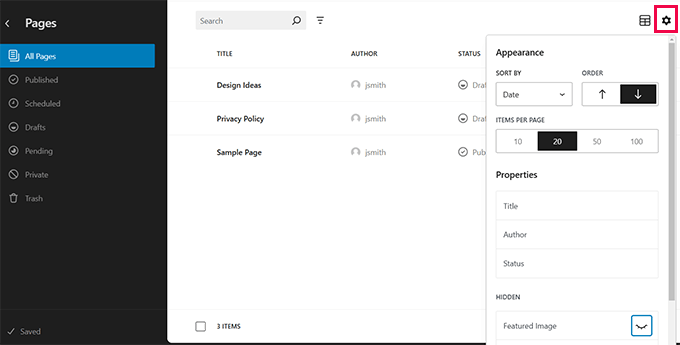
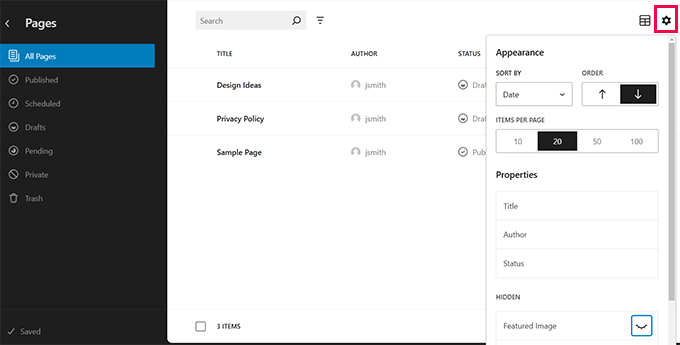
    Data views in WordPress 6.7

    One of the biggest improvements we’ve noticed is the ability to reorder fields directly in the Data View settings.

    This makes it so much easier to customize the display of content, letting you arrange information in a way that suits your needs.

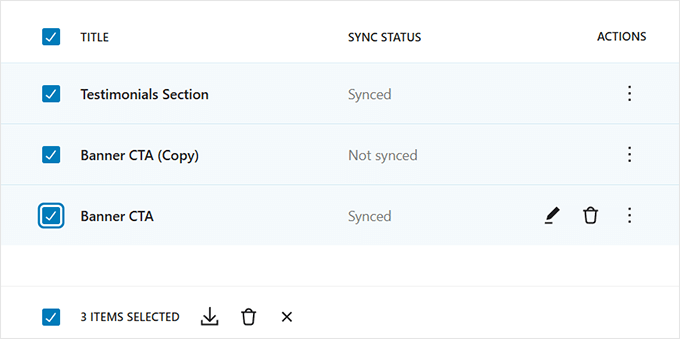
    We also found the updates to bulk actions to be a great addition. The bulk actions menu is now in the footer, combined with the sticky toolbar for a cleaner interface.
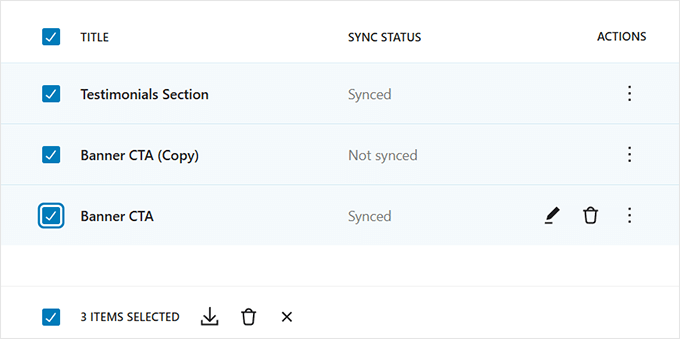
    Bulk edit options in data views

    This small change really enhances usability, especially when you’re managing a lot of content at once.

    Overall, these enhancements in Data Views simplify the process of organizing, filtering, and acting on content, giving users more power and productivity within the editor.

    Improved Font Library and Typography Controls

    WordPress 6.7 brings exciting updates to the ‘Styles’ interface, especially for customizing fonts. As we worked with the new tools, we found that font control is now more intuitive and flexible than ever.

    One standout improvement is the addition of font size presets. These presets let you easily create and apply custom font sizes across your site.
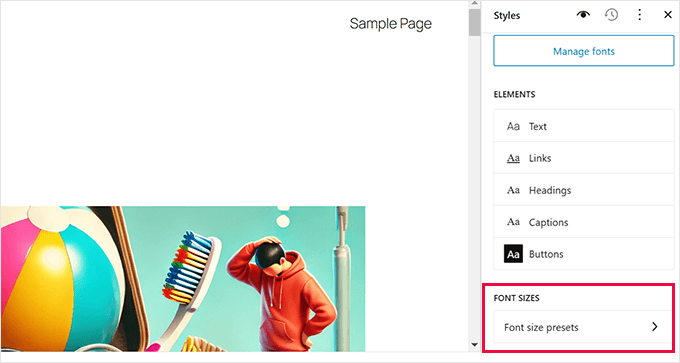
    Font size presets

    It’s a real-time-saver, especially for users who want consistent typography without setting up sizes manually every time.

    We’re also excited about the introduction of fluid typography.

    This feature automatically adjusts text sizes based on the screen, keeping your content readable and responsive on any device.
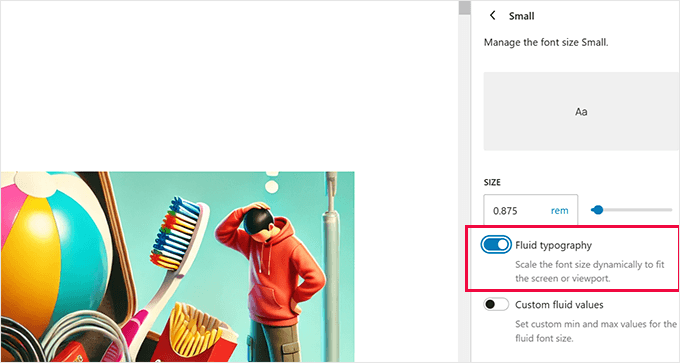
    Fluid typography

    The management of fonts has also improved with the new Font Library. Now, you can organize fonts by source and easily activate or deactivate multiple fonts at once.

    For anyone managing a variety of custom fonts, this feature makes the process much simpler and more efficient.
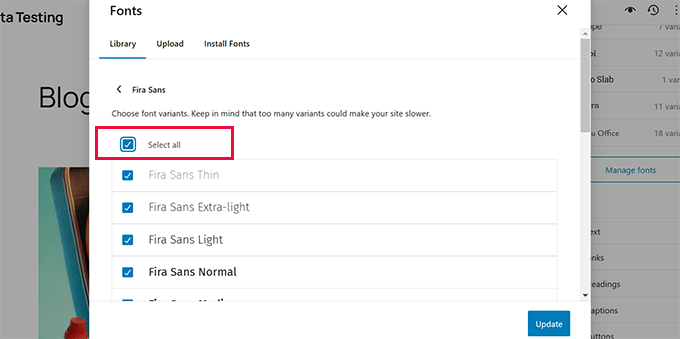
    Deactivate fonts

    New Additions and Improvements in Block Library and Patterns

    WordPress 6.7 introduces a range of new features and enhancements to the block library and patterns, making it easier to create and customize layouts.

    These changes, from updated block options to improved pattern designs, give users more flexibility and control over their content.

    1. Background Image Support for Quote and Group Blocks

    You can now add background images to the Quote and Group blocks. This feature makes it easy to add visual interest to your blog posts.
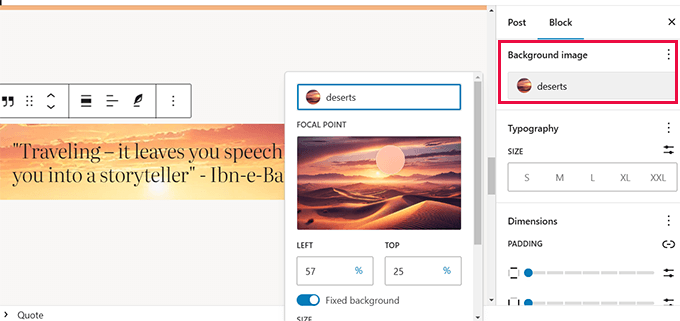
    Background image support for Quote block

    2. Improved Social Icons

    The “Add New Icon” button is now easier to use, and you can add borders around the Social Icons block for a customized look.
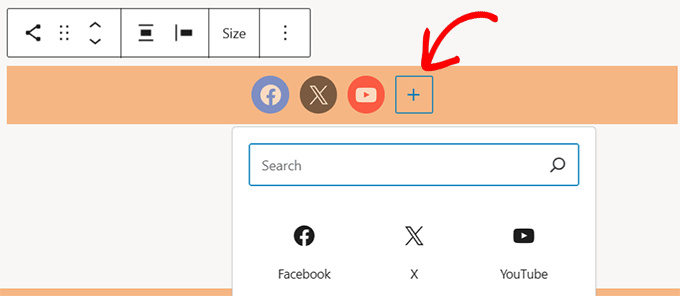
    Easily add social icons

    3. Customizable Buttons Block

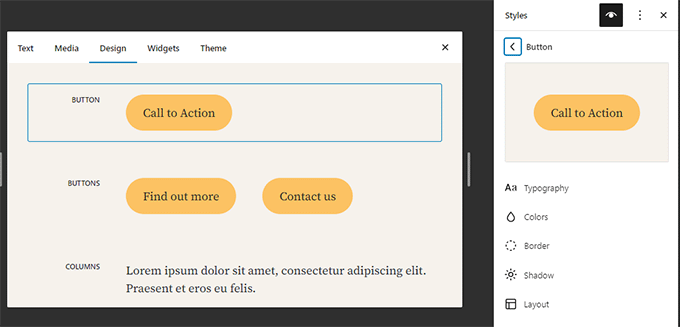
    You can set a background color for the Buttons block, giving you more control over its appearance.
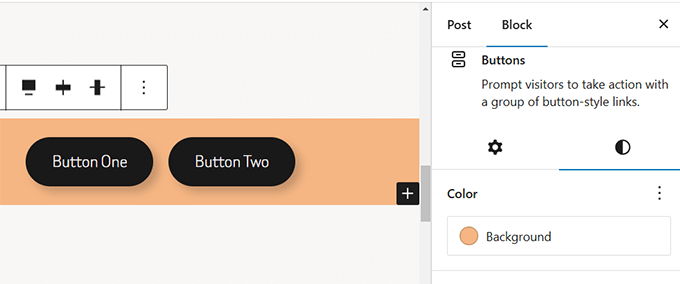
    Background color to buttons block

    4. Enhanced Image Block

    Now, when you drag and drop multiple images onto an Image block, it will automatically convert into a Gallery block.

    Multiple images uploaded to convert image block into Gallery

    5. Simplified Query Loop Block

    Setting up a Query Loop block in the past required a lot of manual work. In WordPress 6.7, the Query Loop block inherits queries from the template by default.

    This makes it much easier to display your posts automatically in the editor and on the front end.
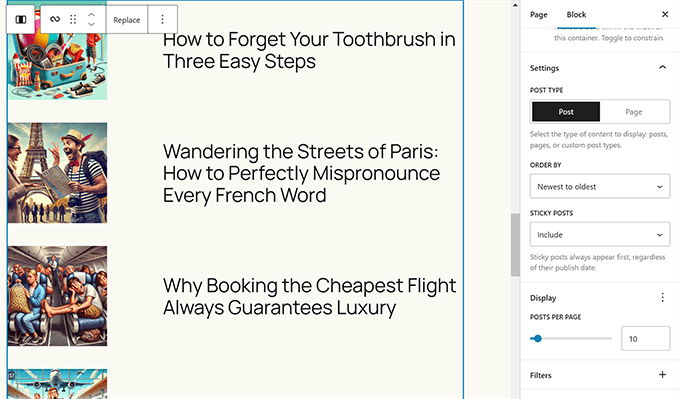
    Query loop block

    6. New “Human-Diff” Date Format

    Previously, users had to use a plugin to display relative dates in WordPress. This release adds it to the ‘Date’ block options as a format.

    Human difference date format

    7. Toggle for “Choose A Pattern” Popup

    When creating new pages, a pattern selector popup usually appears if the page content is empty. In WordPress 6.7, you can turn this popup on or off.

    To do that, simply edit any page in WordPress. Now click on the three-dot menu at the top right corner of the screen and select ‘Preferences’.

    In the block editor preferences, you will find the option under the General tab’s interface section. Simply toggle on/off the ‘Show starter patterns’ option.
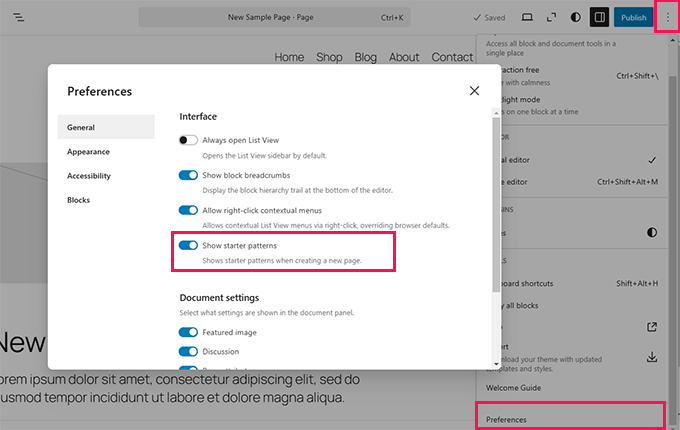
    Turn off starter patterns

    Expanded Design Tools for More Blocks

    WordPress 6.7 continues the effort to bring consistency to the design tools available across different blocks. This update introduces more ways to customize blocks, allowing for greater control over your site’s look and feel.

    Some of the major updates include:

    Border Controls: Many blocks, including Button, Columns, and Cover blocks, now allow you to customize border color, width, and style.
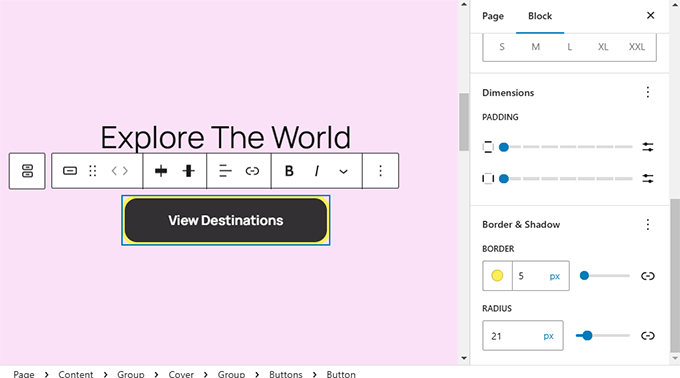
    Border for more blocks

    Background Image Support: The Quote and Group blocks now support background images, adding more visual interest to these blocks.

    Writing Mode: The Site Title, Site Tagline, Verse, and Button blocks now offer a writing mode option, which lets you change text orientation for a unique layout.
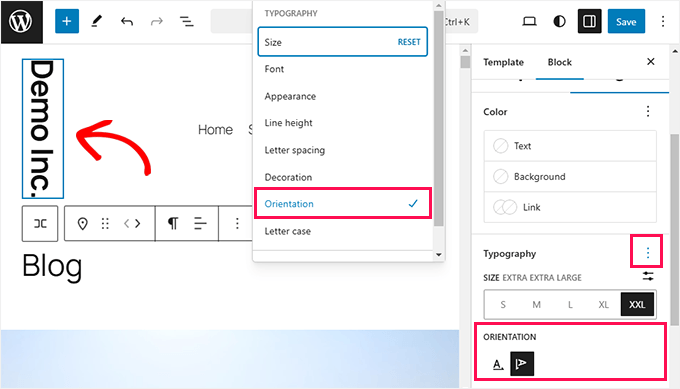
    Vertical typography

    These additions provide more flexibility when designing within the block editor, helping you create a consistent and visually appealing layout.

    Managing Block Bindings in WordPress 6.7

    The Block Binding API, first introduced in WordPress 6.5, gets a major update in WordPress 6.7. This update improves developers’ ability to manage custom fields and attributes within blocks.

    One of the biggest changes is the new user interface (UI) that lets users create and manage bindings directly within the block editor.
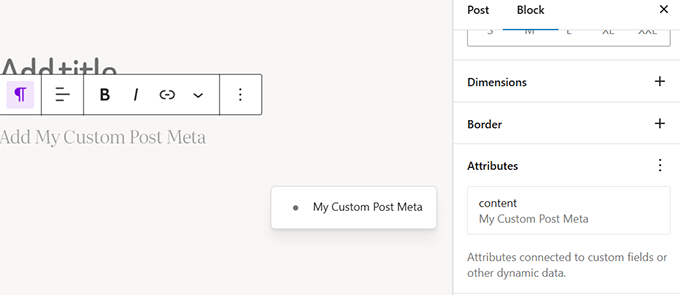
    Block binding API has a UI in WordPress 6.7

    You no longer need to use the Code Editor to link block attributes to custom fields. Instead, you can simply select metadata from the new UI in the block settings.

    Preview Options API

    WordPress 6.7 brings the new Preview Options API, which aims to help developers create better writing experiences for different types of content in the block editor.

    The API will allow developers to add custom preview settings to the block editor. For instance, they can show users contextual options for the type of content they are editing.
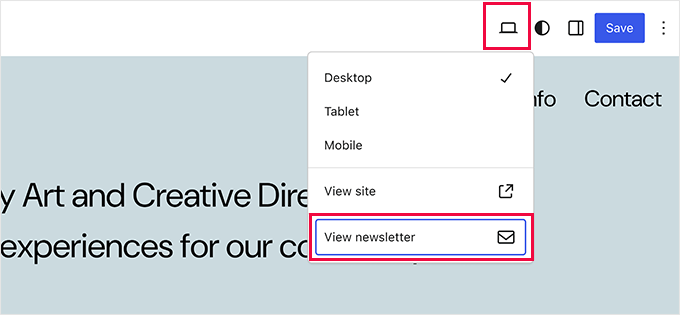
    Extended preview options in block editor

    In our testing, we found that this API allows for smoother workflows. It will be interesting to see how developers use the new API in their plugins and themes.

    Interactivity API Enhancements

    WordPress 6.7 includes updates to the Interactivity API, first introduced in WordPress 6.5. These enhancements make it easier for developers to manage asynchronous tasks.

    This release makes the API more stable and efficient, supporting features like lazy loading and code splitting for faster performance.

    Users can try it out by adding a Gallery block with a few images linked to ‘Expand on click’.
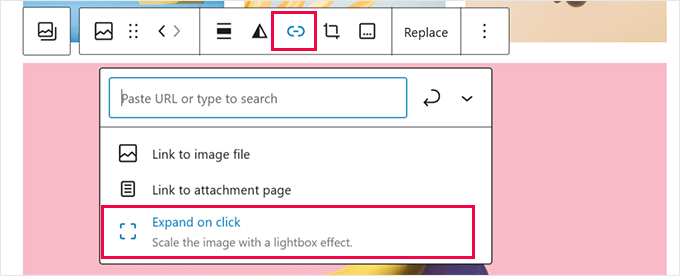
    Open gallery image in lightbox

    Then, preview your gallery in a browser tab and click on an image.

    Images set to expand will show an ‘enlarge’ icon, and clicking on them opens them in a lightbox popup.

    Lightbox popup using interactivity API

    The updates improve the Interactivity API’s performance, and we expect more plugins and themes to use it for dynamic features in the future.

    Media File Improvements in WordPress 6.7

    If you’ve ever tried uploading photos directly from your iPhone, iPad, or other Apple devices, then you know HEIC files can be tricky to manage.

    One of the big updates in WordPress 6.7 is support for HEIC image uploads. Now, your WordPress website will automatically convert HEIC images to JPEG for better compatibility across devices and browsers.

    This feature does require your server to have Imagick installed with HEIC support, but most WordPress hosting providers already include this.
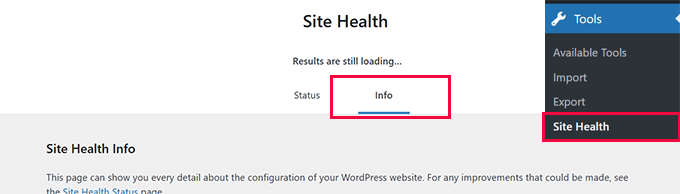
    Site Health Info

    You can check if your website supports HEIC conversion by going to the Tools » Site Health page and switching to the ‘Info’ tab.

    Scroll down to the Media Handling » ImageMagick supported file formats section and look for HEIC.
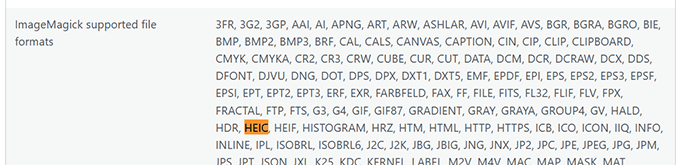
    Imagick HEIC format support

    Our testing found that the image quality didn’t degrade during conversion, which is great for users who want to share high-quality photos.

    WordPress will display the JPEG version of your image, but if you link to the attachment file, users can download the original HEIC image.

    Another improvement we appreciated is the enhanced control over background images. You can now adjust background images globally and at the individual block level.
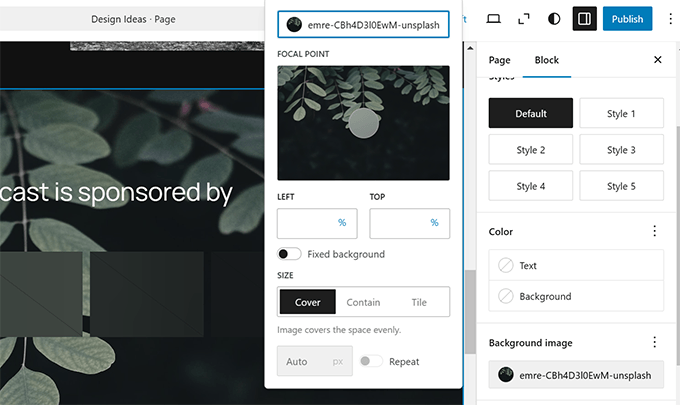
    Expanded background image options

    Lastly, WordPress 6.7 further refines lazy loading, helping boost performance by loading images only when needed.

    These media updates improve compatibility and performance, making it easier to manage your content without technical hurdles.


  • WordPress Drama Explained (and How it May Affect Your Website)

    WordPress Drama Explained (and How it May Affect Your Website)

    It’s weird to receive texts like “is this WordPress drama crazy or is it being blown out of proportion”.

    In the 15 years of running WPBeginner, I never thought I would have to write a blog post covering any WordPress industry drama. My focus with the blog has always been to provide high quality free WordPress tutorials for non-techy beginner users and small business owners.

    But unfortunately, we are at a point where a lot of misinformation and fear is being spread about WordPress by media outlets and influencers who’re hungry for clicks.

    This is causing panic among some website owners, agencies, as well as people in enterprise companies. Some folks are asking questions like whether WordPress is still safe and should they search for an alternative CMS option for their websites.

    In this post, I want to explain what this latest WordPress drama is about, who it impacts, and what you can do to protect your websites. 

    TLDR: No, this is NOT the end of WordPress, and your websites are safe.

    WordPress Drama Explained (WP Engine vs. Automattic)

    My Disclaimer:

    I’m not a trademark lawyer or legal expert. I’m writing this post for WPBeginner blog readers who are concerned about what’s going on. I have spent the last 18 years in this community, and I love WordPress. These are my opinions based on my industry experience and what I have been reading online. I have no insider knowledge of the situation. I reserve the right to change my opinions should I learn new information.

    With that out of the way, let’s jump right into what’s happening around this WordPress drama involving WP Engine vs. Automattic.

    • What is This WordPress Drama All About? (Short Summary)
    • Is this the End of WordPress?
    • Is My Website Affected by All of This?
    • What Can You Do to Protect Your WordPress Site?
    • What Should I Do as a WordPress Agency with Concerned clients?
    • My Final Thoughts
    • References

    What is This WordPress Drama All About? (Short Summary)

    Quick Summary: There is a lawsuit between two WordPress companies (WP Engine and Automattic) around a trademark dispute. Due to their influence, there have been escalations that have led to a lot of negative PR for the WordPress ecosystem. The vast majority of WordPress sites are NOT impacted by this at all.

    This whole thing started because two big companies in the WordPress industry are in a legal battle over a trademark dispute.

    Automattic is a company started by WordPress co-founder, Matt Mullenweg. They are the creators of WooCommerce, WordPress.com hosting service, Jetpack plugin, and more.

    WP Engine is a managed WordPress hosting company owned by a large private equity firm Silver Lake.

    Automattic has the exclusive commercial rights to use the “WordPress” trademark. They asked WP Engine to negotiate a licensing agreement which involved either payments to Automattic OR increased contributions to the free open source WordPress project.

    Because the parties failed to come to an agreement, Matt publicized the dispute at the annual WordCamp US conference, where he claimed that WP Engine, despite being a $400M+ revenue company, does not give back enough to the free open source WordPress project.

    As things escalated, both companies sent each other a formal legal Cease and Desist (C&D) letter. Due to the legal threats, Matt, as co-founder of WordPress, banned WP Engine from accessing WordPress.org servers.

    This meant that any customer with websites on WP Engine hosting were no longer able to receive updates from WordPress.org servers.

    The ban was later revertedtemporarily to protect users and allow WP Engine to build their own update servers. Since WordPress is open source, the WP Engine team was able to build their own updater to ensure users on their hosting platform can get software updates.

    The server block officially went back into effect on October 1st. Shortly after, WP Engine filed a federal lawsuit against Automattic and Matt Mullenweg.

    Due to the escalation, WP Engine’s team were banned from accessing their WordPress.org accounts. This means the WP Engine team is no longer able to release updates to their WordPress plugins from the official WordPress.org servers.

    One of the plugins owned by WP Engine is Advanced Custom Fields (ACF) which is popular among developers and used by over 2 million websites. To ensure security updates are available to all users, the WordPress.org team forked the ACF plugin, renamed it to Secure Custom Fields (SCF), and took over the original ACF plugin directory page without the consent of WP Engine. The reasons given for this were to maintain and provide updates to users who were unaware of the drama. 

    This decision was not well received and garnered a lot of negative comments from developers, influencers, and press outlets.

    At the time of writing this post, all other WP Engine plugins are still available for download on the WordPress.org plugin directory, however, the WP Engine team is still banned, so they are not able to use WordPress.org servers to issue updates.

    In summary, at the root of this WordPress drama is a heated legal trademark dispute between WP Engine hosting company, Automattic, and Matt Mullenweg (co-founder of WordPress). 

    Since there is a federal lawsuit filed by WP Engine against Automattic, I believe only the courts can decide the outcome unless the parties come to an amicable resolution outside of the courts. The official WordPress Twitter account tweeted that the situation could be resolved under the following conditions:

    Is this the End of WordPress?

    The answer is NO. Absolutely not.

    WordPress powers over 43% of websites on the internet, and it’s bigger than any one person or company. The vast majority of small business owners and users of WordPress don’t even know about this ongoing drama because it simply doesn’t impact them.

    I talked with a local small business owner who’s my personal trainer, and he wasn’t aware of the negative press around WordPress at all. When I briefly told him about it, here is what he said:

    “I am not going to switch from WordPress because some big companies are having a trademark dispute. What matters to me is that my website is working and my business is growing.” – Sean Nelson, Founder of Hustle Training 360.

    The reality is that the WordPress software you built your website with hasn’t changed.

    If you’re using popular plugins like Elementor, WPForms, WooCommerce, AIOSEO, Duplicator and literally 60,000+ others, they are still the same.

    Something as big as WordPress simply doesn’t end because two companies have a trademark dispute. 

    In the grand scheme of things, there are a small portion of users who are impacted, and I will share how you can find out if your website is impacted, and what you can do about it.  

    Is My Website Affected by All of This?

    The vast majority of users and websites using WordPress are NOT impacted by this legal dispute between Automattic and WP Engine.

    If you are using a free plugin that was developed by WP Engine, and you are NOT on their hosting platform, then your websites are impacted because you will not be able to receive updates for those free plugins from WordPress.org.

    Here are the popular free plugins built by WP Engine that are blocked from sending updates from WordPress.org servers:

    • Advanced Custom Fields
    • Nitropack
    • Better Search Replace
    • WP Migrate Lite
    • WP Offload SES Lite
    • Frost
    • Genesis Blocks
    • Genesis Custom Blocks
    • For the full list, see plugins built by WP Engine.

    What Can You Do to Protect Your WordPress Site?

    As I said earlier, if you’re not using the plugins made by WP Engine, then you don’t need to do anything.

    Your WordPress site is safe and good to go. 

    Although, I always recommend having regular WordPress backups and using a firewall like Cloudflare (see more WordPress security tips).

    Now, if you’re using the plugins built by WP Engine, then you will need to either install the WP Engine updater plugin to continue receiving updates or find an alternative, depending on your personal preference.

    What Should I Do as a WordPress Agency with Concerned clients?

    You can send them a link to this blog post and re-assure them that WordPress is still safe and by far the best open source CMS option in the market.

    A legal trademark dispute between two companies does NOT change the fact that WordPress powers 43% of all websites (and growing). There are 60,000+ free WordPress plugins and thousands of free WordPress themes available in the market that make it easy to build any type of website they want.

    WordPress core development progress continues, and WordPress 6.7 is coming soon.

    Here are some more insights on WordPress market share and trends.

    My Final Thoughts

    Despite everything that’s going on right now, I still love WordPress, and I believe in our amazing WordPress community.

    I have spent more than half of my life in the WordPress community, and I will continue to do everything in my power to support the community and our users. See my recent post on contributing to the WordPress ecosystem.

    Lastly, I truly hope that the two respected companies involved in the lawsuit can come to an agreement soon, so we can all focus on growing WordPress and helping democratize publishing & commerce across the world.

    As always, I want to thank you for your continued support of WPBeginner, and I look forward to continuing serving you for years to come.

    Yours Truly,

    Syed Balkhi
    Founder of WPBeginner

  • Whats Coming in WordPress 6.7 (Features and Screenshots)

    Whats Coming in WordPress 6.7 (Features and Screenshots)

    We have been closely following the development of WordPress 6.7 and testing the beta version of this release, which will bring some exciting updates and several new features.

    For example, we have been excited to discover that this upcoming release will ship with a brand-new default theme and massive improvements to both the block editor and site editing experience.

    In this article, we will walk you through the key features coming in WordPress 6.7. Each feature will help you get more out of your website-building experience.

    Detailed look at the upcoming WordPress 6.7 release

    Note: You can try out the beta version on your computer or a staging environment using the WordPress Beta Tester plugin. Remember that some features in the beta may not make it to the final release.

    Here’s a quick overview of changes coming in WordPress 6.7:

    • New Default Theme – Twenty Twenty-Five
    • Zoom Out View for Site Editing
    • Media File Improvements
    • Preview Options API
    • Refined Query Loop Block
    • Font Library, Font Size Presets, and Fluid Typography
    • Interactivity API Enhancements
    • Block Library & Patterns
    • Refined Data Views
    • Manage Block Bindings Directly
    • Under the Hood Changes in WordPress 6.7

    New Default Theme – Twenty Twenty-Five

    We’ve seen WordPress release a new default theme each year, and the tradition continues with Twenty Twenty-Five in WordPress 6.7.

    In our experience, each default theme offers something unique, and Twenty Twenty-Five is no different. This theme is built around the philosophy that “simple things should be easy and intuitive, and complex things possible.”

    From what we’ve tested, it includes a variety of pre-designed block patterns and beautiful style variations. These ready-to-use templates make it easier for users to adapt the theme to their needs without spending hours customizing everything from scratch.

    Patterns in Twenty TwentyFive

    One of the standout features we’ve noticed is its focus on the blog layout as the default view.

    This sets Twenty Twenty-Five apart from recent default themes, which were more geared towards general business or multipurpose use.

    Twenty Twenty-Five personal blog view

    If you’re a blogger, you’ll love how it puts your content front and center.

    The theme performs exceptionally well on all devices thanks to its lightweight design and focus on accessibility. While testing, we loved how easy it was to customize the new theme. You can adjust colors, fonts, and layouts with just a few clicks, making the entire process hassle-free.

    Zoom Out View for Site Editing

    Like many users, we often felt that editing longer pages with multiple patterns, sections, and blocks requires too much scrolling up and down.

    Wouldn’t it be nice if you could zoom out to see more of your content layout?

    The new zoom-out view feature in WordPress 6.7 will do just that. It allows users to edit patterns on a broader scale. Simply click the Zoom-out button in the top right toolbar.

    Zoom out view in WordPress site editor

    Media File Improvements

    If you’ve ever tried uploading photos directly from your iPhone, iPad, or other Apple devices, you know HEIC files can be a challenge.

    One of the major updates coming with WordPress 6.7 is the support for HEIC image uploads.

    Your WordPress website will automatically convert HEIC images to JPEG for better compatibility across devices and browsers.

    However, this feature requires your server to install Imagick with support for HEIC files (most WordPress hosting companies already have it installed).

    Site Health Info

    You can see if your website supports HEIC conversion by going to the Tools » Site Health page and switching to the ‘Info’ tab.

    Scroll down to the Media Handling » ImageMagick supported file formats section and look for HEIC.

    Imagick HEIC format support

    While testing, we noticed that the quality of images didn’t degrade, which is a big win for users who want to share high-quality photos.

    WordPress will display the JPEG version of your image. However, if you link the image to the attachment file, your users will be able to download the original HEIC image.

    Another improvement we liked is the enhanced handling of background images. You now have more control over background images at the individual block level and globally.

    Expanded background image options

    Finally, WordPress 6.7 continues to refine lazy loading. From our experience, this feature boosts performance by ensuring images only load when needed.

    These improvements enhance media compatibility and performance. They can help you manage your content more effectively without worrying about technical constraints.

    Preview Options API

    The new Preview Options API allows developers to add custom preview settings in the editor. This makes it easier to see how content will look before publishing.

    Extended preview options in block editor

    During our testing, we found that this API allows for smoother workflows. For example, developers can create custom preview formats tailored to specific user needs.

    This is especially useful for websites with multiple layouts or environments where different views are essential for the final look.

    Refined Query Loop Block

    In previous versions, setting up a Query Loop required manual configuration, which could be tricky for some users.

    WordPress 6.7 will allow the Query Loop block to automatically inherit queries from the template by default.

    Query loop block

    We noticed that it dramatically simplifies the process. Your posts will automatically display in both the editor and on the front end without additional setup.

    Font Library, Font Size Presets, and Fluid Typography

    WordPress 6.7 introduces significant improvements to the Styles interface, particularly font customization.

    Users now have more control over font size presets, which makes creating and applying custom sizes throughout their sites easier.

    Font size presets

    One of the most exciting updates is the introduction of fluid typography. This feature allows text to scale dynamically, adjusting to different screen sizes.

    This ensures that your text remains responsive and readable across devices, whether it’s a smartphone or a desktop.

    Fluid typography

    With the new Font Library, managing fonts has also become more efficient. This saves time, especially for users managing a variety of custom fonts on their websites.

    You can now group fonts by their source. The interface even allows you to activate or deactivate multiple fonts simultaneously.

    Deactivate fonts

    Interactivity API Enhancements

    WordPress 6.7 will include updates to the Interactivity API, which was first introduced in WordPress 6.5. Developers will appreciate this feature’s focus on handling asynchronous tasks.

    This release makes the API more stable and efficient, helping with features like lazy loading and directive code splitting.

    Users can see it in action by adding a Gallery block with a few images and linking them to ‘Expand on click’.

    Open gallery image in lightbox

    After that, just preview your gallery in a browser tab and click on an image.

    The images that are supposed to expand will show the enlarge icon. Clicking on them will open them in a lightbox popup.

    Lightbox popup using interactivity API

    The updates improve the performance of the interactivity API. We believe that in the future, we will see more plugins and themes using the API for dynamic features.

    Block Library & Patterns

    WordPress 6.7 will bring several improvements to the Block Library. Here are some of the most useful changes.

    1. Background Image Support for Quote and Group Block

    You will now be able to add background images to both the Quote and Group blocks. This can be handy for adding more visual interest to your blog posts.

    Background image support for Quote block

    2. The Social Icons

    The Add New Icon button is now more usable, and you can add borders around your social icons block.

    Easily add social icons

    3. The Buttons Block

    You can now set a background color for the Buttons block.

    Background color to buttons block

    4. The Image Block

    Users will be able to drag and drop multiple images onto an Image block, and it will automatically convert into a Gallery block.

    Multiple images uploaded to convert image block into Gallery

    There are many other improvements to several blocks. Overall, WordPress 6.7 will bring consistency to block settings panels and significantly improve user experience.

    Refined Data Views

    WordPress 6.7 continues to refine the Data Views feature introduced in earlier releases. Data Views provides users with a powerful way to filter and manage content in the editor.

    Data views now have more useful controls

    One key improvement is reordering fields directly within the Data View configuration user interface. This makes it easier for users to customize how data is displayed and managed.

    We’ve also noticed improvements to bulk actions and the user interface.

    For instance, the bulk actions menu has been moved to the footer, merging it with the floating toolbar and improving its overall usability.

    Bulk options in data views

    The refined Data Views feature simplifies organizing, filtering, and acting on data, making the editor more powerful.

    Manage Block Bindings Directly

    The Block Binding API, introduced in WordPress 6.5, will receive a significant update in WordPress 6.7. This update will improve developers’ ability to manage custom fields and attributes within blocks.

    One of the biggest changes is the new user interface (UI) that allows users to create and manage bindings directly within the block editor.

    Block binding API has a UI in WordPress 6.7

    This means you no longer need to use the Code Editor to link block attributes to custom fields. Instead, users can select metadata from the new UI in block settings.

  • WordPress News Aug 2024: AI Features, New Default Theme & More

    WordPress News Aug 2024: AI Features, New Default Theme & More

    In August, we witnessed exciting developments in the WordPress world. From powerful new AI tools to the preview of the Twenty Twenty-Five theme, there’s a lot to explore.

    In this issue, we will cover the latest features from popular WordPress plugins, plus a sneak peek at the new default WordPress theme. We also look at industry changes, including Instagram’s API update and more.

    Now, let’s take a look at the key highlights from this month’s WordPress news.

    WPBeginner Spotlight is our monthly series where we share the latest behind-the-scenes updates from the WordPress community.

    If you have any major WordPress news you’d like us to feature in next month’s edition—whether it’s a brand acquisition, merger, or the launch of a significant new feature—please reach out to us through our contact form.

    WPBeginner Spotlight 03 - Covering AI features, plugin updates, and other news

    MonsterInsights Launches Conversations AI: A Game-Changer in Website Analytics and Insights

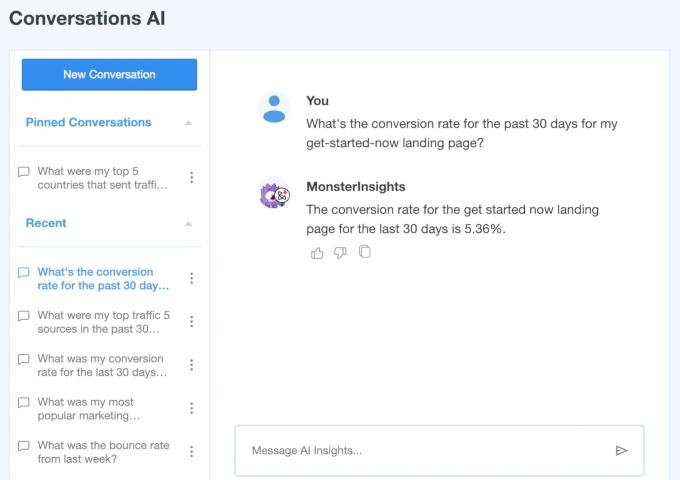
    MonsterInsights has introduced Conversations AI, a new feature designed to make website analytics more interactive and user-friendly.

    This tool aims to simplify the process of understanding website traffic data. Instead of navigating through complex analytics reports, users can just ask specific questions, and the AI chatbot will respond.

    For instance, you could ask, “Which pages had the most traffic last week?” or “How did my latest blog post perform?” The AI responds with clear, actionable information, making it easier for users to gain insights without needing advanced analytics skills.

    MonsterInsights conversational AI preview

    This feature could be particularly useful for site owners who need straightforward answers about their website’s traffic without digging into detailed reports.

    In a post on X, Syed Balkhi, CEO of MonsterInsights and WPBeginner, also mentioned that it could be helpful for users who are dreading the migration to the new Google Analytics 4 (GA4).

    This feature is available for all MonsterInsights Pro users. Users of the free MonsterInsights lite plugin will need to upgrade to a paid plan to unlock it.

    First Look at Twenty Twenty-Five: The Upcoming New Default Theme

    It’s a long-standing tradition in the WordPress community to release a new default theme each year, typically named after the year. Following this pattern, WordPress is set to introduce Twenty Twenty-Five as the default theme for the upcoming WordPress 6.7 release.

    The theme’s design philosophy is based on the idea that “Simple things should be easy and intuitive, and complex things possible.”

    It features a simple, minimalistic design foundation, which is capable of more complex layouts and design choices as needed.

    Twenty Twenty-Five patterns

    It will include several style variations, beautiful patterns, and ready-to-use templates, allowing users to customize it for different website needs.

    One distinctive feature of Twenty Twenty-Five is its focus on the blog layout as the default view, setting it apart from recent default themes.

    Twenty Twenty-Five personal blog view

    This design choice highlights the theme’s emphasis on content, making it ideal for bloggers while still offering the flexibility needed for other website types.

    Twenty Twenty-Five is designed with performance and accessibility in mind. It performs well across various devices and is easy for all users to navigate. Customization is also a key focus, allowing users to adjust colors, fonts, and layouts without needing coding knowledge.

    As we approach the release of WordPress 6.7, Twenty Twenty-Five may change a bit from its earlier preview. However, the main design scheme will remain the same.

    WPForms Introduces Conditional Logic for Layout Fields

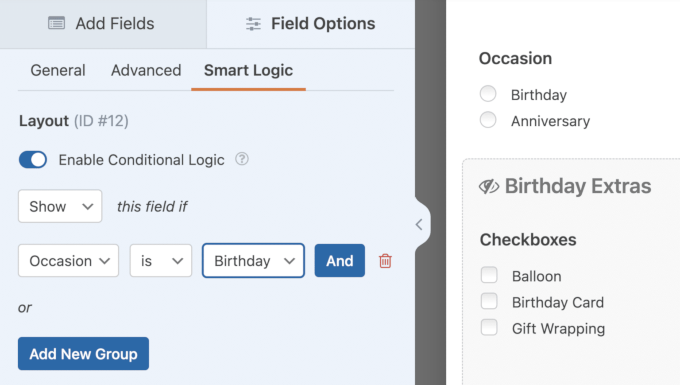
    WPForms has introduced conditional logic for layout fields. It enables users to apply smart conditional logic across entire sections of a form rather than just individual fields.

    Adding conditional logic to a layout field in WPForms

    This makes form creation faster and more intuitive, especially for complex forms that require dynamic content based on user input.

    The layout field was already known for its flexibility in arranging form elements in predefined columns. Now, it also supports conditional logic for entire blocks of fields within those layouts.

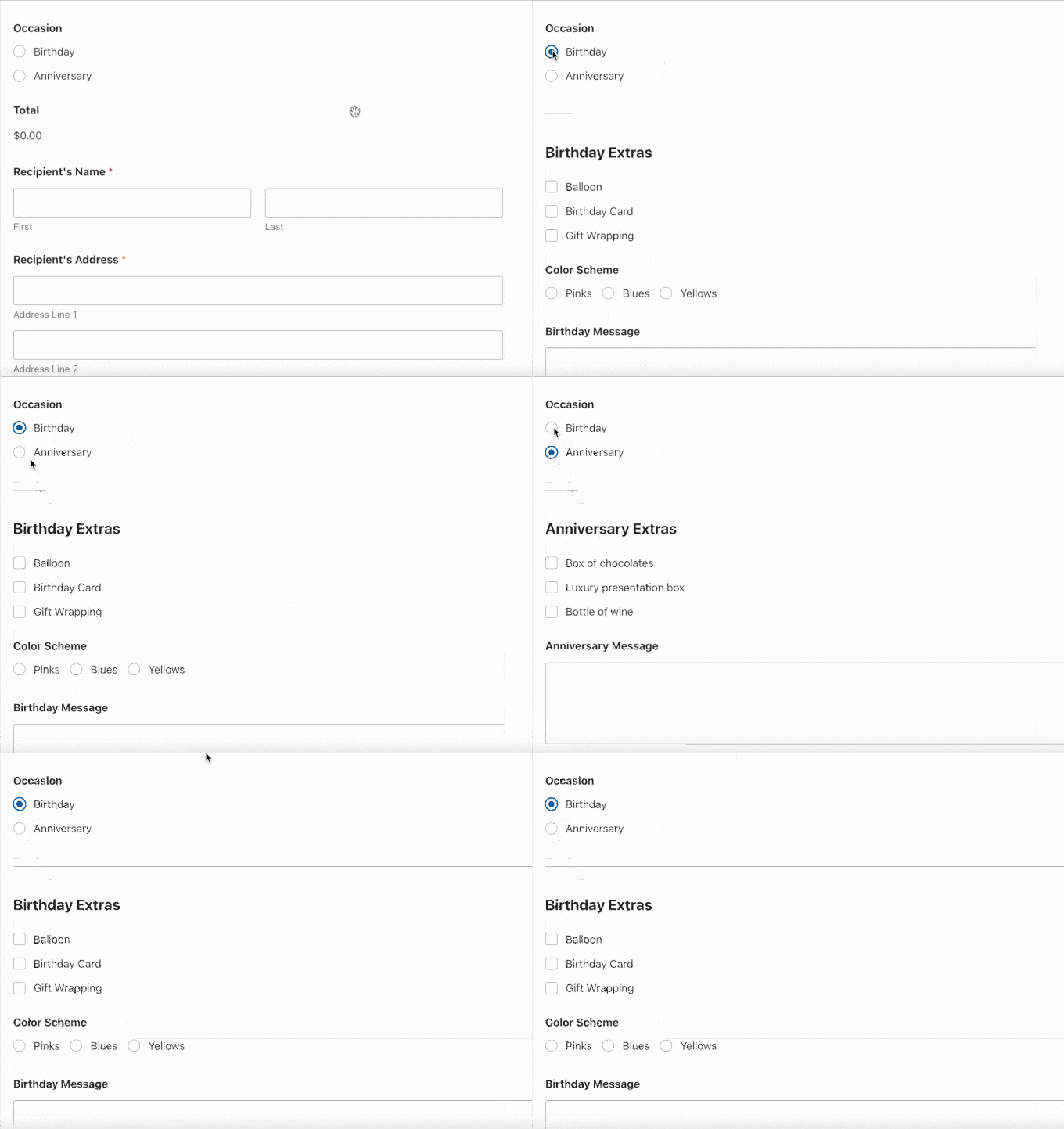
    This means you can easily create forms that adapt in real-time, showing or hiding sections based on user selections—all with just a few clicks.

    Conditional logic demo

    In addition to this, WPForms has added a single-column layout option. This gives users more control over their form designs while maintaining the ease of use that WPForms is known for.

    With this update, WPForms has also strengthened its anti-spam measures, ensuring that forms remain secure and free from unwanted submissions.

    Instagram Shutting Down Basic Display API: What It Means for Your Website

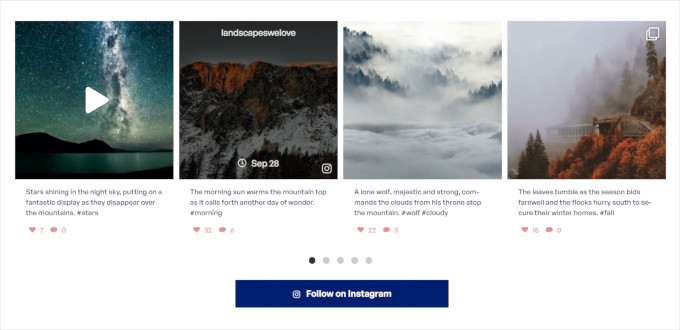
    Instagram has decided to shut down its Basic Display API in favor of the newer Instagram Graph API. The API was used by several WordPress social media plugins to fetch and display Instagram feeds.

    Instagram Feed Demo

    This means that if your website was connected to Instagram using the Basic Display API, it will stop displaying Instagram feeds in the next quarter (around October-November 2024).

    The folks at Smash Balloon, makers of the popular Instagram feed plugin, announced their plans for the upcoming changes in a recent blog post.

    Craig Schlegel, Smash Balloon’s general manager, assured users that their feeds will continue working until the shutdown takes effect. He urged users to switch by reconnecting the plugin to the new API before the October-November deadline.

    After the deadline, if users don’t make the switch, the plugin will continue showing the last cached version of their feed. However, it will be unable to display new content.

    If your website relies on Instagram content, taking action before the shutdown is crucial to ensure your Instagram feed is working.

    Formidable Forms Introduces AI Form Builder

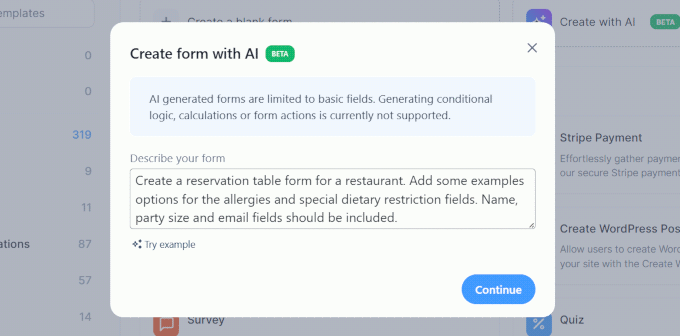
    Formidable Forms has launched a new AI Form Builder that makes it easy to create forms by using artificial intelligence. This tool aims to help users generate complex forms quickly and efficiently, even without extensive technical knowledge.

    Users can type details about the form they want to make in plain language, and the AI will generate the required form fields.

    Creating a form using AI

    The AI add-on streamlines the process by suggesting form fields and layouts based on user goals.

    Formidable Forms is known for its advanced WordPress form builder. Users making complex forms, such as calculators or directories, may find the AI form builder helpful.

    The AI Form Builder add-on requires a Formidable Forms Pro ‘Business’ plan. People using the free version or Basic / Plus plans will need to upgrade to access the add-on.

    New WPCode Release: More Conditional Logic and Auto-Insert Locations

    WPCode has released a significant update that introduces extended conditional logic and more auto-insert location options for WordPress users.

    These new features aim to give users more control over their code snippets by providing them with more dynamic ways to insert them.

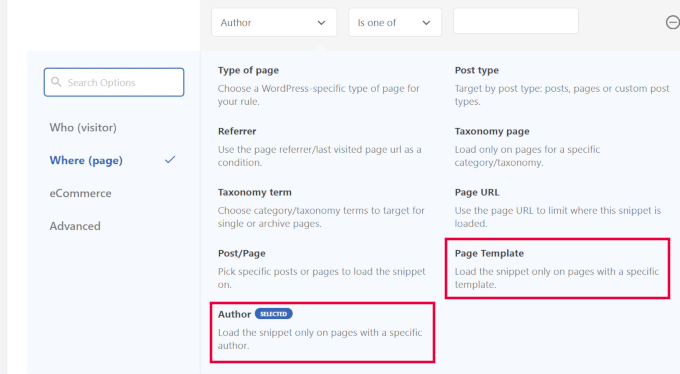
    There are two new conditional logic rules in addition to the ones that the plugin already had:

    • Show/Hide code snippet by author
    • Show/Hide code snippet by page template
    Conditional logic rules

    This is particularly useful for users who need to tailor their site’s behavior based on specific conditions or user actions.

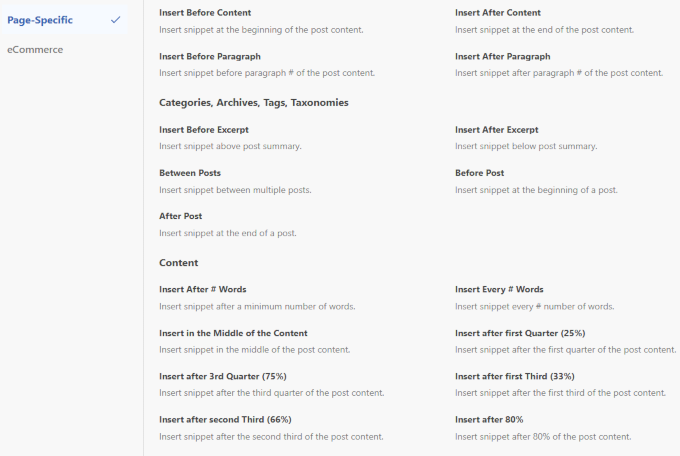
    In addition to the improved conditional logic, WPCode has expanded the auto-insert location options.

    Auto insert options in WPCode

    Users can now insert code snippets in more specific areas of their site, such as in the middle of the content, after a certain number of words, or after a specific % of the content.

    According to the WPCode team, these new locations will allow users to add code for various use cases, such as Google AdSense code, special offer banners, related posts, and more.

    Hostinger Celebrated the 3 Million Customers Milestone

    Hostinger has reached a significant milestone, celebrating 3 million customers worldwide. This achievement marks a major moment in the company’s growth.

    Reflecting on this achievement, Daugirdas Jankus, CEO of Hostinger, said, “A global trend where more people are interested in starting their own businesses and seeking greater flexibility and independence is becoming more visible.”

    Hostinger celebrated 3 million customers milestone

    Since its beginnings, Hostinger has focused on offering high-quality hosting solutions that cater to a diverse range of users. These include everyone from beginners creating their first WordPress website to established businesses looking to scale their online presence.

    The company credits its success to ongoing innovation, great customer support, and a user-friendly platform for building and managing websites.

    As part of this milestone celebration, Hostinger has shared stories of its journey and the various improvements it has made over the years. These include the expansion of its global data centers and the enhancement of its customer service offerings.

    Related: Hostinger review (Pros and cons with performance tests)

    In Other News:

    • Charitable, WPForms, and Pressable have all launched redesigned websites, focusing on improved user experience and modern aesthetics.
    • A minor update to WordPress 6.6, version 6.6.1, has been released to address several bugs and improve overall stability. Users are encouraged to update their sites to take advantage of these fixes.
    • Sugar Calendar adds support for Elementor widgets, making it easy to use the powerful event calendar plugin with Elementor page builder. Try the free version today.
    • WordPress.com has partnered with Perplexity AI, which enables WordPress.com sites to appear in the Perplexity answer engine’s ‘discover more’ feature. Users can also opt out if they don’t want to share their content.
    • WordPress 6.7 will ship with automatic HEIC to JPEG conversion.
    • MemberPress, the leading WordPress membership and LMS plugin, has added Assignment and Gradebook features for MemberPress Courses. This is going to be a game-changer for the LMS market.
    • WordCamp US is all set and ready to go! Mark your calendars for September 17-20, 2024. If you haven’t secured your spot yet, tickets are still available. Grab yours before they’re gone!
    • Uncanny Automator, the popular no-code automation tool for WordPress, added multiple new integrations for FluentBooking, Keap, and Ontraport, along with adding a new feature called Token Loop. This is one of the MUST-HAVE plugins to help you save time and costs. It’s basically Zapier for WordPress without the high costs. Give the free version a try.
    • WordPress.com launched Write Brief, an AI-powered writing assistant.
    • WordPress.org added support for Offline Mode and PWA for WordPress Playground.
  • Introducing SEOBoost by AIOSEO: Content Optimization Made Easy

    Introducing SEOBoost by AIOSEO: Content Optimization Made Easy

    Have you ever wished that you could do all your topic research, content optimization, and SEO auditing in one place?

    Most content optimization tools are simply too expensive for small businesses or offer very limited features to their users.

    This means that website owners either have to invest hundreds of dollars per month in premium SEO platforms or don’t have the information they need to actually improve their content.

    That’s why I asked my team at All in One SEO (AIOSEO) to build an affordable, all-in-one SEO platform for bloggers, marketers, agencies, and small business owners.

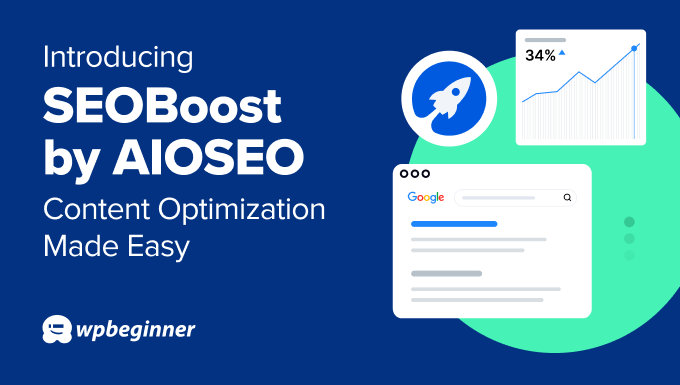
    Today, I am excited to announce SEOBoost, a powerful and beginner-friendly all-in-one tool for improving your search rankings and getting more organic traffic.

    Our goal is to make it easy for you to research, write, and optimize content from a single hub.

    SEOBoost announcement

    Create Detailed Topic Reports and Content Briefs in Just a Few Clicks

    Before you can start out-ranking the competition, you will first need to understand what makes their articles work.

    This is where SEOBoost’s topic reports come into play.

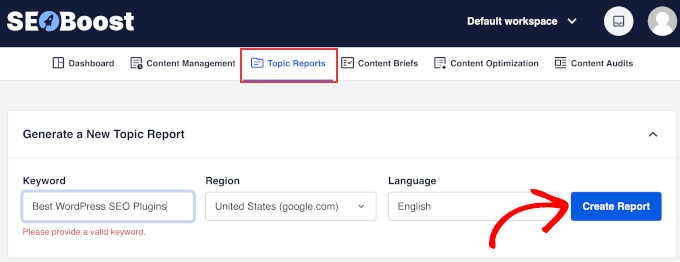
    Just go to Topic Reports and enter a target keyword, region, and language. Once you click the ‘Create Report’ button, SEOBoost will put together a comprehensive topic report in just a few moments.

    SEOBoost topic report

    This report will show you a bunch of different data for the highest-ranking competitor articles, including:

    • Average word count
    • Readability level
    • Keyword frequency
    • Images
    • Title length
    • Outbound links

    Plus, this data is grouped in a table so you can easily see the stats of the highest-ranking posts and add their headings directly to your topic brief.

    Top-competing pages SEOBoost

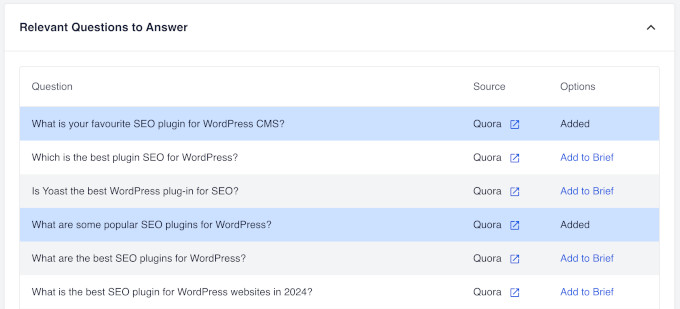
    Another handy feature is that SEOBoost grabs the most relevant user questions from social platforms like Reddit and Quora.

    This can help you see what regular users are actually looking for and answer those questions in your content.

    SEOBoost relevant questions report

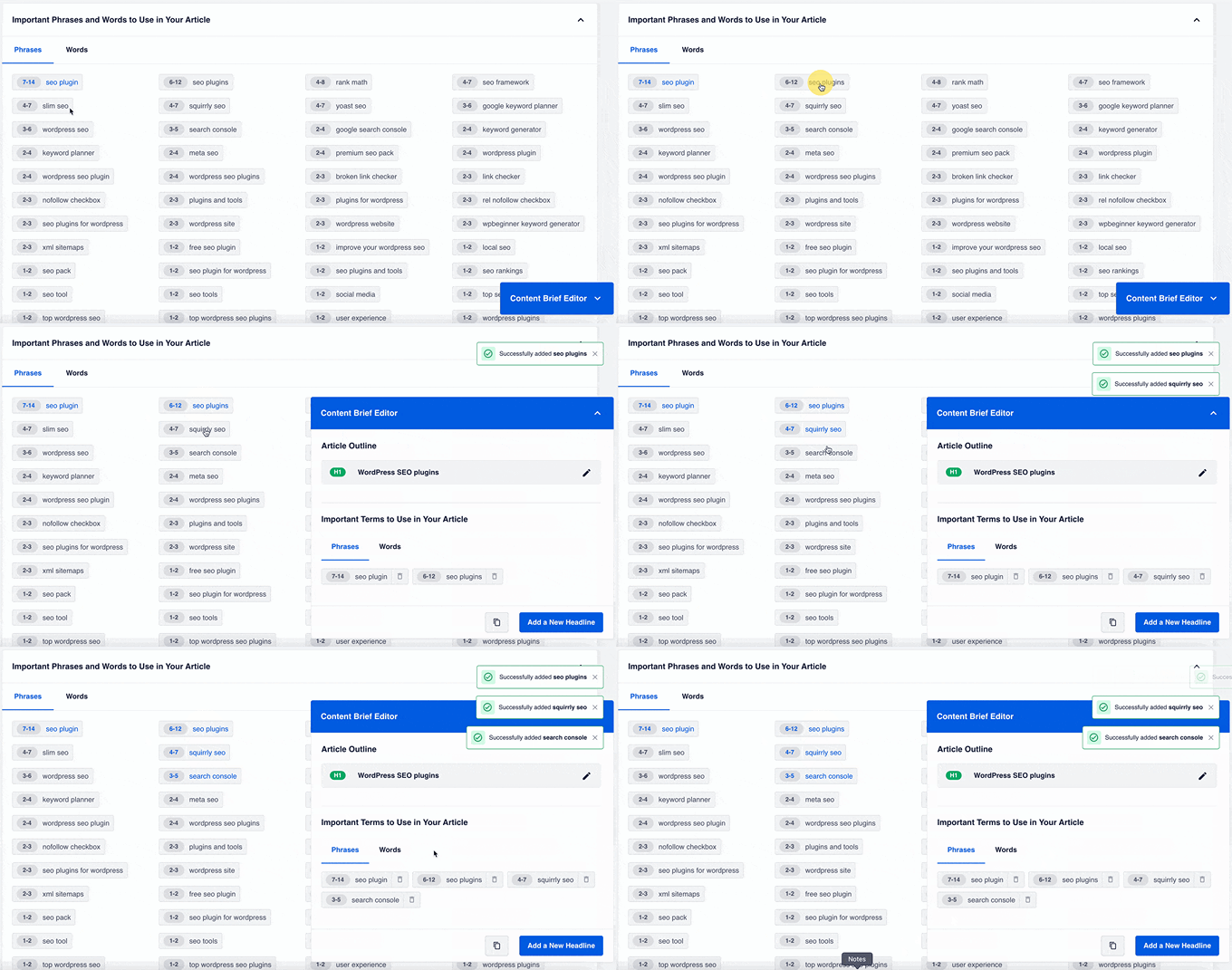
    As you go through the different reports, clicking on the suggested keywords and headings will instantly insert them into your content brief on the right side of the screen.

    This makes it super easy to build a content brief without manually adding any content yourself.

    SEOBoost content brief editor

    Then, jumping to the Content Brief tab in SEOBoost lets you see a complete overview of all the information you’ve added.

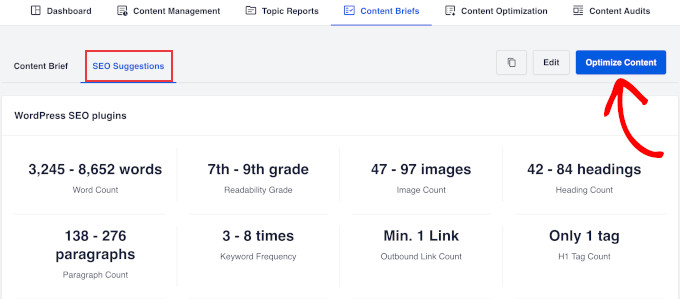
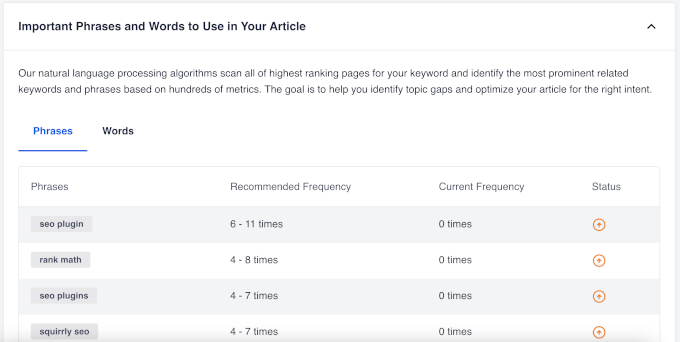
    Under the ‘SEO Suggestions’ tab, there is also a handy table with SEO recommendations that gives you a quick overview of what your article needs to rank.

    SEOBoost SEO suggestions

    Clicking on the ‘Optimize Content’ button will then take you to the content optimization screen.

    Optimize Your Content for Better SEO Rankings

    SEOBoost makes it extremely easy to optimize your content for your chosen keyword because it automatically pulls all the data from the topic report you created.

    Then, you can start writing straight into the editor or paste your content.

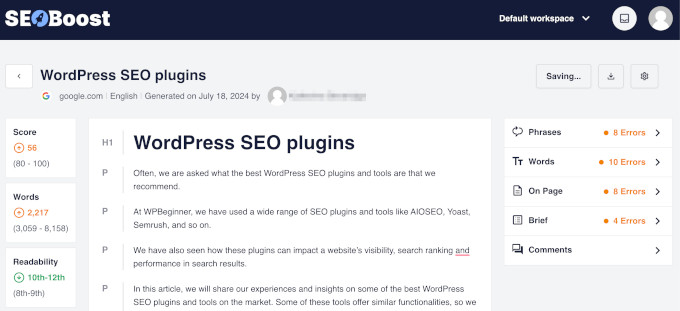
    SEOBoost content optimization

    On the left, you can see an overview of different scores for your content, while the panel on the right shows you specific errors that you should fix within your content.

    For example, SEOBoost might recommend adding missing keywords, increasing the number of words in your title and/or article, or adding headings from your topic brief.

    SEOBoost also lets you leave comments within the user interface, which is great for the editors on your content team.

    Run Easy-to-Understand Content Audits

    Not sure why your content isn’t ranking well on Google? SEOBoost makes this easy with detailed content audits.

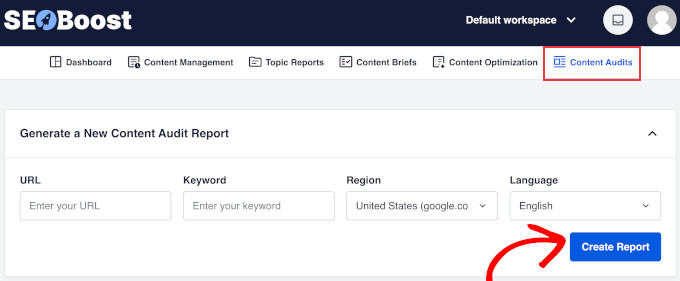
    All you have to do is go to Content Audits and enter your article’s URL, target keyword, region, and language.

    Content Audit Report SEOBoost

    Once you hit ‘Create Report’, SEOBoost will start instantly analyzing your content with the help of AI.

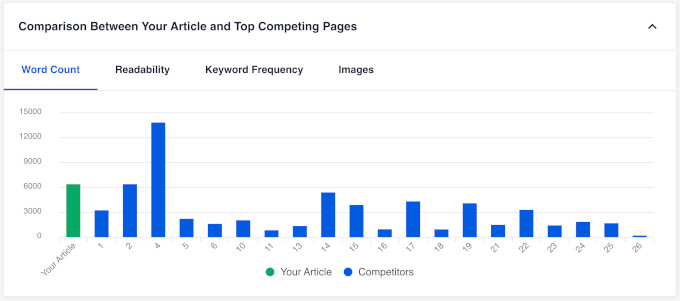
    It will then show you a bunch of different reports for how your content compares to top-ranking competitors for word count, readability, title length, and more.

    SEOBoost audit chart

    These visual graphs make it very easy to see where you compare to other websites.

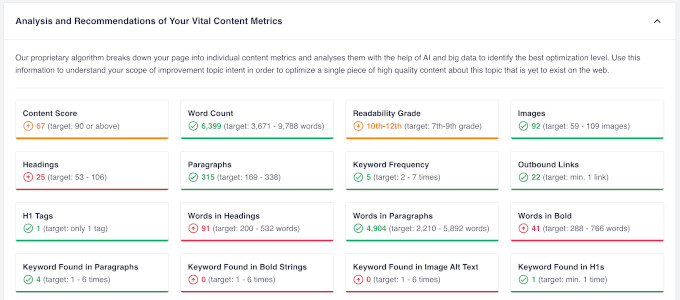
    All of this data is also highlighted in green, orange, and red so you can easily see where you need to improve.

    Content audit comparison SEOBoost

    Wondering which keywords are missing from your content? You can easily see them at the very bottom of the content audit report.

    This allows you to find content gaps and better optimize your content for the right search intent.

    SEOBoost keyword gap

    Easily Collaborate Across Your Content Team

    SEOBoost’s content management feature is a huge time-saver for content marketing agencies and bigger teams.

    It lets you set up content campaigns that are made up of smaller projects to work on.

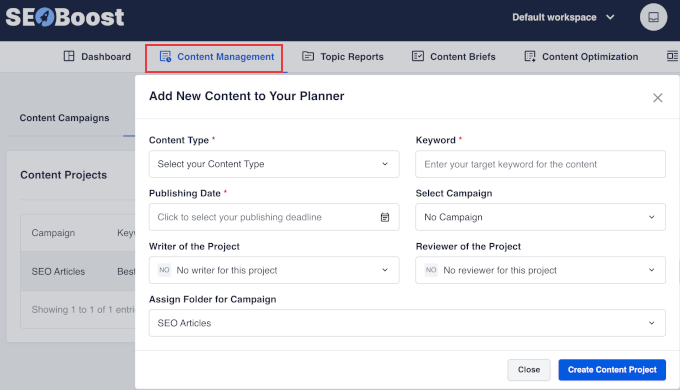
    Then, you simply need to pick the target keyword for each project, choose a publishing date, and assign it to a writer and reviewer.

    Making a project in SEOBoost

    This automatically creates a chain of tasks for both the writer and reviewer, from creating a topic report all the way through to approving and publishing the content.

    Team members can then quickly see the next task they need to do in their SEOBoost dashboard.

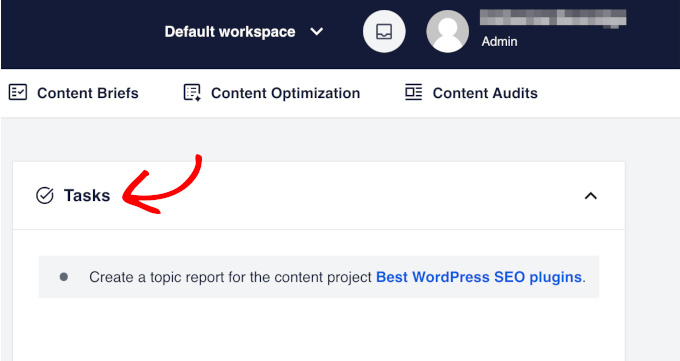
    For example, clicking on the task below will take you straight to the interface where you can create a topic report.

    SEOBoost tasks list

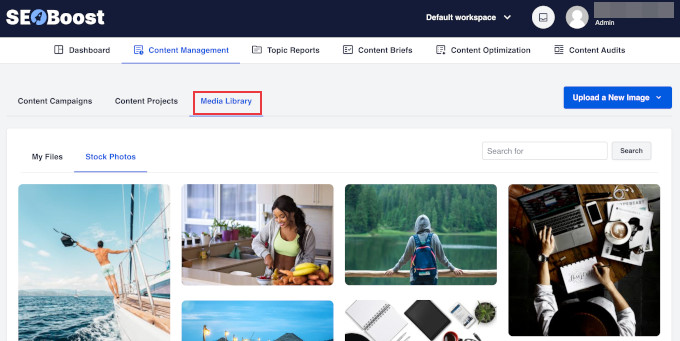
    Our tool also allows you to upload your own images to a shared media library or pick stock images.

    This can make it even faster and easier for your team members to create their content.

    All you have to do is go to Content Management » Media Library. From here, you can upload new images or browse the library of stock photos.

    SEOBoost Media Library
  • Introducing Sugar Calendar 3.0: Events & Ticketing Made Easy in WordPress

    Introducing Sugar Calendar 3.0: Events & Ticketing Made Easy in WordPress

    Ever wished there was an easy way to display calendars, manage events, and sell event tickets from your WordPress site?

    Most event calendar plugins are either way too simple or overly complex. That’s why I acquired Sugar Calendar a few years ago.

    Today, I am excited to announce that we’ve completely revamped Sugar Calendar from the ground up (free version here).

    With Sugar Calendar 3.0, we’ve completely reimagined how the plugin works. Now, managing events & ticketing in WordPress is easier and faster.

    sugar-calendar-announcement

    About Sugar Calendar

    Sugar Calendar has been one of the most beginner-friendly event calendar plugins for WordPress. My friend, Pippin Williamson, created the plugin 12 years ago with a goal of making a simple event management & ticketing plugin for WordPress.

    In 2021, I acquired the plugin as part of a larger deal that brought Easy Digital Downloads, AffiliateWP, WP Simple Pay, as well as Sugar Calendar to the WPBeginner family of brands.

    With the latest Sugar Calendar update 3.0, we’ve completely redesigned the plugin from the ground up, prioritizing your productivity. You’ll find a fresh, modern look and an easy-to-use layout that will make you wonder how you ever managed events without it.

    Let’s explore these new features:

    New Admin Area: Creating Events Made Easy

    sugar-calendar-admin-dashboard

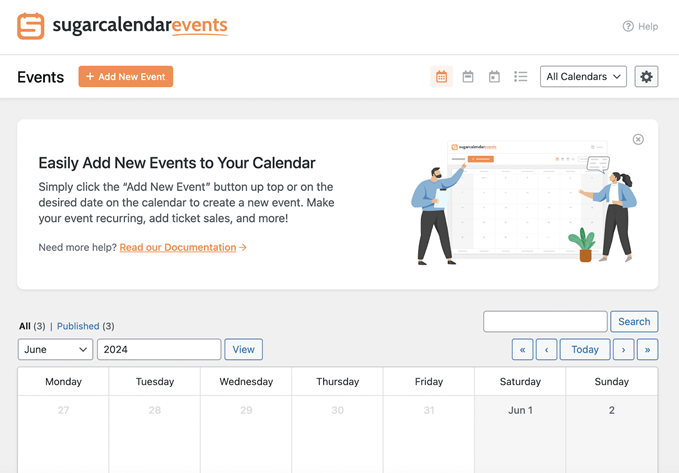
    Sugar Calendar’s brand-new event plugin management dashboard makes it easy to add new events to your calendar. If you need a refresher, you can quickly find links to the documentation.

    All the options you need to set up events in WordPress are organized in a streamlined way.

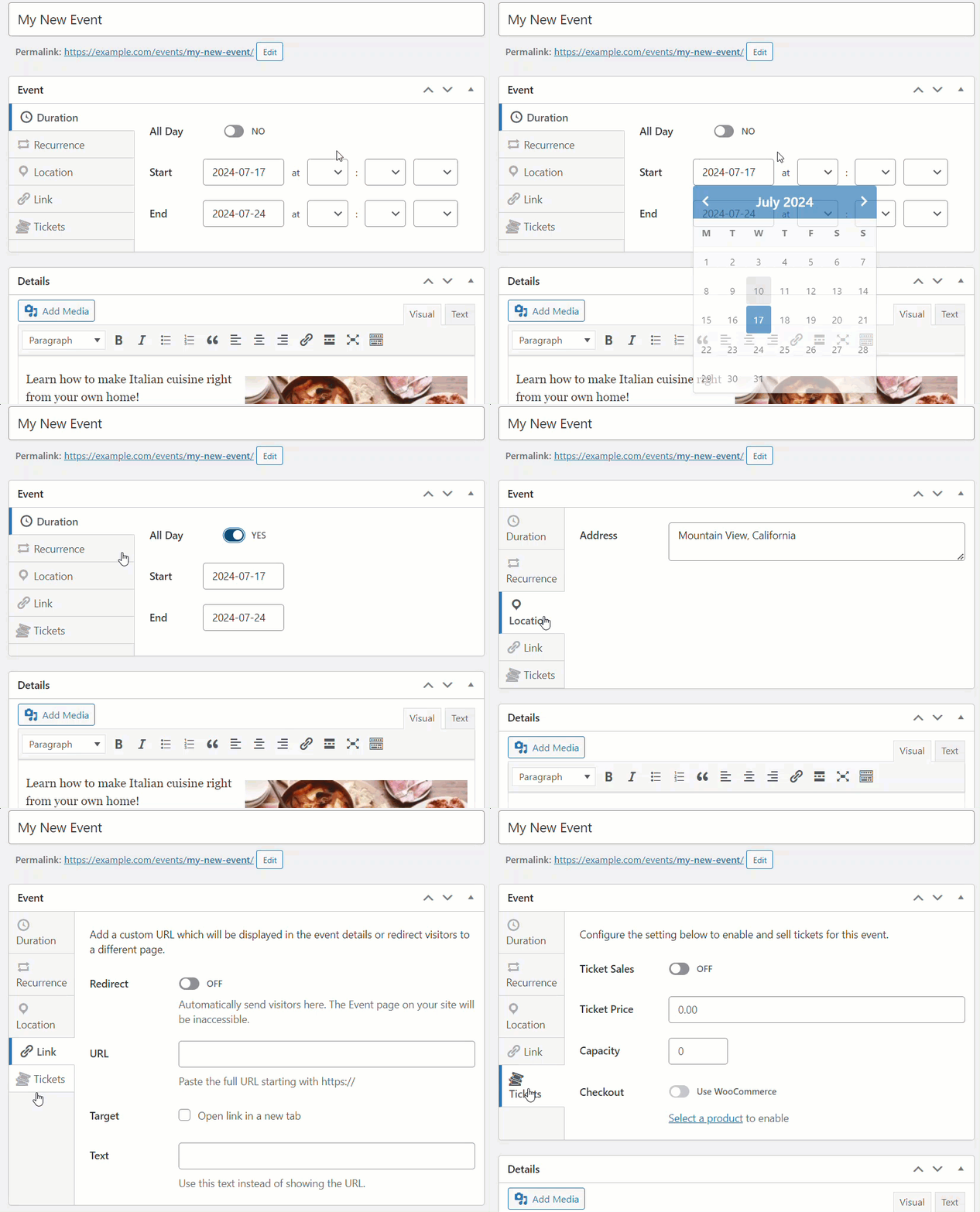
    event builder sugar calendar

    Here are a few options you’ll find in our WordPress event builder:

    • Duration: Easily assign a start and end time for your event.
    • Recurrence: Make the events recurring on the calendar if you want.
    • Location: Display an interactive map with Google Maps pointing to the event’s location.
    • Tickets: Manage ticket sales for both virtual and in-person events right from your WordPress site.
    • Details: You can add relevant event details either with the classic editor or block editor. Your preferred editor can be selected from the plugin settings.

    After setting up events in the event builder, you can publish and embed it on any page of your site.

    This allows your users to add events to their calendar of choice, such as Google Calendar / Microsoft Outlook / Apple Calendar, or even download the event as an ICS file.

    add to calendar

    Organize Events Into Calendars Like Never Before

    If you host multiple different type of events, then you need an easy way for users to find the event type they’re looking for.

    For example, churches often host different event types, like small groups, fundraising events, bible study, virtual sermons, etc. Businesses, on the other hand, also host different types of events, such as conferences, webinars, consultations, and more.

    Since attendees for each event type are often different, it makes sense to organize a separate calendar for each event type that you offer.

    The event filters in the Sugar Calendar event admin page

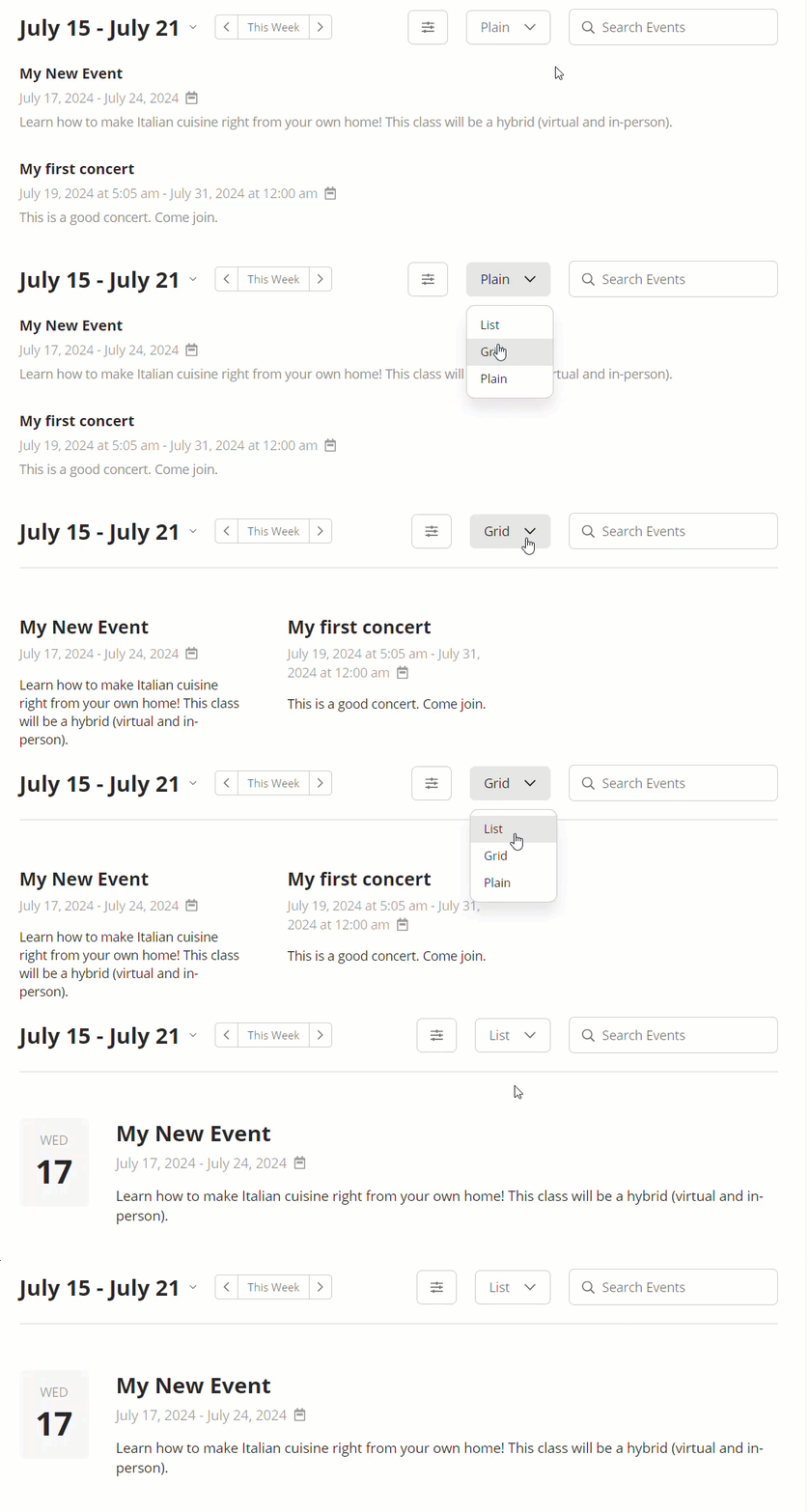
    With Sugar Calendar, you can easily switch between calendars, choose your preferred view (monthly, weekly, daily, or list), and even filter events by date. Alternatively, you can search for a specific event using the search bar on the right.

    Drag-and-Drop Calendar Blocks to Show Events

    Sugar Calendar makes it easy to add events to any posts or pages in WordPress.

    It comes with 2 Sugar Calendar blocks.

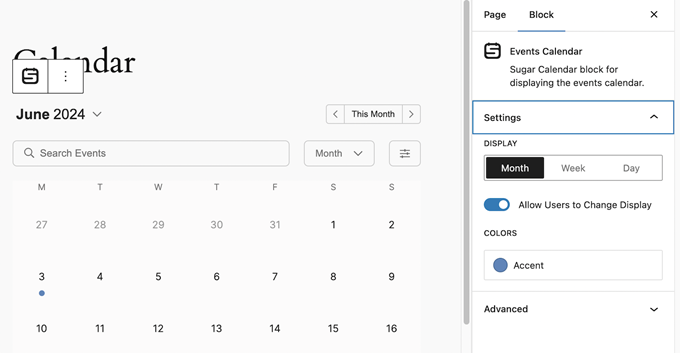
    1. Events Calendar

    Display your events in a clean and attractive calendar view.

    sugar calendar block 1

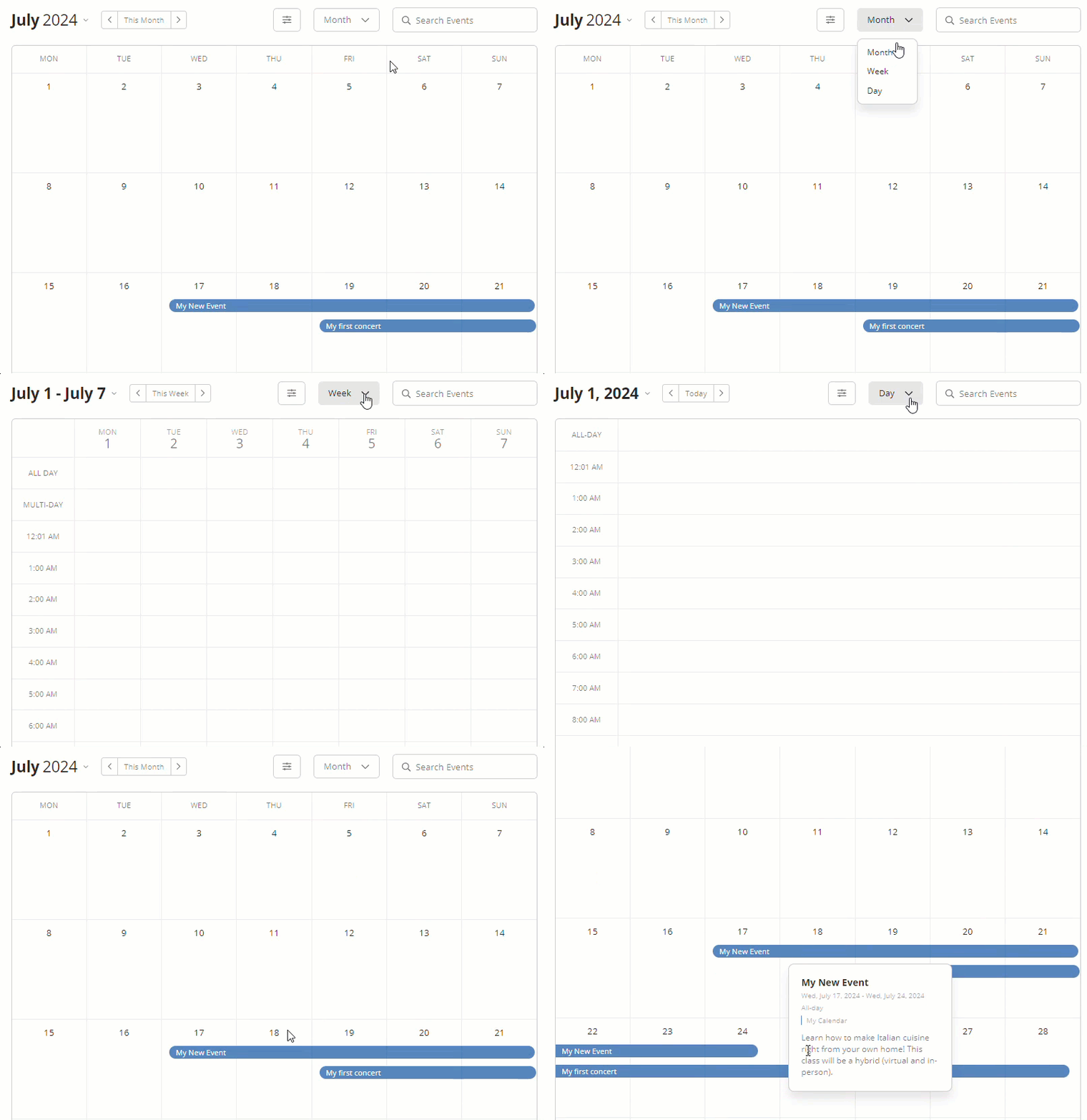
    Within the block options, you can configure which calendar to display, customize accent colors, and select the preferred view – whether it’s weekly, monthly, or daily.

    When published, this block enables users to toggle between different calendar views on the front end, ensuring a personalized experience for every visitor.

    event block front end

    2. Events List

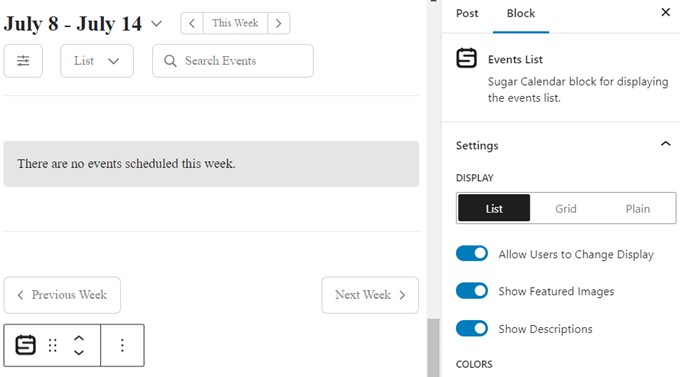
    With the Events List block, you can display your events in a summarized list.

    list event block

    This block is the best choice if you only want to highlight events from the upcoming week.

    Unlike displaying the entire calendar, the list block doesn’t take up a lot of space on the page to display the events.

    event list block front end

    Sell Event Tickets without a Hassle

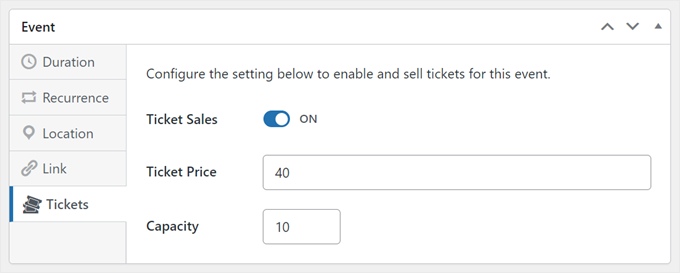
    The Event Ticketing addon allows you to manage ticket sales for both virtual and in-person events right from your WordPress site. The plugin lets you process the payments with Stripe.

    We also have a seamless WooCommerce integration that you can use as well. It allows you to enable a standard WooCommerce checkout experience for selling tickets.

    Using the event ticketing add-on in Sugar Calendar

    More Features That Make Sugar Calendar Standout

    Below are a few features that you’ll love about Sugar Calendar:

    • Automate Workflow with Zapier: Connect to over 7,000+ apps to streamline your event management processes.
    • Frontend Event Submission: Integrate Sugar Calendar with a form builder plugin and allow users to submit events directly from the frontend of your site.
    • Calendar Feed Subscription: Enable visitors to get event updates directly to their personal calendars on Google Calendar, Apple Calendar, Microsoft Outlook, and more.
  • Introducing Search & Replace Everything by WPCode: Bulk Editing in WordPress Made Easy

    Introducing Search & Replace Everything by WPCode: Bulk Editing in WordPress Made Easy

    Have you ever wanted to make bulk updates to your WordPress site?

    Wouldn’t it be nice if you could update hundreds of posts with a single click… without having to update them manually?

    If you’re like me and most other smart website owners, then you have at least wished for this solution a couple of times in your WordPress journey.

    Today, I am excited to announce the new Search & Replace Everything by WPCode, a free tool to easily perform bulk search and replace operations in WordPress.

    Introducing Search & Replace Everything by WPCode

    Why Did We Build This Tool?

    By default, WordPress does not come with a Find and Replace tool. This makes it hard to do bulk updates on your site.

    Especially if you want to quickly update a link on every page, change an image that’s used in multiple areas, or making bulk changes when you’re moving your site.

    Website owners either have to update every page manually which is extremely inefficient and time-consuming, or hire a developer to write a SQL query which can be expensive.

    And that’s why I decided to create Search & Replace Everything by WPCode.

    Search & Replace Everything revolutionizes how you update your content on your site once and for all.

    This tool is designed for anyone who manages a WordPress site and wants to save time and avoid errors.

    Here are some of the top use cases:

    • Bulk Update Content in WordPress Posts: As the plugin’s name suggests, you can search and replace any content on your website with a single click.
    • Replace an Image Used Across Multiple Locations: Quickly replace outdated images anywhere on your site with the new ones with just a click.
    • Updating URLs After WordPress Migration: When you migrate a WordPress website to a new address, you can replace URLs pointing to the old address. The plugin helps you fix all broken links while also saving you time.

    Making Bulk Changes in WordPress Effortlessly

    With Search & Replace Everything, our goal is to make it easy to make bulk changes to your website.

    Instead of writing complex SQL queries on your own or hiring a developer, you can enter what you want to search for and what you need to replace it with.

    Let me show you what makes Search & Replace Everything incredibly powerful yet so simple.

    1. Update Everything Quick and Easy

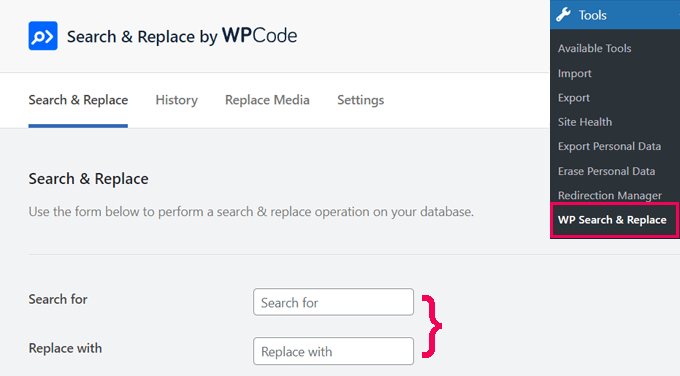
    Search & Replace Everything comes with a clean user interface. Just go to the Tools » WP Search & Replace page, enter the content you want to find, and then add the content you want to replace it with.

    This simple layout ensures that even non-technical users can perform complex operations without hassle.

    Easy to use interface

    2. Control Where to Search

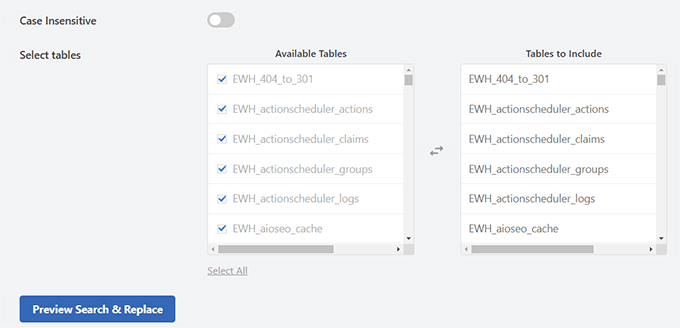
    Target your changes precisely by selecting specific database tables or searching across all tables for comprehensive updates.

    This feature ensures you’re making changes exactly where needed, preventing any unintended modifications.

    Select tables

    3. Precision Search with Case Sensitivity

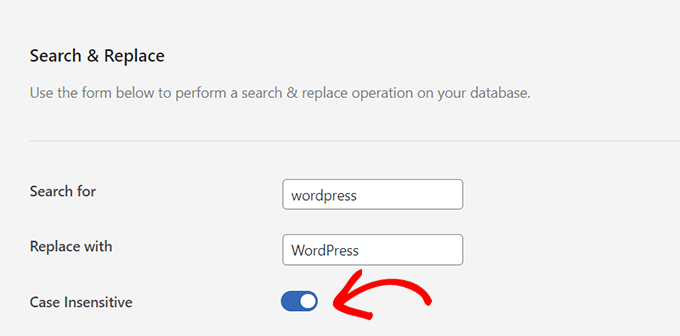
    By default, the plugin performs case-sensitive searches, ensuring accurate and specific matches.

    For example, a search for “WordPress” will not match “wordpress” or “WORDPRESS”.

    However, if you need to make your searches case-insensitive, you can easily toggle the option. This allows you to find and replace text regardless of its case.

    For instance, enabling case-insensitive search would allow “WordPress,” “wordpress,” and “WORDPRESS” to be treated as the same.

    Case Insensitive searches

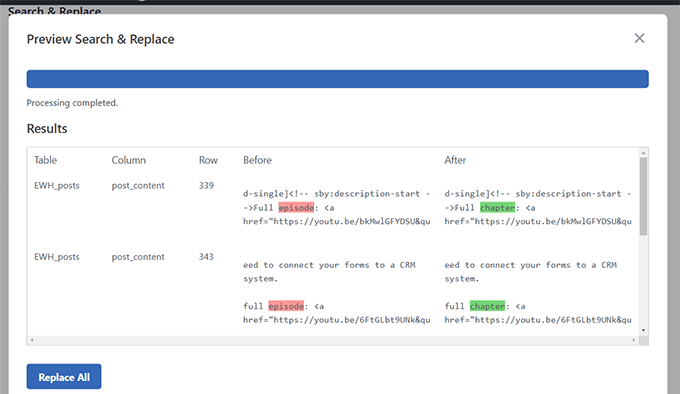
    4. Preview Before Making Changes

    Worried about making mistakes? Preview all the changes before you save them. This feature ensures you get everything right the first time.

    Preview changes

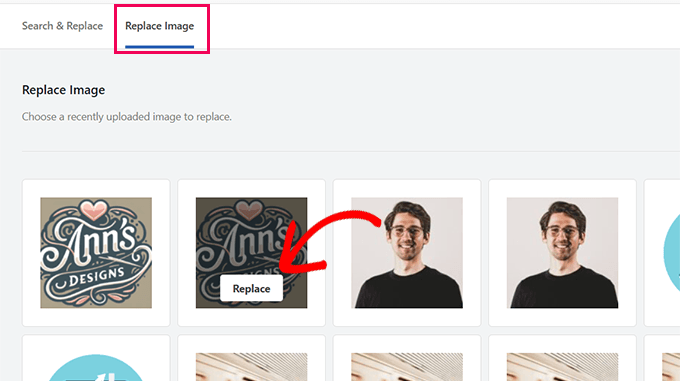
    5. Replace Any Image in Your Media Library

    Replacing images used in multiple places? No problem.

    Switch to the ‘Replace Image’ tab, find your image, and click ‘Replace’. It’s that simple.

    Replace image in media library

    6. Track & Undo Changes

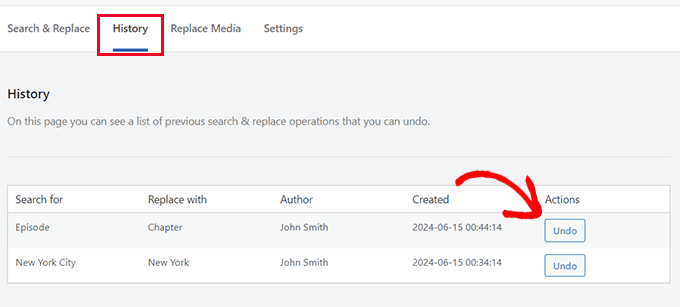
    You can keep track of Search & Replace activity in the ‘History’ tab. This allows you to quickly review the changes you made and undo them with the click of a button.

    Track history and undo changes

    Note: This feature is available with the paid plan with an introductory $30 discount.

    6. Fast, Even on Large Websites

    Performing site-wide search and replace operations consumes server resources, which could slow down or crash a website. Search & Replace Everything is designed to be fast and efficient, even if you have a larger website with tons of data.

    With Search and Replace Everything, making bulk changes has never been easier.

  • Whats Coming in WordPress 6.5 (Features and Screenshots)

    Whats Coming in WordPress 6.5 (Features and Screenshots)

    WordPress has released the beta for the release of version 6.5 for testing.

    We have been watching the development closely and are quite excited to report on all the new features expected to be released in this version.

    It will be the first major WordPress update of 2024, and many people have done significant work on it.

    Let’s look at some of those amazing features and enhancements that are coming in WordPress.

    What to expect from the upcoming WordPress 6.5 release

    Note: Using the WordPress Beta Tester plugin, you can try out the beta version on your computer or a staging environment. Please keep in mind that some of the features in the beta may not make it into the final release.

    Here is a quick overview of changes coming in WordPress 6.5:

    • Video Tutorial
    • The Fonts Library
    • Custom Fields for Blocks
    • Plugin Dependencies
    • Block Editor Improvements
    • Drop Shadow Effect
    • Smarter Overlay Colors for Cover Blocks
    • Rename Any Block in the List View
    • Right Click on a Block in List View to See Settings
    • Link Control Changes
    • Preferences Panel Updated
    • Site Editor Changes
    • Synced Patterns Get More Powers
    • Data View Enhancements
    • Improved Style Revisions
    • The Interactivity API
    • Miscellaneous Under-The-Hood Changes

    Video Tutorial

    Subscribe to WPBeginner

    If you’d prefer a written list, keep reading

    The Fonts Library

    Earlier, we reported that Font Library will be included in WordPress 6.4. However, it was postponed and wasn’t included in the final release.

    We are glad to report that it will be included in the WordPress 6.5.

    This will allow users to manage fonts used in their WordPress theme and across their website.

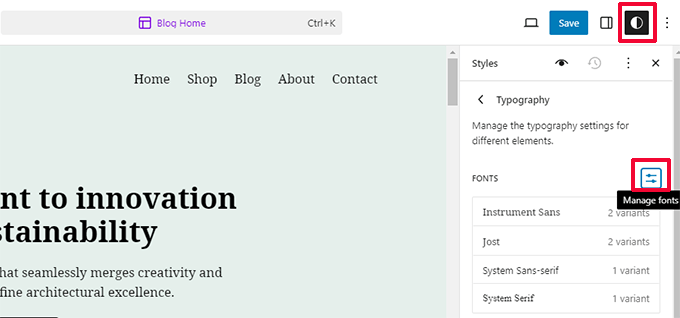
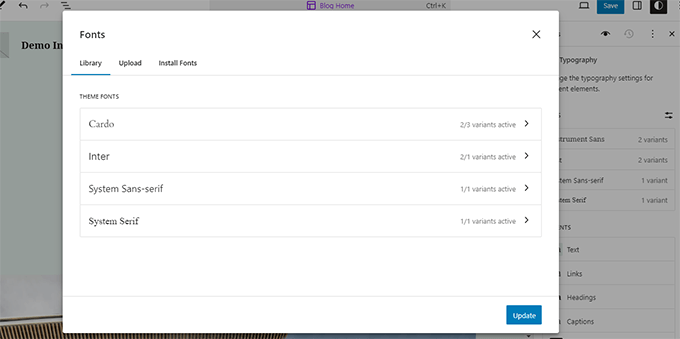
    Users can view the Font Library under the Styles panel in the site editor. Switch to the Typography view and then click on the Manage Fonts button.

    Managing fonts library in WordPress 6.5

    This will bring up the Fonts popup.

    By default, it will show you currently installed fonts for your WordPress theme. You can switch to the Upload tab to upload more fonts from your computer.

    Installed fonts available with your WordPress theme

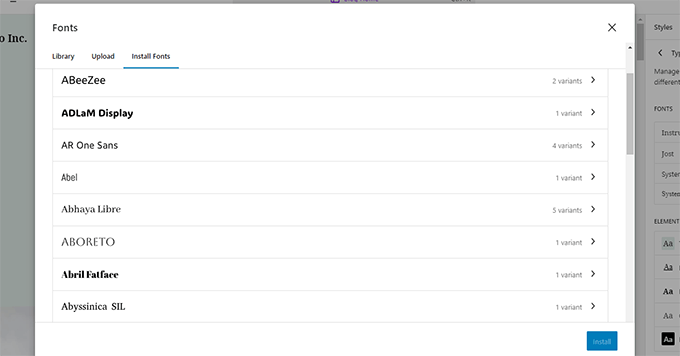
    Want to use privacy-friendly Google Fonts for your website?

    Switch to the Install Fonts tab to connect your website to Google Fonts.

    View and install Google Fonts

    You’ll then be able to browse Google fonts.

    Search the font you want to install and then select the variation. Finally, click on the Install button to locally host the font and serve it from your website.

    Browse and select Google Fonts

    This will help site owners customize their site’s typography with custom fonts for their existing theme.

    Custom Fields for Blocks

    Another exciting feature that is debuting in WordPress 6.5 is the ability to associate custom fields with block attributes.

    Custom fields in WordPress have been around for a very long time. They allow you to add custom metadata to your WordPress posts, pages, and other content types.

    Now, developers and advanced users will be able to associate custom fields data to individual block attributes.

    However, these connections are not just limited to custom fields. The block binding API introduced for this functionality also makes it possible to use other sources to provide dynamic data for blocks.

    For those who want to test it out, add these two custom fields to your post:

    • mood
    • weather

    You can see in the image below the custom fields interface:

    Adding custom fields

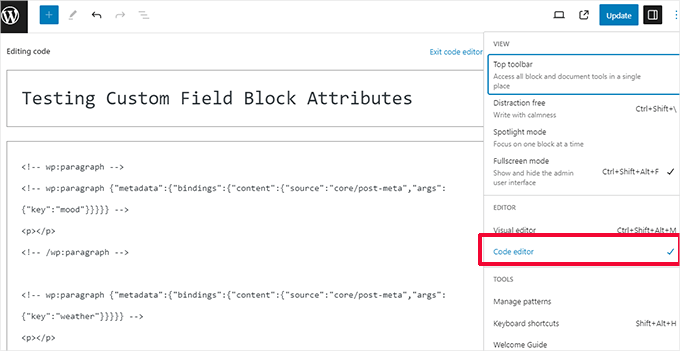
    Then, switch to the code editor view and add the following code inside a text field.

     <!-- wp:paragraph {"metadata":{"bindings":{"content":{"source":"core/post-meta","args":{"key":"mood"}}}}} --> <p></p> <!-- /wp:paragraph -->  <!-- wp:paragraph {"metadata":{"bindings":{"content":{"source":"core/post-meta","args":{"key":"weather"}}}}} --> <p></p> <!-- /wp:paragraph --> 

    Now save your changes.

    Adding bindings code to a block

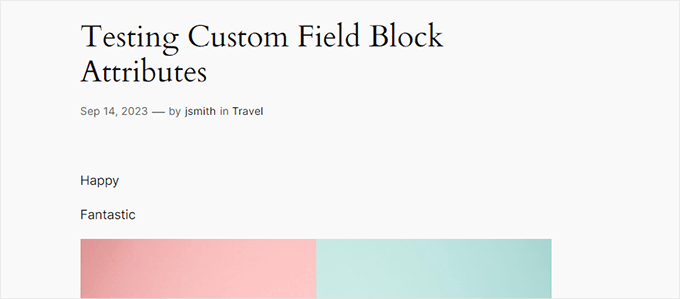
    Next, you can preview your post to see the custom fields in action.

    The theme should simply output the values of your meta keys.

    Preview

    This is just a very basic example.

    Developers would be able to do much more by showing connections in the editor and the ability to choose dynamic values from a drop-down menu by registering those connections.

    Plugin Dependencies

    Some WordPress plugins depend on other WordPress plugins to provide certain functionalities.

    For example, a WooCommerce payment addon would require WooCommerce to be installed for it to work.

    Plugin authors can now add a Requires Plugins entry into the plugin header and mention the plugins required to be installed and activated for their plugin to work.

    Required plugins to install

    Those plugins will then need to be installed and activated by the user.

    Once all the required plugins are activated, the user will be able to activate the main plugin that needs them.

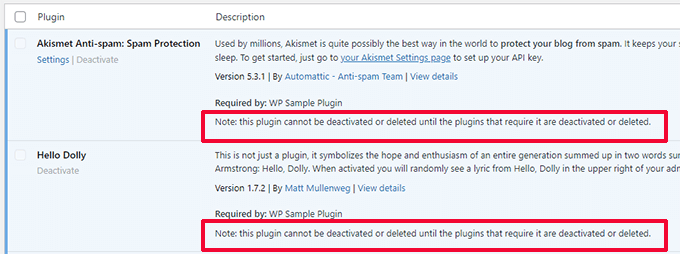
    Cannot be deactivated

    The required plugins cannot be deactivated until the plugin dependent on those plugins is deactivated first.

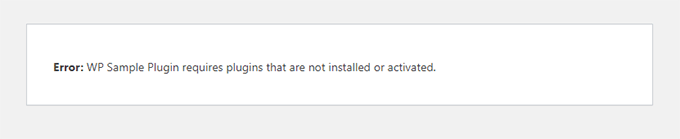
    Prior to WordPress 6.5, if a user installed such a plugin and activated it, they will see an error page.

    Dependency error wall

    This error page does not tell users which plugins to install or have instructions to go back to the plugins page. This feature is a big improvement in user experience.

    Block Editor Improvements

    The majority of WordPress users spend most of their time writing content, editing pages, and working with the block editor.

    This is why each WordPress release has significant improvements and new features to improve the block editor.

    WordPress 6.5 will be no different and is packing many enhancements to improve the content editing experience for all users.

    Drop Shadow Effect

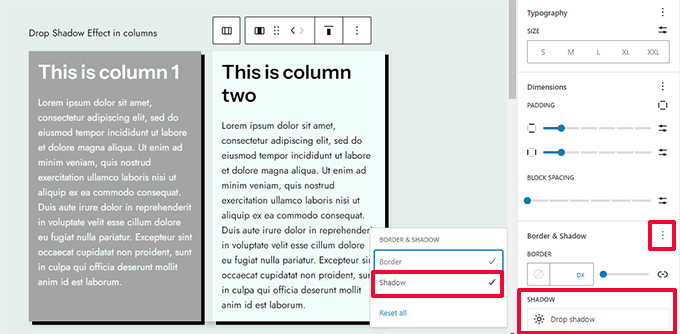
    WordPress 6.5 will introduce a drop shadow effect for more blocks. Here are some of the blocks where users will be able to use the drop shadow effect.

    • Image
    • Columns and Column
    • Buttons

    Simply click on the block and look for Border & Shadow under the Style Panel.

    Drop shadow effect

    Smarter Overlay Colors for Cover Blocks

    The cover block can now select the overlay color automatically based on the background color of the image you choose.

    Rename Any Block in the List View

    WordPress 6.4 allowed users to rename Group blocks in the list view for a better understanding of what each group block contains.

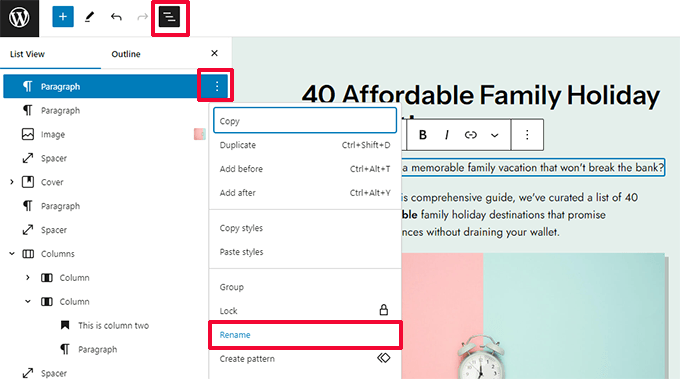
    WordPress 6.5 will take it to the next step and allow users to rename any block in the list view.

    Rename any block

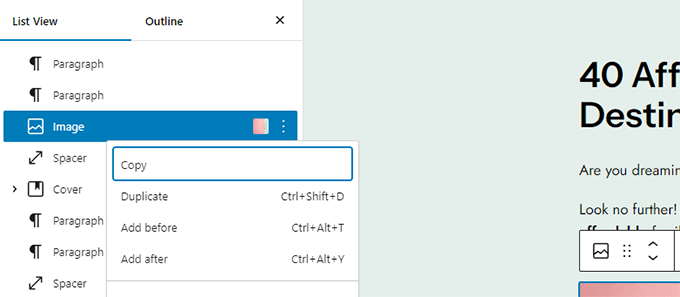
    Right Click on a Block in List View to See Settings

    Now previously, you needed to click on the three-dot menu next to a block to see its settings in the list view.

    In WordPress 6.5, you can just right-click on any block to see its settings.

    Right click to see block settings in list view

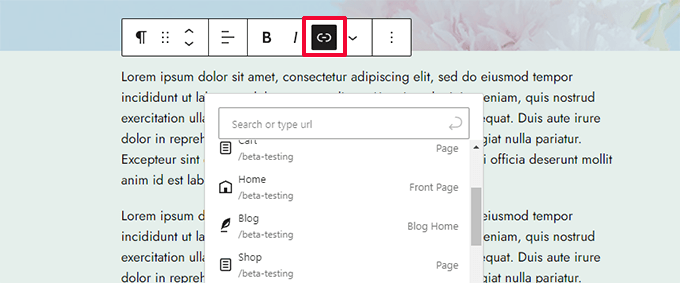
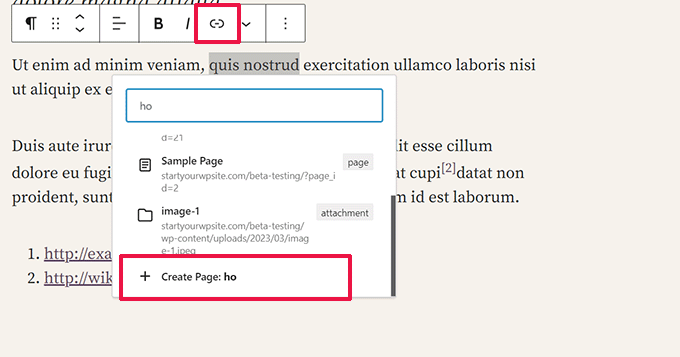
    Link Control in 6.5 will highlight your blog and front-page pages with different icons to distinguish them.

    Link control icons

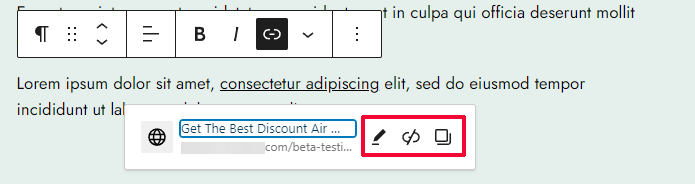
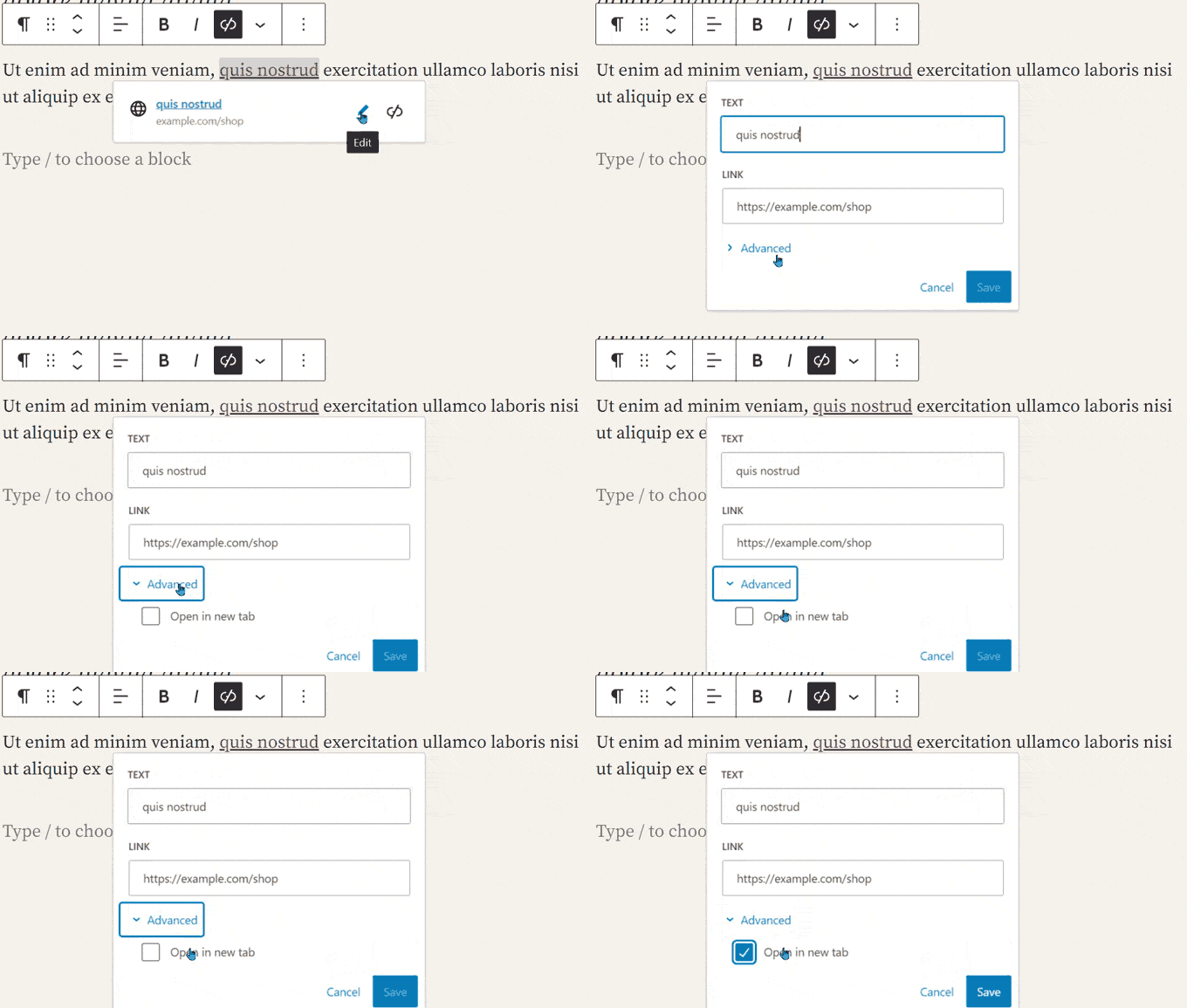
    Right after you add a link or when you click on a link, it will show you a context menu.

    Here, users can see where that link goes. It will automatically fetch the linked page title, and show the action buttons to edit, unlink, or copy the link.

    Link actions

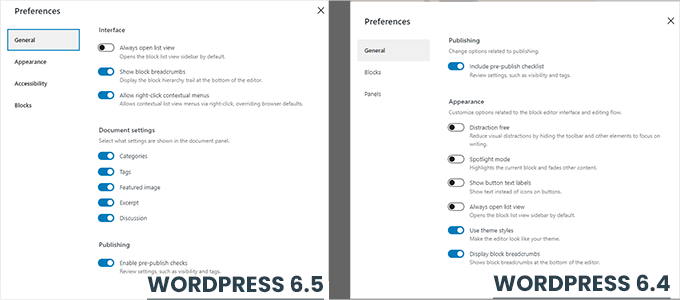
    Preferences Panel Updated

    The preferences panel will be updated in WordPress 6.5.

    It will now show Appearance and Accessibility panels and previous options are now better categorized.

    Preferences Panel gets an update

    Site Editor Changes

    Site Editor is where users can make changes to their site, much like the former theme customizer.

    This release will come with several improvements to the site editor.

    Synced Patterns Get More Powers

    Synced patterns help website owners create patterns to reuse later across their websites.

    With WordPress 6.5, users will be able to override locked synced patterns for individual use cases.

    For instance, a pattern for product review where a user wants to be able to edit the Pros and Cons but not the layout of the pattern.

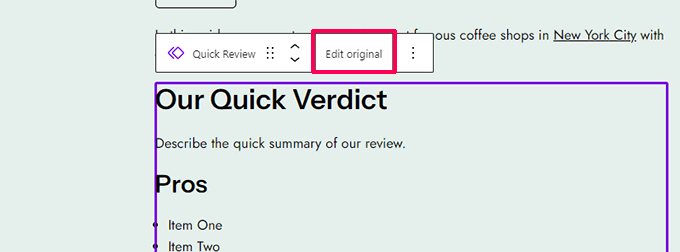
    To test it, add a synced pattern to a post and click on the Edit Original button.

    Edit original

    This will open the isolated pattern edit mode.

    From here, click on the block that you want to override. Then, under the block settings expand the Advanced panel and check the box next to the Allow Instance Overrides option.

    Allow instance overrides

    This feature allows you to create synced patterns that need to be edited based on the context in which they are used.

    Data View Enhancements

    WordPress 6.5 will bring a better way to view your pages, patterns, and templates with in site editor.

    You can view items in Grid view with large previews and sort them in different orders.

    Data set views in WordPress 6.5

    You can also see items in the table view.

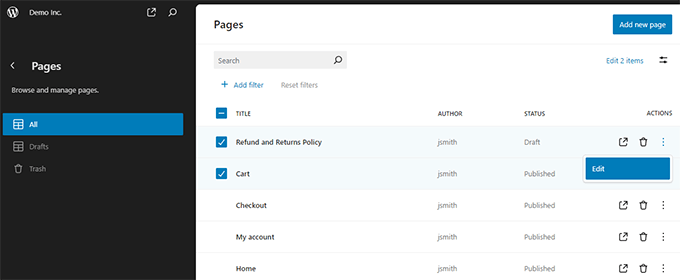
    For instance, you see your page list and start editing them without leaving site editor.

    Pages view

    Improved Style Revisions

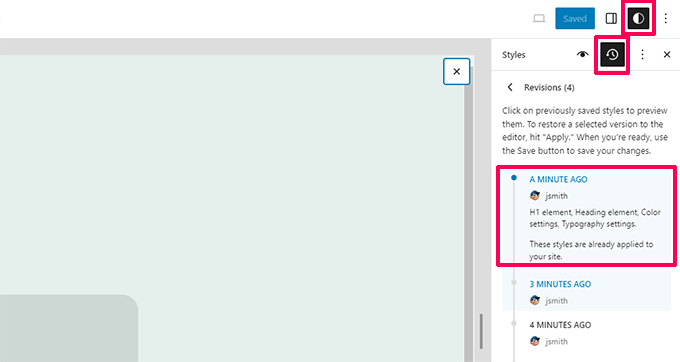
    Previously, Style revisions showed a timeline and you had to browse through it to see what changes were applied.

    WordPress 6.5 will bring better style revisions which show you a description of changes made for each revision.

    Style revision descriptions

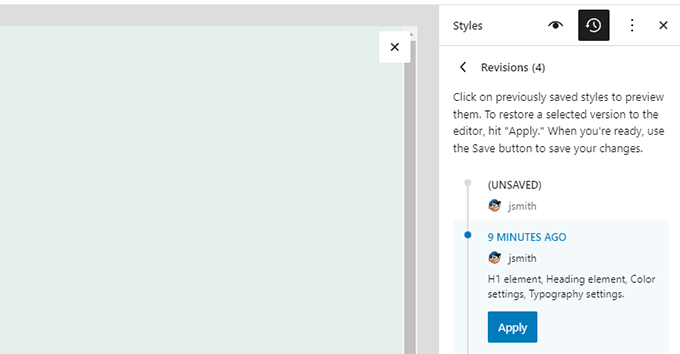
    The browsing between different revisions will also become smoother. You can also switch to a revision by clicking on Apply button.

    You will also see the changes that were made but not Saved yet.

    Unsaved changes or apply a previous version

    The Interactivity API

    Another exciting feature making its way into WordPress 6.5 is the Interactivity API.

    The API provides a framework for developers to create modern front-end interfaces that don’t require complete page reloads.

    This enables developers to create user experiences that are more ‘Interactive’ than old-school web pages.

    Think of reading comments on your favorite blog, and a new comment just pops up as you are writing your own reply. Or, imagine a live search feature that doesn’t slow down your website.

    The team working on the project has made a demo website to showcase its capabilities.

  • Introducing a New Chrome Extension by All in One SEO: Analyze Your SEO in a Click

    Introducing a New Chrome Extension by All in One SEO: Analyze Your SEO in a Click

    Do you think SEO is hard and tedious?

    Ever wished there was an easy way to point out nitty-gritty details of your SEO, so you don’t have to worry about it?

    Every minor detail can fluctuate search rankings, but ensuring they’re in place is not easy.

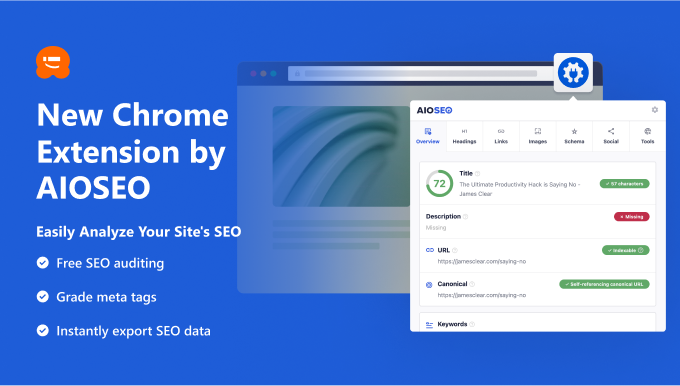
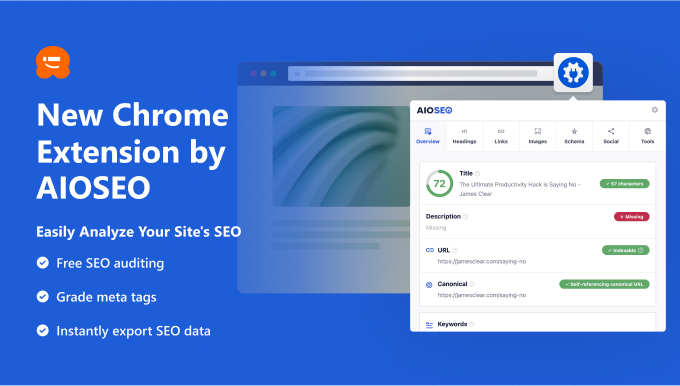
    Today, I’m excited to share the launch of my brand new Google Chrome extension, All in One SEO Analyzer, which shows you all your SEO details in a click.

    We built this tool to help you save time with fast SEO checks, so you can focus on creating great content while our tool handles the SEO details.

    new chrome extension by aioseo

    What is All in One SEO Analyzer Chrome Extension?

    The free All in One SEO Analyzer Chrome extension is the easiest way to run an SEO audit of any website instantly with a click.

    Once you install the extension on your Chrome browser, all you have to do is to visit the page where you want to perform an SEO analysis. Then click on the extension, and you’ll get a detailed SEO report of that page, which includes…

    • Analysis of basic SEO elements, like meta descriptions, titles, keywords, and content structure
    • SEO score analysis of your meta data, which shows you whether they need further improvement
    • Quick links to your robots.txt file and your website’s sitemap
    • Detailed reports of your heading tags, image’s SEO, internal, and external links, schema markups, social media tags, and more.
    demo aioseo extension chrome

    In a nutshell, the All in One SEO Analyzer Chrome extension shows you all your SEO details instantly.

    Why Use the All in One SEO Analyzer Chrome Extension?

    For most website owners, SEO is complex because there is no clear-cut way to analyze your website’s SEO unless you hire an SEO consultant or buy premium software that costs a fortune.

    Unfortunately, not everyone has the budget or resources to do so, which limits their ability to grow their website and rank better on search engines.

    We want to fix it once and for all. This is why we decided to build a free Chrome extension for SEO analysis and make it free for everyone.

    Our SEO extension makes it easy to do quick SEO checks and make necessary changes to your site in no time.

    Easily Generate an SEO Audit Report

    Ever wondered if there’s any room for optimizing your content to boost your SEO?

    No matter how well-structured your content is, there will still be room for improving it. With AIOSEO’s Chrome extension, you can scan your entire page with a click and generate an SEO audit report to see if there is any room for improvement to boost search rankings and organic traffic.

    Here are a few elements that our Chrome extension helps you analyze and improve.

    • SEO title and meta description: Optimize how your search results are being shown on search engine result pages for higher click-through rates.
    • Keywords used and heading tags: The extension shows you how many heading tags are used and what keywords you were using on the site.
    • Image SEO: It shows you how many images you’re using, whether they’re optimized with alt tags and titles.
    • Internal and external link count: Have a quick understanding of the total number of links you use on your site, whether they’re internally linked or externally.
    • Schema.org data: Schema is a type of microdata that provides additional information about the content of a web page to search engines. You can quickly figure out whether you’re using the right Schema markup.
    • And more…

    Perform SEO Analysis of Any Websites

    The best thing about our Chrome extension is that it lets you analyze any website you want, whether yours or your competitors.

    It also helps you learn from the SEO strategies of your top competitors and peers in your industry so you can discover how they structure their content and replicate the process on your site.
    headings chrome extension aioseo

    For example, you can visit any blog post you admire, click the extension, and then navigate to the Heading section. Then click the Export button.

    All headings used in that article will be downloaded in a CSV file.

    Find SEO Errors Right Within WordPress

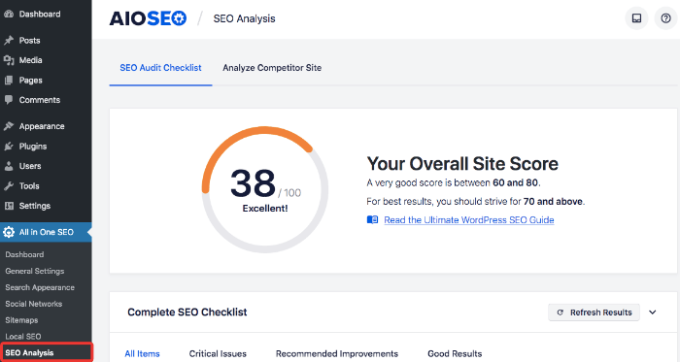
    Do you want to perform a detailed SEO audit and find critical errors right inside your WordPress dashboard? Then, we recommend installing the All in One SEO (AIOSEO) WordPress plugin.

    SEO audit

    Aside from showing you a detailed report, its free plugin offers suggestions to improve it.

    AIOSEO also offers a premium version that provides you with advanced features like a redirection manager, powerful sitemap tools, schema markups and more.

  • Whats Coming in WordPress 6.3 (Features and Screenshots)

    Whats Coming in WordPress 6.3 (Features and Screenshots)

    WordPress 6.3 Beta arrived a few days ago and is expected to be released on August 8th, 2023. This will be the second major release of 2023 and will come with significant new features and improvements.

    We have closely monitored the development and tried new features on our test sites.

    In this article, we will look into what features are coming in WordPress 6.3 with details and screenshots.

    What to expect from WordPress 6.3 with new features and improvements

    Note: You can try out the beta version on your computer or a staging environment by using the WordPress Beta Tester plugin. Please keep in mind that some of the features in the beta may not make it into the final release.

    Here is a quick overview of changes coming in WordPress 6.3:

    • Site Editor Enhancements in 6.3
    • New Navigation in Site Editor
    • Manage Patterns in Site Editor
    • Quickly Edit Pages
    • Preview Block Themes in Site Editor
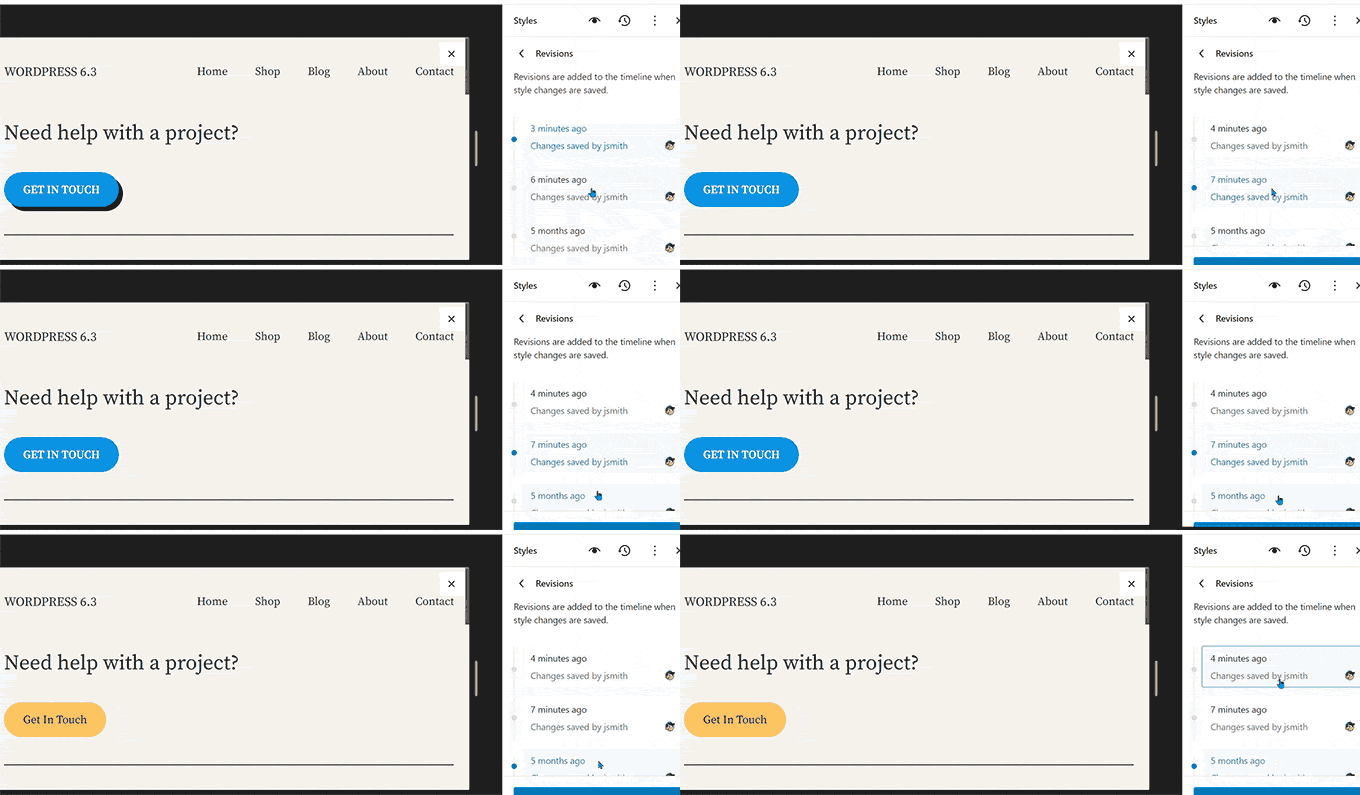
    • Style Revisions to Easily Undo Changes
    • The New Command Tool in WordPress 6.3
    • Block Editor Improvements
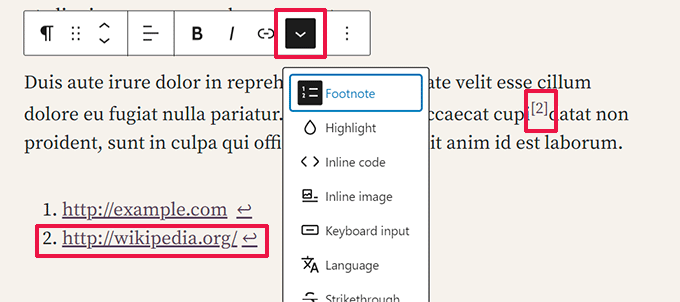
    • Footnote and Details Blocks
    • Improved Padding and Margin Controls
    • Better Handling of Image Aspect Ratio
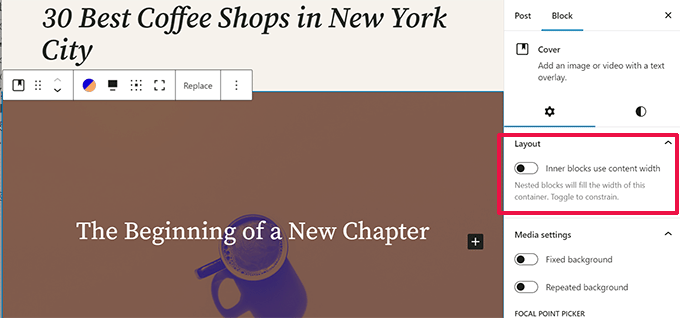
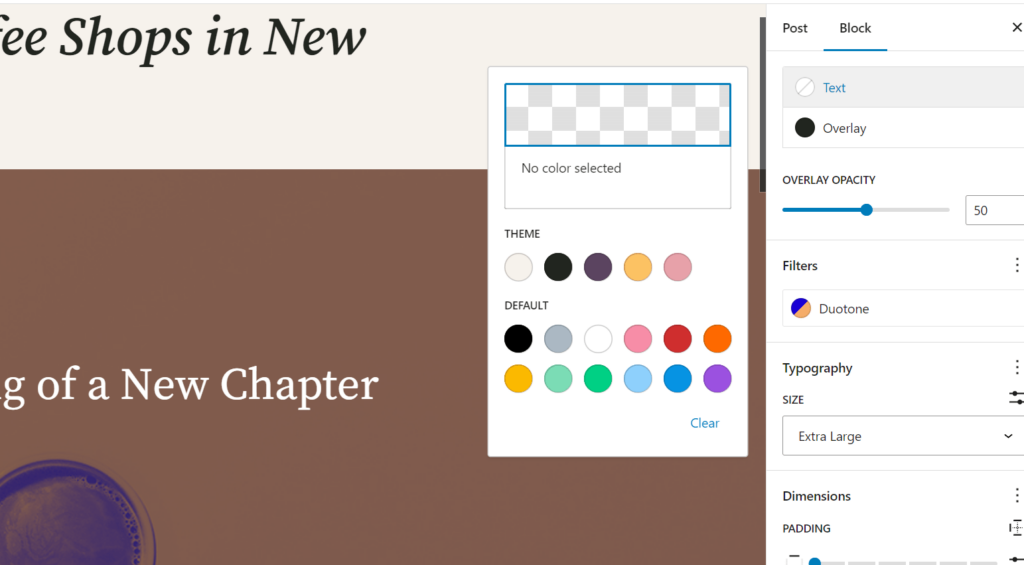
    • Color and Layout Support for Cover Block
    • Link Control Enhancements in 6.3
    • Under the Hood Changes

    Video List

    Subscribe to WPBeginner

    If you’d prefer written instructions, just keep reading.

    Site Editor Enhancements in 6.3

    The site editor in WordPress came out of beta in 6.2. The upcoming 6.3 will improve the site editor with several new features and enhancements to improve user experience.

    New Navigation in Site Editor

    WordPress 6.2 introduced a new navigator to the site editor. This allowed users to choose the template or template part they wanted to edit.

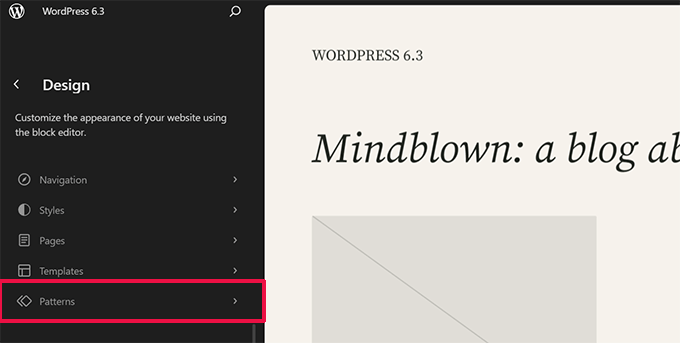
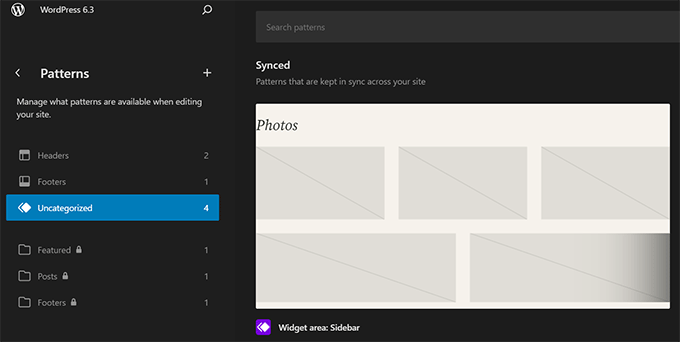
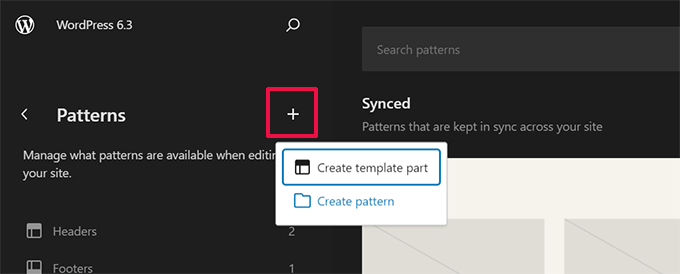
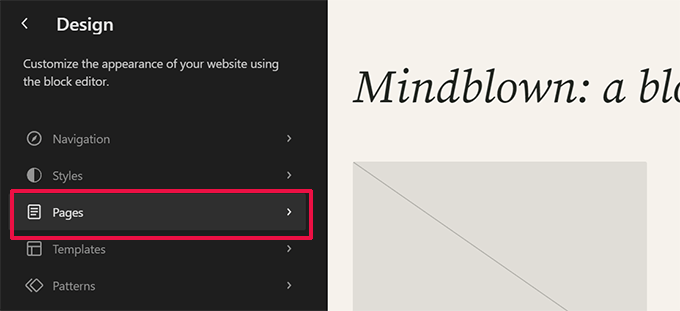
    WordPress 6.3 will bring improvements to this navigator, allowing users to select not just template or template parts but also pages, styles, patterns, and navigation menus.

    Site editor navigation

    The search icon will open the command tool (more on this later), where you can look for the area you want to edit.

    You can also quickly open your site in a new tab by clicking the ‘View Site’ button. The button only appears when you take your mouse to the site title and the search area.

    Manage Patterns in Site Editor

    WordPress 6.3 will also introduce a new and intuitive way to manage patterns. You can view all your patterns inside the site editor.

    Patterns in site editor

    Clicking on ‘Patterns’ will show the patterns available on your site in categorized sections.

    These will include both synced and unsynced patterns that you can use.

    Patterns library in site editor

    Unsynced patterns are standalone patterns that can be inserted at any time. After adding them, you can make changes, and those changes will not affect the original pattern.

    Synced patterns can be used across your WordPress website. Changing them will affect the original pattern. They behave like reusable blocks, so all your reusable blocks will also appear here and now be called ‘Synced Patterns’.

    At any time, you can click on the ‘+’ button in the Patterns menu to create a new pattern.

    Create a new pattern in site editor

    You can also manage your custom patterns by clicking on ‘Manage all of my patterns’ in the sidebar.

    This will allow you to edit and manage your custom-made patterns and reusable blocks.

    Manage patterns

    Quickly Edit Pages

    The site editor will now allow you to easily select ‘Pages’ from the editor navigation menu.

    Edit pages in site editor

    Clicking on this will also show you the pages you edited most recently, enabling you to quickly resume edits on a page you have been working on.

    You can also click the ‘+’ button in the navigation menu to quickly create a new page and immediately edit it in the site editor.

    Create or edit pages in the site editor

    Preview Block Themes in Site Editor

    When installing classic themes, you can already preview them without activating them on your site. This allows you to preview a WordPress theme without changing your live site.

    WordPress 6.3 will also allow users to preview block themes inside the editor. This will help users test-drive a theme before activating it on their sites.

    Live preview block themes

    Note: This is an experimental feature that didn’t work well during beta testing on our test sites.

    Style Revisions to Easily Undo Changes

    WordPress makes it super easy to undo changes to posts and pages using a feature called Revisions.

    The same feature will now be available for site editor styles. It will allow you to see the changes you made to your theme styles and undo them if needed.
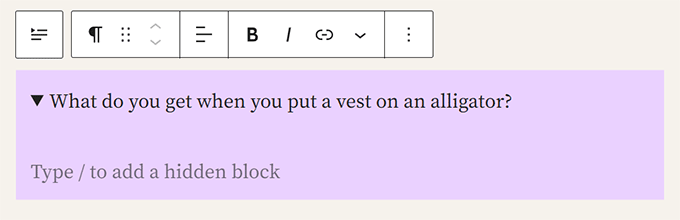
    Simply select a style or block that you want to edit in the Styles panel. Click on the ‘Revisions’ button and then select ‘Revision history’.

    Style revisions

    This will show you all the changes made to the style of the selected item.

    You can then switch between different versions and click the ‘Apply’ button to undo a change and revert to a previous state.

    Browse revisions

    The New Command Tool in WordPress 6.3

    WordPress 6.3 will also introduce the new command tool. It will allow users to perform actions quickly using the keyboard.

    Command tool in site editor

    Simply press the CTRL + K or Command + K keys on your keyboard. This will bring up the command tool, where you can simply start typing to search.

    It will then show you matching templates, template parts, patterns, blocks, posts and pages, and more. Selecting an item from the results will open it in the site editor.

    Block Editor Improvements

    WordPress 6.3 will also bring several new features and improvements to the block editor.

    Footnote and Details Blocks

    WordPress 6.3 will ship with two new blocks called Footnote and Details.

    Footnote Block

    Before, the block editor had no easy way to add footnotes to a post. Users had to create footnotes or use a third-party plugin.

    With WordPress 6.3, users can simply select the ‘Footnote’ option using the three-dot menu in the toolbar.

    Adding footnotes in WordPress 6.3

    Details Block

    Have you ever wanted a way for users to click on some text to reveal more information? The Details block lets you do just that.

    Simply add the Details block and provide the text that will be visible to the users.

    Using Details block

    Below that, you can add the content you want to hide inside the hidden block.

    This content could be text, images, media, and more.

    Preview Details block

    The Details block could be a handy replacement for accordions, which are commonly used to add FAQs or information in a compact style.

    Improved Padding and Margin Controls

    WordPress 6.3 will also introduce improved padding and margin controls.

    Previously, if you unlinked padding and margin controls, they took up a lot of space in the right column.

    In WordPress 6.3, padding and margin controls will be more compact and easy to use.

    Compact padding and margin controls

    Better Handling of Image Aspect Ratio

    WordPress 6.3 will allow users to choose the aspect ratio for an image. This will enable users to easily select the image size while maintaining the aspect ratio.

    This ensures that the images will look good in all sizes.
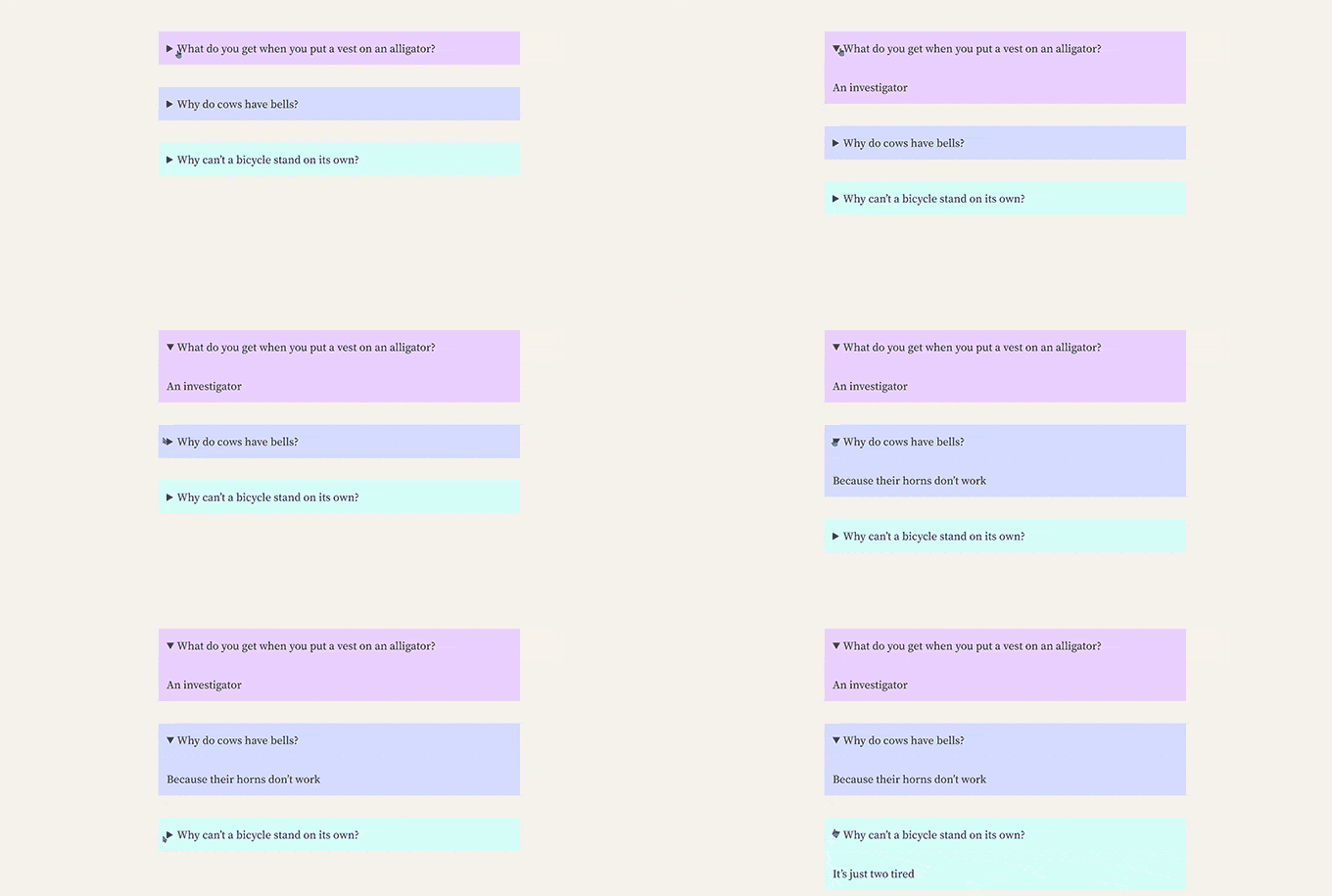
    Image aspect ratio

    Color and Layout Support for Cover Block

    The Cover block will get improvements in WordPress 6.3.

    Users can now choose its layout options, similar to the Group block.

    Cover layout

    The Cover block will now support duotone filters.
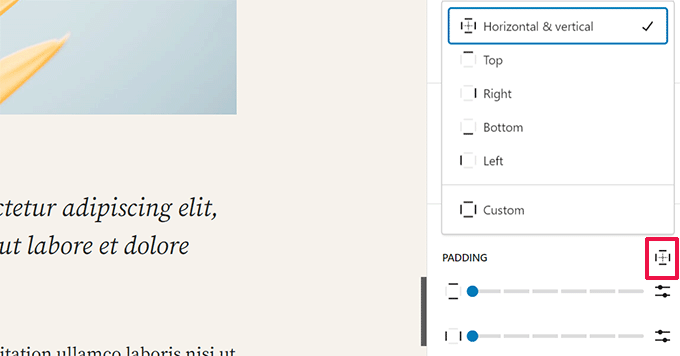
    Users will also find more design options for text inside the Cover block.
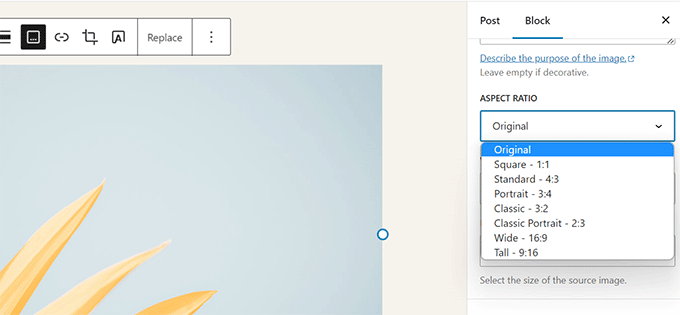
    Cover block duotone and colors

    Link control is the tool used by the block editor to add links. WordPress 6.3 will make some adjustments to improve it further.

    New link control

    Users can create a new page directly using the ‘Create Page’ button within the link control tool.

    The toggle to open a link in a new tab is also unavailable when adding a link. However, you can edit a link and find the option tucked away inside the ‘Advanced’ setting.

    Open link in new tab
  • Introducing Free Keyword Generator Tool: Discover 300+ Keyword Ideas Instantly

    Introducing Free Keyword Generator Tool: Discover 300+ Keyword Ideas Instantly

    Have you ever wondered how your audience finds you on Google?

    Ever wished there was an easy way to figure out the exact terms your target audience type in on search engines WITHOUT the high costs?

    If you’re like me and most other smart website owners, then you have at least wished for this solution a couple of times in your WordPress journey.

    Today, I am excited to release our free WPBeginner’s Keyword Generator Tool, which lets you figure out what your users are searching for on Google.

    announcing the keyword research tool

    We built this tool because we want to make it easy and free for everyone to grow their organic traffic with keyword research.

    What is WPBeginner’s Keyword Generator Tool?

    Our Keyword Generator Tool is a powerful FREE keyword research solution that lets you discover 300+ keyword ideas for your website in a click. You can use it for market research, coming up with content ideas, SEO research, and more.

    keyword research tool

    With this tool, you can quickly find every possible combination of keywords that your potential customers type in on Google. That way, you know exactly which keywords you’ll need to rank for on Google to boost your SEO and drive organic traffic.

    Most keyword research tools available on the market are either crazy expensive or limit the number of keywords you can discover.

    This is why we decided to build our keyword research tool and make it free for our WPBeginner readers.

    With our keyword generator tool, all you need to type in is a seed keyword, and you’ll instantly find hundreds of keyword ideas. Plus, you can even download all the keyword ideas in a CSV file for future use.

    And it’s absolutely free of cost. No signup or registration is required to use it.

    Some of the benefits of using our keyword research tool are:

    • Ease of use: You’re just 1 click away from generating hundreds of keyword ideas.
    • Free unlimited access: Get unlimited access for free. Generate as many keyword suggestions as you want.
    • Save resources: It saves you time and money. To make it even easier for you, keywords are well organized in several groups.

    How to Use WPBeginner’s Keyword Generator Tool?

    To find keyword ideas you need to rank for, the first thing you’ll need to do is to head over to our Keyword Generator Tool page. Then type in your seed keyword, which is a short-tail keyword generally consisting of 1- 3 words. Then click Analyze.

    keyword analysis report

    The tool will instantly generate hundreds of ideas, which you can copy and save on your computer. To make it easy for you to brainstorm and analyze keywords, all the keywords are organized into these sections.

    • Alphabets: All keywords will be arranged in alphabetical order from A to Z.
    • Prepositions: In this section, you’ll get keywords with prepositions like for, is, near, to, and so on.
    • Questions: You can find long tail keywords with questions.

    Aside from generating keyword ideas, our keyword tool also helps you see keywords organized with a graph in SVG. You can copy SVG to your clipboard. Alternatively, you can download the keywords in a CSV file for future use.

    keyword analysis svg graph

    Finding the Right Seed Keywords for the Best Results

    In a keyword research process, coming up with a seed keyword is always the starting point. And to find the right seed keywords, you’ll need to ask yourself a few questions:

    • What is my WordPress website about and what do I sell?
    • What keywords do I want to rank for?
    • What core topics do I want to cover on my site?

    Write your answers down. Then try to come up with a few seed keywords, each of them consisting of 1 to 3 words.

    Our keyword analyzer gives you unlimited access to the tool, meaning you can generate as many keyword ideas as you want based on any number of seed keywords.

    Just because you’ll get tons of keyword suggestions doesn’t always mean you need to choose all of them. Keep in mind that filtering out those ideas that don’t matter to your business is also an important part of keyword research.

    Create Blog Post Ideas Based on the Keywords

    Now that you know how to generate keyword ideas for your site, it’s your turn to bring them into action, like creating blog posts targeting those keywords. To be able to publish great blog posts consistently, you’ll first need to generate some blog post ideas.

    blog post ideas

    With WPBeginner’s Blog Post Idea Generator, you can instantly generate around 250 content ideas, which otherwise would take a few hours, if not days. Backed by data, our free tool analyzes the keyword you entered and provides you with content ideas that are proven to attract your target audience.

    Just like our Keyword Research Tool, the blog post idea generator is also a free online tool. No installation or email signup is required!

  • Introducing Email Signature Generator  Designing Professional Email Signatures Made Easy

    Introducing Email Signature Generator Designing Professional Email Signatures Made Easy

    Have you ever wished you could give business cards to people you meet online?

    Wouldn’t it be nice if there was an easy way to let people know how to connect with you WITHOUT spending a dime for an expensive marketing tool?

    If you’re like me and most other smart business owners, then you have at least wished for this solution a couple of times in your business journey.

    Today, I am excited to release a new FREE tool, WPBeginner’s Email Signature Generator, which helps you let people know who you are and how to reach out to you.  

    We built this tool because we want to make it easy and FREE for everyone to create a stunning email signature.

    announcing email signature generator tool

    What is WPBeginner’s Email Signature Generator?

    Our Email Signature Generator is a powerful FREE online tool that enables you to design aesthetically pleasing email signatures in a few minutes.

    No need to hire a designer or use an expensive tool. If you can point and click with a mouse, you can design beautiful email signatures quickly and easily.

    The best part is that our email signature builder generates an HTML signature, which is supported by every email client available in the market, including Gmail, Outlook, Yahoo Mail, Apple Mail, and more.

    email signature builder

    As opposed to image-only signatures, HTML signatures reduce the likelihood of your emails being flagged as spam by spam filters.

    While a well-designed email signature can help make a good first impression, most people don’t use a signature at all because it’s not easy to design one.

    This is why we decided to build the Email Signature tool at WPBeginner and make it free for all our readers.

    Below are a few benefits of using an email signature for your emails.

    • Your digital business card: Email signatures have the same purpose as a business card. It shows you who you are and the brand you represent.
    • Real person: It reassures your email recipients that they’re communicating with a human being rather than a bot.
    • Brand awareness: It helps in brand awareness and enables you to show your contact details, website URL, social media profiles, and more.

    How to Use WPBeginner’s Email Signature Generator

    First of all, head over to WPBeginner’s Email Signature Generator page. To create a unique signature, choose a signature template you like the most.

    choose a template for email signature

    Now you’ll be directed to our email signature builder, where you can add signature details like name, email address, phone number, website URL, and more. The builder even lets you change the signature template as you customize your signature details.

    The signature builder comes with 4 options to tweak your signatures the way you want.

    • General: Add more info like your name, email address, company name, your position at the company, and the department you work at.
    • Theme: This is where you pick a different template design if you change your mind.
    • Addons: Add even more details, like social media profiles, and change the avatar and a logo URL. 
    • Styling: Make advanced changes like fonts and spacing, and make your signature unique.
    copy email signature code

    Next, you’ll be prompted to sign up for the WPBeginner newsletter. And finally, you can copy the HTML signature embed code and paste it into your preferred email client.

    Our Signature Generator Improves Deliverability

    To improve email deliverability, our Email Signature Generator helps you build HTML email signatures.

    Unlike image-only signatures, HTML signatures are not likely to be flagged by spam filters.

    That’s because spam filters take text:image ratio into account to figure out whether an email is legitimate or spam.

    Using only an image as your signature could potentially reduce the text:image ratio and increases the likelihood of your emails getting flagged by spam filters.

    Customize Email Signature the Way You Want

    Another benefit of creating HTML signatures is that it’s highly customizable. With our free tool, you can easily add as many or as few details as you want to your email signature.

    For example, you can add important details like your first and last name, your business name, job title, and department.

    If you want, you can add even more details such as:

    • Your recent photograph
    • Your company logo
    • Social media profile links
    • And so much more…

    Set Up a Professional Email Address for FREE!

    Alongside a stunning email signature, we highly recommend using a professional email address. A professional email address uses your company name instead of the generic name, like Gmail, Outlook, or Yahoo.

    Here’s what a professional email address looks like: john@examplebusiness.com. And here’s an example of a generic email address: john.smith2019@gmail.com.

    When a professional email address is used alongside a professional email signature, you can win trust when dealing with other businesses and customers. 

    Subscribe to WPBeginner

    On the other hand, since anyone can create generic email accounts, it becomes harder for customers and other businesses to trust generic email addresses as legitimate business email accounts.

    Setting up a professional email address is free if you already have a website. If you don’t have a WordPress website yet, you can build one with Bluehost, which offers a free domain name, free business email address, and 60% OFF web hosting.

    For more details, check out how to create a business email address for free.

  • Introducing UserFeedback  Easy Survey Tool to Uncover What Users are Really Thinking

    Introducing UserFeedback Easy Survey Tool to Uncover What Users are Really Thinking

    Do you want to know why your website visitors abandon your site?

    Ever wished there was an easy way to read your website visitors’ minds WITHOUT learning telepathy or using an expensive user survey tool that costs a fortune?

    If you’re like me and most other smart website owners, then you have at least wished for this solution a couple of times in your WordPress journey.

    Today, I’m excited to share the launch of my free UserFeedback plugin, which enables you to collect real user feedback quickly and easily.

    We built this tool because we want to know the “why” behind every website visitor’s action that Google Analytics won’t tell you.

    announcing userfeedback plugin

    When you know the why or the intent behind users’ actions, you can easily figure out why your visitors buy or do not buy your products.

    Background Story

    In 2016, I acquired a Google Analytics plugin for WordPress, completely revamped it, and launched it as MonsterInsights.

    The goal of this plugin was to help users make informed decisions by showing them the data that matters to their businesses.

    For example, you can easily see which products or pages are the most popular or where your most profitable traffic comes from.

    As the plugin grows, I often get asked by our users: is there a way to understand the intent of every website visitors’ actions?

    When you know the intent … the “why” behind users’ actions, you can figure out why customers purchased from you or, better yet, why they did NOT purchase from you.

    Unfortunately, Google Analytics only tells you half the story: “What is happening on your website?”. It’s not built to answer the other half of the question: “Why are your visitors doing that?”

    In fact, most of the customer feedback tools in the market charge exorbitantly high prices, which aren’t affordable to small businesses.

    After a lot of thought and consideration, we decided to release a brand-new plugin called UserFeedback, which enables you to understand user intent by collecting real time feedback from them.

    With UserFeedback, you can:

    • Create a demographic survey to fill out your buyer personas
    • Ask website visitors to leave their phone number for a callback
    • Run customer satisfaction surveys to see what buyers think about your products
    • Run NPS surveys
    • Ask for feedback on your website design
    • Run product surveys to find out what buyers are actually using your products for
    • And so much more

    What is UserFeedback?

    UserFeedback is a free and powerful WordPress plugin that lets you launch in-the-moment surveys to collect quality feedback from your website visitors.

    It comes with built-in templates and questions to make creating feedback surveys quick and effortless, including:

    • Website feedback/experience
    • Ecommerce store survey
    • NPS survey
    • Post purchase review
    • Product usage survey
    • Competitive research
    • And so much more!

    Anything you’ve ever dreamed of being able to easily ask your customers, you can ask with UserFeedback.

    In combination with a powerful analytics tool like MonsterInsights, website owners can finally see both the “why” and the “what” of their users’ behavior on their WordPress websites.

    When you have direct access to your visitors’ wants and needs, you can make changes that will take your website and business to the next level.

    My plan is to continuously add more helpful templates and addons to make UserFeedback even more powerful and essential to understanding your website visitors.

    Collect Feedback in Minutes, not Hours

    UserFeedback makes it super easy to launch a survey in minutes, not hours. Its 20+ survey templates give you a head start, so you don’t always have to start a feedback survey from scratch.

    userfeedback surveys

    Each of those templates is pre-designed for different user needs. Based on your requirements, choose the right template, make quick changes, and publish it on your website.

    For example, the Website Design Feedback template comes with a star-rating question, whereas the NPS Survey template lets your users grade their loyalty on a scale of 1 to 10.

    star rating feedback

    The best part is that you can build and preview your design within the dashboard.

    Get Best Results with Laser Targeted Surveys

    UserFeedback enables you to display the right surveys at the right time to the right users. Here are some targeting options you can use for the best results.

    survey targeting options
    • Logged in status: Choose to show your surveys only to logged in or not logged in users.
    • Page URL: Show it only on certain pages
    • Traffic source: Display it based on the traffic source, like organic traffic, PPC ads, social media, and so on.
    • Device type: Choose which types of devices the survey should appear
    • Display timing: Choose the right time to show the survey.
    • Exit intent / scroll targeting: You can show it to users who abandon the site on desktop or show when a user scrolls halfway down the page.
    • And much more…

    Now that you know how UserFeedback works, let’s take a look at how our customers are using UserFeedback to grow their businesses.

    1. Focus on What to Prioritize Next

    Are you looking to redesign your website? Wondering how to improve your website copy to boost sales and conversions?

    One of the best things about UserFeedback is that it lets you collect feedback score on every page of your site. That way, you can quickly find pages that aren’t resonating well with your audience and prioritize those pages while redesigning.

    2. Get Feedback to Validate Your Plans

    Pushing out new changes on your site can be intimidating. It’s especially true when you change the pricing plan on your website.

    With UserFeedback, you can validate your plans with a survey and learn what users think about your latest plans.

    3. Boost Profit by Reducing Customer Churn

    UserFeedback comes with several targeting options, including exit intent. This targeting option helps you understand why users are leaving by collecting feedback at the exact moment when people churn.

    4. Collect a Constant Stream of Great Suggestions

    Do you want to encourage users to provide you with suggestions to improve your product?

    One of the reasons most people hesitate to provide feedback is that it’s not easy to do so. With an on-site survey, you can make it convenient for them to send you feedback. Plus, you can collect a constant stream of suggestions to improve your product.

    5. Fix the Problems Before They Develop

    The biggest benefit of collecting feedback is that it helps you quickly identify problems before they develop. That means you can quickly rectify your problems before your customers start complaining about it.

    Get Unlimited Everything – Questions, Responses, and Sessions

    A big reason why we built UserFeedback is that most feedback tools are just too expensive. They slow down your site and charge you based on the number of responses and sessions …

    Let’s take a look at how UserFeedback surveys compare to another feedback tool, Hotjar.

    hotjar pricing

    On the other hand, the FREE version of UserFeedback lets you ask unlimited questions and get unlimited responses without a daily session limit! Even our highest pricing plan costs less than Hotjar’s cheapest plan.

    userfeedback pricing
  • Introducing Broken Link Checker  Never Have Dead Links On Your WordPress Site Again

    Introducing Broken Link Checker Never Have Dead Links On Your WordPress Site Again

    Are you tired of finding and fixing broken links on your WordPress site?

    Have you ever wished there was a foolproof method to periodically monitor all internal and external links easily WITHOUT the high costs?

    If you’re like me and most other smart website owners, then you have at least wished for this solution a couple of times in your WordPress journey.

    Today, I’m excited to announce my new product, Broken Link Checker, which works silently in the background on your site, giving you peace of mind.

    We built this tool to help you quickly check your site for broken links and easily fix them to improve search engine optimization (SEO).

    What is Broken Link Checker?

    Broken Link Checker is a powerful WordPress plugin that crawls your website periodically and checks every link to ensure it is not broken.

    It is built as a SaaS service, so it never puts load on your WordPress hosting server or slow your website down.

    The Broken Link Checker plugin was developed by the same team behind AIOSEO (All in One SEO), the best SEO plugin for WordPress.

    When broken links are found, the plugin makes it easy for you to fix them right from within the plugin without even having to visit individual pages where those links were added.

    Why Do You Need Broken Link Checker?

    Broken links can frustrate your website visitors and cause them to leave your site. They can even hurt your website’s SEO, conversions, and sales.

    On WordPress sites, broken links typically occur when moving a site to a new domain name, or when deleting a post or page without proper redirection.

    Sometimes broken links can also happen due to a typo, and they can go unnoticed for months if not years. But worse, if you ever link to an external website that’s not yours, and they change the page, delete it, or shut down the site, then your site will have broken links.

    This is why monitoring broken links on a regular basis is important for your WordPress website.

    While there are SaaS broken link checkers in the market, most are either crazy expensive or not built specifically with WordPress websites in mind.

    So I decided to work with my team to finally create a beginner-friendly broken link checker for WordPress.

    With Broken Link Checker, you can…

    • scan all links on your site every 3 days
    • detect valid links, broken links, and redirects
    • set which post types (posts, pages, or custom post types) and statuses (published, draft, and so on) to monitor
    • exclude certain URLs from being checked

    … and a whole lot more.

    If you’re serious about your website and want to grow your online business, then you know how important it is to offer a seamless website browsing experience to your visitors.

    The last thing you want your readers to see is a big 404 page not found error message serving as a dead end on your WordPress site.

    How to Use Broken Link Checker in WordPress

    The first thing you’ll need to do is install and activate Broken Link Checker on your site.

    For more details, see our step by step guide on how to install a WordPress plugin.

    Next, you’ll need to connect the plugin to your Broken Link Checker account.

    Upon connecting the plugin with your account, you can turn the toggle on to stop search engines from following broken links. You can even set it not to update the modified date for a page/post when a link is updated via the plugin.

    link tweaks broken links tool

    When you click the Broken Links tab, you can see that the plugin has automatically scanned the entire site, and links are categorized into broken, redirects, and dismissed.

    The Broken Link Checker plugin lets you fix broken links quickly and easily right within your plugin. To replace a broken link, simply click Edit URL.

    Alternatively, if you want to remove the link, just click Unlink and the link will be removed from the page.  

    edit url in broken link checker

    After updating the link, you can recheck if the link is still broken by clicking the Recheck option. If you want, you can even dismiss the message from the plugin.

    Get More Details About Each Link

    Broken Link Checker gives you additional details for each link, like how long the link has been broken and response header information, HTTP Status code, and more.

    get status details for broken links

    Control Which Types of Pages are Scanned

    Another important aspect of Broken Link Checker is its advanced settings, which give you full control over which pages get scanned. Within the plugin, you can set which post types (posts, pages, or custom post types) and statuses (published, draft, and so on) to monitor.

    You can also exclude certain pages from being checked.

    advanced settings of broken link checker

    This helps you better manage the crawl budget, so you can ensure you’re not wasting the link scan credits.

    Scanning Your Site the Right Way

    Broken Link Checker scans both external (links from your website to others) and internal links (links from one page on your site to another page) on your site.

    Unlike other WordPress plugins, Broken Link Checker uses an external private server to scan (or, in other words, ping) for broken links on your site. That’s because repeatedly pinging external sites from your servers can make your site look suspicious to internet service providers, putting your sites at risk of being blacklisted.

    This is why most WordPress hosting companies put traditional broken link checker plugins in their block list.

    Since Broken Link Checker uses an external private server for pinging external links, you can rest assured that you’re in safe hands.

  • Whats New in WordPress 6.2 (Features and Screenshots)

    Whats New in WordPress 6.2 (Features and Screenshots)

    WordPress 6.2 has just been released, and it is the first major WordPress release of 2023.

    This new version is packed with significant improvements and new features. Many of them focused on the block editor and site editing in WordPress.

    In this article, we’ll show you what’s new in WordPress 6.2 and which features you should try after the update.

    An overview WordPerss 6.2 release with features and screenshots

    Note: WordPress 6.2 is a major release, and unless you are on a managed WordPress hosting service, you’ll have to initiate the update manually. Here’s how to safely update WordPress.

    Important: Don’t forget to create a complete WordPress backup before updating.

    That being said, here’s all that’s new in WordPress 6.2.

    • WordPress Site Editor Comes out of Beta
    • Improved Navigation Menu Block
    • Improved Template Browsing Experience
    • Template Parts Highlighted with Colors
    • Modify Your Theme With The Style Book
    • Ability to Add Custom CSS to Your Theme or Blocks
    • Copy and Paste Block Styles
    • Improved Pattern Insertion
    • Openverse Free Media Library Integration
    • New Sub Panels for Block Settings & Styles
    • New Distraction-Free Mode
    • Import Classic Widgets as Template Parts in Block Themes
    • Miscellaneous Enhancements
    • Under The Hood Changes

    WordPress Site Editor Comes out of Beta

    The site editor comes out of the beta.

    It has been around for the past few WordPress releases, the removal of the beta label is merely an invitation for more users to try it.

    Site editor comes out of beta

    This also indicates the completion of phase 2 of the WordPress development roadmap which started out with the release of the new block editor back in WordPress 5.0 (late 2018).

    WordPress 6.2 includes several new features added to the site editor, including some brand-new tools which we’ll talk about later in this article.

    Note: Full site editor is available with block themes that support this feature. You can try it out even if you are using the older classic editor with a block-enabled theme.

    Improved Navigation Menu Block

    Navigation menus help you define your website layout to your users. However, creating them in the full site editor had been a bit difficult for beginners.

    WordPress 6.2 now comes with an improved ‘Navigation’ block.

    You can now create and manage the Navigation block by editing items in the sidebar.

    Managing menu items in block panel

    To add a new menu item, simply click on the ‘add (+)’ button. You can also drag and drop menu items to rearrange them.

    Want to use a different menu? You can now easily switch between menus you have created earlier by clicking on the Three-dot menu in the sidebar.

    Manage menus

    Overall, this is a significant improvement to the older Navigation block where you had to edit items inline which was not a good experience for beginners.

    Improved Template Browsing Experience

    WordPress 6.2 comes with a new template browsing experience.

    This allows users to browse different templates to find out which one they need to edit if they want to make changes to a certain area of their website.

    Template browser in WordPress 6.2

    To edit a template or template part, simply click to load it inside the preview window. After that, just click on the preview window to start editing.

    Want to exit the site editor?

    Simply click on the WordPress or your site logo at the top left corner of the screen to enter the template browser. Then click again to exit and return to the WordPress dashboard.

    Exit site editor

    The template browser screen will now also show you that you have unsaved changes.

    It also offers an improved saving experience showing what changes you are saving.

    Unsaved changes in site editor

    Template Parts Highlighted with Colors

    A template in the site editor may include several template parts, like the header and footer.

    These are global elements that can be used in multiple places on your WordPress website. If you edit a template part on one page, those changes will be reflected all over your site.

    Previously when editing a template part, the only indication was the label at the top changed to show the template part name.

    Template part editing before WordPress 6.2

    Editing template parts affects all templates that include those elements. This makes it important to indicate that users are editing a global template part and not simply the page they are looking at.

    WordPress 6.2 now makes this more noticeable by adding colors and an icon to indicate that you are editing a template part.

    Template part edited in WordPress 6.2

    Modify Your Theme With The Style Book

    WordPress 6.2 comes with a style book feature in the site editor.

    This is basically one convenient place to browse how your theme displays all the blocks. To access it you need to switch to the Styles panel and then click on the Style Book icon. It is the one that looks like an eye.

    Style book shows all block styles at one place

    This will show you all the blocks, and how they are styled in your theme. They are organized into different categories so that you can easily locate the block you want to edit.

    Click to start editing a block and you will see all the tools that you can use in the sidebar panel. Changes you make here will apply globally to your theme.

    Edit block directly from style book

    Basically, you can change the appearance of your entire theme by editing individual blocks here and creating a completely new style of your own.

    Want to edit block styles individually? Don’t worry there are even more design tools at your disposal to edit blocks.

    Ability to Add Custom CSS to Your Theme or Blocks

    By default, the site editor hides the legacy Theme Customizer interface. Many users added their custom CSS in the ‘Additional CSS’ panel available with the legacy customizer.

    Until 6.2, it was a problem to add custom CSS using the default tools available.

    WordPress 6.2, however, now allows you to add custom CSS that applies to your entire site. Simply click on the Styles panel and choose Custom CSS under the three-dot menu.

    Custom CSS in site editor

    You can also add custom CSS to individual blocks as well.

    Switch to the Style panel and then click on Blocks.

    Block styles

    Now, you need to select the block that you want to modify.

    After that, click on the ‘Additional Block CSS’ tab to enter your custom CSS code.

    Block styles custom CSS

    WordPress 6.2 makes it easier to add custom CSS if you need to. However, it comes with a ton of built-in design tools which are much easier to use than adding custom CSS.

    Copy and Paste Block Styles

    Another styling feature that reduces the need to add custom CSS is the ability to simply copy and paste block styles.

    Let’s say that you just made some changes to a block and want to make the same changes on another block as well.

    With WordPress 6.2 you can simply click on ‘Copy styles’ under the block options.

    Copy styles

    After that, click on the block options for the block where you want to paste the style and select ‘Paste styles.’

    Note: Your browser will ask for permission to allow your website to view the contents of the clipboard. You need to click ‘Allow’ to continue.

    Paste styles

    Improved Pattern Insertion

    WordPress block patterns are a collection of pre-made design elements that you can use for creating custom content layouts faster.

    By default, WordPress comes with several built-in patterns. Your WordPress theme may also include its own pattern. Plus, you can find more patterns in WordPress Patterns Directory.

    WordPress 6.2 comes with an improved pattern insertion interface.

    Easier pattern insertion

    Openverse Free Media Library Integration

    WordPress 6.2 now adds a ‘Media’ tab in the inserter as well.

    Here, you can choose media from your own WordPress media library or browse royalty-free images from Openverse.

    Openverse Integration in WordPress 6.2

    Openverse is a sister project of WordPress.org. It allows openly licensed and public domain works to be discovered and used by everyone.

    Once you select an image it will be inserted into the editor and downloaded to your WordPress media library as well.

    WordPress will also save the image caption which may include a link back to the original source. You can delete this caption if the image is in the public domain.

    New Sub Panels for Block Settings & Styles

    WordPress 6.2 now uses sub-panels to separate block settings and styles.

    This helps users understand where they need to look if they want to change the appearance of a block.

    Sub panels for block settings and styles

    New Distraction-Free Mode

    Historically, WordPress has always provided options to hide the formatting buttons and toolbars on the post editor screen.

    Here is how it looked in WordPress 4.1 with the older classic editor.

    Distraction free mode in older classic editor

    However, the block editor had the option to be used in full-screen mode. WordPress 5.4 started using the full-screen mode as the default.

    This allowed users to have a much cleaner writing interface, but there was no distraction-free mode.

    Full-screen mode

    WordPress 6.2 now comes with a completely clean and calm distraction-free mode.

    Users will be able to choose it from the editor settings, and it removes all toolbars and editing panels from the screen.

    Distraction free mode in WordPress 6.2

    Import Classic Widgets as Template Parts in Block Themes

    WordPress 6.2 provides a nice fallback for importing classic legacy widgets in block themes when switching themes.

    Users with classic widget themes lost their legacy widgets when they switched to a block theme. Now, you can import them as template parts.

    Simply create a new template part by clicking on the ‘Add New Block’ button (+).

    Import classic widgets into template part

    From the template part settings panel, click on the Advanced tab to expand it, and you’ll find the option to import a widget area from your previous theme.

    Miscellaneous Enhancements

    WordPress 6.2 contains a ton of enhancements. It merges 10 Gutenberg releases (‘Gutenberg’ is the codename for the original block editor project) into WordPress core so there are many refinements and new features to explore.

    Here are some of the most useful enhancements.

    1. Captions Button in Image Block Toolbar

    Previously WordPress automatically added the caption area below the image and moved the cursor automatically to the caption.

    This led many users to continue writing their text not realizing that they are writing it in the caption area.

    WordPress 6.2 fixes this by adding a caption button to the toolbar. Users can now use it to add a caption if needed.

    Add caption button

    2. Improved Calendar Block

    The calendar block now comes with more color options.

    Improved color block

    3. The List, Outline, and Info Panels are Merged

    The list view, outline, and info panel are now merged into one convenient location.

    List block now shows outline and information panel

    4. Group Block Layout

    The ‘Group’ block now lets you choose a layout.

    Group block layout

    5. The Download Link for Media Files

    The media screen will now show a ‘Download File’ link in the list view.

    Download link for media files

    6. New Icon for Settings Panel

    The icon to display the settings panel previously used a gear icon. It is now presented with a panels icon.

    Settings icon