Category: News

  • Introducing SendLayer  Reliable WordPress Email Deliverability Made Easy

    Introducing SendLayer Reliable WordPress Email Deliverability Made Easy

    Are you tired of your website emails being marked as spam?

    Have you ever wished there was an easy and reliable way to get your website emails delivered to your customer’s inbox WITHOUT the high costs?

    If you’re like me and most other smart website owners, then you have at least wished for this solution a couple times in your WordPress journey.

    Today, I’m excited to announce my new product, SendLayer, which will level up your website’s email infrastructure.

    We built this tool to help you get your website emails into your user’s inbox with maximum deliverability, reliability, and scalability.

    Introducing SendLayer - SMTP Email Service for WordPress

    What is SendLayer?

    SendLayer is a SMTP email service API that helps your website emails get into customer’s inbox without being marked as spam.

    It offers blazing fast email delivery while protecting your domain reputation from spam filters and giving you detailed email logs along with open & click analytics.
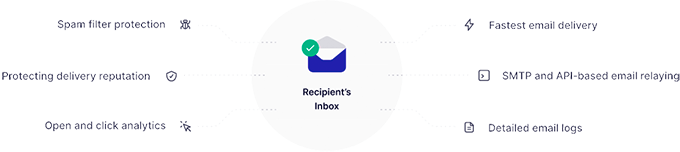
    SendLayer Effect

    SendLayer seamlessly connects with WordPress, so you can use it to reliably send website emails like store receipts, confirmation emails, shipping notifications, password reset emails, and other WordPress emails with maximum reliability.

    Why Do You Need SendLayer?

    If you’re like most users, then you have likely run into the problem of WordPress not sending email issue. This is one of the most commonly asked questions on WPBeginner.

    Many of our beginner level users ask us why their contact form plugin is not sending emails, or why they are not seeing any WordPress notifications.

    That’s because most WordPress hosting servers are not configured to send emails using the default PHP mail() function.

    And even if your hosting server is configured properly, many email service providers like Gmail, Outlook, and others use sophisticated tools to reduce email spam. These tools try to detect if an email is really coming from the location that it claims to be.

    Emails sent by WordPress websites often fail the test.

    This means that majority of the emails sent by your website will either land in user’s spam inbox or not get delivered at all. This include your website’s contact form plugin emails, your online store receipts, password reset emails, admin notifications, and more.

    This is why most smart website owners use SMTP for sending emails in WordPress.

    And this is why I created the free WP Mail SMTP plugin which is used by over 3 million websites.

    But the problem was that a lot of beginner users still didn’t know how to set up SMTP properly because simply installing the plugin isn’t enough.

    You still needed to use a SMTP email service that’s built for maximum deliverability, reliability, and scalability. We integrated with numerous service providers like Amazon, Google, etc, but they were all quite difficult to use for beginners.

    So after listening to a lot of our user feedback, I decided to work with my team to finally create a beginner-friendly SMTP service, SendLayer, that works for all types of websites including WordPress.

    Whether you’re using WordPress, WooCommerce, Magento, Laravel, Drupal, Joomla, or any other platform, you can use SendLayer to improve your email deliverability.

    SendLayer gives you access to:

    • Awesome email deliverability
    • Spam Filter protection
    • Detailed email logs
    • Open and click analytics
    • Event-based webhooks to setup custom notifications
    • SMTP relay API for those that want to use SendLayer inside custom apps
    • Simple suppression list to protect your delivery reputation

    … and a whole lot more.

    Basically, if you’re serious about your website and want to grow your online business, then you know that email deliverability is important.

    And SendLayer offers you one of the best email infrastructure in the market.
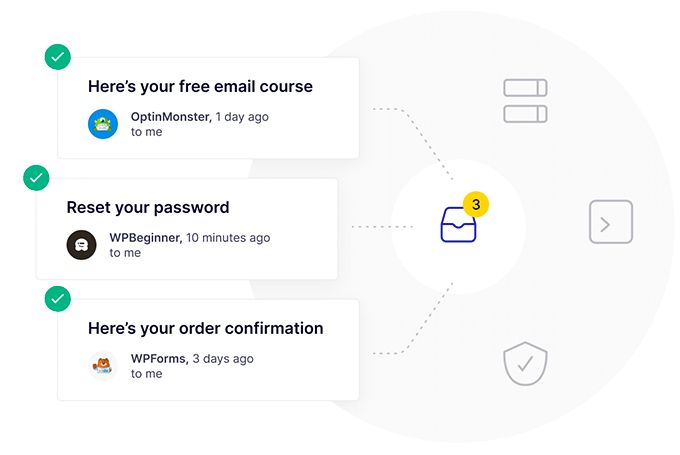
    SendLayer Types of Emails

    Once connected with your WordPress site, it automatically ensures that all your website emails get delivered in your user’s inbox.

    How to use SendLayer with WordPress?

    First thing you need to do is create a free SendLayer account.

    Next, you need to install and activate the free WP Mail SMTP plugin. For more details, see our step by step guide on how to install a WordPress plugin.

    Upon activation, go to WP Mail SMTP settings page in your WordPress admin menu. Once this page, you need to select the SendLayer mailer.
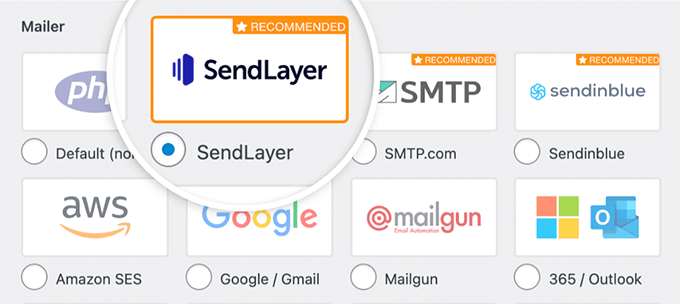
    SendLayer connection for WordPress

    Next, you will need to enter your SendLayer API key in the field below.

    You can get this API key by following the link on the plugin page which will take you to SendLayer account.

    Once the key is added, you should send a test email using WP Mail SMTP to ensure everything is working.

    For more details, see the full documentation here.
  • Whats Coming in WordPress 6.1 (Features and Screenshots)

    Whats Coming in WordPress 6.1 (Features and Screenshots)

    WordPress 6.1 Beta arrived a few days ago, and it is expected to be released on November 1st, 2022. It will be the last major release of 2022 and will come with many new features and improvements.

    We have been closely monitoring the development and trying out new features on our test sites.

    In this article, we’ll give you a sneak peek into what’s coming in WordPress 6.1 with features and screenshots.

    Preview of the upcoming WordPress 6.1 release

    Note: You can try out the beta version on your computer or on a staging environment by using the WordPress Beta Tester plugin. Please keep in mind that some of the features in beta may not make it into the final release.

    Video Tutorial

    Subscribe to WPBeginner

    If you’d prefer written instructions, just keep reading.

    New Default Theme:  Twenty Twenty-Three

    As per the WordPress tradition, the last release of the year will ship with a new default theme called Twenty Twenty-Three.

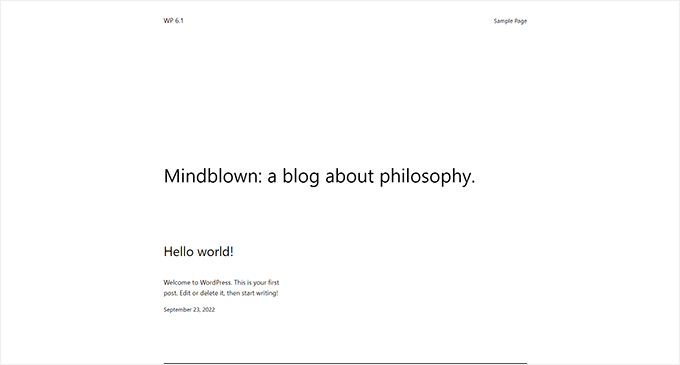
    Twenty Twenty-Three new default theme in WordPress 6.1

    Featuring a minimalist style, Twenty Twenty-Three is a block theme with full site editing capabilities.

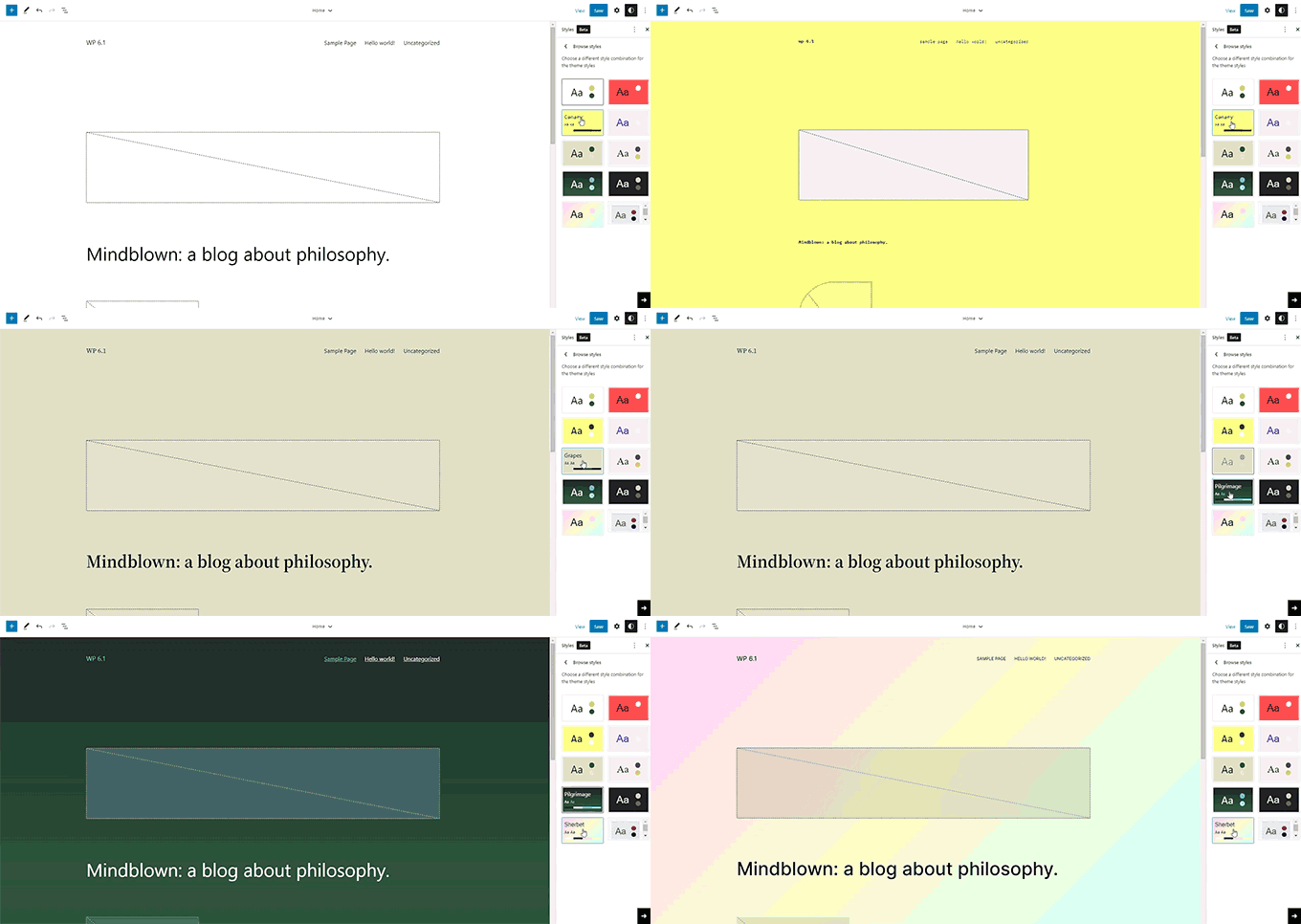
    It will come with ten style variations that users can choose inside the Site Editor.

    Twenty Twenty-Three styles

    It will also ship with four fonts that are used in different styles. You can also select these fonts when writing posts and pages.

    Twenty Twenty-Three

    Overall, Twenty Twenty-Three provides a beautiful canvas to create a website using the design tools available in the site editor.

    Block Editor Improvements

    WordPress users spend most of their time creating posts and pages for their websites using the block editor.

    Each WordPress release comes with a ton of improvements to the editor. WordPress 6.1 will include changes introduced in the Gutenberg (code name for the block editor project) releases from 13.1 to 14.1.

    The major focus during these Gutenberg releases was to bring consistency to the availability of design tools for different blocks.

    Following are some of the more noticeable changes in the block editor

    Dimensions in More Blocks

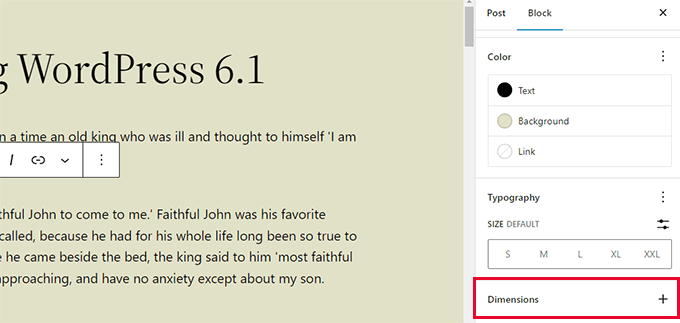
    WordPresss 6.1 will bring dimensions to more blocks like Paragraph, List, Columns, Table, and more.

    Dimensions under block tools

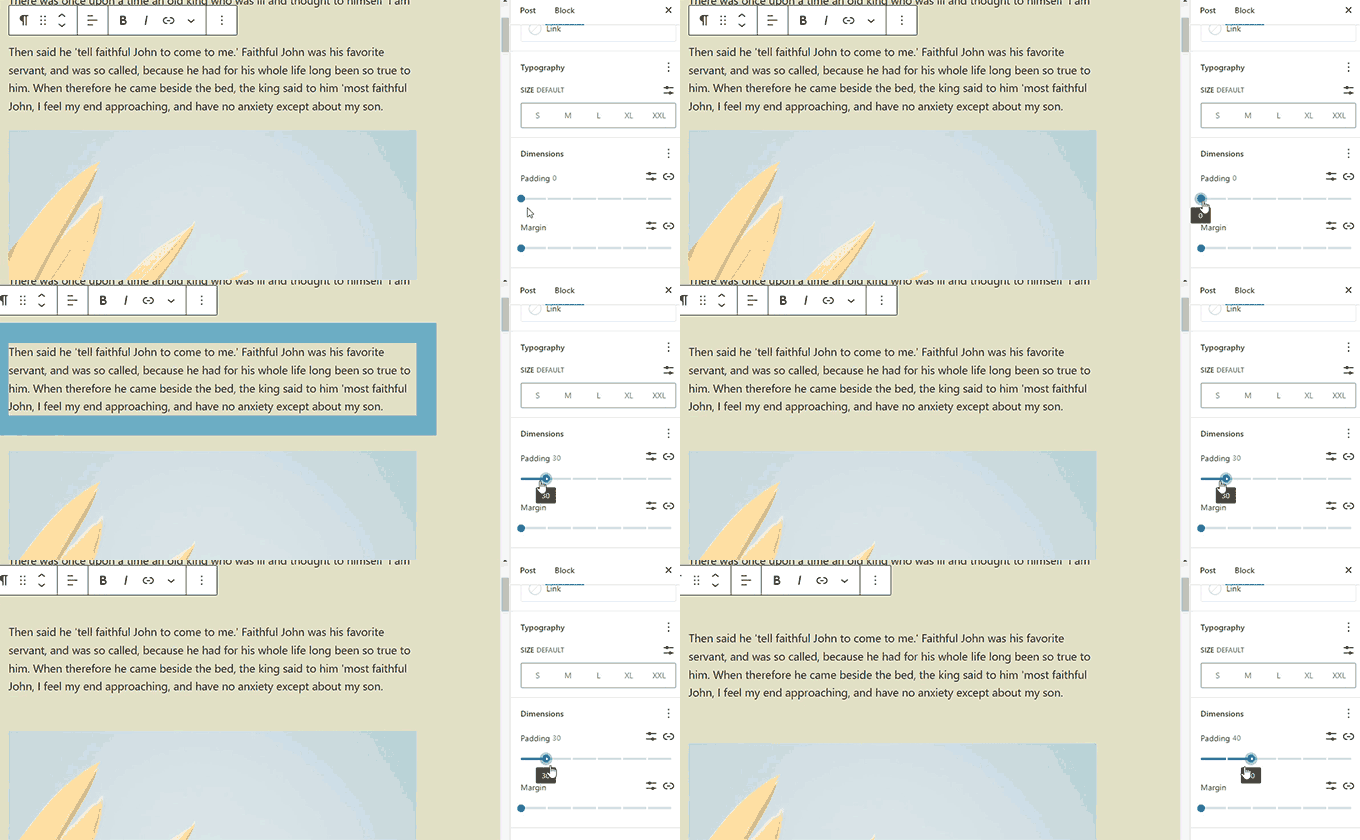
    This will allow users to set padding and margin for more blocks and have a much finer control over the design and layout.

    It will also help users visualize the changes when adjusting padding and margins for a block.

    Visualize padding and margin adjustments

    Improved Border Options

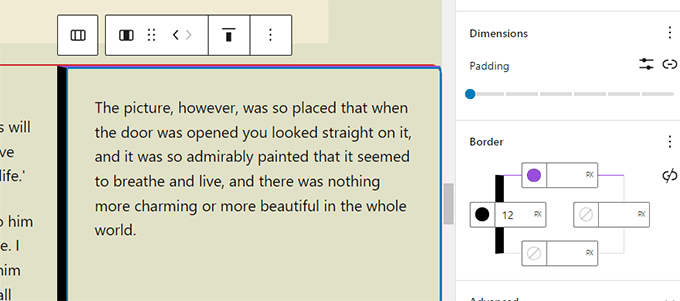
    With WordPress 6.1, users can add borders to more blocks. They will also be able to adjust the top, right, bottom, and left borders separately.

    Advanced border controls for more blocks

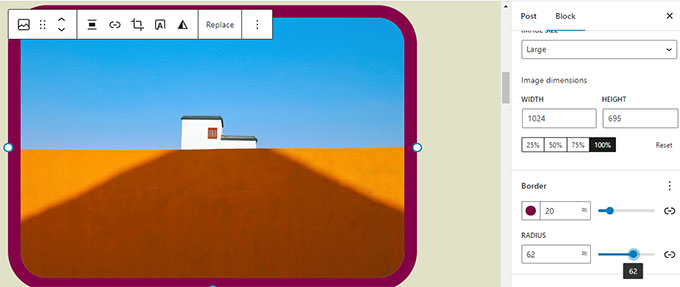
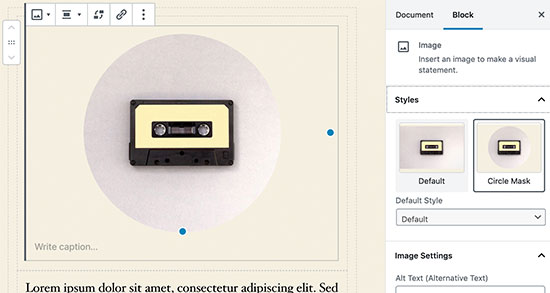
    The image block, which previously only allowed you to select border radius, will now also allow you to add actual borders.

    Image border

    Featured Image in Cover Block

    Our users often ask about the difference between featured image and cover block in WordPress. Many users wanted to use the cover block as featured image for their site.

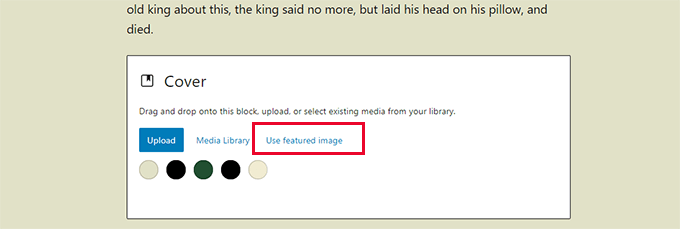
    WordPress 6.1 will allow users to select their featured image for a cover block. Users can then just set the featured image and it will start appearing inside the cover.

    Featured image in cover block

    Using cover will allow users to display featured images anywhere they want.

    Note: Depending on your theme, if this option is not used correctly, then your featured image may appear twice on the screen.

    Quote and List Blocks with Inner Blocks

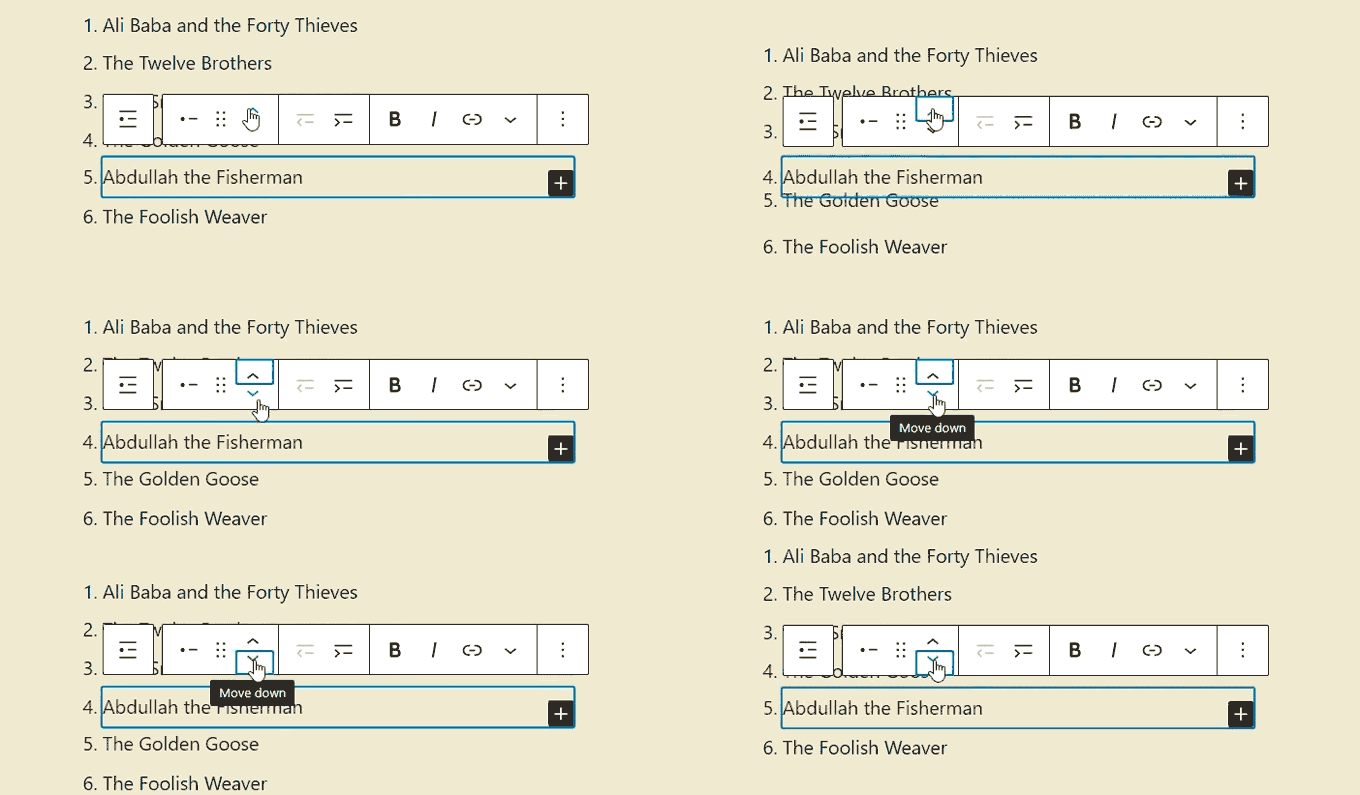
    Ever wanted to move an item up or down in a bulleted list without actually editing it?

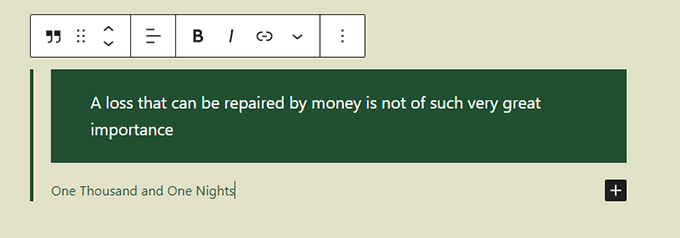
    WordPress 6.1 will introduce inner blocks for List and Quote blocks.

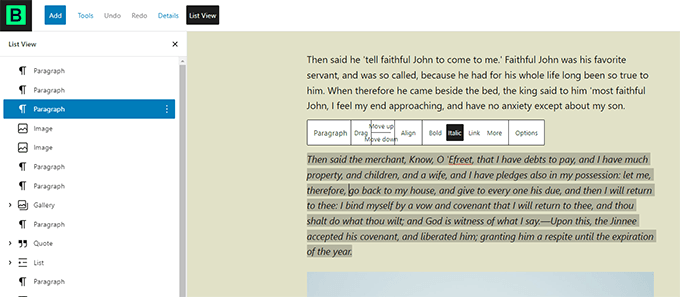
    For instance, items in a list block will be their own blocks. This would allow you to simply move them up and down without editing.

    Move list items up and down

    Similarly, when using the Quote block, users can style quote and cite blocks differently.

    Quote block

    Improved Navigation Block

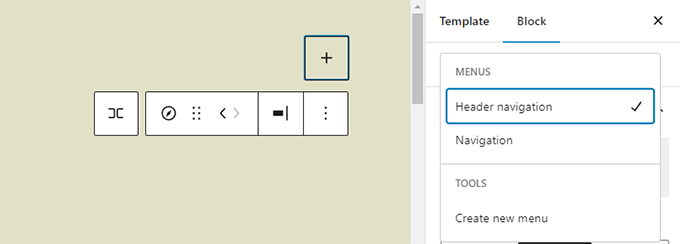
    WordPress 6.1 comes with an improved navigation block that allows you to easily create and select a menu from the block settings.

    Navigation menu improved

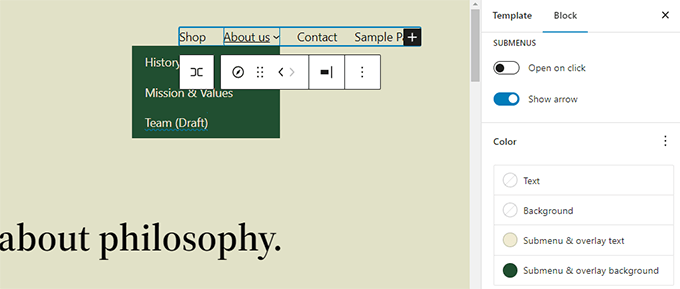
    Users will also be able to use design tools for submenus and style them differently than the parent menu item.

    Submenu colors

    Editor Design Enhancements

    WordPress 6.1 will also come with several changes to the Editor screen design. These changes will improve the user experience on the block editor screen.

    Following are some of those enhancements:

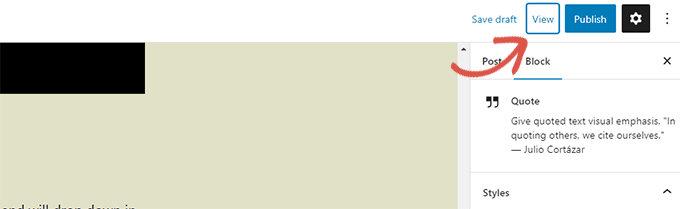
    Preview Button is Now Labeled View

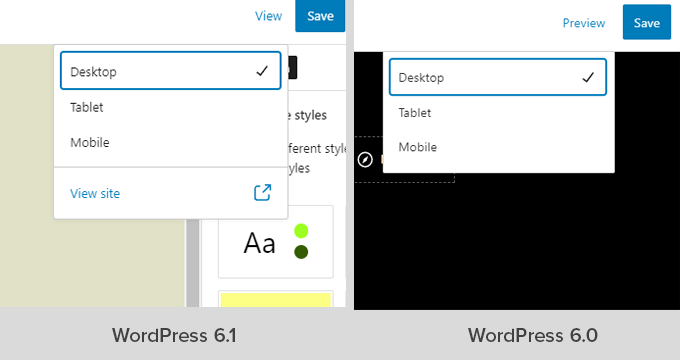
    The Preview button is now called View.

    View button

    In Site Editor, the View button now also includes a link to simply view your website in a new tab.

    View site preview

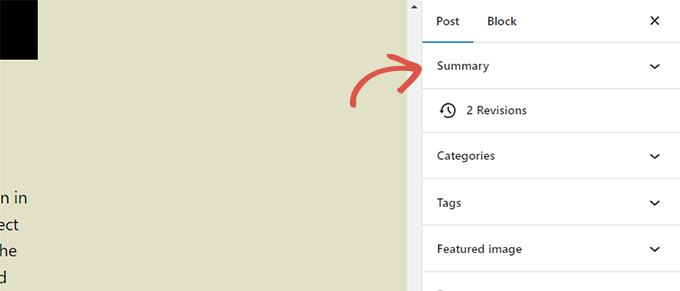
    Status & Visibility Panel is now Called Summary

    The status and visibility panel under the Post settings will be renamed Summary.

    Summary panel

    Permalink and Template Options Under Summary Panel

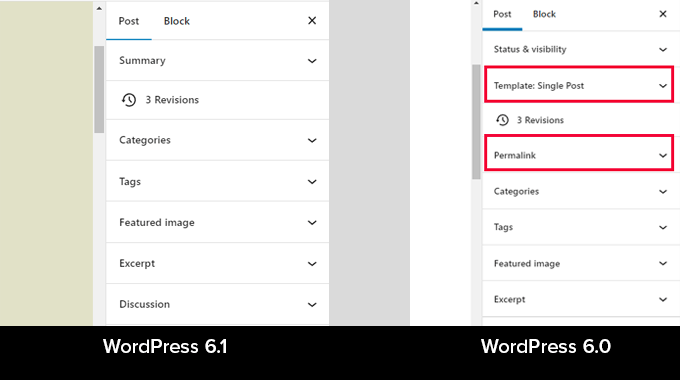
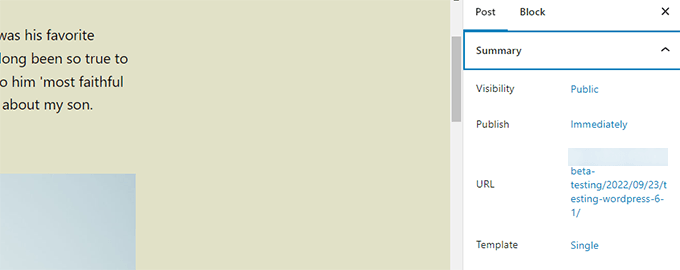
    Permalink and Template options has their own panels under Post settings. With WordPress 6.1 these panels are merged under the Summary panel.

    Missing panels in WordPress 6.1

    Just click to expand the Summary panel, and you’ll find the option to change ‘URL’ (permalink) and choose template.

    Moved items

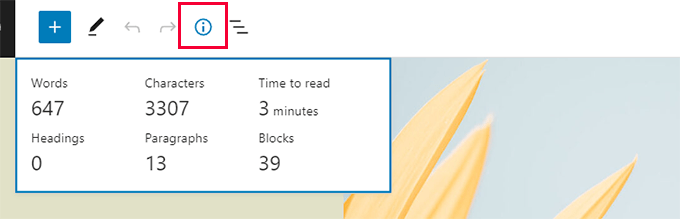
    Improved Information Panel

    In WordPress 6.1, the information popover will also display the time to read information.

    Improved information panel

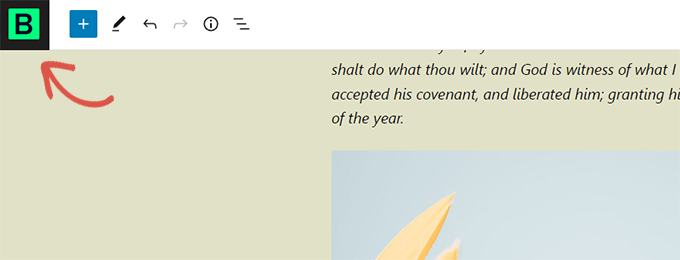
    Site Icon will Replace the WordPress Logo

    If you have set the site icon for your website, then it will be used as the View Posts button in the top left corner of the screen.

    Site icon will be used as logo on editor screen

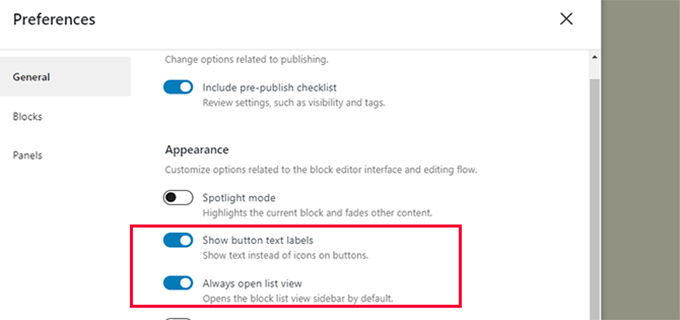
    New Preferences Options

    The preferences panel now includes two new options.

    First, there is ‘Always open list view’ which allows you to display list view when editing posts.

    New preferences option

    The second new option is to ‘Show button text labels’, which shows text instead of icons on buttons.

    Buttons and icons replaced with text labels

    Create More Templates in Site Editor

    In the classic WordPress themes, users could create templates using template hierarchy and extend their WordPress theme by writing code.

    With WordPress 6.1, users will be able to do the same using the block editor and without writing code.

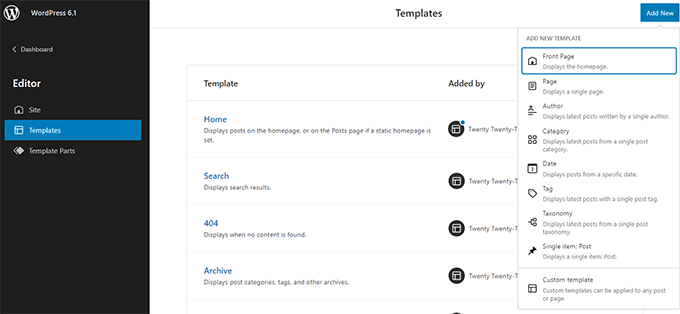
    The upcoming release will unlock the following templates regardless of which block theme you are using.

    • Single page
    • Single post
    • Indivdual term in a taxonomy
    • Individual category
    • Custom template (can be used for any post or page)

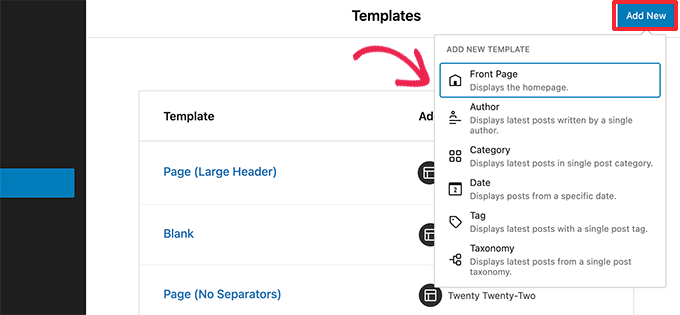
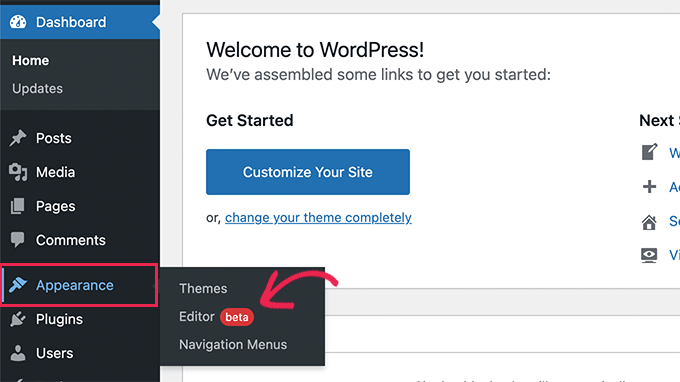
    Simply go to Appearance » Editor and then select templates from the left sidebar. After that click on the Add New button to see the available options.

    Site editor now has more templates

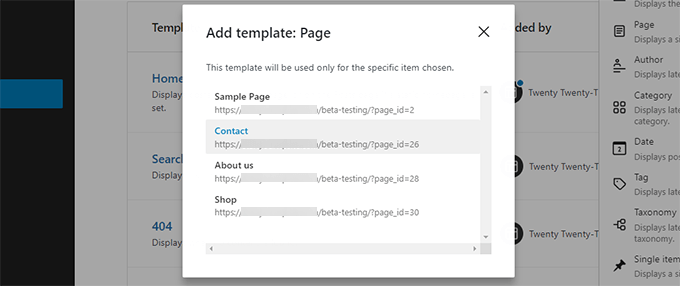
    If you choose a template that can be applied to an individual item, then you will see a popup.

    From here, you can choose the item where you want the new template to be used.

    Create template for a single item

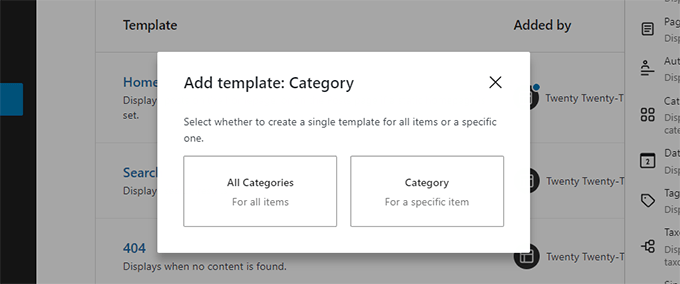
    For instance, if you choose the Category template, then you’ll see a popup.

    Now you can select if you want to apply your new template for all categories or a specific category.

    Create template for single category

    Quickly Search and Use Template Parts

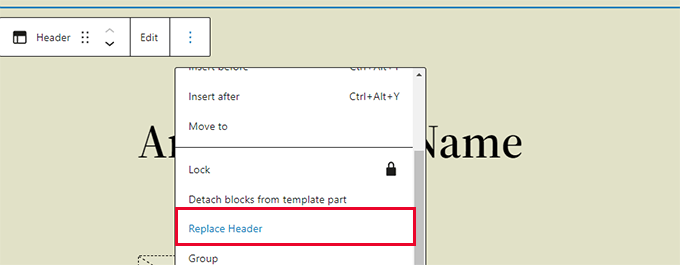
    WordPress 6.1 will also make it easier to quickly search and use template parts.

    For instance, if your theme has multiple header template parts, then you can quickly find and apply one of them.

    Replace template part

    Simply select click on the template part options and select Replace.

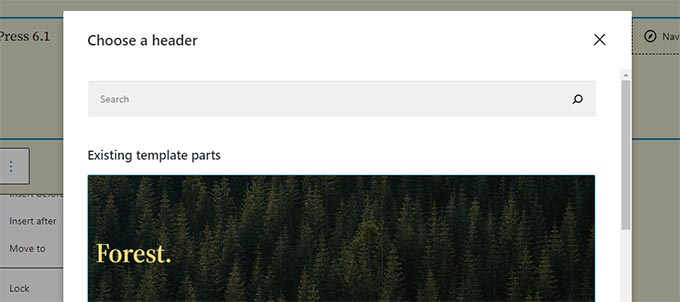
    This will bring up a modal popup where you can look for available template parts that you can use.

    Select a template part
  • Introducing WPCode  Easy WordPress Code Manager to Future-Proof Your Website Customizations

    Introducing WPCode Easy WordPress Code Manager to Future-Proof Your Website Customizations

    Have you ever wanted to reduce the number of WordPress plugins you’re using on your website?

    Wouldn’t it be nice if there was an easy way that allowed you to add future-proof WordPress customizations through code snippets WITHOUT breaking your website?

    If you’re like me and most other smart website owners, then you have at least wished for this solution a couple times in your WordPress journey.

    Today, I’m excited to share the launch of my free WPCode plugin which will transform the way you think about WordPress customization.

    We built this tool to help you save time and hassle when managing your website customizations. This is like the ultimate Swiss-Army knife tool that will help you replace dozens of existing WordPress plugins while making your website faster.

    Introducing WPCode - WordPress Code Snippets Plugin

    Background Story

    In 2012, I created a free plugin called Insert Headers and Footers.

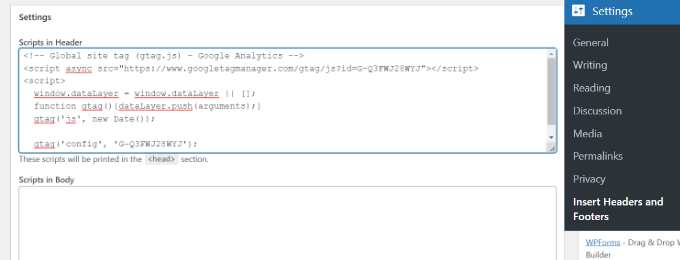
    The goal of this plugin was to make it easy for me and other WPBeginner readers to add code to our WordPress site’s header and footer area without editing theme files!

    This would include things like Google Analytics script, custom CSS code, Facebook Pixel, AdSense code, and more.

    Over the last decade, this simple plugin grew to over 1 million active installs.

    Enter tracking code in header

    In the same time period, WordPress grew a lot too with tons of new features and plugins.

    Every month, I would get requests from our users to add more functionality such as the ability to conditionally load scripts on certain pages, ability to add code snippets in other areas of the website, and so on.

    After a lot of thought and consideration, we have decided to expand this free plugin and make it a full-featured code snippet management solution for WordPress with conditional logic, auto-insertion, and much more.

    Using the new plugin you can:

    • Add tracking scripts / various webmaster tool verification meta details in your site with just a few clicks.
    • Add banner ads or other dynamic content elements after first paragraph of every blog post, at the end of each blog post, etc.
    • Remove WordPress features that you don’t want such as REST API, XML-RPC, Comments, etc.
    • Easily copy & paste code snippets from tutorials in your WordPress site without errors.
    • And really this is just scratching the surface.

    All of these features are available to you for free!

    If you’re a marketer, think of WPCode like a Google Tag Manager but inside WordPress.

    If you’re a regular business owner, think of this as a swiss-army knife for your website. It will help you do what you want to do – nothing more, nothing less.

    WPCode is by far the MOST POWERFUL plugin you’ll install on your WordPress site, and I’m not exaggerating.

    Just give me 5 minutes of your attention, and I’ll show you — keep on reading.

    Video Version

    Subscribe to WPBeginner

    What is WPCode?

    WPCode is a powerful WordPress code snippet plugin that makes it easy for you to add custom WordPress features using code snippets without editing your theme’s functions.php file.

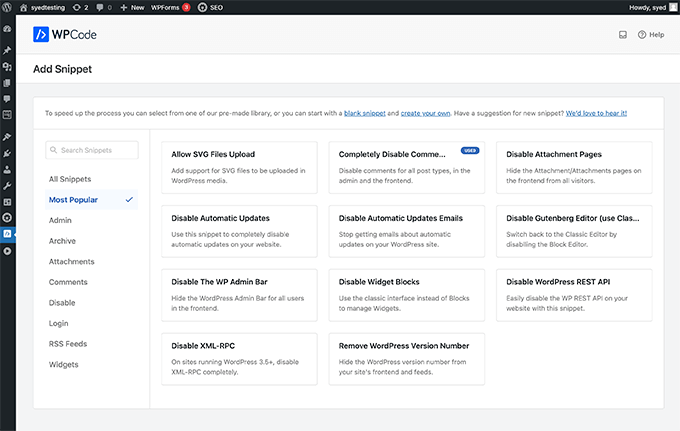
    It comes with a built-in code snippets library where you can find some of my most popular WordPress code snippets that will help you eliminate the need of separate plugins.

    WPCode WordPress Code Snippets Library

    For example, there are ready-made snippets that will help you:

    • Disable XML-RPC – this is good for WordPress security
    • Allow SVG File Upload – eliminates the need for separate plugin
    • Disable Gutenberg – eliminates the need for separate plugin
    • Disable Comments – eliminates the need for separate plugin
    • Add Tracking Scripts for Google Analytics, Facebook, AdSense, and other platforms

    And there are currently over two dozen other code snippets that you can use to add custom functionality while reducing the number of plugins on your site.

    For an average website owner, this plugin will help you reduce at least 6 – 8 other plugins that you might be using right now with just the ready-made snippets that are there.

    My plan is to continue to add more custom code snippets there to cover popular use-cases. If you have suggestions, please let us know by filling out the form here.
    If you’re a WordPress developer / freelancer that wants to contribute code snippets, please send us your snippet using the form above.

    Future-Proof Site Customization & Code Management

    Most WordPress customization tutorials will ask you to add code snippets to your theme’s functions.php file. This old way simply makes managing code snippets messy, and it also prevents you from updating your theme.

    If you ever update your theme or switch to another theme, then you will lose all custom code functions that you added in your functions.php file.

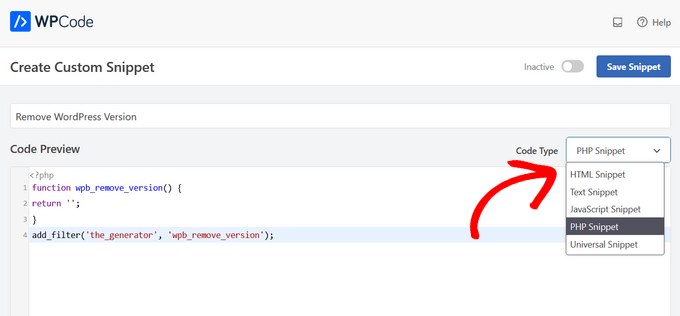
    WPCode solves this by providing you an easy way to insert header and footer scripts along with other code snippets directly from your WordPress dashboard. These code snippets actually run as if they were in your theme’s functions.php file, but we make your customizations future-proof.

    Create New Custom Snippet in WordPress

    You can safely update themes or switch to another theme without ever losing your important website customizations.

    Another problem with adding custom code snippets on your theme’s functions.php file was that even the smallest mistake can break your website and make it inaccessible.

    So we created our smart code snippet validation. This helps you prevent common code errors to ensures you never break your website when adding code snippets or header and footer scripts.

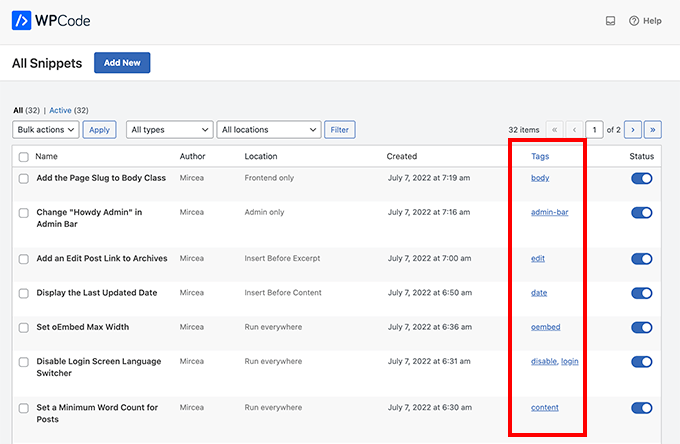
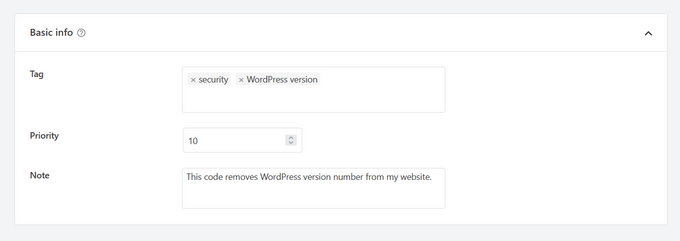
    You can manage all your header and footer scripts as well as other custom code snippets from a single screen. We even make it easy for you to organize code snippets using Tags and add reminder notes with each code snippet.

    WPCode - WordPress Snippets Organized by Tags

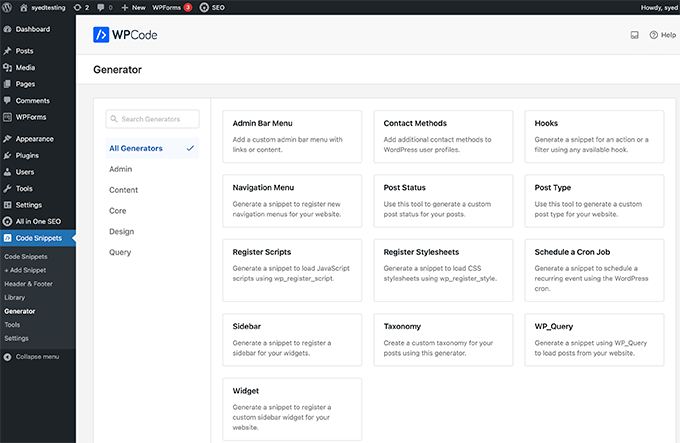
    Built-in WordPress Code Generators

    Aside from our growing code snippets library, we also have WordPress code generators to help you quickly get ready-to-use custom code using the latest WordPress coding standards and API’s.

    WPCode Generators for WordPress

    Examples of Custom Code Generators with Admin UI include:

    • Custom Post Type Generator – Create custom code snippet for Post Types.
    • Custom Taxonomy Generator – Get custom code snippet for Taxonomies.
    • WP Query Generator – Get custom code snippet for WP_Query to load posts.
    • Custom Sidebar Generator – Create custom code snippet to register custom sidebars or widget-ready areas.
    • Custom Widget Generator – Custom code snippet to register custom widgets.
    • Navigation Menu Generator – Custom code snippet for registering new navigation menu locations in your theme.

    Aside from the above, we also have code snippet generator for scheduling a cron job, registering scripts & stylesheets, adding custom post status, and more.

    In the past, beginners and intermediate users would use WordPress plugins to create custom post types, taxonomies, etc with an admin UI. The problem is that those are one-time use plugins that in the background are just generating custom code snippets.

    Now with WPCode free generators, you can cut out those plugins while still adding the custom functionality that you want with an admin UI.

    This will be a huge time-saver for new WordPress developers and web professionals who’re building websites for clients.

    Conditional Logic for Code Snippets + Auto Insertion Priority

    My goal with WPCode was to create a WordPress code snippets plugin that’s both EASY and POWERFUL.

    That’s why aside from our global header and footer scripts, we added advanced features like conditional logic for code snippets and made it easy.

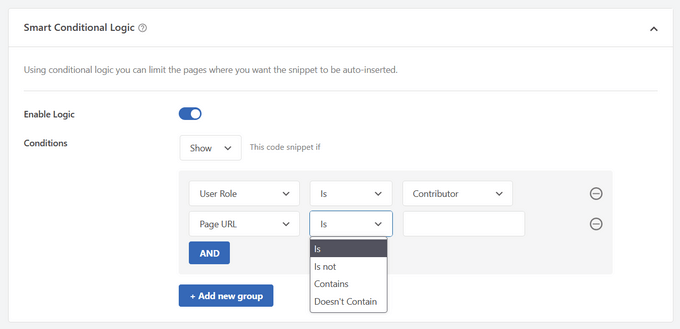
    Instead of learning WordPress conditional logic queries, you can use visual conditional logic to decide when a certain snippet would load.

    WPCode Smart Conditional Logic

    Examples use-cases of WPCode conditional logic:

    • Load code snippets for logged in users only
    • Load PHP code snippets for specific user roles
    • Load PHP code snippets only on specific page URLs
    • Insert header and footer pixel scripts on specific pages
    • Show code snippets based on type of page
    • Run code snippet only on certain post types
    • Load header and footer code snippet based on referrer source
    • and more…

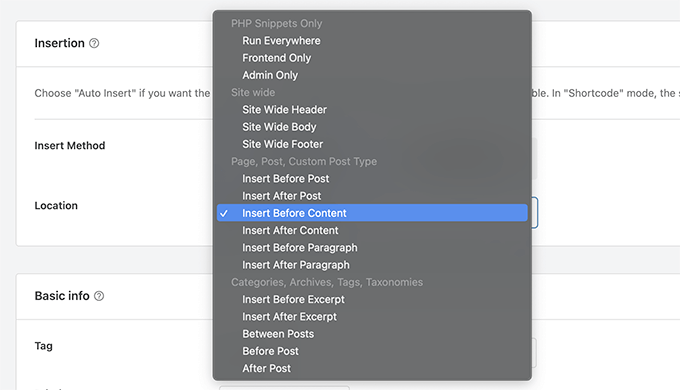
    We also added both automatic code insertion and manual output using shortcodes. This way you can add features using a custom shortcode, or simply automatically add certain features on area that you want.

    WPCode Auto Insert PHP Code

    Our Auto Insert feature allows you to run the code snippet everywhere or choose from custom options like:

    • Run code snippet only on frontend
    • Run code snippet only in WordPress admin area
    • Add header and footer scripts sitewide
    • Insert PHP code snippet before or after post content
    • Insert code snippet before or after specific paragraph
    • Insert code snippet on specific archive pages

    Aside from that, we also added a visual code snippet priority system, so you can choose the order for your custom functions to avoid code conflict.

    Add code description, tags, and priority in WPCode

    What are Some Example Use Cases + Plugins You Can Replace?

    WPCode is the one plugin that helps you get rid of dozens of other plugins without losing functionality.

    Here are some of the top use-cases :

    • Insert Headers and Footers scripts
    • Insert Google Analytics Tracking Code in Header and Footer
    • Insert PHP Code Snippets or JavaScript code snippet without modifying theme’s functions.php file
    • Insert Facebook Pixels code, Google Conversion Pixels code, and other Advertising Conversion Pixel Scripts in WordPress header and footer with conditional logic
    • Insert Google AdSense Ads code, Amazon Native Contextual Ads code, and other Media Ads code
    • Insert Custom JavaScript, CSS, and HTML code
    • Insert Site Verification Meta tags for Social Media, Google Search Console, and other Domain verification in the header and footer of your site
    • Insert re-usable custom content blocks
    • Insert Ads code in content after specific paragraphs
    • Show or hide custom code snippets based on conditional logic
    • Disable XML-RPC, Disable Rest API, disable comments, allow SVG file uploads, disable Gutenberg and enable Classic Editor without adding extra plugins

    Just with our current features and ready-made code snippets library, you can replace several popular plugins including:

    WPCode comes with a ready-made code snippets library that allows you to replace several popular plugins including:

    • Disable Comment plugins
    • Disable XML-RPC plugins
    • Disable Rest API plugins
    • Disable Gutenberg plugins
    • Classic Editor plugin
    • Allow SVG File Upload plugins
    • Disable RSS feed plugins
    • Disable Search plugins
    • Disable Automatic Updates plugins
    • Disable Admin Bar plugins
    • Disable Widget Blocks plugin
    • Classic Widgets plugin
    • Remove WordPress Version Number plugins
    • Facebook Pixel plugins
    • Google AdSense plugins
    • Custom Post Types UI plugins
    • Other WordPress Generator plugins

    On average, I believe you can easily replace 6 – 8 existing plugins on your website because a typical website often installs these one-off feature plugins.

    Now you can remove those plugins, clean up your admin area, and simplify your website management.

  • Whats New in WordPress 6.0 (Features and Screenshots)

    Whats New in WordPress 6.0 (Features and Screenshots)

    WordPress 6.0 was released earlier today, and it is the second major release of 2022.

    This new release contains significant updates to the full site editing experience, bringing in a new way to build websites.

    In this article, we’ll show you what’s new in WordPress 6.0, and which features you should try after updating your websites.

    New features in WordPress 6.0 with Screenshots

    Note: WordPress 6.0 is a major release, and unless you are on a managed WordPress hosting service, you’ll have to manually initiate the update. Here’s how to safely update WordPress.

    Important: Don’t forget to create a complete WordPress backup before updating.

    That being said, here’s all that’s new in WordPress 6.0.

    Subscribe to WPBeginner

    New and Improved Full Site Editing

    Earlier, WordPress introduced a block-based theme editor as part of the new Full Site Editing experience in WordPress 5.9.

    WordPress 6.0 brings more improvements to the full site editing feature with new site-wide blocks, editable templates, and more patterns.

    Note: You’ll need a theme that supports full-site editing, such as the default Twenty-Twenty theme, to try all its features. Full-site editing is still in beta and needs more work to compete with custom theme builder solutions.

    Easily Switch Theme Styles

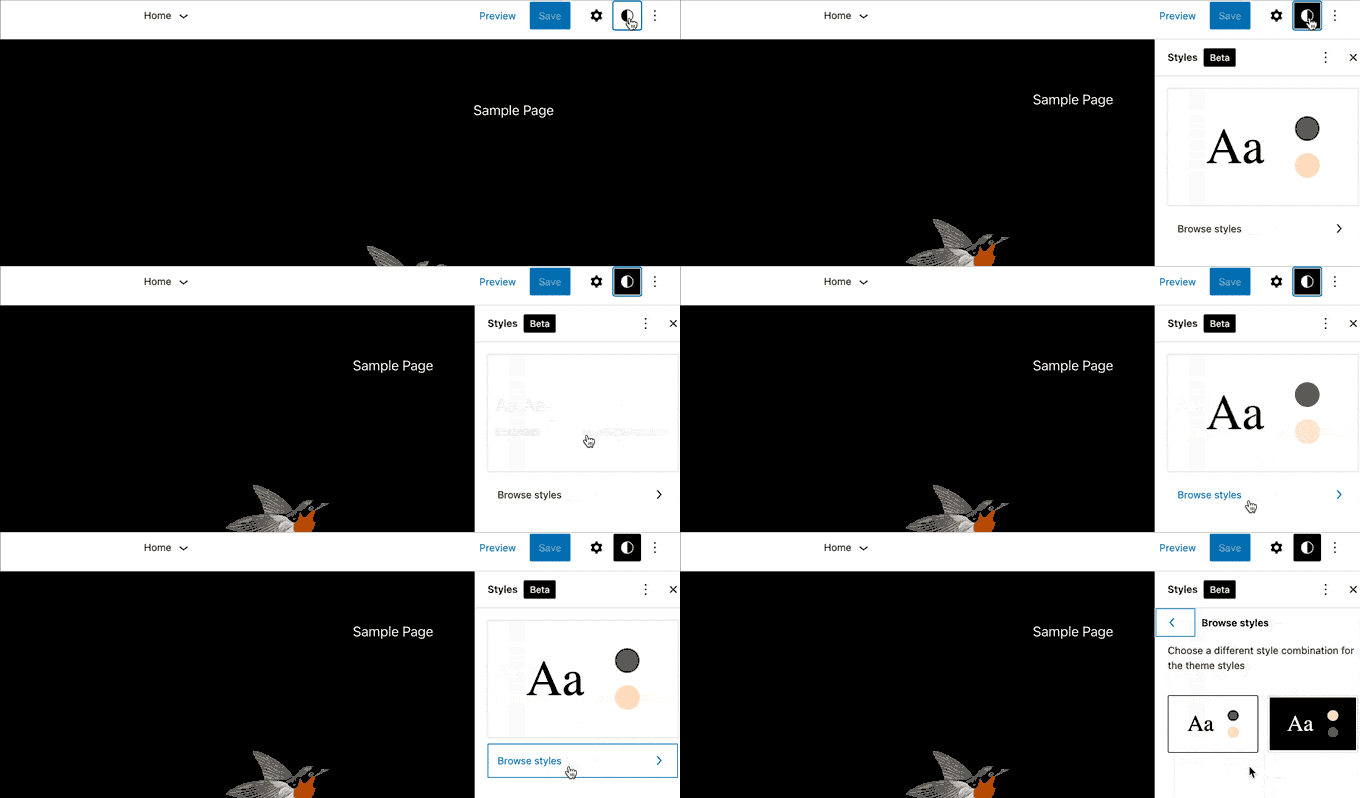
    WordPress 6.0 comes with an easy way to switch your entire theme style with a single click.

    Click on the Style button at the top right corner and then switch to the Browse Styles tab to see available styles for your theme.

    Browse and switch styles in WordPress 6.0

    Theme styles is a WordPress theme feature and its availability depends on your WordPress theme.

    Edit More Theme Templates with WordPress 6.0

    WordPress 6.0 brings the ability to edit even more templates inside the theme editor.

    Edit more templates in WordPress 6.0

    The new archive templates that you can edit include:

    • Author
    • Category
    • Date
    • Tag
    • Other custom taxonomies

    Export Your Block Theme with All The Changes

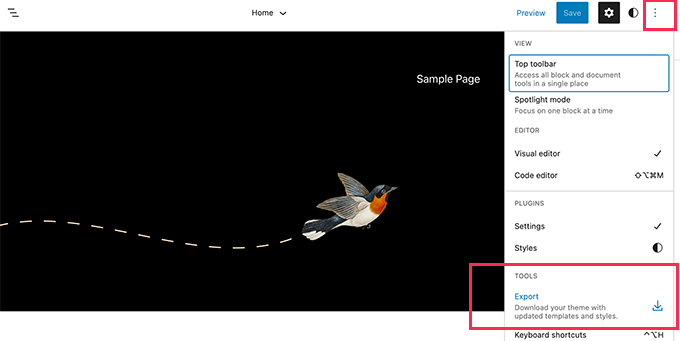
    WordPress 6.0 now allows you to save and export all the changes you made to your block theme.

    Export block theme

    WordPress will prepare a theme zip file that includes all the changes you made using the full site editor. You can then download and install that theme on any other WordPress website.

    New Blocks in Block Theme Editor

    WordPress 6.0 brings many new blocks that you can now use inside the theme editor.

    1. Comment Query Loop

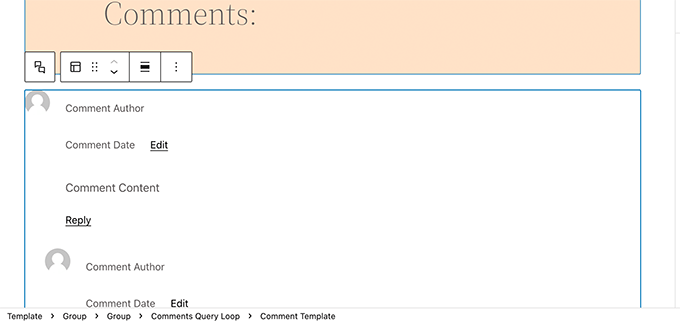
    WordPress 6.0 replaces the Post Comments block with the new Comment Query Loop block.

    It comes with sub-blocks like comment author name, avatar, comment content, edit link, and more. You can edit them individually to style your comments on your WordPress blog for a more engaging experience.

    Comment Query Loop block in WordPress 6.0

    2. Read More Block

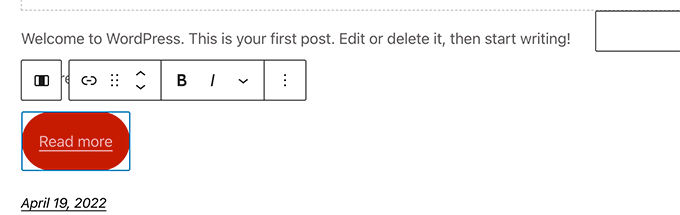
    You can now add a Read More block to your post excerpts in WordPress 6.0. This allows you to apply more styling options to make the Read More link more noticeable.

    Read more block

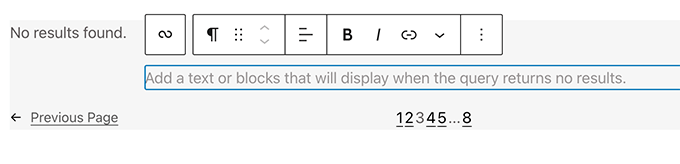
    3. No Results in Query Loop

    When adding a Query Loop block, you can now insert the No Results block inside it.

    However, the block will only be available when your selected query doesn’t have any results.

    No results block for the query loop

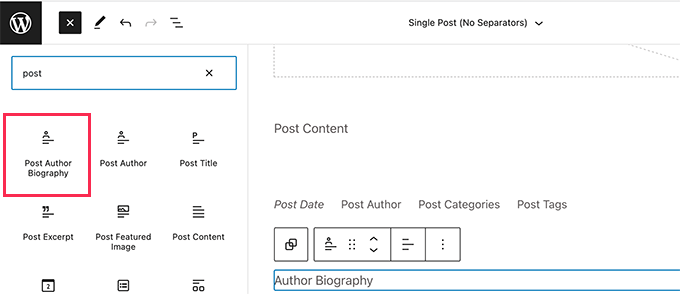
    4. Post Author Biography

    The new post author biography block can now be used along with Post Author and Avatar blocks.

    Add post author biography

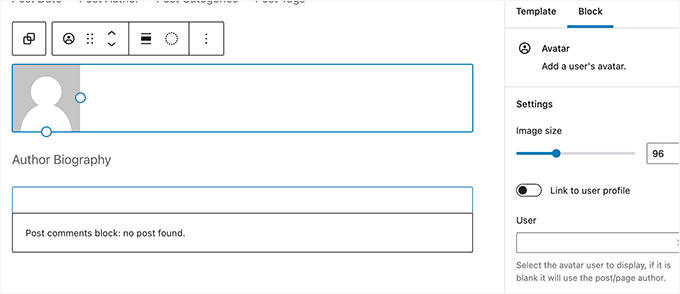
    5. Avatar

    The avatar block allows you to display a user’s Avatar (profile photo). You can choose if you want to display the Avatar for a specific user or display the current post/page author’s avatar.

    Avatar block

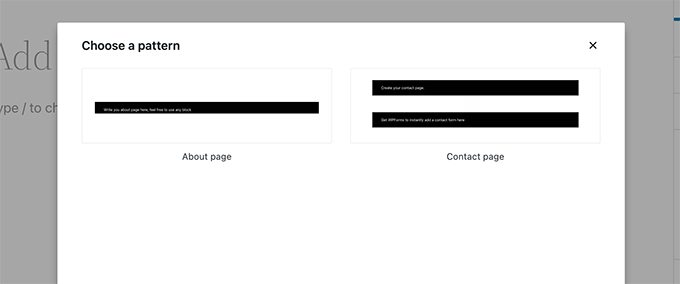
    Choose a Page Pattern

    Your WordPress theme can now include patterns for must-have pages for most websites.

    This means that with WordPress 6.0 the ‘Add New Page’ screen will now bring up a popup with a list of patterns you can use to create pages.

    Choose a pattern to create a page

    Since it is a brand new feature, your WordPress theme may not yet include any page patterns. In that case, you’ll not be able to see the popup.

    However, you can still use the patterns library to find and add patterns for the page you want to create.

    Block Editor Changes in WordPress 6.0

    The block editor is the area where most WordPress users spend much of their time writing content and creating pages for their websites.

    Each WordPress release builds upon that to improve the writing and content creation experience for WordPress users.

    WordPress 6.0 includes some really cool features that can greatly improve the way you work on your website.

    Block Locking in WordPress 6.0

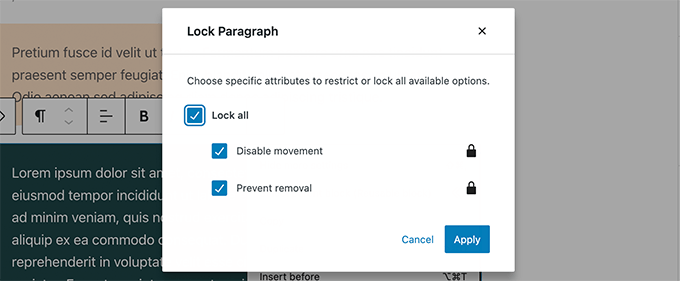
    WordPress 6.0 now allows you to lock a block to prevent users from removing it or changing its position.

    Block locking in WordPress 6.0

    A major pain point with the reusable blocks is that if any user makes changes to them, then those changes are saved. Block locking in WordPress 6.0 doesn’t solve that issue at the moment.

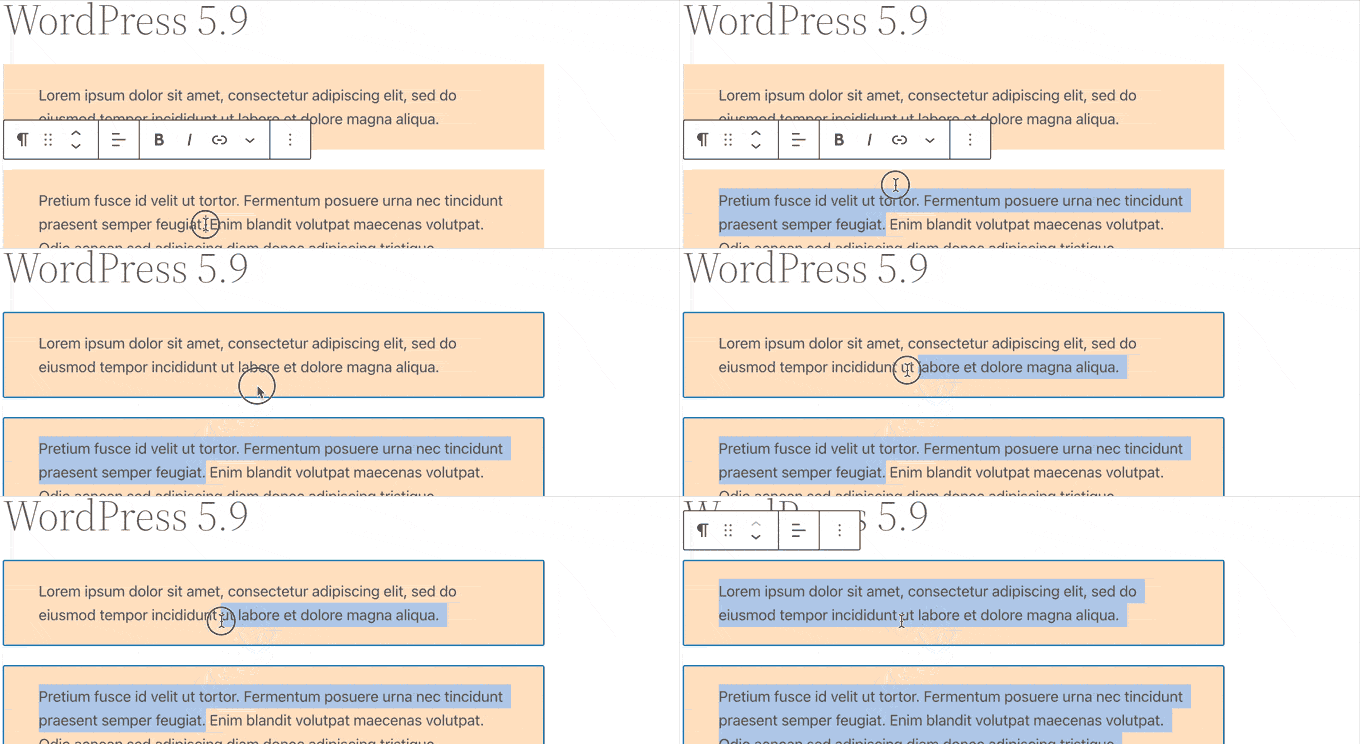
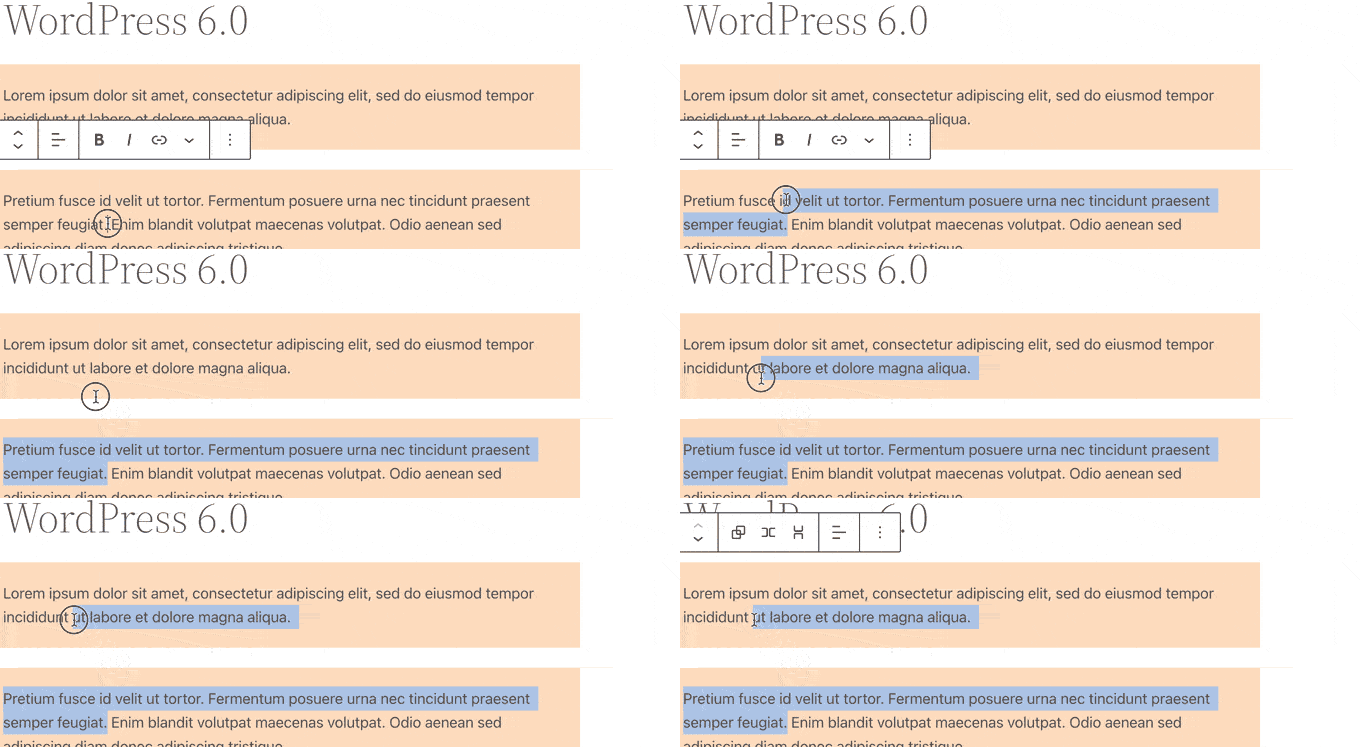
    Easier Text Selection in Multiple Blocks

    Earlier it was quite difficult for users to select the text between multiple WordPress blocks.

    Selecting text across multiple blocks in WordPress 5.9

    WordPress 6.0 now makes it super easy to select text and move the selection cursor across the blocks more smoothly.

    Selecting text across multiple blocks in WordPress 6.0

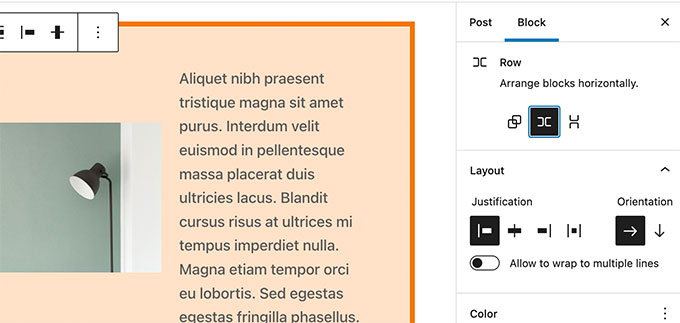
    Responsive Group and Row Blocks

    With WordPress 6.0, you can choose how you want blocks to behave on different screen sizes.

    For group blocks, you’ll see the option to display the blocks inside as a row or a stack.

    Responsive group blocks

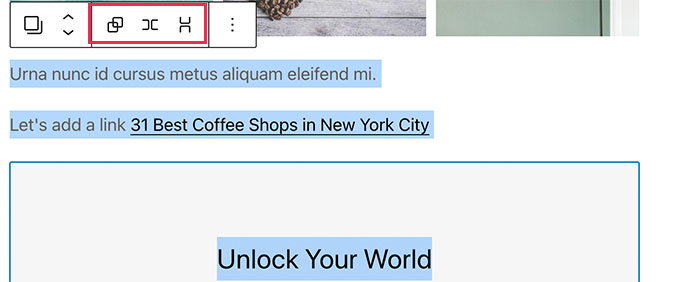
    You can also select multiple blocks and then choose between a row or a stack layout.

    Multi block row or stack layout

    Miscellaneous Block Editor Enhancements

    Following are a few more enhancements in the block editor that you’ll see in WordPress 6.0.

    1. Quick Shortcut to Add Internal Links

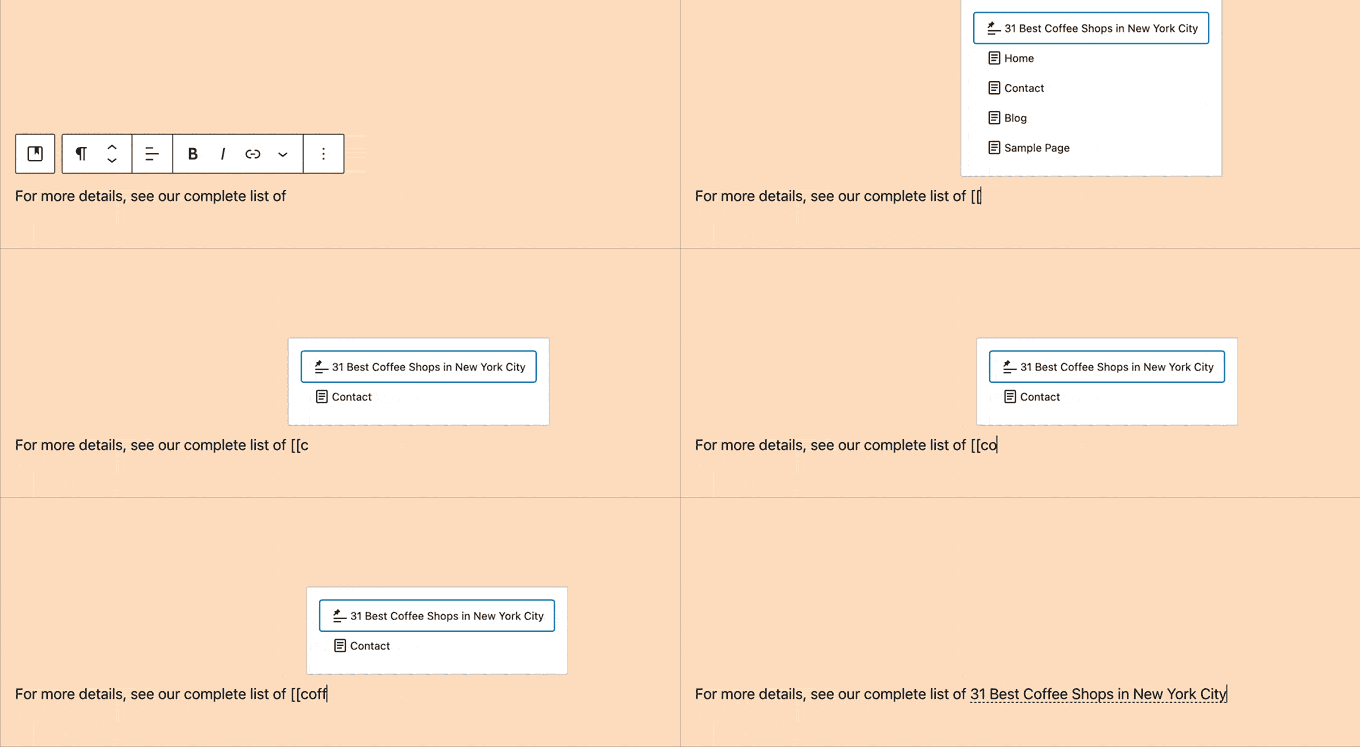
    You can now quickly add links by adding two square brackets followed by the post or page title. It’s much faster than clicking a button.

    Add link shortcut

    Want to learn more tips for faster writing with the block editor? See the full list of keyboard shortcuts in the WordPress block editor.

    2. Select Multiple Blocks in List View

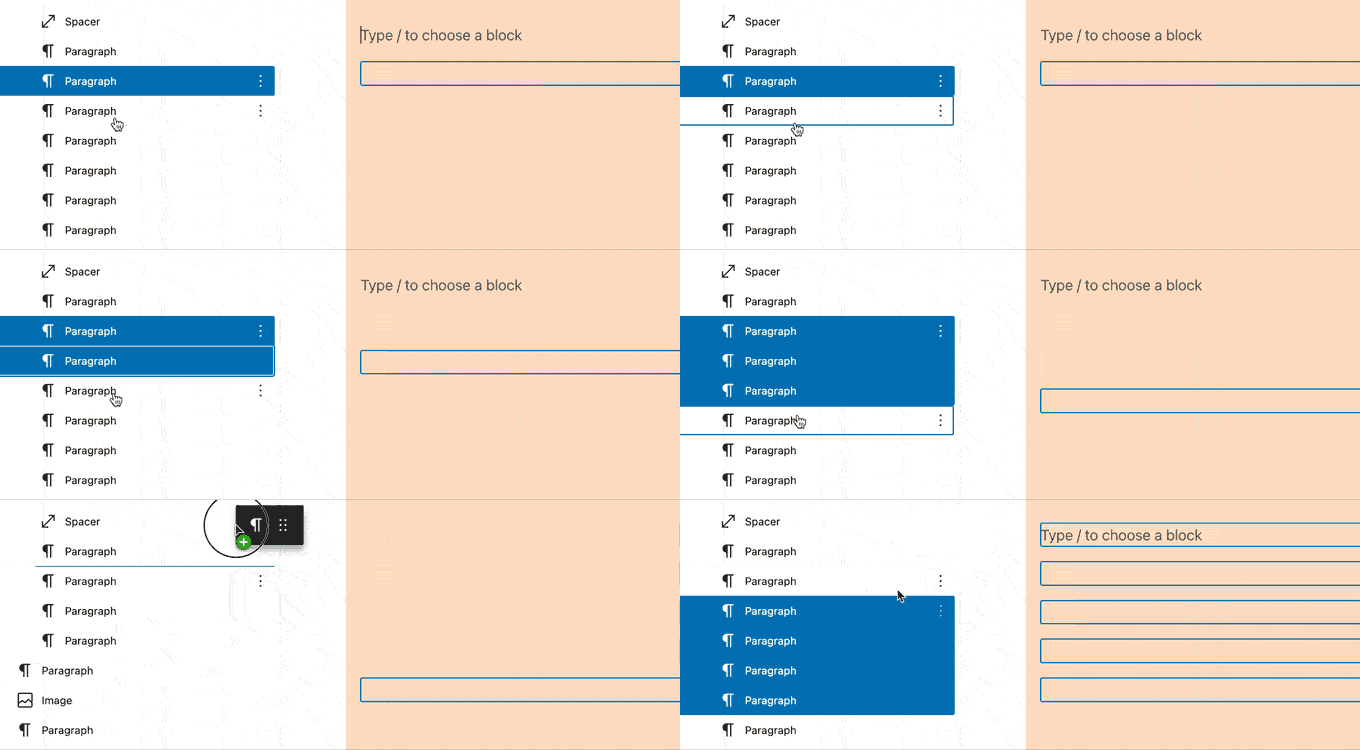
    With WordPress 6.0, you can now select multiple blocks in the list view. Plus, you can use Shift+Click or Shift+Up+Down to select multiple adjacent blocks in the list view.

    Move multiple blocks

    After selecting them, you can now also move them up or down or perform other actions.

    3. Border for Columns Block

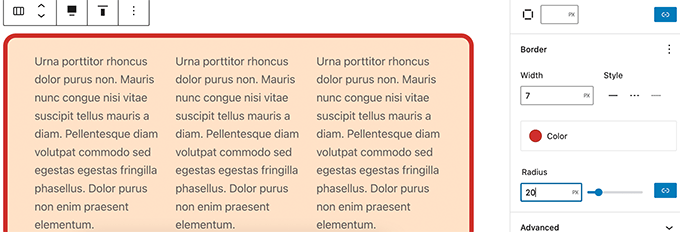
    You can now add a border around the column block.

    Border around columns block

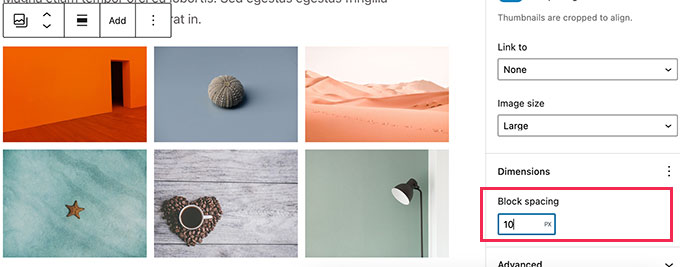
    4. Spacing for Gallery Images

    Galleries can now be manually adjusted to have as much spacing as you need between thumbnails.

    Gallery spacing

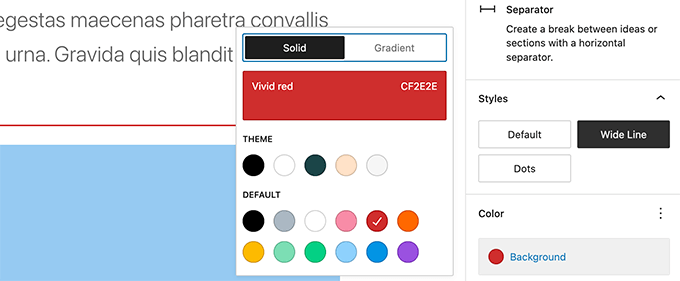
    5. Choose the Opacity of the Separator Block

    The color options in the separator block can now have gradients and opacity control.

    Separator block opacity

    Accessibility Improvements in WordPress 6.0

    One of the core missions of WordPress is to democratize publishing for all. Each WordPress release brings improvements to the core software to make it more accessible for all users.

    Following are some of the more notable accessibility improvements in WordPress 6.0.

    • The post title will be used as the ALT text for featured images if no other ALT text is provided
    • Better tabbing in blocks with placeholder elements
    • Search announcements in block search
    • Read description for blocks with a placeholder setup
    • Admin bar text labels will be readable by screen readers on smaller screens
    • More descriptive announcements for screen readers when a draft is saved

    For a detailed roundup, see accessibility improvements in WordPress 6.0.

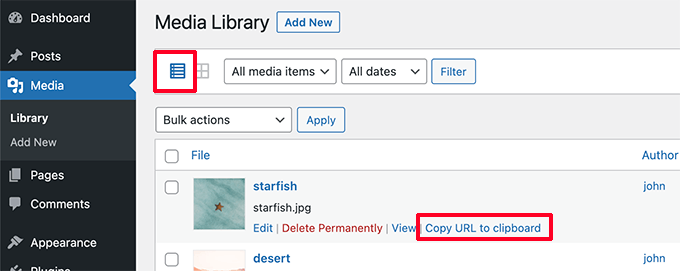
    Copy Image URL from Media Library List View

    If you view your media library in the list view, then you can now see a ‘Copy URL to clipboard’ link below each image and media file.

    Copy URL to clipboard
  • Whats New in WordPress 5.9 (Features and Screenshots)

    Whats New in WordPress 5.9 (Features and Screenshots)

    WordPress 5.9 was released earlier today, and it is the first major release of 2022.

    This new release contains significant updates, which include a whole new way to build websites.

    In this article, we’ll show you what’s new in WordPress 5.9, and which features you should try after updating your websites.

    New features in WordPress 5.9 with screenshots

    WordPress 5.9 is a major release, and unless you are on a managed WordPress hosting service, you’ll have to manually initiate the update.

    Important: Don’t forget to create a complete WordPress backup before updating.

    That being said, here’s all that’s new in WordPress 5.9.

    Block Themes Bring Full Site Editing in WordPress 5.9

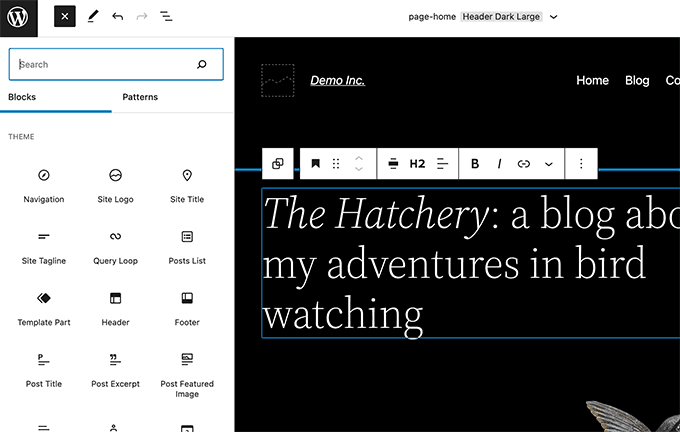
    WordPress 5.9 comes with Block Themes, which is a new way of building websites and customizing WordPress themes.

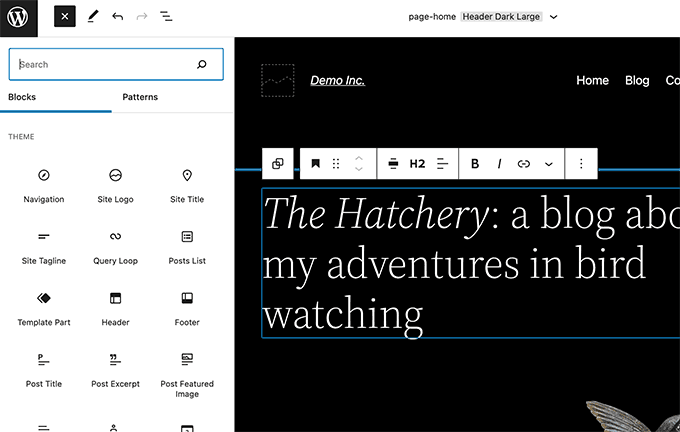
    The new ‘Site Editor’ allows you to customize WordPress themes using the block editor. This way users can make a website with its own unique design without writing code.

    New site editor in WordPress 5.9

    Note: Full site editing is only available for block-enabled themes that support this new feature. You can use it even when you have the classic editor plugin installed.

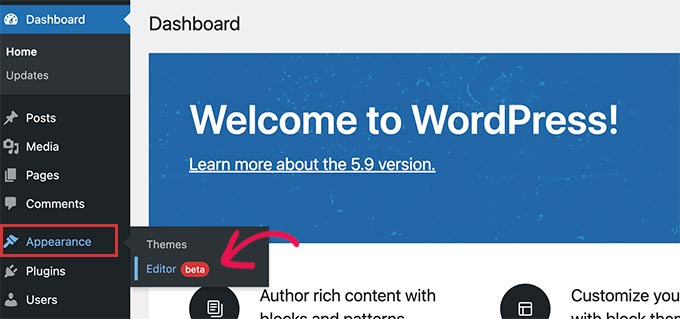
    If you are using a new block-enabled theme, then you’ll see a new menu item, Appearance » Editor. You will not be able to see the old Theme Customizer and Menus option under the Appearance menu.

    You’ll also be unable to preview a block-enabled theme from the Appearance » Themes page.

    Full site editing in WordPress 5.9 still relies on your WordPress theme. You can use it to customize some parts of your existing theme, but not to create any designs from scratch.

    You can use SeedProd to create a completely custom WordPress theme without writing any code. It is theme agnostic, meaning you have complete design freedom without being limited by your theme.

    New Blocks for Full Site Editing

    In order to help users create complete site-wide layouts, a bunch of new blocks have been added in WordPress 5.9.

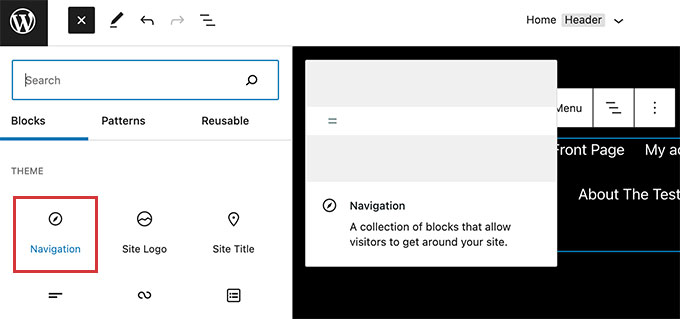
    You can find these blocks under the ‘Theme’ category in the add new block panel.

    Site editing blocks in WordPress 5.9

    Here is a list of new blocks available in WordPress 5.9:

    • Navigation
    • Template Part
    • Header
    • Footer
    • Post Author
    • Next Post
    • Previous Post
    • Post Comments
    • Term Description
    • Archive Title

    You can use these blocks to create custom layouts with Theme Editor. However, you can also use these blocks inside a typical WordPress post or page if needed.

    Create and Save Site Wide Styles

    Previously you had to write custom CSS code if you wanted to change something in your WordPress theme.

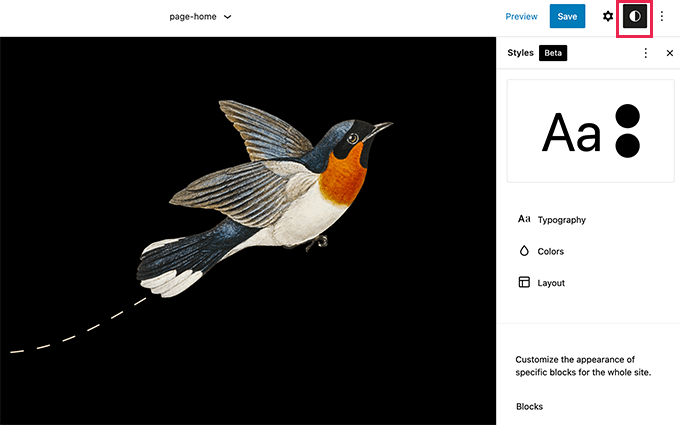
    Now a lot of such changes can be made with site-wide styles. Simply click on the Style icon on the top right corner of the screen when editing any template.

    Editing theme styles

    From here you can change a number of styling options like colors, typography, padding, and more.

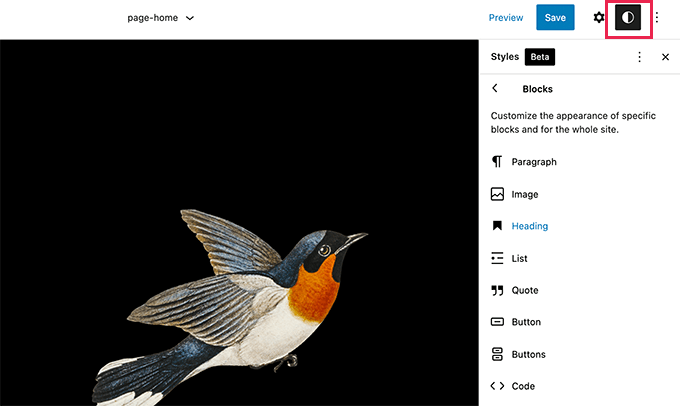
    You can also edit styles for individual blocks and apply the same styles to your template.

    Edit block styles

    New Ways To Manage Navigation Menus

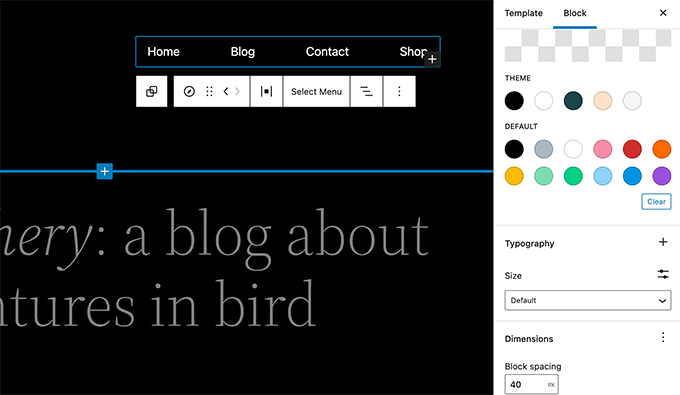
    If you are using a block enabled theme, then you will not have access to the old Menus page. Instead, you can add navigation menus by using the new navigation block.

    Navigation block

    The new navigation block makes it easy to add menu items and edit them with a live preview.

    You can change color of your links and adjust the menu size and dimensions.

    New navigation block in WordPress 5.9

    Twenty Twenty-Two New Block Enabled Default Theme

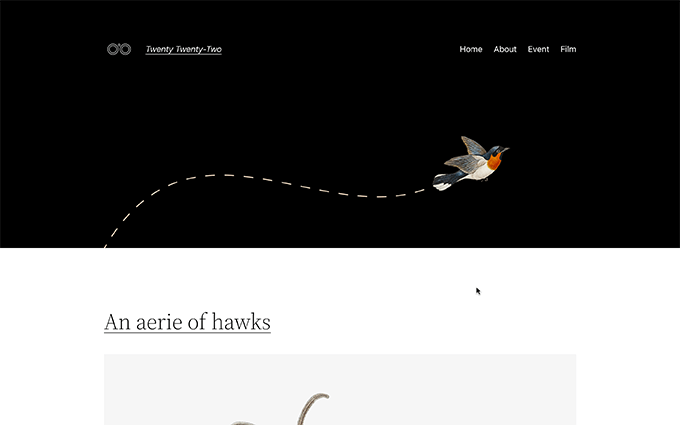
    WordPress 5.9 comes with Twenty Twenty-Two, the new block-enabled default theme.

    Designed to take full advantage of the new full site editing experience, Twenty Twenty-Two offers a clean minimalist canvas so you can experiment with new site editing features.

    New default theme Twenty Twenty-Two

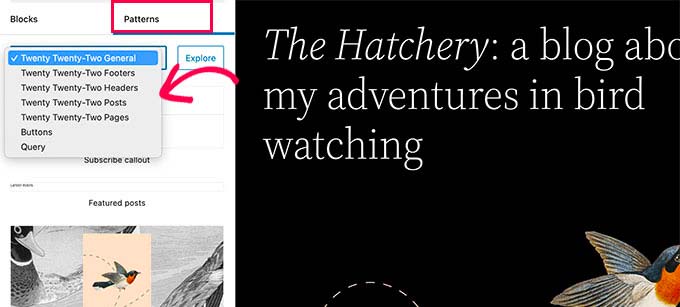
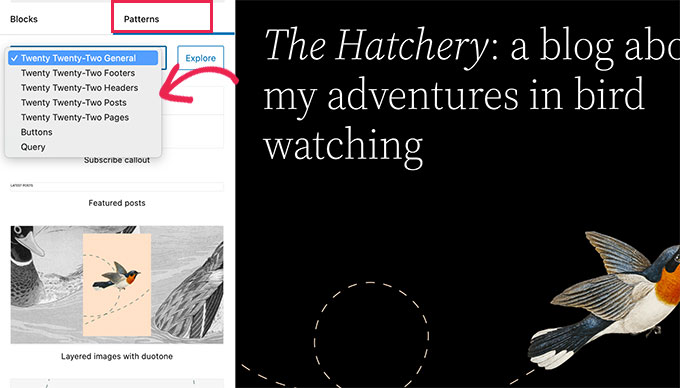
    The theme also comes with a bunch of ready-made patterns that you can use in the site editor or the post editor when writing content.

    Patterns in Twenty Twenty-Two

    Block Editor Changes in WordPress 5.9

    Most WordPress users spend a lot of their time inside the block editor writing content and creating new posts and pages.

    That’s why each WordPress release comes with new features and improvements for the post editor, and WordPress 5.9 is no different.

    Following are a few major improvements to the block editor in WordPress 5.9.

    Improved Typography Controls

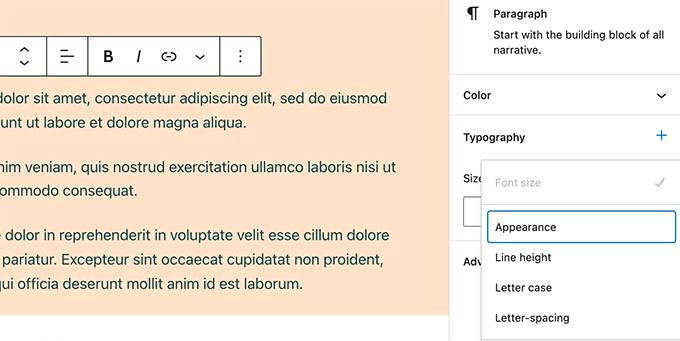
    WordPress 5.9 comes with improved typography controls for text blocks. For the paragraph block, you can change font size, line height, letter case, letter spacing, and colors.

    Typography controls

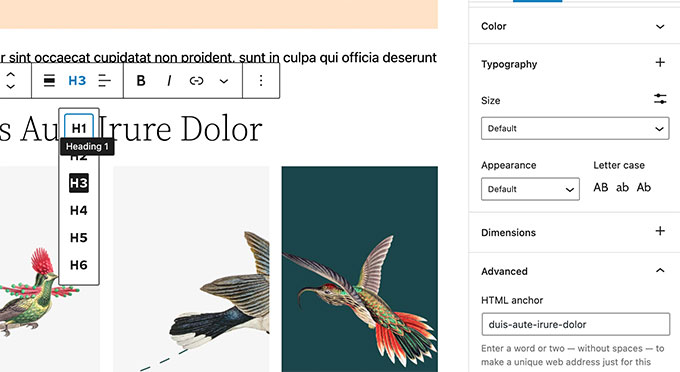
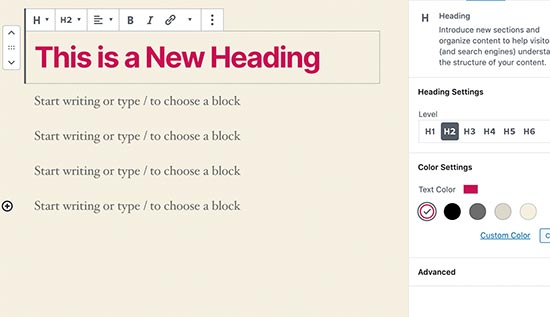
    The heading block now allows you to select a heading level from a vertical dropdown menu.

    You also have more typography, design, margin, and spacing options for your headings.

    Headings block now has more controls

    Rich URL Previews in Block Editor

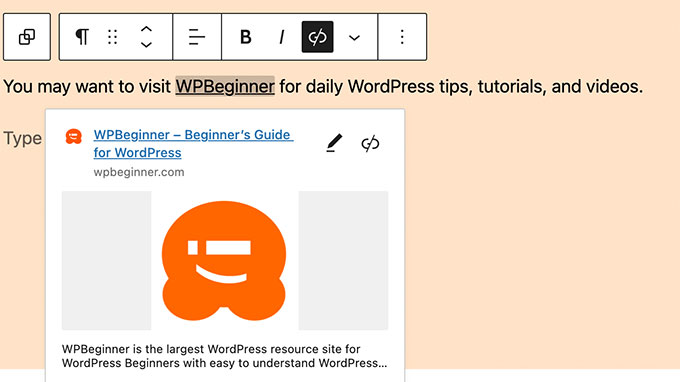
    Previously, when you hovered your mouse over a link in the post editor, you only saw the URL.

    WordPress 5.9 now displays rich URL previews for links inside the post editor.

    Rich URL previews

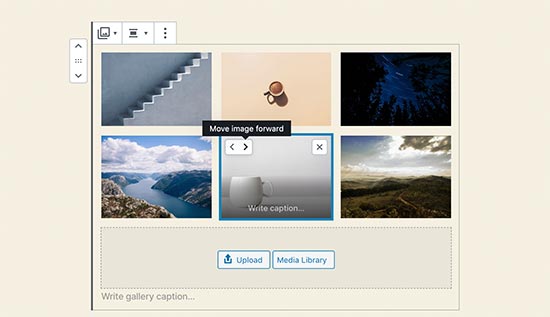
    Improved Gallery Block

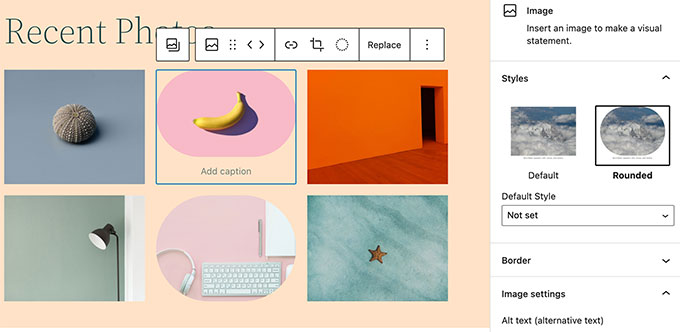
    Previously, it was difficult to add links and styles to individual images inside a gallery block.

    WordPress 5.9 ships with the revamped gallery block and now allows you to choose different styles for individual images in the gallery block. You can also easily link each image or the whole gallery block.

    Revamped Gallery block in WordPress 5.9

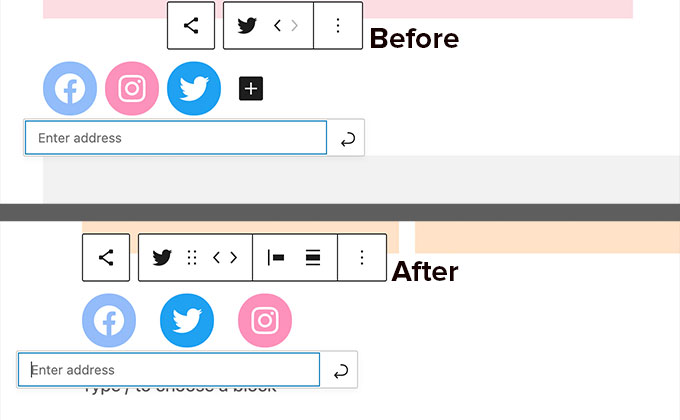
    Better Social Icons and Buttons

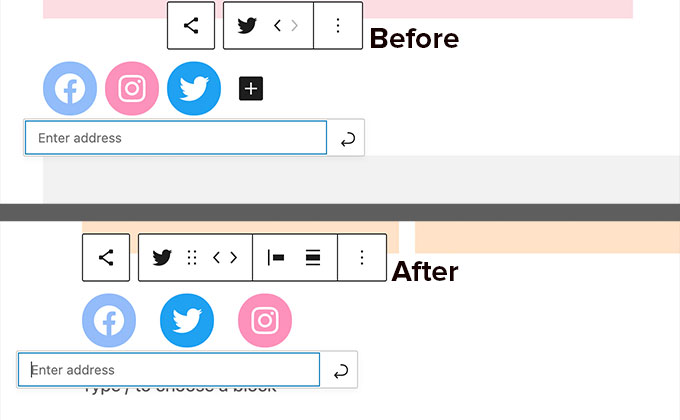
    With previous versions of WordPress, it was a bit difficult to access controls of the parent and child blocks when working with social icons and buttons.

    WordPress 5.9 now makes it easier by allowing child blocks to use the parent block’s toolbar.

    Social icon controls in WordPress 5.9

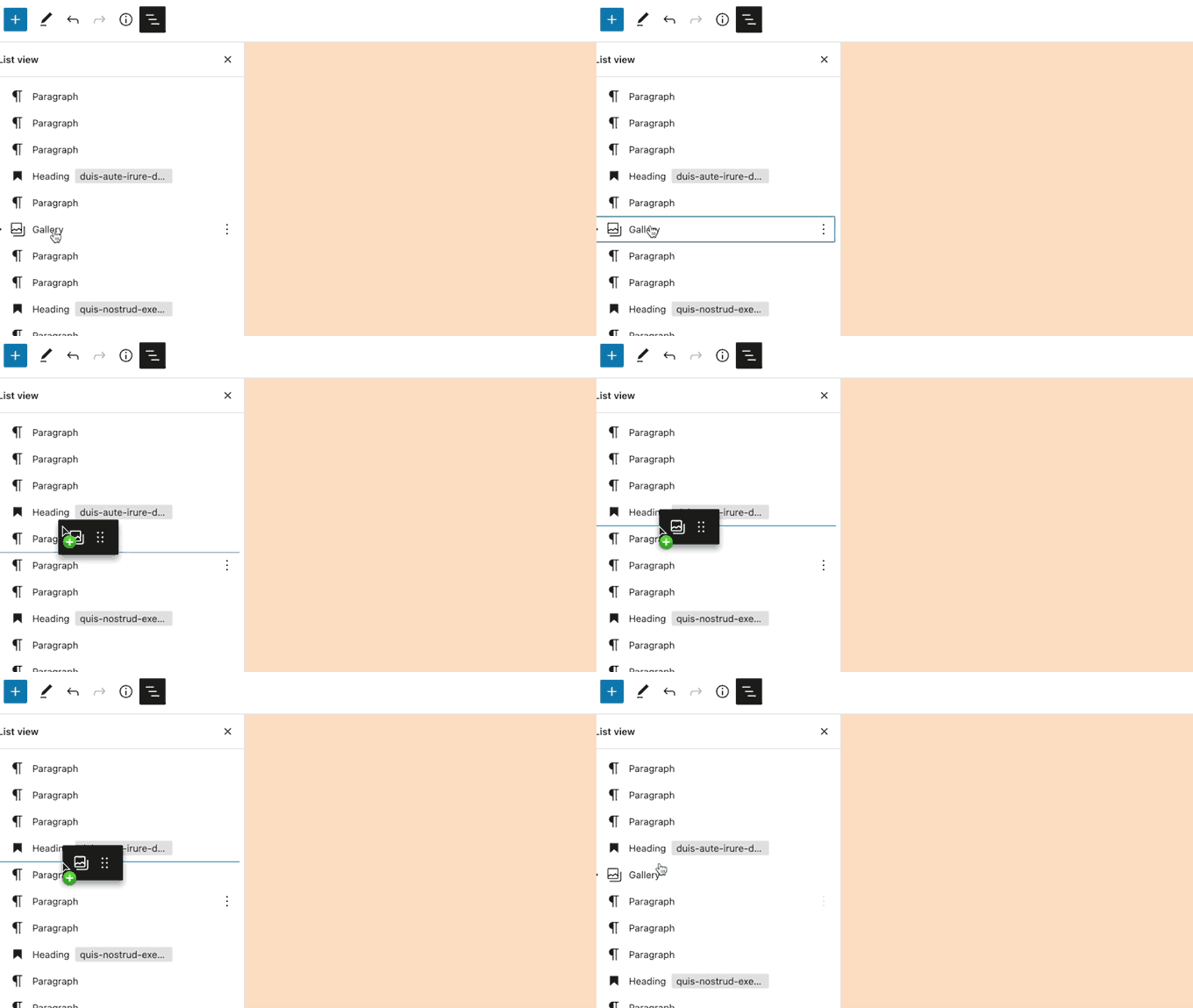
    Effortlessly Navigate and Move Blocks

    In the List View, you can now easily move blocks and sections with drag and drop.

    Moving items in the block editor

    This allows you to easily jump to different parts of the content and move them around so you can quickly readjust your layout.

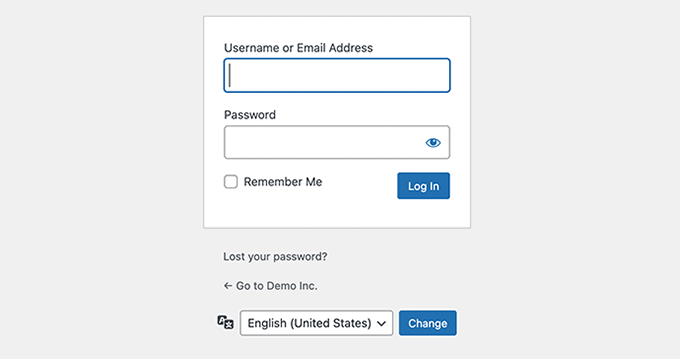
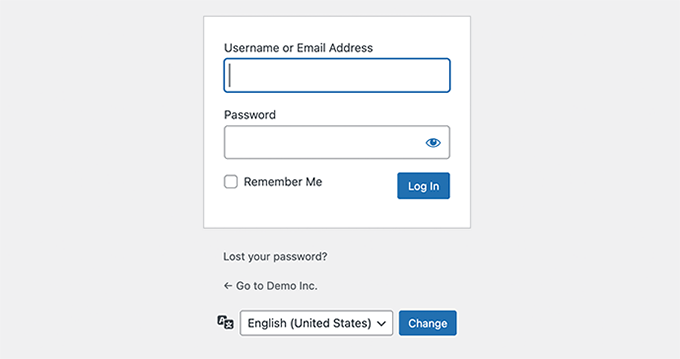
    Choose Language During Login

    If you have multiple languages installed on your WordPress website, then users can now choose their preferred language on the login screen.

    Choose language during login

    Performance Improvements in WordPress 5.9

    WordPress is used by nearly 43.2% of all websites on the internet. A faster WordPress means a faster online experience for millions of users every day.

    Each WordPress release devotes significant development time to improving performance. Here are some major performance improvements in WordPress 5.9.

    Improved Lazy Loading of Images

    WordPress comes with lazy loading for images since WordPress 5.5. However, it added lazy loading to all images which increased the Largest Contentful Paint metric (LCP). 

    With WordPress 5.9, images that are viewable upon initial load will skip lazy loading, improving your Core Web Vitals.

    Better Handling of Block Styles and CSS

    Previously, WordPress loaded all stylesheets for all blocks in a single file. With WordPress 5.9, only the styles needed will be loaded.

    Block Editor Improvements

    Perhaps the most used part of the block editor is the inserter itself. WordPress 5.9 makes the inserter faster, allowing you to quickly find the block you need to add.

  • Whats Coming in WordPress 5.9 (Features and Screenshots)

    Whats Coming in WordPress 5.9 (Features and Screenshots)

    WordPress 5.9 Beta arrived a few days ago, and it is expected to be released on January 25th, 2022. It will be the first major release of 2022 and will come with many new features and improvements.

    We have been closely monitoring the development and trying out new features on our test sites.

    In this article, we’ll give you a sneak peek into what’s coming in WordPress 5.9 with features and screenshots.

    Overview of all the features coming in WordPress 5.9

    Note: You can try out the beta version on your computer or on a staging environment by using the WordPress Beta Tester plugin.

    Video Tutorial

    Subscribe to WPBeginner

    If you’d prefer written instructions, just keep reading.

    Full Site Editing

    WordPress 5.9 will continue to build upon the site editing features first introduced in WordPress 5.8 earlier this year.

    This upcoming release is adding a lot more features to the site editing experience. These new features make it easier to edit your WordPress theme without any code so you can create a website with a unique custom design.

    Launching site editor in WordPress 5.9

    Still, full site editing will only be available for themes that support this new feature.

    New Site-Wide Blocks

    WordPress 5.9 will introduce 10 new blocks made specifically for full site editing and located under the ‘Theme’ category.

    Site editing blocks

    Here is a list of theme blocks introduced in 5.9:

    • Navigation
    • Template Part
    • Header
    • Footer
    • Post Author
    • Next Post
    • Previous Post
    • Post Comments
    • Term Description
    • Archive Title

    Tip: Site editor blocks can also be used inside a WordPress post or page if needed.

    Add Site-Wide Styles

    Another important feature of the site editor is the ability to create new styles for your theme that will be applied across your site. Simply click on the Style icon on the top right corner of the screen when editing any post or page.

    Editing theme styles

    From here you can change the typography and colors of your website.

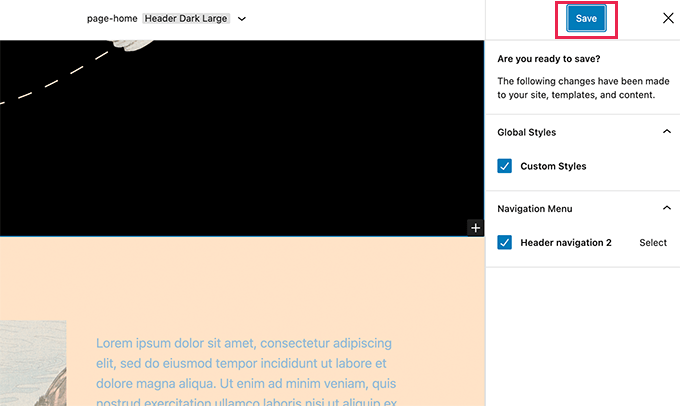
    Once you are done, you can choose to save those changes for individual templates, template parts, or as a global style for your whole website.

    Save template

    Change Block Styles

    With the site editor, you can also make changes to the styles of individual blocks used on your website.

    Simply click on the Style button and then choose Blocks. You’ll see a list of blocks that you can edit and customize.

    Edit block styles

    This allows you to set styles for individual blocks across your website. For instance, you can change button colors to match your brand colors, change heading font sizes, and more.

    A New Way to Add Navigation Menus

    WordPress 5.9 introduces a new way to edit navigation menus.

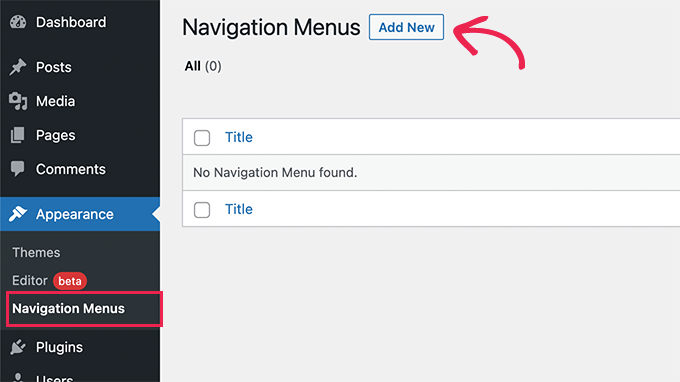
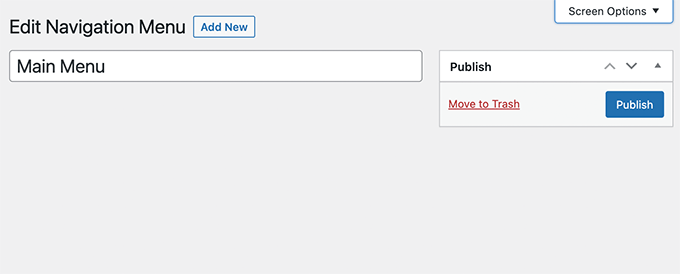
    First, you may notice that the ‘Menu’ link has now changed to Navigation Menus.

    Navigation menus in WordPress 5.9

    If you are using a supported theme, then you can simply add a navigation menu title here.
    Blank navigation menus screen

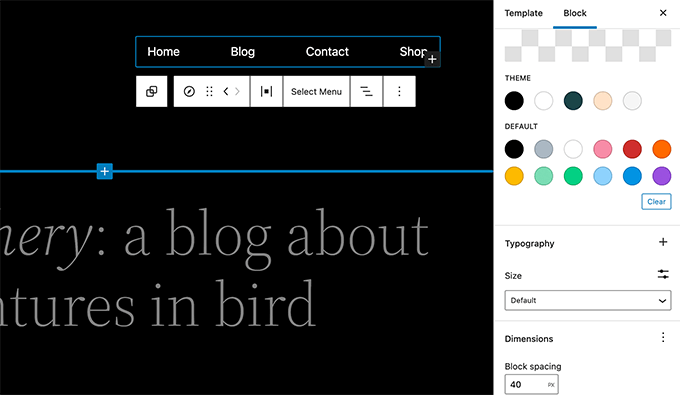
    To actually edit the navigation menu and add items to it, you can use the new Navigation Menu block in the site editor.

    Navigation menu block

    The new navigation menu block allows you to easily create navigation menus, add new links, adjust colors, spacing, alignment, and more.

    New Default Theme Twenty Twenty-Two

    Since WordPress 5.9 will be the first major release of the upcoming year, it will ship with a brand new default theme called Twenty Twenty-Two.

    The new default theme takes advantage of all the cool features available in the new site editor.

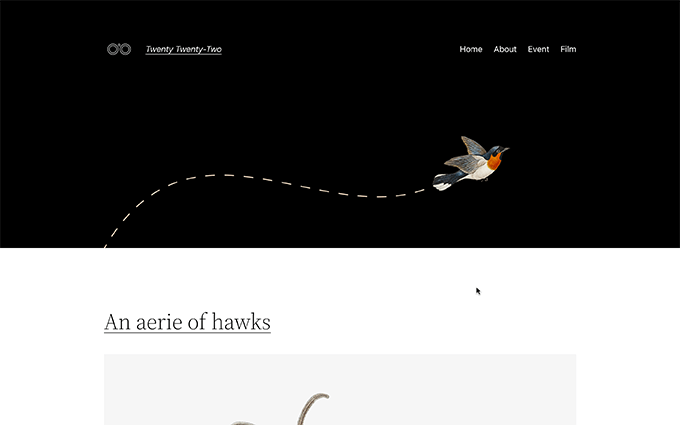
    Twenty Twenty-Two

    It is designed to be the most flexible default WordPress theme ever, providing users immense control over every aspect of design.

    Twenty Twenty-Two features a bold yet minimalistic design using Source Serif Pro font for headings.

    Twenty Twenty-Two preview

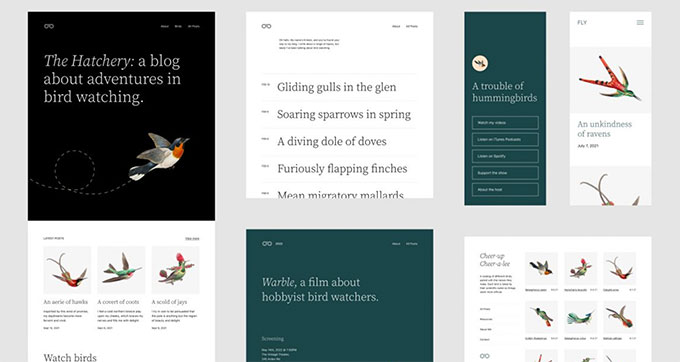
    The theme also comes with a bunch of ready-made patterns that you can use in the site editor or the block editor when writing content.

    Patterns Twenty Twenty-Two

    While the full site editing features are exciting, they still depend on your WordPress theme.

    If you need an easier and more flexible option, then you can try SeedProd. It allows you to easily create custom pages for your website regardless of which WordPress theme you are using.

    Block Editor Improvements in WordPress 5.9

    Most WordPress users spend the majority of their time writing content. That’s why each WordPress release comes with improvements and new features added to the block editor.

    Effortlessly Move Sections

    Users will now be able to move sections from the List View on the toolbar. Simply click on an item and move it up and down.

    Moving items in the block editor

    This allows you to easily jump to different parts of the content and move them around so you can quickly readjust your layout.

    Navigation Block

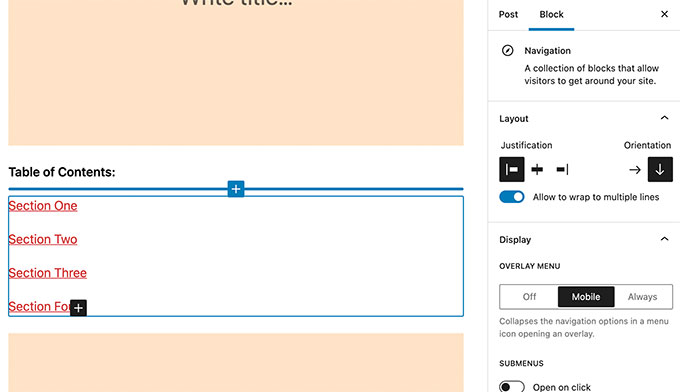
    The navigation block in the site editor can also be used inside your WordPress posts and pages as well. This allows you to manually create navigation menus in your articles or landing pages.

    For instance, you can use it to create a table of contents with links to different areas of an article.

    Using navigation block for table of contents

    Better Social Icons and Buttons

    With previous versions of WordPress, it was a bit difficult to access controls of the parent and child blocks when working with social icons and buttons.

    WordPress 5.9 will make it easier by allowing child blocks to use the parent block’s toolbar.

    Social icons and button blocks absorb parent toolbar

    The headings block now allows you to select a heading level from a vertical dropdown menu. You also have more typography, design, margin, and spacing options for your headings.

    Headings block now has more controls

    Rich URL Previews in Block Editor

    Previously, when you hovered your mouse over to a link in the post editor, you only saw the URL. WordPress 5.9 will now fetch and display rich URL previews for links inside post editor.

    Rich URL previews

    There are many other improvements to individual blocks in the block editor. All of them enhance user experience by offering more dimensions, spacing, typography, and other tools.

    Choose Language During Login

    If you have multiple languages installed on your WordPress website, then users will now be able to choose their preferred language on the login screen.

    Choose language during login
  • Whats New in WordPress 5.8 (Features and Screenshots)

    Whats New in WordPress 5.8 (Features and Screenshots)

    WordPress 5.8 was released earlier today, and it is the second major release of 2021.

    This new release is coming with some major new features and improvements. These changes introduce new creative ways to work on your WordPress website.

    In this article, we’ll share what’s new in WordPress 5.8, and which features you should try after updating your websites.

    WordPress 5.8 new features with screenshots

    WordPress 5.8 is a major release, and unless you are on a managed WordPress hosting service, you’ll have to manually initiate the update.

    Important: Don’t forget to create a complete WordPress backup before initiating the update.

    That being said, here’s all that’s new in WordPress 5.8.

    The New Template Editor

    WordPress 5.8 comes with a new feature called the template editor. It is a step towards creating a full site editing tool using the block editor.

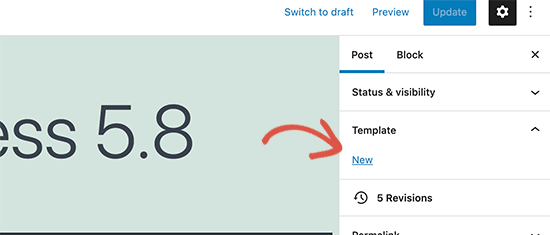
    You can create a new template by creating on the ‘New’ link under the template tab while editing a post or page.

    Create a new template in the block editor

    Note: Template editor is an optional theme feature. If you cannot see the Template tab on the post edit screen, then this means that your theme does not support the feature.

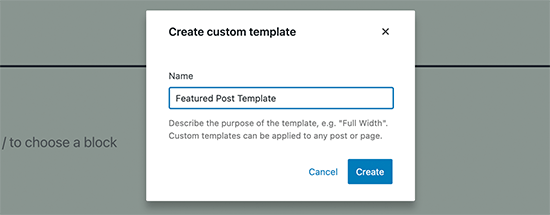
    WordPress will then ask you to provide a title for your new template. This could be anything that helps you easily identify the template for later use.

    Add template name

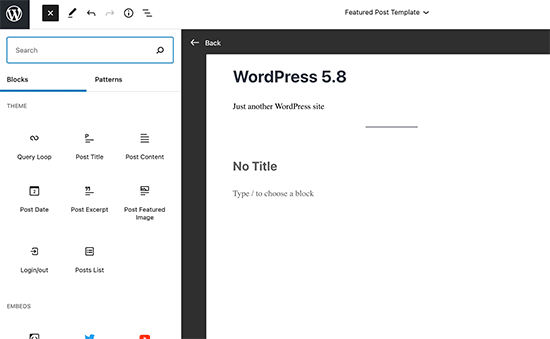
    After that, WordPress will switch to the template editor mode. This will allow you to edit non-content areas and add site-wide blocks in your template.

    Template editor mode

    WordPress 5.8 comes with several site blocks that allow you to add different site-wide elements to your new template.

    • Site Logo
    • Site Tagline
    • Site Title
    • Query Loop
    • Post Title
    • Post Content
    • Post Date
    • Post Excerpt
    • Post Featured Image
    • Post Categories
    • Post Tags
    • Login/out
    • Page List

    The template editor in WordPress 5.8 is a theme-specific feature. It still uses your WordPress theme’s styles and appearance.

    If you want to get full design control for a custom layout, then a far better tool would be a page builder plugin like SeedProd. It works regardless of which WordPress theme you are using which gives you full control on the layout.

    Blocks Based Widget Editor in WordPress 5.8

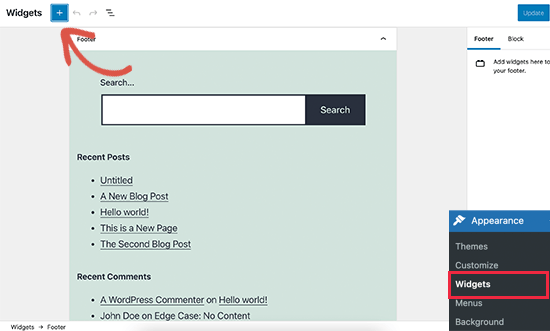
    The widgets screen in WordPress now uses the block editor. Simply go to the Appearance » Widgets page to try out the new widgets experience.

    Widgets as blocks in WordPress 5.8

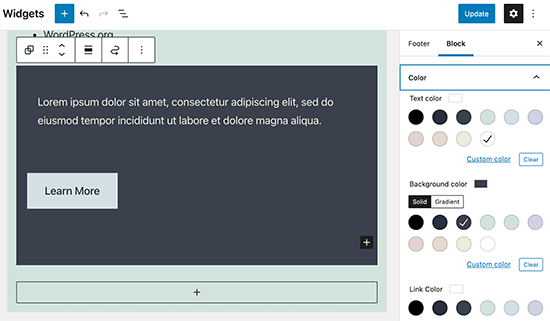
    Each widget-ready area in your WordPress theme will appear as a tab in the block editor. You can add widgets as blocks to your website’s sidebars and widget-enabled areas.

    This gives you greater control over widgets as you can now use blocks to create more engaging widget areas. For instance, you can add buttons, choose colors, group different blocks, and more.

    Editing blocks in widget areas in WordPress 5.8

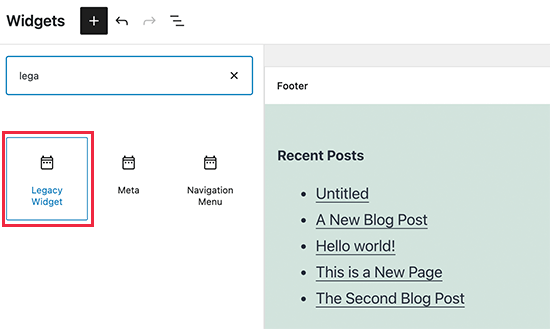
    You can still use older widgets by adding the Legacy Widget block to any sidebar.

    Adding legacy widgets in WordPress 5.8

    Opting Out of The New Widgets Screen

    Some users may still want to use the older Widgets screen. This can be easily done by installing and activating the Classic Widgets plugin.

    Upon activation, the plugin will simply restore the older classic widgets screen.

    WordPress Now Supports WebP Images by Default

    WebP is a new image format that reduces image file size by 25-34% than PNG and JPEG without losing quality. This is a big difference and can significantly boost speed and performance of any website.

    WordPress 5.8 now supports WebP images by default. This means you can save and upload your WebP images to your WordPress website without using a plugin.

    However, some older web browsers don’t support WebP images. If many of your users use unsupported browsers, then you should consider using an image compression plugin.

    Image compression plugins can convert images into WebP format and display JPEG or PNG images as the fallback option. For detailed instructions, see our tutorial on how to add WebP images in WordPress.

    Media Library Changes in WordPress 5.8

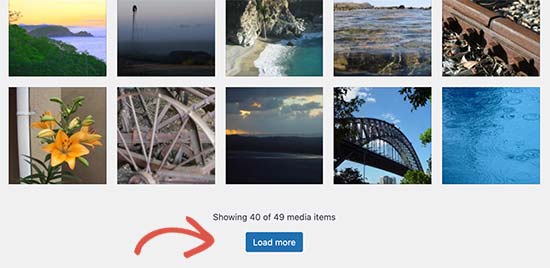
    WordPress media library will not be using infinite scroll to load images in the ‘Grid’ view. Instead, you’ll now see a Load more button to view more images.

    Load more button in Media Library

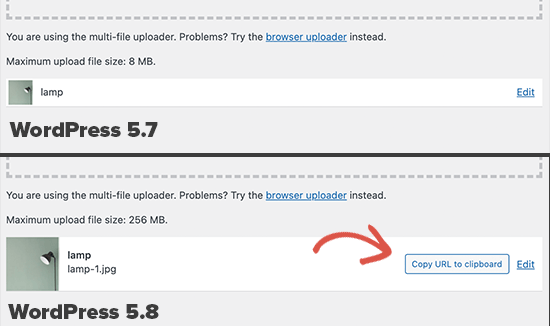
    Another handy new improvement is the ability to copy the media file URL when uploading directly via Media » Add New page.

    Previously, when you added an image directly in the media library you had to edit the image and then manually copy the image URL.

    With WordPress 5.8, you’ll now see a button to copy the media file URL and use it anywhere you want.

    Copy file URL to clipboard

    Block Editor Changes in WordPress 5.8

    The block editor is where WordPress users spend most of their time creating content. Each WordPress release brings improvements to the block editor.

    Following are some of the new features and improvements in the block editor that you may want to try out.

    The Query Loop Block in WordPress 5.8

    Ever wanted to display a bunch of posts inside a WordPress page or post?

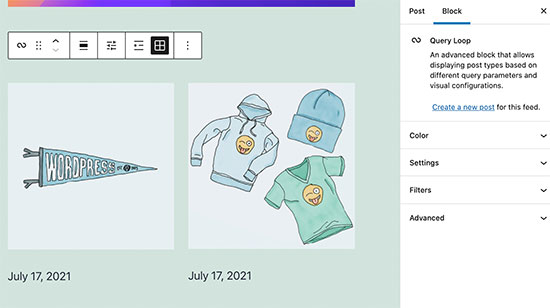
    Previously, you had to use plugins to do that but now you can use the Query Loop block to easily display a list of posts, pages, or products anywhere.
    Simply add the Query Loop block to a post or page. You can choose from a bunch of layouts and configure the query parameters in the block settings.

    Query Loop block in WordPress 5.8

    Duotone Filters for Images and Media Blocks

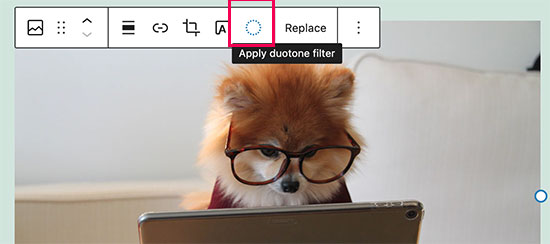
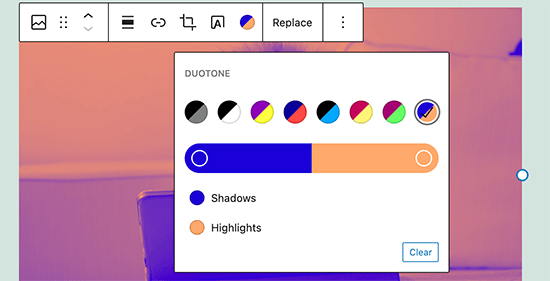
    WordPress 5.8 has introduced Duotone filters for images and media blocks like images, galleries, and cover images.

    Applying duotone filter to images in WordPress 5.8

    It comes with a few presets and you can create your own presets as well by choosing the colors you want to apply. Your WordPress theme may also include their own presets to match theme colors.

    Duotone filters applied on an image in WordPress 5.8

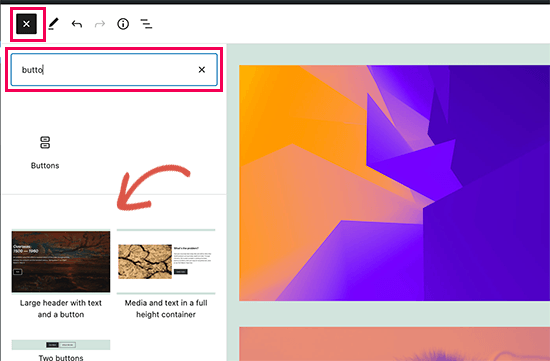
    Pattern Recommendations in Add Block Panel

    WordPress 5.8 will now recommend patterns in the the add block panel.

    For instance, if you look for a common element then it may suggest patterns using that block.

    Pattern suggestions in WordPress 5.8

    There are some new patterns available and initial work has been laid for integration with the WordPress.org pattern directory.

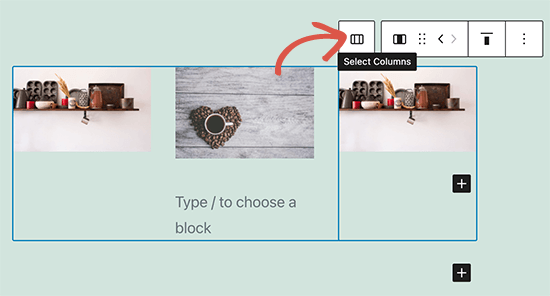
    Easily Select Parent Block in Nested Blocks

    Selecting the parent block in columns, groups, and other nested blocks was a bit difficult.

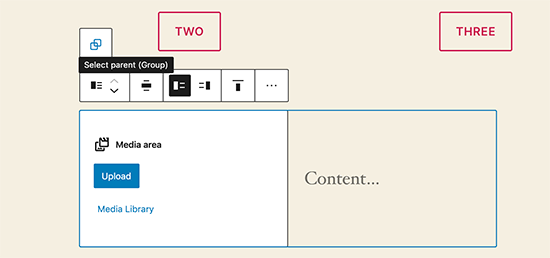
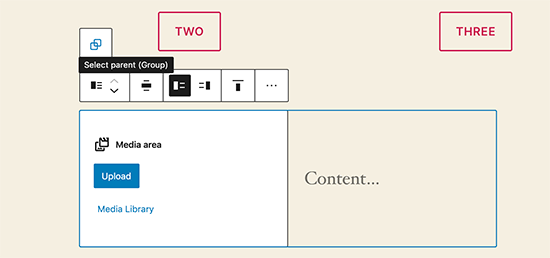
    WordPress 5.8 now shows an always visible parent block button in the toolbar which allows you to quickly select it.

    Parent block button in the toolbar

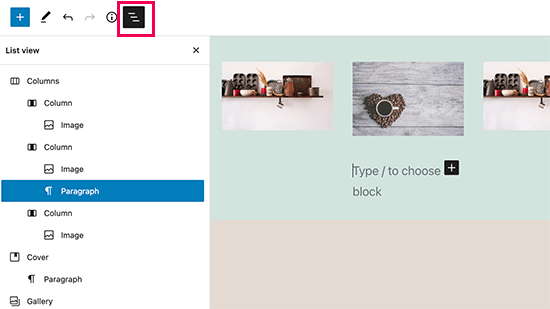
    Improved List View in Block Navigation

    WordPress 5.8 comes with an improved list view panel showing the complete list of blocks in your post or page. This makes it easier to navigate when you are working with a more complex layout.

    Improved list view panel in WordPress 5.8

    Improved Select Tool with Block Handles

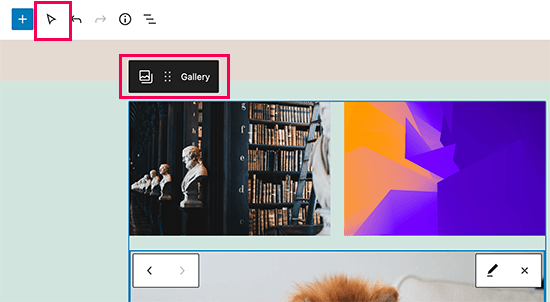
    WordPress 5.8 introduces better block highlighting and an improved select tool. It shows you a block handle so that you can easily move blocks up and down.

    Better Select tool with block handles

    Block Enhancements in WordPress 5.8

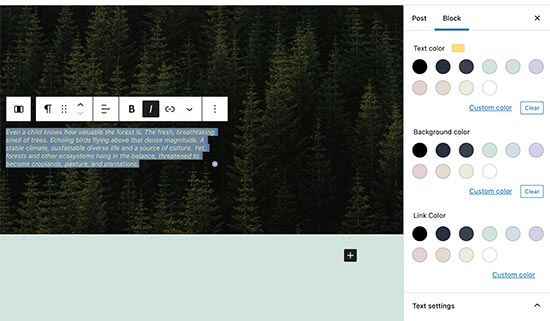
    WordPress 5.8 has many enhancements for existing blocks. There are more options to choose text, background, and link colors.

    More color options

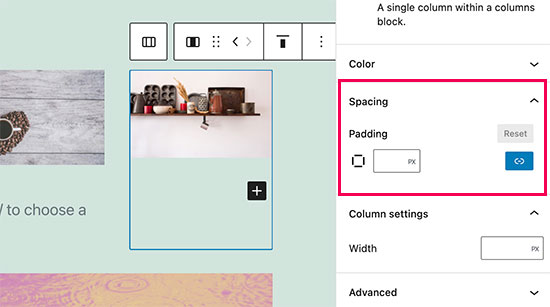
    You can now control spacing among columns, cover, and other blocks.

    Padding option for blocks

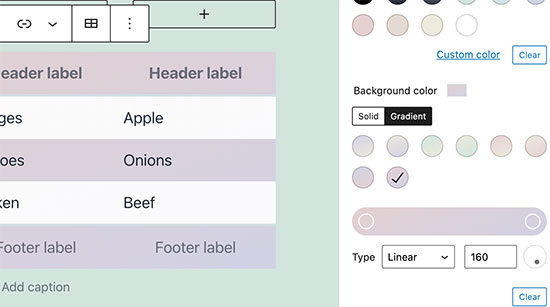
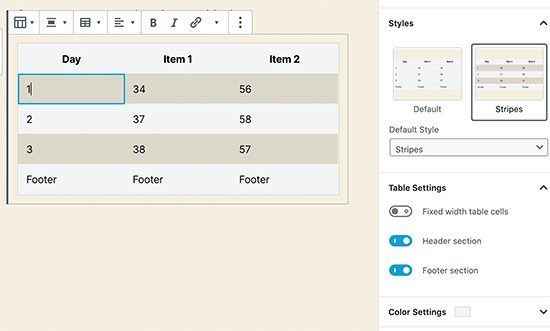
    You can now also use gradient background color for tables.

    Gradient background color option for tables
  • MemberPress Creators Have Earned over $1 billion dollars (Milestone Update)

    MemberPress Creators Have Earned over $1 billion dollars (Milestone Update)

    It’s always mind blowing for me to see the impact WordPress makes on the global economy.

    MemberPress, the leading WordPress membership and course platform, announced today that they have passed the milestone of $1 billion dollars in creator earnings.

    This is a conservative estimate and likely MemberPress creators have earned way more than that.

    MemberPress Billion Dollar Creator Earning Milestone

    With the digital acceleration from last year, they are estimating that MemberPress site creators are projected to earn over $600 million dollars in 2021 alone.

    For those who don’t know, I invested in MemberPress in 2018 as part of our WPBeginner Growth Fund.

    It’s been an exciting journey to work alongside with Blair Williams, founder & CEO of MemberPress.

    The impact our users (website creators) are making through their online courses and membership sites is truly humbling to watch.

    Note: Want to add premium content on your site? See our step by step guide on how to create a membership site, and how to sell online courses in WordPress.

    Product Update from MemberPress

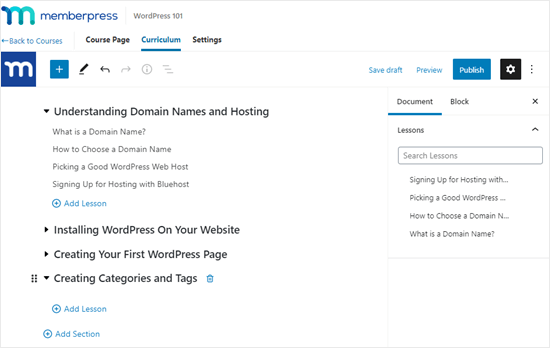
    Last year, MemberPress launched an easy to use online course builder that works on top of the WordPress block editor. This makes it easy for non-techy website owners to create courses, add lessons, manage access control, and more.
    Creating the sections and lessons for your course

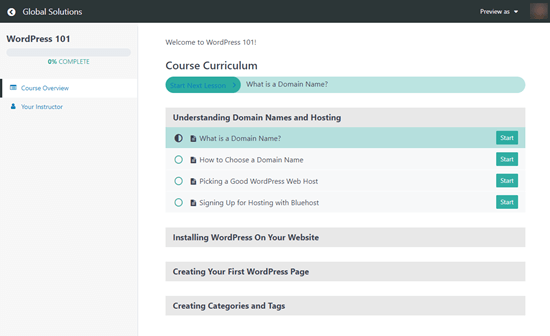
    The team also added a Classroom mode to offer a distraction-free learning experience that’s focused on content consumption and course completion rate. This immersive learning mode works with all WordPress themes.
    The MemberPress course curriculum that users see, showing their progression through the course

    Aside from the huge update on Courses, MemberPress also made it seamless to add premium content protection for various top page builder plugins such as Divi, Elementor, Beaver Builder, WP Bakery, etc.

    They also made significant improvements to add drip content in WordPress, ability to gift memberships, added PDF invoices, integrations with PushEngage, and more.
    I also got a sneak peek of some big features they’re working on, and it’s going to be an exciting 2021.

    What Can You Use MemberPress for?

    MemberPress is the best WordPress membership plugin and online course platform for many reasons.

    Here’s what you can do with MemberPress:

    Basically if you want to restrict access to any type of premium content in WordPress, then you should use MemberPress.

  • Whats New in WordPress 5.6 (Features and Screenshots)

    Whats New in WordPress 5.6 (Features and Screenshots)

    WordPress 5.6 was released earlier today, and it is the last major release of 2020.

    This new release is packed with a lot of improvements and new features. It also includes a brand new default WordPress theme.
    In this article, we’ll share what’s new in WordPress 5.6, and which features you should try after updating your websites.
    Take a look at what is new in the new WordPress 5.6

    WordPress 5.6 is a major release, and unless you are on a managed WordPress hosting service, you’ll have to manually initiate the update.

    Important: Don’t forget to create a complete WordPress backup before initiating the update.

    With that said, here’s all that’s new in WordPress 5.6.

    Twenty Twenty-One – The New Default WordPress Theme

    WordPress traditionally releases a new default theme each year which is usually named after the year. WordPress 5.6 comes with Twenty Twenty-One as the new default WordPress theme.

    This new theme provides a canvas for the WordPress block editor and the site editing features. It is designed to be simple, aesthetically pleasing, un-opinionated, and refreshing.

    New default WordPress theme Twenty Twenty-One

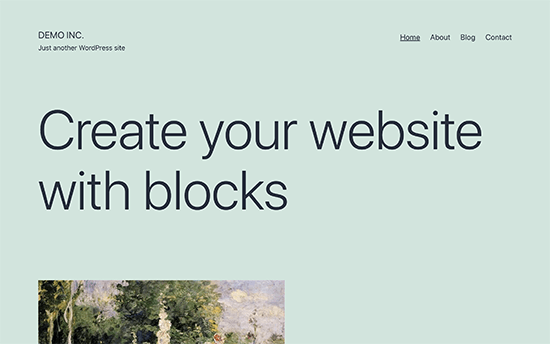
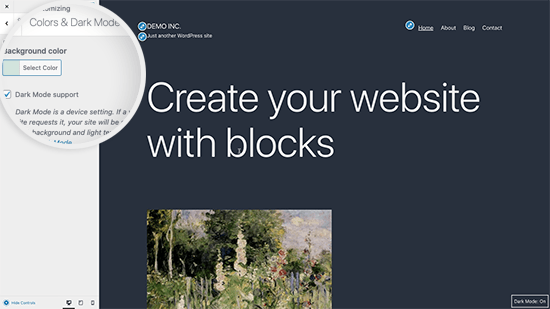
    Twenty Twenty-One uses a pastel green background color, and two shades of dark grey for text. It also ships with colors for the dark mode which can be enabled by customizing the theme.

    Twenty Twenty-One dark mode

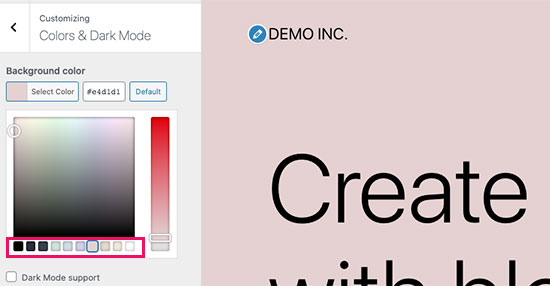
    You can also change the background color by choosing from several pastel color schemes or choose your own colors. The theme will automatically adjust text color as well.

    Choose a background color scheme

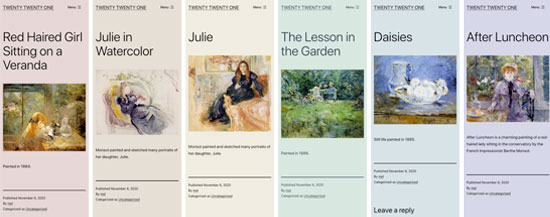
    Here is a preview of what these built-in color combinations would look like.

     Pastel color schemes in Twenty Twenty-One

    For typography, designers opted to go with the default system fonts. This means no extra font files to load and easy to build child themes that have their own typography and fonts.

    If you are testing the theme with a fresh WordPress website, then you can try out the new homepage layout. Simply go to the Appearance » Customize page and click on the Publish button to generate basic website pages including a homepage.

    This sample homepage gives you an idea of what you can do with the block editor. You can simply edit the page and replace it with your own content.

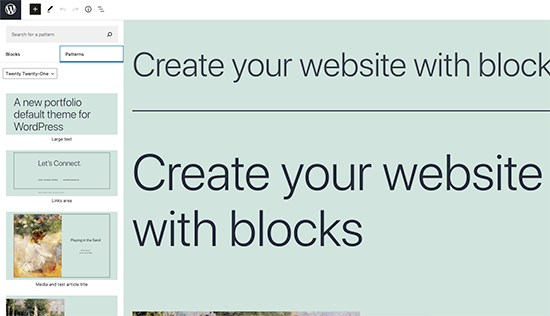
    Earlier this year, WordPress 5.5 introduced patterns for the block editor. Twenty Twenty-One utilizes this feature by adding new block patterns that you can use in your posts and pages.

    Twenty Twenty-One patterns

    Overall this is a beautiful WordPress theme, that is easy to customize and can be used to make any type of website.

    The Block Editor Improvements

    The WordPress content editor is where users spend most of their time writing blog posts, creating pages, and making layouts. WordPress 5.6 brings several improvements to the block editor.

    Here are some of the most noticeable changes to the block editor in WordPress 5.6.

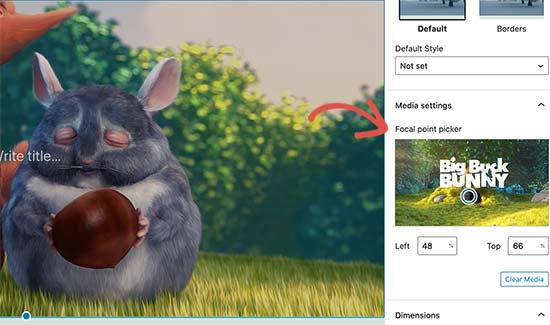
    Video Position Control for The Cover Block

    Previously cover block only showed position controls for images. With WordPress 5.6, the cover block now allows users to set video position inside the cover block.

    Cover block with video focal point picker controls

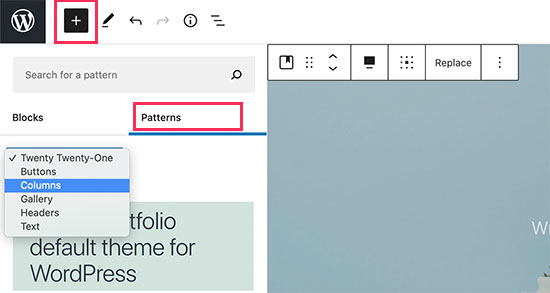
    Patterns Organized in Categories

    The patterns panel under the ‘Add new block’ column now has a category switcher. This makes it super easy for users to find and use a pattern they need. Users will also be able to see the patterns available with their theme and distinguish them from the default patterns.

    Pattern categories in WordPress 5.6

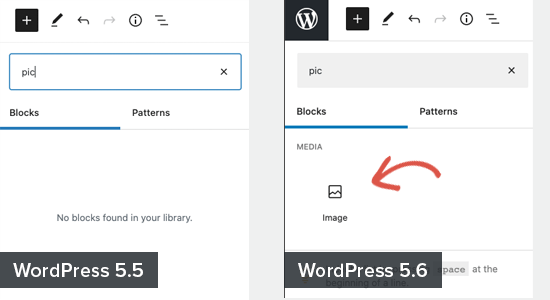
    Keyword Variations to Improve Block Search

    The block editor now allows developers to store keyword variations that may help users find a block. This would improve the block search feature and will allow users to discover blocks added by block libraries or third-party plugins.

    Keyword variations make it easier to find common blocks

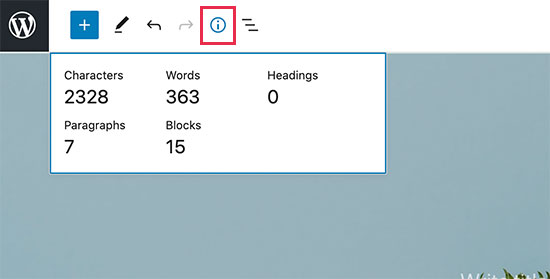
    Characters in The Information Panel

    The information panel will now show characters along with words, paragraphs, and blocks used in your content.

    Information panel in WordPress 5.6

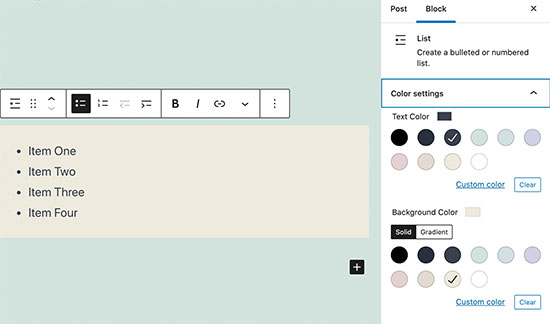
    Color Support for The Lists Block

    The lists block now has the option to choose text and background colors without adding the list into another block.

    List block color settings

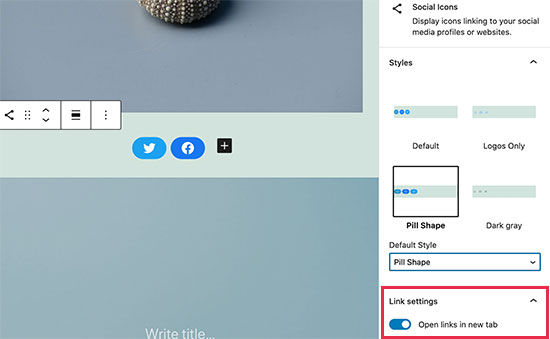
    Social Icons Block

    Social Icons block has two improvements. First, there is a new gray style for social icon buttons. Secondly, users can now choose to open all links in the block in a new window.

    Social Icons block in WordPress 5.6

    Bonus: want to add social share counts? Here’s how to add social share counts in WordPress.

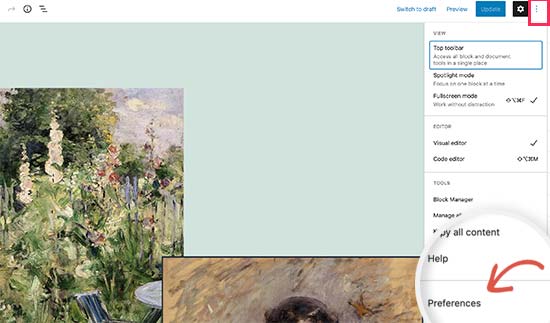
    Editor Options are Now Called Preferences

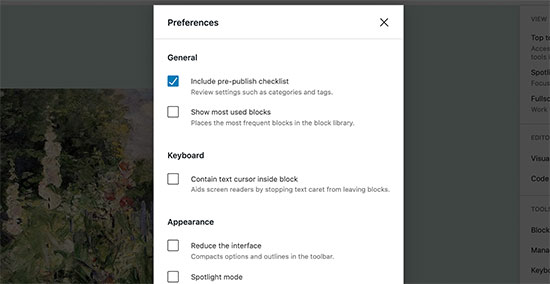
    The default block editor has a settings panel where you can set up the editor to your own liking. In WordPress 5.6, this modal is now called ‘Preferences’ instead of ‘Options’.

    Editor preferences setting

    The modal itself now is more helpful with descriptions for different items. This would make it easier for beginners to decide which items they want to enable.

    Editor preferences menu

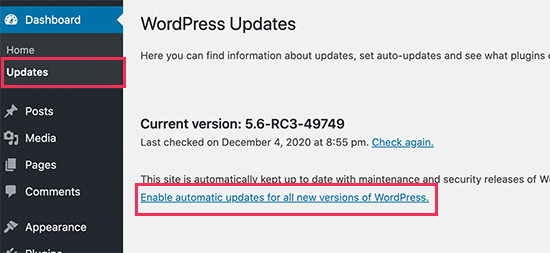
    Automatic Updates for Major WordPress Releases

    Earlier this year, WordPress 5.5 made it easier for users to turn on automatic updates for specific plugins. WordPress 5.6 extended this by adding the option to turn on automatic updates for major WordPress releases as well.

    You can go to Dashboard » Updates page inside WordPress admin area and click on the ‘Enable automatic updates for all new versions of WordPress’ link.

    Enable automatic updates for major WordPress releases

    This is totally optional for you to decide whether you want to enable this feature or not. If you are using a managed WordPress hosting, then you don’t need to worry about that as they will automatically update WordPress for you.

    Support for PHP 8

    PHP 8 support in WordPress 5.6

    WordPress is written mainly with the PHP programming language. Just like WordPress, PHP also releases new versions to improve performance, add features, and fix bugs.

    They were expected to release PHP 8 on November 26 closer to the release of WordPress 5.6. The core team planned and worked hard to catch and fix any known compatibility issues with PHP 8.

    This will ensure that users who upgrade to the latest PHP version will not face any major issues. However, theme and plugin developers may still need to test their own code for compatibility.

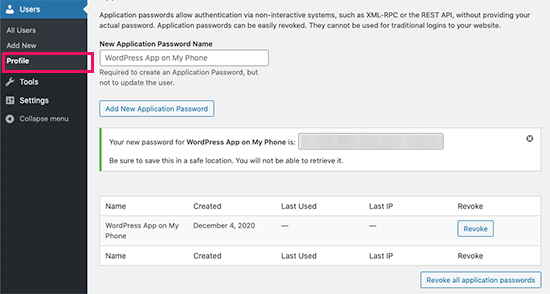
    Application Passwords for REST API

    The REST API in WordPress allows developers to communicate with a website outside the WordPress installation itself.

    To keep it safe, WordPress used cookies and nonce keys to ensure that only legitimate users can access the API. For developers, these methods were not very efficient to work with.

    WordPress 5.6 will allow developers to use application passwords in WordPress. Just like popular platforms Facebook and Google, the users can now give apps access to their website and manage it from the Users » Profile page. Users can also revoke an app’s access at any time.

    Application passwords in WordPress 5.6

    Under The Hood Changes

    WordPress 5.6 has arrived with tons of features and improvements targeted towards developers. The following are some of the most significant under the hood changes.

    WordPress 5.6 continues the second phase of the three-step plan to upgrade the core jQuery bundled with WordPress. Theme and plugin developers relying on jQuery are already testing their code for any issues so it is not likely to affect large number of users. (See details)

    The new 5.6 release also includes REST API Batch Framework for making a series of REST API calls in one request to the server. (See details)

    A new action wp_after_insert_post is also available in WordPress 5.6. It allows theme and plugin developers to run custom code after a post and its terms and meta data have been updated. (See details)

    WordPress 5.6 has replaced older-style PHP type conversion functions with type casts. (#42918)

    WordPress 5.6 also introduced the ability to merge WP_Error objects into one another. This would allow developers to add more than one item of data to the WP_Error object. (#38777)

  • Whats New in WordPress 5.5 (Features and Screenshots)

    Whats New in WordPress 5.5 (Features and Screenshots)

    WordPress 5.5 was released earlier today, and it is the second major release of 2020.

    This new release is packed with a lot of improvements, many of them are focused around the WordPress block editor. It also includes some long-awaited features that are making their debut with this release.

    In this article, we’ll share what’s new in WordPress 5.5, and which features you should try after updating your websites.

    Features and screenshots of WordPress 5.5

    WordPress 5.5 is a major release, and unless you are on a managed WordPress hosting service, you’ll have to manually initiate the update.

    Important: Don’t forget to create a complete WordPress backup before starting the update.

    Improved Block Editor in WordPress 5.5

    The block editor is where you spend most of your time creating content for your WordPress blog. It has been regularly maintained and each WordPress release brings improvements to the block editor.

    WordPress 5.5 brings some significant changes to help you use block editor more efficiently.

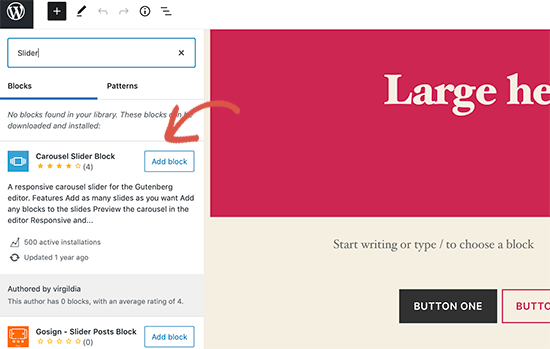
    Integrated Block Directory

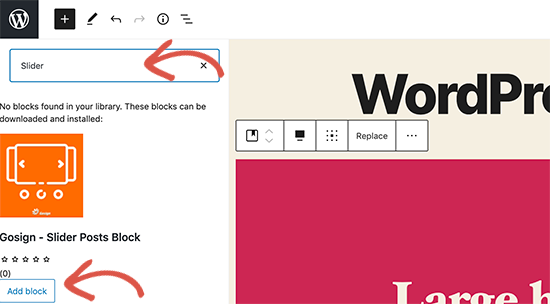
    WordPress 5.5 now comes with an integrated block directory. This means that if you want to add a block that is not available on your site, then you’ll automatically see suggestions from the block directory.

    Block directory in WordPress 5.5

    Block directory is essentially a collection of WordPress plugins that allow you to add different types of blocks to your site. This does not include block library plugins that come packed with several useful WordPress blocks that you can use right away by installing a single plugin.

    UI Changes in The Block Editor

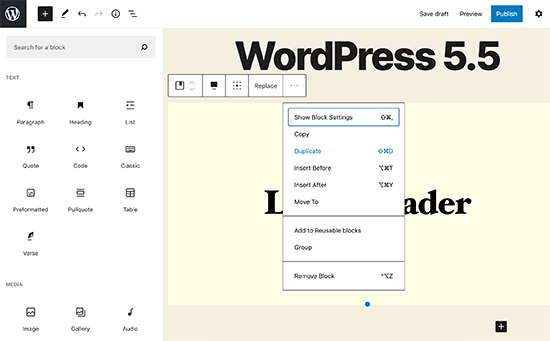
    Perhaps the most noticeable thing in WordPress 5.5 is the visual improvements to the block editor. Borders and highlighting are improved to make block editor more accessible.

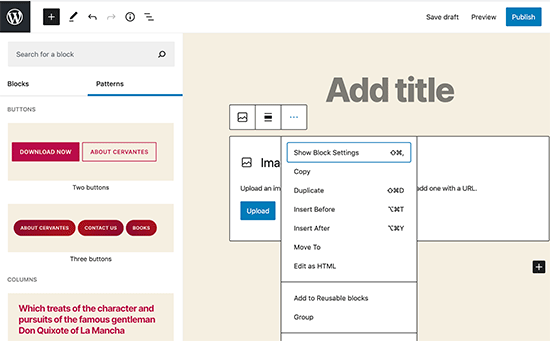
    Improved block editor UI

    The ‘Add new block’ button (+) is now more noticeable and looks more like a button with a black background.

    Edit Images Inside Block Editor

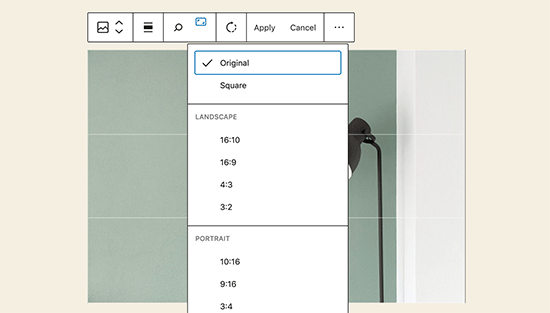
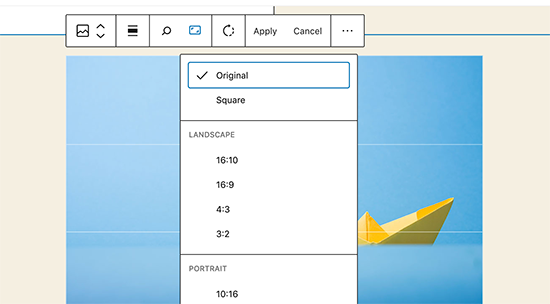
    WordPress 5.5 allows users to edit images inside the block editor. You can adjust image height, width, aspect ratio, crop, and rotate without leaving the post editor.

    Inline image editing in WordPress 5.5

    Of course, you can still perform basic image editing in the media library as well. However, inline image editing will now help new users easily discover these built-in editing options.

    Introducing Block Patterns

    The block editor already had reusable blocks and groups which allowed users to save most commonly used blocks and reuse them.

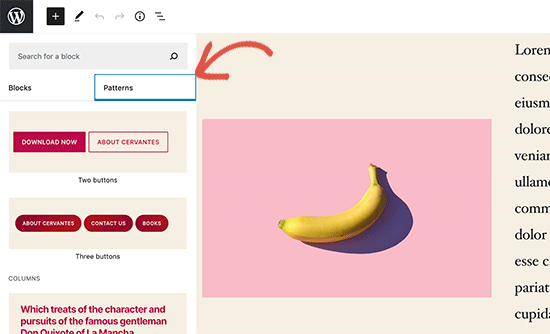
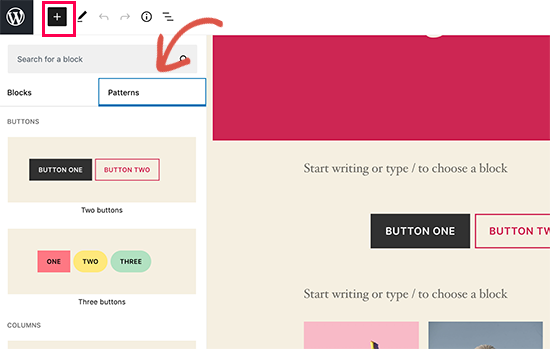
    WordPress 5.5 adds a new feature called block patterns. These are commonly used blocks with pre-configured settings that you can instantly add.

    Block patterns in WordPress 5.5

    This allows you to quickly create page layouts while maintaining consistency in style across your website. There are a few of them already available in 5.5. More will arrive as WordPress themes and plugins register their own block patterns.

    Improved Block Navigation and Movement

    One common issue that many beginners struggled with is block navigation. Particularly if you are using nested blocks like columns or groups, then it became a little difficult to select the parent block or move a child element inside it.

    WordPress 5.5 now comes with much better block navigation making it easier to select parent block or a nested element inside it. You can also move blocks by grabbing the handle and drag and drop them.

    Moving between blocks and navigating around editor in WordPress 5.5

    Auto Update Your WordPress Theme and Plugins

    WordPress 5.5 takes a big leap towards security by introducing automatic updates for WordPress plugins and themes.

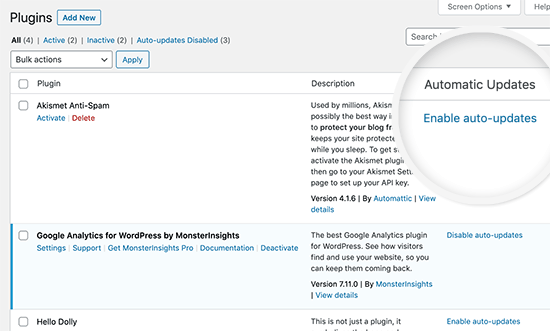
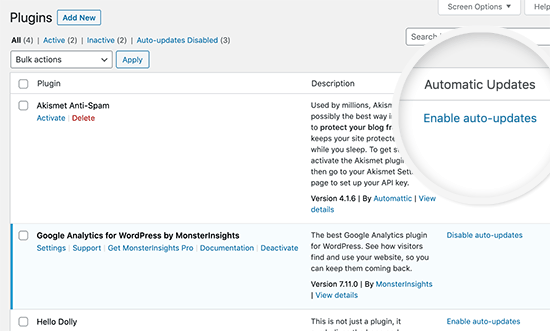
    You can now simply go to the Plugins page and enable auto-updates for any WordPress plugin that you have installed on your site.

    Enable auto-updates for WordPress plugins

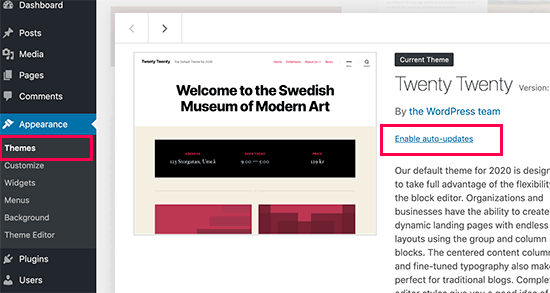
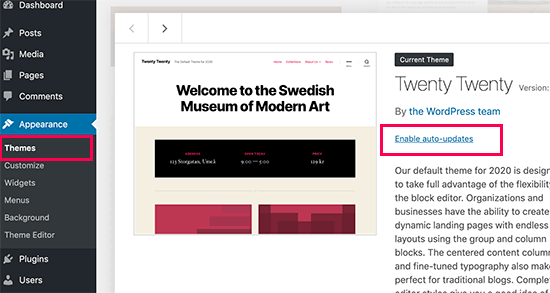
    You can also do the same for WordPress themes. Simply go to the Appearance » Themes page and click on a theme to select it. In the theme overview popup, you’ll find the option to enable automatic updates for that theme.

    Auto update WordPress theme

    This functionality was already available in WordPress but you either had to change WordPress configuration or use a third-party plugin to manage automatic updates. WordPress 5.5 has now made it incredibly easy to ensure that your websites are always running on the latest code.

    Update Plugins by Uploading a New Version

    Normally, you would update WordPress plugins with automatic updates or by clicking on the update notification. However, sometimes you may have to update a plugin manually.

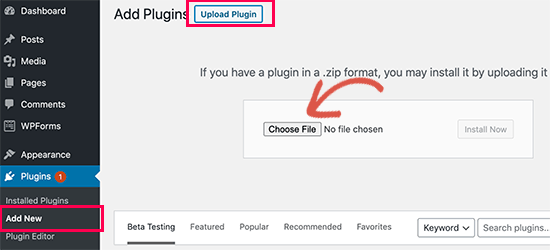
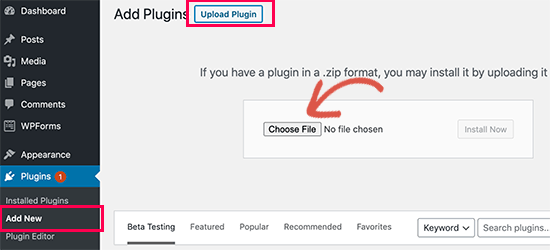
    In that case, your only option was to use an FTP client to upload the new version. WordPress 5.5 has fixed this problem and now you can simply go to the Plugins » Add New page and upload the new version like you would upload any new plugin zip file.

    Upload plugin zip file

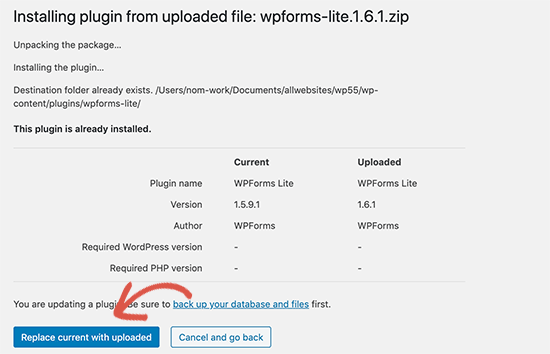
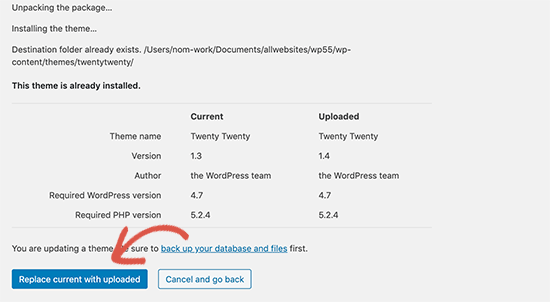
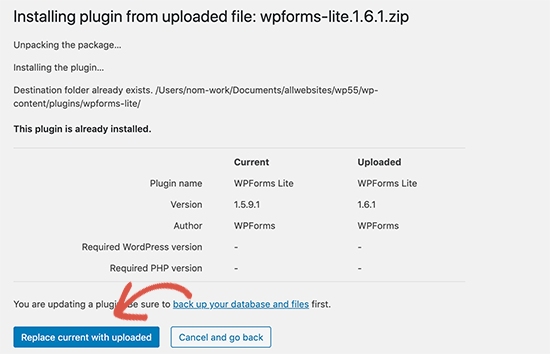
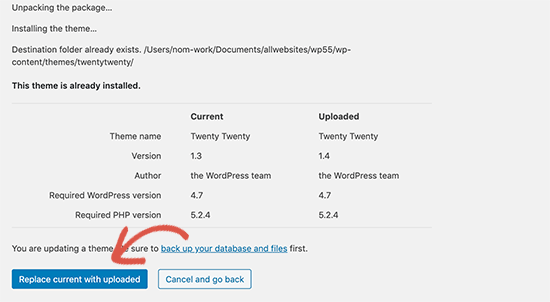
    WordPress will automatically detect that you already have this plugin installed and the new file contains a different version. It will then allow you to ‘Replace current with uploaded’ version.

    Replace existing plugin with new version

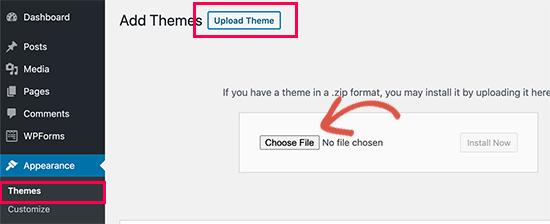
    You can do the same thing for themes as well. Simply go to the Appearance » Themes page and then click on the ‘Add New’ button at the top.

    After that click on the Upload Theme button to upload your theme zip file. WordPress will automatically detect the existing theme and will give you the option to ‘Replace current with uploaded’ version.

    Replace theme with updated version

    Lazy Loading for Images

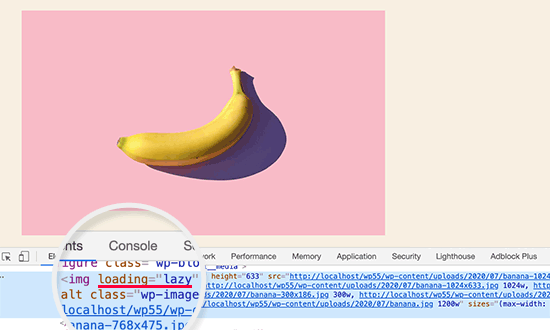
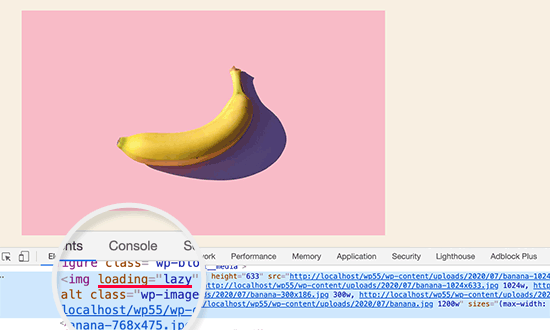
    WordPress 5.5 now lazy loads images on your website. This means that it will only load the images that are visible to the user on screen and delay loading other images.

    WordPress now make it a default feature for all sites by adding the ‘loading’ attribute to img tag. This attribute is supported by all modern web browsers (except Safari).

    Lazy load images in WordPress 5.5

    This improves your website speed and performance significantly. This is also good for WordPress hosting companies, ISPs, and the overall interwebs.

    WordPress powers more than 35% of all websites on the internet this major improvement in speed will save a lot of bandwidth, server resources, and electricity.

    The Default XML Sitemaps in WordPress

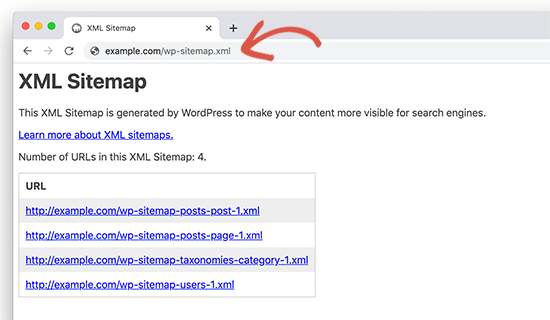
    WordPress 5.5 will now automatically publish XML sitemaps for your website. An XML sitemap is a file that lists all of your website content in XML format. This helps search engines like Google to easily discover and index your content.

    Sitemaps are a crucial part of WordPress SEO and this feature would help many beginners who are not following SEO best practices.

    However, the default WordPress XML Sitemaps are quite limited in features and functionality. This is why both top WordPress SEO plugins, All in One SEO and Yoast SEO will continue providing their own XML sitemaps.

    If you are already using an SEO plugin or Sitemaps plugin, then you don’t need to do anything. These plugins will automatically disable the default WordPress XML sitemaps.

    Under The Hood Changes in WordPress 5.5

    WordPress themes using the get_custom_logo() or the_custom_logo() will not add a link to the homepage when the homepage is displayed. (See details)

    Theme developers can now pass arguments among template files. (See details)

    Developers can now define default terms for custom taxonomies. (See details)

    WordPress 5.5 includes updated external libraries like phpMailer, SimplePie, Twemoji, and more. (See details).

    Developers can control the auto-update options by disabling, enabling, or selectively blocking them for specific plugins or themes. (See details)

    Dashicons will be updated and include 65 new icons. (See details)

    WordPress 5.5 will come with the ability to scan for PHP compatibility issues more effectively. (See details)

  • Whats Coming in WordPress 5.5 (Features and Screenshots)

    Whats Coming in WordPress 5.5 (Features and Screenshots)

    WordPress 5.5 beta is out, and it is scheduled to be released on August 11, 2020. This will be the second major WordPress release of the year, and it comes packed with many new features and improvements.

    We’ve been following the development closely and testing the first beta to try out new features that are on the way.

    In this article, we will show you what’s coming in WordPress 5.5 with features and screenshots.

    What's coming in WordPress 5.5 with features and screenshots

    Note: You can try out the beta version on your computer or on a staging environment by using the WordPress Beta Tester plugin.

    WordPress 5.5 is still under development, which means features can still change and may not make into the final release.

    Having said that, let’s take a look at what’s coming in WordPress 5.5.

    Video Tutorial

    Subscribe to WPBeginner

    If you’d prefer written instructions, just keep reading.

    New Features and Improvements in The Block Editor

    Back in late 2018, WordPress introduced a new writing experience with WordPress 5.0. This new writing interface is called the block editor (aka Gutenberg).

    Since then, each new WordPress release brings tons of updates to the editor. WordPress 5.5 will come with many such improvements and new features that will enhance your writing experience several folds.

    The following are just some of the enhancements that you may want to try out.

    UI Improvements in Block Editor

    WordPress 5.5 will come with major UI improvements to the block editor. You will notice borders around toolbars and buttons, new icons, and focus highlighting as you move across blocks while writing.

    Block Editor UI changes in WordPress 5.5

    The (+) button for adding a new block has changed too and is now more noticeable and looks more like a button.

    The New Block Directory

    WordPress 5.5 will bring the new block directory to life. These are just WordPress plugins that add new blocks to the block editor, and there are already dozens of new blocks available.

    The block directory is also built-in to the ‘Add New block’ search. You can simply search for a feature, and if there is no block that matches your search, then it will automatically show matching results from the block directory.

    Search block directory

    The block directory includes individual blocks. It does not include block library plugins which ship with multiple useful blocks that you can install.

    Block Patterns coming in WordPress 5.5

    WordPress 5.5 will introduce block patterns. They are ready-to-use blocks with commonly used settings to help you quickly add them to make layouts.

    Block patterns

    There are currently a handful of patterns already available. This will grow as plugins, WordPress themes, and the core continues registering more patterns.

    Streamlined Block Navigation and Movement

    WordPress 5.5 will also make it easier to move blocks around inside the content editor. You can simply click on the block handle and drag it up and down.

    Moving blocks around in WordPress 5.5

    Another improvement is the ability to select the parent block in the nested blocks like the group or columns block.

    Inline Image Editing

    WordPress allows you to do some basic image editing like crop, resize, rotate, and scale. However, to do that you need to open the image in the media library.

    WordPress 5.5 will allow you to edit images inline without leaving the block editor. You’ll be able to scale, crop, rotate, and resize an image on the spot.

    Inline image editing in WordPress 5.5

    Auto Updates for WordPress Plugins & Themes

    WordPress comes with a powerful updates management system. It also allows you to enable auto-updates for WordPress plugin and themes by changing your WordPress configuration or by using a third-party plugin.

    WordPress 5.5 will allow you to enable automatic updates for plugins and themes via the admin dashboard. You’ll be able to go to the plugins page and click on the ‘Enable auto-updated’ next to the plugins that you want to be automatically updated.

    Enabling auto-updates for plugins in WordPress 5.5

    Similarly, you can also enable auto-updates for themes. Simply click on a theme on Appearance » Themes page and then click on the ‘Enable auto-updates’ link.

    Auto updates for themes

    The New Default WordPress XML Sitemaps

    An XML sitemap is a file that lists all of your website content in XML format. This helps search engines like Google to easily discover and index your content.

    It plays a very significant role in the WordPress SEO set up. All top WordPress SEO plugins come with XML sitemap feature built-in.

    WordPress 5.5 will come with a built-in sitemaps feature enabled by default. It will create a new sitemap index file called wp-sitemap.xml which will contain links to all other sitemap files it will generate.

    Default WordPress generated sitemaps in WordPress 5.5

    The default Sitemap feature will support all post types, taxonomies (categories, tags and custom taxonomies), and author archives. However, it will still be only providing the basic required functionality of XML sitemap protocol.

    If you are already using a WordPress SEO plugin that comes with its own XML Sitemaps, then you don’t need to do anything. The two biggest SEO plugins All in One SEO Pack and Yoast SEO have decided to continue providing their own sitemaps because they offer advanced customization features to help you get higher rankings.

    Default Lazy Load Images in WordPress

    Images take longer to download than plain text and this increases page load times. Optimizing images for the web can help you boost the speed and performance of your WordPress website.

    One most commonly used technique is to lazy load images. This technique only downloads images that are visible on the user’s browser screen. Other images are downloaded as a user scrolls down your website.

    WordPress 5.5 will make it a default option for all sites by adding the ‘loading’ attribute to img tag. This attribute is supported by all modern web browsers (except Safari).

    Lazy loading images in WordPress 5.5

    This is an important performance bump not just for your WordPress site but for the whole internet. WordPress is the most popular website builder, and it is used by more than 35% of all websites on the internet.

    Lazy loading images will save a lot of bandwidth and improve the performance of WordPress hosting servers. It will also make websites faster which is always a good thing.

    Update Themes and Plugins with a Zip File

    Sometimes WordPress plugin or theme updates may not work as expected in which case you have to manually update a theme or plugin. Currently, you can do that by using an FTP client.

    WordPress 5.5 will allow you to do that inside the WordPress dashboard. You’ll be able to go to Plugins » Add New page and click on the Upload button.

    Upload plugin zip file

    Now go ahead and upload the zip file you downloaded for the plugin update. WordPress will automatically detect that this plugin is already installed and give you an option to ‘Replace current with uploaded’.

    Replace current with updated version

    Similarly, you can also install updates for WordPress themes. Simply go to Appearance » Themes page and click on the ‘Add New’ button. After that click on the Upload Theme button to upload your theme zip file.

    Upload theme file

    WordPress will detect that you already have that theme installed and will give you the option to ‘Replace current with uploaded’ version.

    Replace theme with new version

    Under The Hood Changes in WordPress 5.5

    WordPress 5.5 will also be bringing lots of changes for developers to explore and use in their own themes, plugins, and projects.

    WordPress 5.5 will ship with several updated external libraries like phpMailer, SimplePie, Twemoji, and more. (See details). If you’re using our WP Mail SMTP plugin, then it’s already updated with the new phpMailer library.

    Developers can control the auto-update options by disabling, enabling, or selectively blocking them for specific plugins or themes. (See details)

    Dashicons will be updated and include 65 new icons. (See details)

    WordPress 5.5 will come with the ability to scan for PHP compatibility issues more effectively. (See details)

  • Whats New in WordPress 5.3 (Features and Screenshots)

    Whats New in WordPress 5.3 (Features and Screenshots)

    WordPress 5.3 was released just a few hours ago. It will be the last major WordPress release of 2019.

    This release is packed with some new features and lots of improvements including a brand new default theme.

    In this article, we will show you what’s new in WordPress 5.3 and which features you should try after updating your websites.

    What's new in WordPress 5.3

    WordPress 5.3 is a major release, and unless you are on a managed WordPress hosting service, you’ll have to manually initiate the update.

    Important: Don’t forget to create a complete WordPress backup before starting the update.

    A Design and User Interface Upgrade

    WordPress 5.3 comes with several changes in the overall appearance of the WordPress user interface. These changes are not highly noticeable, but they bring coherency to the overall appearance of the admin area.

    Form fields in WordPress 5.3 UI

    The new user interface adds borders around form fields to make them more noticeable. It also improves the accessibility of the WordPress admin area to make it a good experience for all users.

    Twenty Twenty The New Default WordPress Theme

    WordPress traditionally releases a new default theme each year which is usually named after the year. WordPress 5.3 now ships with Twenty Twenty as the new default WordPress theme.

    Twenty Twenty the new default theme in WordPress 5.3

    This new theme is designed to take full advantage of the WordPress block editor. It allows you to easily create beautiful content layouts for your articles and pages.

    Twenty Twenty uses the Inter typeface (font), which looks great for headlines. It also looks great on smaller screens and provides a better reading experience across devices.

    It is a single column WordPress theme which means there is no sidebar for your blog posts or pages. It does have a widget ready area at the bottom.

    You can also use the cover or the fullwidth template with your posts and pages. The full-width template works really well not just with block editor but also with other page builder plugins.

    Overall, this is a beautiful theme suitable for both business websites as well as personal blogs.

    New Features in The WordPress Block Editor

    In 2018, WordPress released a new editor interface code-named ‘Gutenberg’. This new WordPress content editor, completely changed the writing interface in WordPress.

    Subsequent WordPress releases has continued to improve upon it, and WordPress 5.3 will come with tons of enhancements to the block editor.

    Here are a few block editor changes in WordPress 5.3 that you’d find useful.

    The Group Block

    The group block allows you to group blocks together. This handy block helps you organize your layout by dividing it into different groups.

    Adding group block in WordPress 5.3

    You can set the group width to be wide or full-width, and choose a background color for the group container.

    You can add new blocks into a blank group or select multiple blocks, and add them to the group. This allows you to interact with these blocks together. For example, you can put different blocks into one group, and then save it as a reusable block.

    The Columns Block

    Columns provide another way to create interesting layouts in the WordPress editor. WordPress 5.3 comes with some major changes to the columns block.

    First, you can set a layout for columns and adjust their width.

    Adjusting columns width

    Secondly, you can set an individual column to be wider, and the rest of the columns will automatically adjust.

    The placeholder to add blocks inside a column is now clearly visible making it easier to use.

    You can also set vertical alignment for columns. This means you no longer need to add spaces for proper alignment of content in each column.

    Vertical alignment

    Improved Button Block

    WordPress 5.3 makes it easier to add button in posts or pages with an improved button block which will allow you to select border-radius yourself.

    New button block

    You can also open button links in a new window and make it nofollow if needed.

    Block Previews

    The block editor in WordPress 5.3 shows a block preview. However, the preview is only available when you are using the Add new block icon on the top.

    Block preview in WordPress 5.3

    Heading Colors

    WordPress 5.3, now lets you choose a color for sub-headings inside your articles.

    Change heading colors

    Reorder Gallery Images

    The new and improved gallery block in WordPress 5.3 allows you to reorder images inside the gallery.

    Reorder gallery images

    Image Block Styles

    Image block now lets you choose a style for your images. Currently, it ships with two styles: Default and Circle mask.

    Image block settings in WordPress 5.3

    Improved Table Block

    Table block in WordPress 5.3 has some much-needed improvements. You can now select styles and add stripes to table rows. You can also add header and footer rows.

    Table block

    Improved Latest Posts

    Previously, the latest posts block only added a list of links to recent posts. WordPress 5.3 allows to add the latest posts with excerpts and display them in a grid layout.

    Latest Posts in WordPress 5.3

    It does not show featured images for the latest posts. For an alternative method, see our guide on how to show recent posts with thumbnails.

    The Block Editor is Now Even Faster

    The WordPress editor relies heavily on PHP and JavaScript. While PHP only runs on your WordPress hosting server, JavaScript runs on your user’s browser.

    A big task for the WordPress core team is to keep the editor interface smooth and responsive no matter how many blocks and content you add.

    In WordPress 5.3, the block editor team has shaved off 1.5 seconds of loading time while testing with 1000 blocks and 36,000 words long post.

    Improved Image Uploads in WordPress 5.3

    Previously when you uploaded large images from your phone or camera, there was always a chance that your server would time out before the upload could finish.

    WordPress 5.3 has addressed this issue. It will now automatically save the image creation process and allow you to resume uploads without breaking anything.

    WordPress also fixed the image rotation issue using the EXIF metadata which is something added by your camera or phone to the original image.

    You can now use very large image sizes in WordPress posts and pages.

    Improved Site Health Reports in WordPress 5.3

    WordPress introduced a site health score feature with WordPress 5.1. This helped website owners improve WordPress speed and performance and address common WordPress security issues.

    It showed a site health score in percentages, which was a bit arbitrary and confusing to beginners. WordPress 5.3 has replaced it with a status message like ‘Should be improved’ and ‘Good’.

    Site Health score in WordPress 5.3

    Show Password Button on Login Screen

    WordPress 5.3 adds a show password button on the WordPress login screen. This is a really handy tool and makes it easier to type complex passwords, or see that you have entered a password correctly.

    WordPress Admin Email Address Verification

    Previously, WordPress allowed you to simply change the admin email address from Settings » General page.

    This address is very important as WordPress sends password reset and other notification emails to the address.

    WordPress 5.3, now makes it mandatory to verify the new email address to ensure that you don’t miss those future emails.

    Verify site admin email address

    Note: Please make sure that you’re using a WordPress SMTP plugin, so your WordPress site emails actually make it to your inbox. See our guide on how to fix WordPress not sending email issue.

    Under The Hood Changes

    WordPress 5.3 brings ton of features and improvements targeted towards developers. The following are some of the most significant under the hood changes.

    WordPress 5.3 offers a better way to discourage search engines from indexing a website when you check the option ‘Discourage search engines from indexing this website’ option. (#43590)

    Improved compatability with PHP 7.4. (#47441, #47704, #47746, #47783)

    Better handling of date and timezone functionality, which will allow developers to use them more efficiently in their projects. (See details)

    On a WordPress multisite network, developers can filter sites by status. (#37392, #37684)

    Multisite will now store database version as meta (#41685)

  • Whats Coming in WordPress 5.3 (Features and Screenshots)

    Whats Coming in WordPress 5.3 (Features and Screenshots)

    WordPress 5.3 is expected to be released on November 12, 2019. It will be the last major release of the year and will ship with some significant improvements.

    We’ve been following the development closely and testing the first beta to try out new features that are on the way.

    It is packed with new features, block editor improvements, and user interface update. There are also many more behind the scene improvements for developers as well.

    In this article, we will show you what’s coming in WordPress 5.3 with features and screenshots.

    Features and screenshots of the upcoming WordPress 5.3

    Note: You can try out the beta version on your computer or on a staging environment by using the WordPress Beta Tester plugin.

    WordPress 5.3 is still under development, which means features can still change and may not make into the final release.

    Having said that, let’s take a look at what’s coming in WordPress 5.3.

    A New Default WordPress Theme

    This release will come with a new default WordPress theme called Twenty Twenty. This beautiful theme is designed by Anders Norén, and it is based on Chaplin, a free WordPress theme, released earlier on the WordPress.org theme directory.

    The most elegant part of this new theme is the typography. It comes with Inter typeface (font), which comes in various widths (bold, italics, extra bold). The font works really well for headlines, making them more prominent and crisp. It also looks great on smaller screens.

    Above the fold area in Twenty Twenty

    Twenty Twenty will enable users to take full advantage of the WordPress block editor and create gorgeous content layouts for their posts and pages.

    Blog post layout in Twenty Twenty

    It includes a cover and a full-width template for posts and pages. There are two navigation menus on top, a social links menu at the bottom, and two separate menus for mobile screens.

    The theme features a single column layout, which means there is no sidebar to the left or right of your content. However, it does include two widget-ready areas at the bottom.

    And yes, it works with all best WordPress page builders as well.

    Design and User Interface Updates

    WordPress 5.3 will introduce several changes in the overall appearance of the WordPress user interface. These changes are not drastic and some users might not notice them at all. However, they will bring coherency to the overall appearance of the admin area.

    Appearance changes in WordPress dashboard

    The goal here is to improve color contrasts on form fields and buttons, add a new color palette, and combine the look and feel of the editor and rest of the WordPress admin screens.

    Better highlighting of form fields

    It will also improve the accessibility of the WordPress admin area and make it a fun experience for all users.

    The New and Improved Blocks

    There are many changes coming to the Gutenberg block editor in this release.

    Aside from the improvements to several existing Gutenberg blocks, the overall user interface and experience is also improved with new animations and visual hints.

    Group blocks together

    You can now create groups of blocks and interact with them as a group.

    Adding a group block in WordPress 5.3

    You can simply add a group block and start adding blocks inside it, or you can drag and drop existing blocks into the group, or ungroup them if you want.

    This allows you to save multiple block items as a single reusable group block, so you can apply a background color to the group, insert item before or after the group, and duplicate it.

    Group block interactions

    Improved Image block

    The new image block now allows you to select a style for images. Currently, it ships with two styles: Default and Circle mask.

    Image block styles

    Improved Columns block

    The columns block now asks you to choose a layout for your columns or adjust the width of each column from columns settings.

    Column width and pattern

    The add new block placeholder inside each column is also cleanly visibly, making it easier to create complex multi-column layouts.

    Improved Table block

    Table block will also be improved in WordPress 5.3. You will now be able to select styles and add stripes to your table rows.

    The new table block in WordPress 5.3

    The improved table block also allows you to add header and footer rows to your table.

    Improved Button block

    If you want to add button in posts or pages, then you’ll love the improved button block which will allow you to select border-radius yourself.

    Improved button block in WordPress 5.3

    You can also set the target and add rel attribute to the link, which means you can open button links in a new window and make it nofollow if needed.

    Improved latest posts block

    Currently, the latest posts block simply adds a list of your recent posts. In WordPress 5.3, the latest posts block will also allow you to add excerpts and control excerpt lengths as well.

    Latest posts block in upcoming WordPress 5.3

    However, it still does not show post thumbnails. See our guide on how to show recent posts with thumbnails for instructions on how to do that.

    Other notable changes to the block editor

    As you know that the new WordPress editor is written in JavaScript and PHP. Keeping it fast and usable for all users is a big task.

    The block editor team has been able to make it even faster for the upcoming WordPress 5.3. They have shaved off 1.5 seconds of loading time while testing with 1000 blocks and 36,000 words long post.

    New Social Links Block in The Editor

    WordPress 5.3 will have a brand new social links block to easily add social media icons inside your WordPress posts and pages.

    New social links block in WordPress 5.3

    You can add or remove icons you want to add, link them to your social media profiles, and even select from a list of social media websites to add.

    Related: See our tutorial on how to add fast social share buttons with total share counts for your posts and pages.

    Improved Image Uploads in WordPress 5.3

    Uploading images from your mobile phones or digital cameras to WordPress is not a good experience. Usually, those images have huge file sizes, which require more time and WordPress hosting resources to finish the upload.

    WordPress 5.3, will improve that situation and automatically save upload and image creation process. This means your uploads will not break in the middle, and WordPress will be able to resume upload to finish it.

    It will also fix image rotation using the EXIF metadata which is something added by your camera or phone to the original image.

    Last but not least, this will allow you to use very large image sizes in your WordPress posts and pages. This means that your images will look beautiful and crisp.

    WordPress Admin Email Address Verification

    Currently, you can just go to Settings » General page and change the default WordPress admin email address.

    This address is very important as WordPress sends password reset and other notification emails to the address. WordPress 5.3, will make it mandatory to verify new email address to ensure that you don’t miss those future emails.

    Verify admin email address

    Its extremely important that you’re using the WP Mail SMTP plugin along with a SMTP service to make sure that your admin emails are actually being delivered. See our guide on how to fix WordPress not sending email issue.

    Site Health Report in WordPress 5.3

    Site Health feature was introduced in WordPress 5.1. It basically helps website owners keep an eye on the performance and WordPress security issues that may affect their site.

    WordPress 5.3 will bring some changes to the feature. Most importantly, it will stop showing site health score in percentage.

    Site health score will be shown as a status in WordPress 5.3

    Instead, it will now show users site health check score as ‘Should be improved’ and ‘Good’.

    You can still get a 100% site health score in WordPress by clearing all the tests mentioned on the Status tab.

    Under The Hood Improvements in WordPress 5.3

    WordPress 5.3 brings many improvements for developers. Following are some of those under the hood changes.

    WordPress 5.3 will offer a better way to discourage search engines from indexing a website when you check the option ‘Discourage search engines from indexing this website’ option. (#43590)

    The upcoming release will also improve WordPress compatability with PHP 7.4. (#47441, #47704, #47746, #47746, #47783)

    WordPress 5.3 will come with improved handling of date and timezone functionality, which will allow developers to use them more efficiently in their projects. (See details)

    A show/hide password toggle will now be available on WordPress login screens on both mobile and desktop devices. (#42888)

    Show / hide password on WordPress login screens

    WordPress Multisite changes in 5.3

    If you’re using WordPress multisite for creating a multisite network, then you will find these improvements very helpful.

    Developers can now filter sites by status (#37392, #37684)

    Multisite will now store database version as meta (#41685)

  • Say Hello to RafflePress  The Best WordPress Giveaway and Contest Plugin

    Say Hello to RafflePress The Best WordPress Giveaway and Contest Plugin

    During the WPBeginner 10th birthday giveaway, many of you asked me about which WordPress plugin are we using to run the contest? It was a new plugin that my team had built called RafflePress, but it wasn’t available to the public.

    But now it is.

    Today, I want to introduce you to RafflePress, a WordPress giveaway plugin that’s both EASY and POWERFUL. I believe it’s hands down the best WordPress giveaway / contest plugin in the market.

    Every smart marketer knows that giveaways are an incredibly powerful hack to quickly increase your website traffic, grow your social media following, and get more email subscribers.

    So why aren’t more WordPress website owners using giveaways?

    That’s because there wasn’t a single good WordPress giveaway plugin available. The few that were available either didn’t have all the features, or they weren’t optimized for performance meaning they would significantly slow down your website, if not crash it entirely.

    This left business owners to explore the SaaS software market for giveaways. Now while these SaaS giveaway platforms were good, they were extremely expensive.

    One popular platform that we used charged $1000 per year for all their features. Another popular giveaway platform charged $3588 per year. This is very expensive for most small businesses.

    So I worked with John Turner from SeedProd (one of our portfolio companies) to finally build a WordPress giveaway plugin that’s easy, powerful, and most importantly affordable for small business owners.

    You can start with our free plugin, RafflePress Lite which is 100% free and has all the basic features that you will need.

    For those of you who want all the features that RafflePress has to offer such as viral sharing, email marketing integrations, bonus actions, and more, then you should check out RafflePress Pro.

    See the video overview of RafflePress below:

    Subscribe to WPBeginner

    How Does RafflePress Work?

    RafflePress helps you turn your website visitors into brand ambassadors. As a result, you get more website traffic, email subscribers, and social media engagement FASTER without buying any paid ads!

    Once you setup your viral giveaway with RafflePress, it helps you capture visitor’s attention with the free gifts that you’re offering … and what happens next is AMAZING.

    To enter the giveaway, website visitors must use their email address. This helps you grow your email list.

    RafflePress incentivizes your website visitor to share the giveaway to get more entries into the contest. This helps you increase social media engagement.

    The word-of-mouth marketing helps you get more traffic, FASTER!

    This results in more followers, more sales, and more revenue!

    How does RafflePress Work

    RafflePress is a tool that we built for WPBeginner because we know how effective this technology is. If you’re serious about growing your website traffic, social media followers, or your email list, then you need RafflePress.

    Limited Time Special

    If you’re interested in the premium version of RafflePress, then you’d be crazy to miss out on this deal.

    Like any other premium plugin, RafflePress license require annual renewal for updates and support.

    However for limited time only, we’re offering an ULTIMATE lifetime license for our early supporters.

    What that means is that you get grandfathered in, so you don’t ever have to pay for annual updates and support while still enjoying every new feature that we will ever release.

    Get RafflePress NOW!

    Use this RafflePress coupon code: wpbeginner20 to get an additional 20% off your purchase.

    This is a limited time launch special, and it will expire so take advantage of it while it lasts.

    RafflePress Features

    • Drag & Drop Giveaway Builder
    • Viral Giveaway Templates
    • Responsive Mobile Friendly Giveaway Widget
    • 1-Click Entry + Fraud Protection
    • Viral Sharing (Refer a Friend)
    • Social Media Integrations
    • Email Marketing & CRM Integrations
    • Giveaway Landing Page
    • Tracking and Reporting

    What makes RafflePress stand out is our goal focused giveaway actions that help you get more subscribers, get more social engagement, and get more website traffic.

    RafflePress Actions

    Get More Subscribers Actions:

    • Visit us on Facebook
    • Follow us on Twitter
    • Visit us on Instagram
    • Follow us on Pinterest
    • Visit our YouTube Channel
    • Join an Email Newsletter

    Get More Social Engagement Actions:

    • Refer a Friend (Viral)
    • View Facebook Post / Video
    • View Instagram Post / Video
    • Watch a YouTube Video

    Get More Website Traffic Actions:

    • Tweet a Message
    • Share a Facebook Message
    • Visit a Page
    • Answer a Question
    • Invent Your Own

    RafflePress also seamlessly integrate with your favorite email marketing services like Constant Contact, MailChimp, AWeber, Drip, Active Campaign, and Zapier.

    RafflePress Integrations

    After reading this feature list, you can probably imagine why RafflePress is the best WordPress contest plugin in the market.

    Ready to grow your website traffic with viral giveaways? RafflePress takes only a few minutes to setup, and there is a risk-free 14 day money back guarantee.

    Get RafflePress Now

    Limited Time Special

    If you’re interested in the premium version of RafflePress, then you’d be crazy to miss out on this deal.

    Like any other premium plugin, RafflePress license require annual renewal for updates and support.

    However for limited time only, we’re offering an ULTIMATE lifetime license for our early supporters.

    What that means is that you get grandfathered in, so you don’t ever have to pay for annual updates and support while still enjoying every new feature that we will ever release.

    Get RafflePress NOW!

    Use this RafflePress coupon code: wpbeginner20 to get an additional 20% off your purchase.

    This is a limited time launch special, and it will expire so take advantage of it while it lasts.

  • Whats New in WordPress 4.9

    Whats New in WordPress 4.9

    WordPress 4.9 was released just few hours ago. It is the second and last major WordPress release of 2017 with some exciting new features and enhancements. In this article, we will show you what’s new in WordPress 4.9 and which features you should try after updating your websites.

    What's new in WordPress 4.9

    4.9 is a major WordPress release, and unless you are on a managed WordPress hosting service, you will have to manually initiate the update.

    Important: Don’t forget to create a complete WordPress backup before starting the update.

    New Theme Browsing Experience in The Customizer

    WordPress 4.9 brings several improvements to the customizer. These changes offer a better user experience and a new set of tools for developers.

    Previewing and changing themes directly from customizer is now more user friendly. You can view all your installed themes in the preview panel and click on the live preview button to load them in customizer.

    Browsing themes in customizer

    You can also browse and search WordPress.org themes and install them directly from customizer.

    Install and preview WordPress.org themes directly from customizer

    Save and Schedule Changes in The Customizer

    WordPress 4.9 brings changesets to theme customizer. It is like post revisions but for your theme changes. You can store changes without applying them.

    Save theme draft

    This new feature also allows you to easily share a preview of those changes with anyone. Simply copy the preview URL and send it to any user. They will be able to see the new changes without login.

    Share customizer changes preview

    WordPress 4.9 also allows you to easily schedule theme changes to be automatically published later.

    Schedule theme changes in customizer

    Theme developers will now be able to use these new changes in the customizer JS API. These changes will allow them to add better controls, beautiful outer panels, and display notifications on screen.

    Better notifications in customizer

    New Gallery Widget in WordPress 4.9

    WordPress 4.8 introduced new media widgets which included rich text, audio, image, and video. WordPress 4.9 builds up on that with the introduction of the new gallery widget.

    This new widgets allows you to create a native WordPress gallery and add it to your WordPress sidebar or any widget ready areas.

    New gallery widget in WordPress 4.9

    Just like the native WordPress galleries, this widget is also limited in terms of functionality. If you want a more powerful gallery with albums, then you need to look at a third-party plugin like Envira Gallery.

    Add Media Button in Text Widget

    The text widget in WordPress 4.8 came with plain text and HTML tabs. However, if you wanted to add an image in sidebar text widget, then you still had to write the HTML code.

    WordPress 4.9 has fixed this by adding the ‘Add Media’ button in the text widget. Now you can easily select or upload an image directly inside the text widget.

    Add Media button in text widget

    OEmbed Support Outside Post Content

    Previously automatic embeds didn’t work in areas other than post content. With WordPress 4.9, oEmbeds will now work in text widgets and other areas as well.

    oEmbed in sidebar widgets

    Shortcode in Sidebar Text Widgets

    WordPress didn’t allow shortcode execution in text widgets. Users had to explicitly enable shortcodes in text widgets. WordPress 4.9 will finally change that and users will be able to add shortcodes in text widgets out of the box.

    Shortcodes in sidebar widgets

    New Code Editing Experience in WordPress 4.9

    WordPress allows you to add HTML/CSS code at various places like theme editor, custom CSS panel, or in custom HTML widget.

    Previously, these areas were plain text boxes and didn’t look or act like a proper code editor.

    WordPress 4.9 has changed that by adding syntax highlighting, code suggestions, and auto-completion into those areas.

    Code editing in WordPress 4.9

    If you have ever faced syntax error when editing your theme, then this enhancement will automatically fix many common mistakes that cause such errors.

    Error highlighting

    If you don’t want to use the syntax highlighting feature, then you can still easily disable it. Simply go to your profile page and uncheck the syntax highlighting option.

    Disable syntax highlighting

    One of the big usability issues beginners faced was directly making changes from WordPress built-in editor without fully understanding the consequences. A slightest mistake would lead to a syntax error and making their websites inaccessible.

    WordPress 4.9 now shows a warning to users when they access the editor.

    Theme editor warning

    It will also show users helpful tips and point them to custom CSS panel in the customizer.

    However, many users access the editor not to make changes but to quickly look up code. Particularly when they are working on child themes. To help those users, the editor will now recursively show files and folder in the sidebar for easier browsing of all files in a theme folder.

    Files and directories in theme editor

    Under The Hood Changes

    WordPress 4.9 also brings several great changes for developers as well. Here are some of those under the hood improvements.

    Better mapping for theme widgets and navigation menus after switching themes. #39693, #39692

    Removal of SWFUpload library from the core. #41752

    Require a confirmation link in an email to be clicked by admin when a user attempts to change their email address. #16470