Category: Opinion

  • All in One WP Migration vs. Duplicator  Which One Is Better?

    All in One WP Migration vs. Duplicator Which One Is Better?

    We’ve worked with WordPress for many years, so we know how important a reliable backup and migration system is. We’ve been using Duplicator in our own projects and for our partner websites. But we also know that what works for us might not be the best choice for everyone.

    That’s why we decided to take a closer look at Duplicator and All in One WP Migration. We wanted to see how these two popular plugins compare when it comes to making backups, moving websites, and handling different WordPress setups.

    Having the right backup and migration tool can make a big difference. It’s not just about copying files – it’s about finding a plugin that fits well with how you work and gives you peace of mind that your site is safe and easy to move if needed.

    In this All in One WP Migration vs. Duplicator comparison, we will share what we learned from testing both plugins thoroughly. We will look at what each one does well, where they might fall short, and what makes them unique.
    All in One WP Migration vs Duplicator

    All in One WP Migration vs. Duplicator: An Overview

    All in One WP Migration and Duplicator are both popular WordPress backup and migration plugins, each with its own unique features. If you’re short on time, we’ve created a comparison table to give you a quick overview of their key features:

    Plugin Number of Users Key Features Free Version? Starting Price (Paid)
    All in One WP Migration 5 million+ • Simple drag-and-drop import
    • Built-in search and replace
    • Selective content backup
    ✅ $69/year
    Duplicator 1.5 million+ • Smart migration with an installer
    • Scheduled backups
    • Disaster recovery points
    ✅ $49.50/year

    With that said, we highly recommend you keep reading to get our in-depth analysis of each tool. That way, you’ll be better equipped to make the right choice for your WordPress website’s backup and migration needs.

    How We’re Comparing All in One WP Migration vs. Duplicator

    To give you a thorough and fair comparison of these WordPress backup plugins, we set up multiple demo websites to install and test both tools. This allowed us to dive deep into their features, user interfaces, and overall performance in different scenarios.

    We extensively tested each plugin’s backup feature, paying close attention to the available options and ease of use. We then imported these backup files into different demo websites to see the restore process.

    This helped us understand how each plugin performs in real-world migration scenarios. Throughout our testing, we carefully documented our findings, noting what worked well and what didn’t.

    It’s worth mentioning that we’ve used Duplicator for years in our projects and tutorials. This long-term experience has given us deep familiarity with its capabilities and quirks. If you want to learn more about our experience, you can read our Duplicator review.

    We’ve also used All in One WP Migration for our own research, providing us with practical insights into both tools.

    In our evaluation, we considered not just the plugins themselves but also how different users might benefit from them. While all backup plugins fundamentally work the same way, we recognized that some features might be better suited for certain users. 

    For example, beginners may need a WordPress backup all-in-one solution that’s easy to use. On the other hand, advanced users may need more control and customization options for their backups or specific features like multisite support.

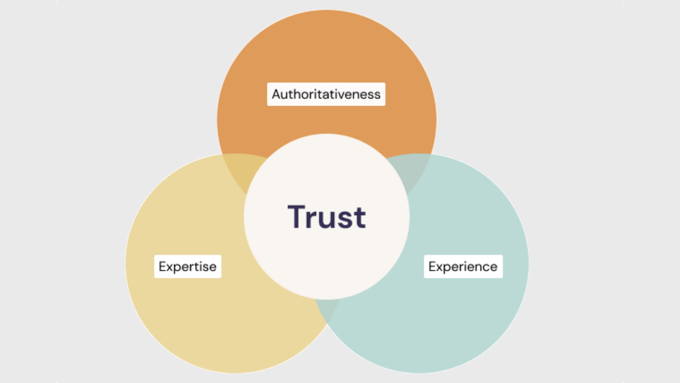
    Why Trust WPBeginner?

    Since 2009, WPBeginner has been the go-to resource for WordPress users. We’ve also handled countless site migrations and backups, both for our own projects and through our free WordPress blog setup service.

    This hands-on experience, combined with our extensive testing of backup and migration tools, gives us unique insights into what works best in real-world scenarios. We don’t recommend anything we haven’t thoroughly vetted ourselves.

    For more on our evaluation process, check out our editorial guidelines.

    With all this in mind, let’s compare All in One WP Migration vs. Duplicator. You can use the quick links below to skip to the topic you’re most interested in:

    • Export/Backup Features
    • Import/Restore Features
    • Remote Storage Integrations
    • Feature Richness
    • Plugin Support
    • Value for Money
    • All in One WP Migration vs Duplicator: Who’s the Winner?

    Export/Backup Features

    A good export/backup feature is a key feature in a migration plugin. It’s not just about speed but also about flexibility and reliability. 

    We have grouped export and backup together because, in a migration plugin, they’re often the same process: creating a portable version of your site. Let’s see how All in One WP Migration and Duplicator handle this crucial task.

    All in One WP Migration: Simple Yet Powerful

    All in One WP Migration offers powerful export features, even in its free core version.

    When you open the export page, you’ll find more than just a backup button. There’s also a handy search and replace function for the database. You can add multiple search and replace operations, which helps when updating URLs or other site-specific info during migration.

    All in One WP Migration's search and replace feature

    We also like that you can password-protect your complete WordPress backup file. This adds an extra layer of security, which is especially useful when storing backups in shared spaces or sending them over unsecured networks.

    Other than that, the plugin lets you customize your export with several options. You can choose not to export things like spam comments, post revisions, or the media library.

    These settings give you fine control over your backup, which can be helpful in different situations. For example, leaving out the media library can really shrink the file size if your site has lots of images.
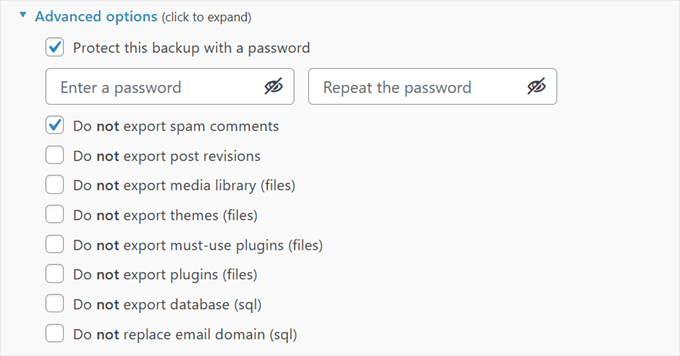
    All in One WP Migration's advanced backup settings

    One thing to note is that for beginners, some features might not be immediately clear. For instance, they may not understand the benefits of the search and replace feature for the database right away.

    It would be great if the plugin provided more context or explanations for these advanced features. This could help newcomers make informed decisions about which options to use and how they might benefit from it when backing up their WordPress website.

    Once you’ve set things up, you can export your site to a .wpress file, which the plugin uses for both export and import.

    If you want to export to FTP or cloud storage or enable automatic backups, you’ll need to pay for an extension.

    Duplicator: Comprehensive Backup Solution

    Duplicator is as powerful as All in One WP Migration when it comes to export and backup features.

    Like its competitor, you can back up your site and store it on your WordPress hosting for free, then download the files to your computer.
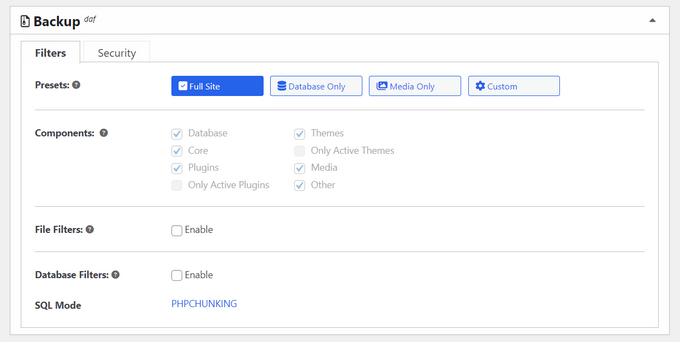
    Quickly and easily creating a full site backup

    With Duplicator, you can choose to back up your whole website—database, plugins, themes, and all—or just the database. The database-only option comes in handy if you’re mainly worried about content changes and don’t need to back up static files often.

    For database-only backups, you can use filters to leave out certain tables. We find this to be useful for making your backup smaller or excluding data you don’t need.

    We also liked that Duplicator lets you exclude specific WordPress files, folders, or file types from the backup. This is great for leaving out large files you don’t need or sensitive information you’d rather not include in your backup.
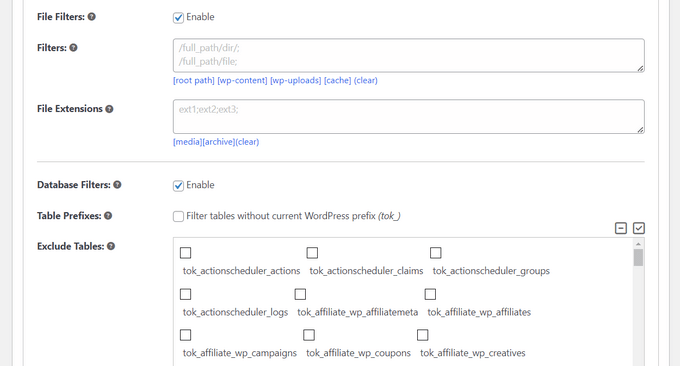
    Exclude files, folders, and tables from the backup

    Like All in One WP Migration, Duplicator offers password protection for your backups, boosting WordPress security.

    All these features may seem intimidating for complete beginners. But thankfully, Duplicator has addressed this potential issue. There are helpful information buttons next to certain features that you can hover over, and they will show you detailed explanations.

    Duplicator's information snippet

    This user-friendly approach makes it easier for newcomers to understand and use the plugin’s more advanced features.

    One feature we really appreciate is Duplicator’s pre-backup scan. It checks your entire WordPress website before backing up to make sure everything’s good to go. This helps prevent incomplete or broken backups, saving you time and potential problems later.
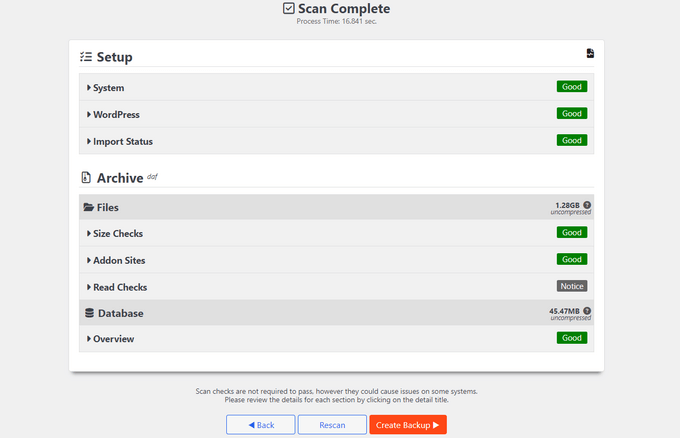
    Creating a WordPress backup

    After the backup, you’ll get a zip file of your archive and an installer file.

    For bigger sites, Duplicator suggests using their special DupArchive format. This format is designed to work around limits often set by cheaper hosting providers, letting you create larger backups without running into server issues.
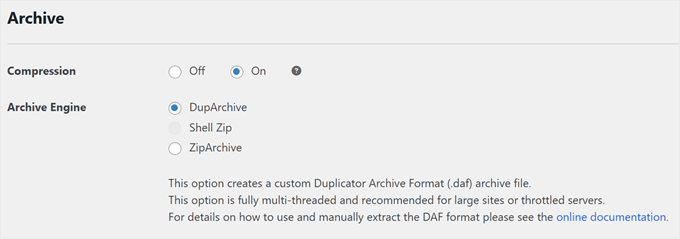
    Duplicator's DupArchive file format

    Just like All in One WP Migration, Duplicator’s paid version lets you export to FTP or cloud storage and includes automatic backups.

    But Duplicator goes a step further by letting you mark a backup as a disaster recovery point. This is great for quickly getting your site back to a known good state if something goes wrong and you’re locked out of your WordPress admin area.

    Duplicator's disaster recovery feature

    Winner: Duplicator

    After closely looking at both plugins, we think Duplicator has a slight edge over All in One WP Migration for exports and backups.

    While both offer strong features, Duplicator’s pre-backup scan, flexible backup options, and special DupArchive format for larger sites give it an advantage. The disaster recovery point feature in the pro version also stands out for site owners who need quick recovery options.

    Import/Restore Features

    Once you’ve backed up or exported your WordPress site, you’ll need to import it. Let’s see how these WordPress migration plugins handle this process.

    All in One WP Migration: Simple Drag and Drop

    If you’re using All in One WP Migration, you’ll need to install the plugin in your WordPress admin dashboard first.

    After that, importing is as easy as dragging and dropping your backup file. It’s a straightforward process that makes it simple to restore WordPress or migrate a WordPress site.
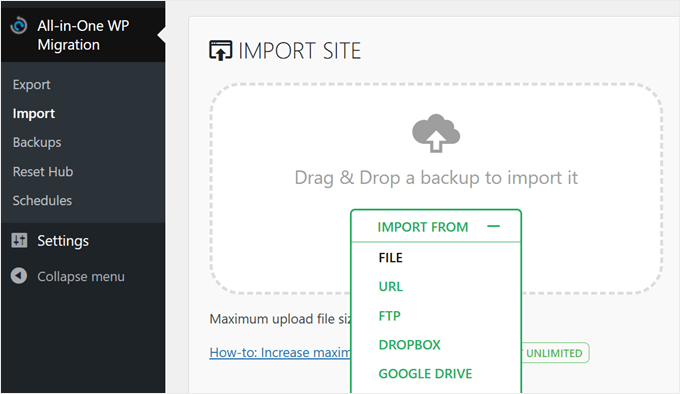
    All in One WP Migration's drag-and-drop import feature

    The plugin also offers import options from FTP, server transfer, URL, or cloud storage and a one-click restore via the plugin’s backup page.

    However, these features require separate paid extensions.

    All in One WP Migration's one-click restore

    One thing we’re not a fan of is that the core plugin has an upload limit of 256 MB. This might be enough for smaller WordPress websites, but if you have a larger site with lots of media, you might hit this limit.

    The unlimited license removes this restriction, which is worth considering if you frequently move your site or manage larger WordPress sites.

    Also, in our testing, we successfully moved our WordPress site to a new host but ran into issues when moving it to a local WordPress environment. This is an important consideration if you’re looking to migrate a live website to a local setup for staging purposes.

    Duplicator: Flexible Restoration Options

    Duplicator takes a slightly different approach to importing and restoring.

    With the free version, you use the installer file you downloaded during the backup process. You add this file to your WordPress files using the file manager or an FTP client, then navigate to https://yourdomain.com/installer.php.

    This opens an easy-to-use restoration wizard that guides you through the process.
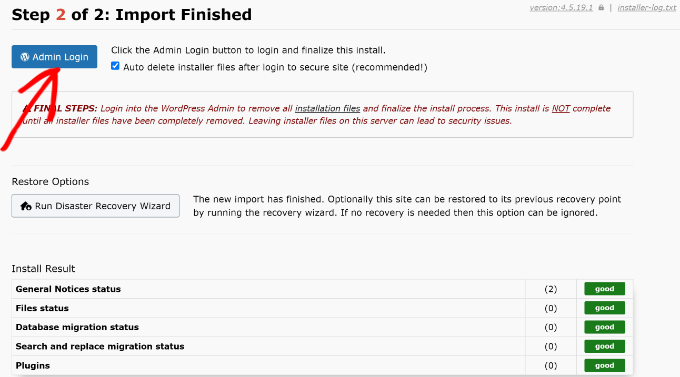
    Click admin login when backup is restored

    This method works whether you’re restoring a backup on the same site or migrating to a different hosting provider with a new domain.

    It’s admittedly a bit more hands-on than All in One WP Migration’s approach. Also, for the process to work, you will need to create your own database first.

    However, it has the advantage of no size limit. Plus, you don’t need to install WordPress or the Duplicator plugin first, which can be helpful for local WordPress development or when setting up a new site.

    If you get one of Duplicator’s pro plans, you get access to more user-friendly options. These include one-click restoration from the database or complete backups, drag-and-drop file import via the plugin interface, and import via URL or cloud storage.
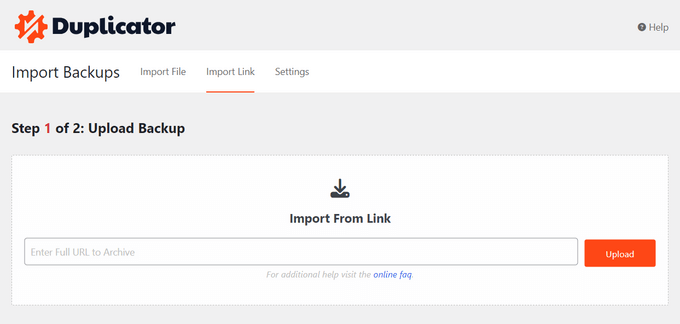
    How to restore a backup to your WordPress blog, website, or online store

    One standout feature of Duplicator Pro is the disaster recovery restoration.

    You can either copy a recovery link and save it separately from your WordPress site or download a launcher file. This launcher is an HTML file that starts the recovery wizard, helping you get your site back online quickly if you can’t access your WordPress admin.
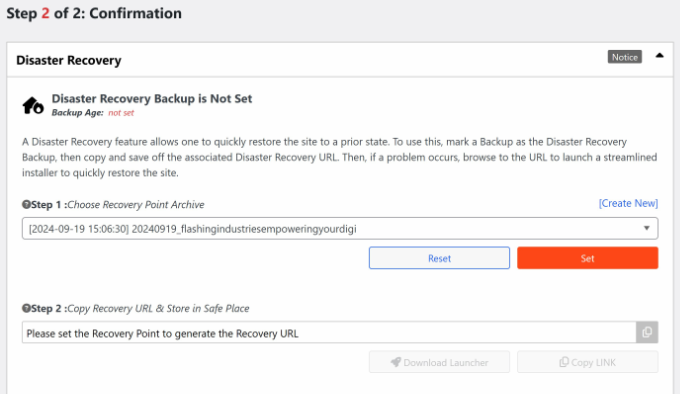
    Set a recovery point for backup

    When it comes to moving a live website to a local environment, Duplicator performed really well. In fact, we were able to create a tutorial on how to migrate a live WordPress site to a local server, thanks to its reliable functionality in this area.

    Winner: Duplicator

    We believe Duplicator takes the lead in the import/restore category.

    All in One WP Migration offers a user-friendly drag-and-drop interface. However, Duplicator’s unlimited file size in the free version and more flexible restoration process give it an edge.

    The pro version’s one-click restore and unique disaster recovery features further strengthen its position. For users managing larger sites or requiring advanced restore options, Duplicator is a more comprehensive solution.

    Remote Storage Integrations

    Both All in One WP Migration and Duplicator offer cloud storage integrations in their paid licenses. This allows you to connect these WordPress backup plugins to various providers for storing your website files.

    This feature is particularly useful when you need to migrate a WordPress site or create off-site backups for your WordPress website. Let’s look at how these WordPress migration plugins compare in terms of remote storage options.

    All in One WP Migration: Extensive Options with Individual Paid Extensions

    All in One WP Migration offers an impressive range of remote storage integrations. It supports 15 different providers, including popular options like FTP, Dropbox, Google Drive, Amazon S3, and OneDrive, as well as less common choices like pCloud and WebDAV.
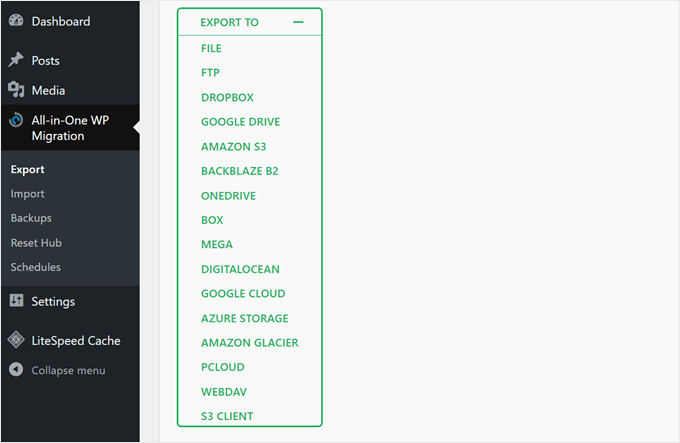
    All in One WP Migration's export options

    The connection process for most of these extensions is straightforward. For example, to back up your WordPress site to Google Drive, you only need to link to your Google Drive account, and the plugin will create a folder for your backups in your Drive automatically.

    However, one downside is that all these integrations come as separate extensions. This approach is fine if you only use one storage provider. But if you need multiple options, you’ll have to purchase more than one extension.

    Duplicator: Fewer Options but All-Inclusive Approach

    Duplicator supports fewer storage providers compared to All in One WP Migration. That said, it still covers major options like Amazon S3, Google Drive, Dropbox, Microsoft OneDrive, and FTP/SFTP.

    It also works with any S3 Compatible Cloud Storage, which expands its compatibility.

    The connection process with Duplicator is slightly more involved. For example, to back up your site to Dropbox, you need to link your plugin to Dropbox and paste a code snippet into your plugin, adding an extra step to the process.
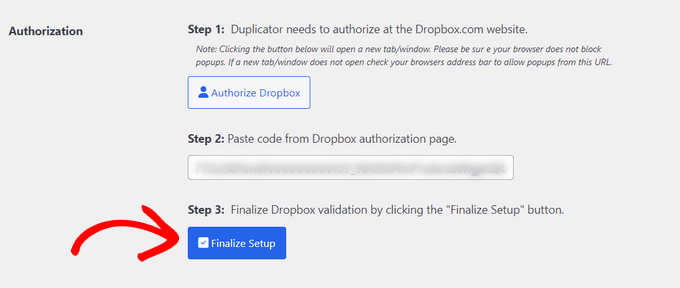
    Enter code and finalize setup

    The key difference is that all Duplicator plans include all these integrations, so you don’t need to purchase different extensions for each storage provider you want to use.

    Winner: Tie

    We find it hard to choose a winner because each has its own strengths. All in One WP Migration offers a wider range of storage options, giving users more flexibility in choosing where to store their WordPress backups.

    On the other hand, Duplicator’s all-inclusive approach means you get access to all supported integrations with any paid plan. This could be more cost-effective than purchasing All in One WP Migration’s cloud storage extensions.

    Ultimately, the best choice between these WordPress backup plugins depends on your specific storage needs and budget. 

    Feature Richness

    Both All in One WP Migration and Duplicator offer a range of features beyond basic backup and migration, which adds to their value as comprehensive WordPress migration services. Let’s explore what each plugin brings to the table.

    All in One WP Migration: Modular Approach with Paid Extensions

    Here’s the full list of features available in All in One WP Migration when you upgrade from the free version and use paid extensions:

    • One-click backup restoration
    • Unlimited usage on websites you own
    • Removal of the 256 MB upload limit
    • Built-in search and replace function
    • Backup scheduler with hourly, daily, and weekly options
    • Cloud storage integration with 15+ providers
    • Reset tools to restart your WordPress website
    • Multisite support
    • WP CLI commands for advanced users
    • Premium support

    Here’s the catch: Some of these features, like cloud storage integration, multisite support, and scheduled backups, are only available as paid extensions. You’ll need to purchase these separately to access the full functionality.

    Duplicator: Comprehensive Feature Set in All Paid Plans

    Here’s a list of the features available in Duplicator’s paid plans:

    • Automatic backup scheduling with hourly, daily, and weekly options
    • 5+ cloud backup storage options
    • Drag and drop import
    • Migration wizard for easy website transfers
    • Email alerts for backup issues
    • Disaster recovery points for quick rollbacks
    • Backup limits to manage storage
    • Server-to-server imports
    • Managed hosting support
    • Shared database support
    • Multisite support
    • Advanced user permissions for backup files
    • Installer branding

    One consideration is that some of these features, like multisite support, advanced user permissions, and installer branding, are only available in higher-tier plans. However, these features are mainly geared towards professionals working with multiple clients and sites.

    Winner: Duplicator

    We believe Duplicator edges out All in One WP Migration in this category. 

    Based on the feature comparison, Duplicator offers a more comprehensive set of tools in its paid tiers. The inclusion of large site support, disaster recovery points, and advanced migration tools across all paid plans makes Duplicator a much more versatile solution.

    Plugin Support

    Reliable support can significantly improve your experience with WordPress migration plugins, especially when you’re trying to move your site safely.

    This section compares the support options offered by All in One WP Migration and Duplicator.

    All in One WP Migration: All-Around Support with Extended Hours

    All in One WP Migration offers a range of support options to help users with their WordPress backup and migration needs. You can contact them through their WordPress.org support page, where users can ask questions and get community assistance.

    For more in-depth information, they maintain a knowledge base filled with helpful articles and guides. We found many of the articles helpful when we needed to test out the plugin’s features.
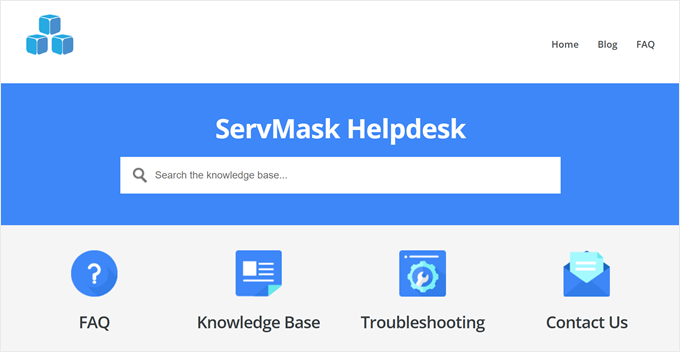
    ServMask's help desk

    For users with a paid license, All in One WP Migration allows you to submit a support ticket. Their support team is available during extended hours, operating on weekdays from 8 am to 10 pm (UTC+7) and on weekends from 9 pm to 6 am (UTC+7).

    Duplicator: Multiple Support Options with Weekday Availability

    Duplicator provides a detailed knowledge base that covers various aspects of using the plugin for WordPress backups and migrations.

    Users can also seek help through the WordPress.org support page, where they can interact with the community and the plugin’s support team.
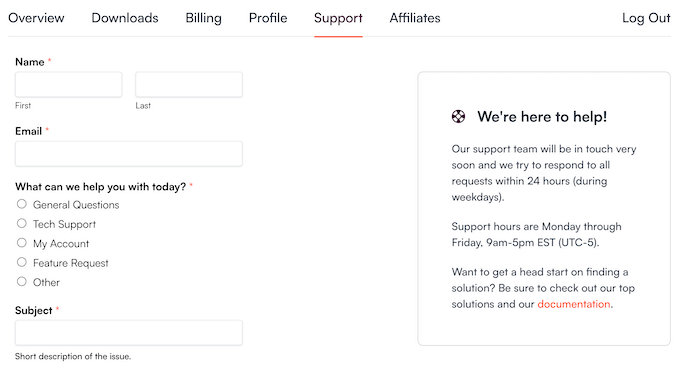
    The Duplicator customer support portal

    For those considering purchasing Duplicator, there’s a pre-sales form available to answer any questions before making a decision.

    Paid users can submit support tickets directly to the Duplicator team. The team aims to respond to all requests within 24 hours during weekdays, with support hours running Monday through Friday, 9 am to 5 pm (UTC-5).

    Winner: All in One WP Migration

    The extended support hours, including weekend availability, make All in One WP Migration more accessible for users across different time zones and work schedules. This can be essential when you’re in the middle of migrating a WordPress site or dealing with urgent backup issues.

    Value for Money

    One of the most important considerations when choosing the best WordPress migration plugin is the price tag. We generally recommend against overpaying for a plugin that doesn’t meet all your needs or using a cheap option that doesn’t have important functionality.

    Let’s see which plugin gives you more bang for your buck.

    All in One WP Migration: Flexible but Potentially Costly

    All in One WP Migration offers a free core plugin with basic export and import functionality.

    However, for more advanced features like one-click restoration, you’ll need the Unlimited extension at $5.75 per month, billed annually or $69 per year.

    Also, each cloud storage provider extension costs $99 per year, while the Multisite extension is priced at $319 per year.

    One advantage is that storage provider and Multisite extensions include the Unlimited extension, potentially saving money.
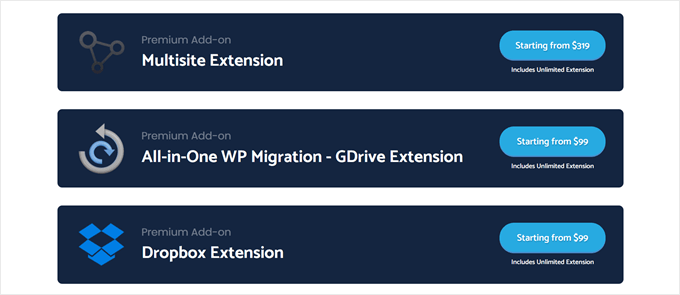
    All in One WP Migration's extensions

    However, costs can add up quickly. For instance, if you need Multisite support and a cloud storage option, you’re looking at $418 per year.

    All extensions allow usage on unlimited websites and include premium support, which can be valuable for managing multiple WordPress sites.

    Duplicator: All-Inclusive Features at Tiered Price Points

    Duplicator’s free version offers basic export and import functionality using an installer file.

    Their paid plans, however, provide a comprehensive set of features at different price points.

    Duplicator Pro has four tiers: Basic ($49.50 per year), Plus ($99.50 per year), Pro ($199.50 per year), and Elite ($299.50 per year). All paid plans include unlimited backups, migrations, multiple website usage, all cloud storage providers, disaster recovery points, and scheduled backups.

    Plus, the Pro and Elite tiers include Multisite support. So, for Multisite functionality and cloud storage, you’d pay $199.50 or $299.50 per year, which is significantly less than All in One WP Migration.

    Winner: Duplicator

    We believe Duplicator offers better value for money, especially for users needing multiple features. Its WordPress backup all-in-one solution is more cost-effective for most scenarios.

    Although All in One WP Migration’s a la carte model allows for customization, it can become expensive quickly when you need multiple features.


  • Contributing to the WordPress Ecosystem (My Thoughts)

    Contributing to the WordPress Ecosystem (My Thoughts)

    Last week, I attended WordCamp US in Portland. It was a wonderful event overall, and I had great conversations with so many friends, WPBeginner users, and many new members of the WordPress community.

    Since the event, there has been a lot of conversations happening around the topic of Contributing to WordPress, so I wanted to share my perspective as an observer and participant of this community software movement that is WordPress.

    The Ripple Effect: How Small Contributions Shape the WordPress Ocean

    I accidentally discovered WordPress in 2006 when I was 16 years old. Over the last 18 years, I have seen WordPress evolve and grow to power well over 43% of all websites on the internet.

    That is remarkable growth. But what’s even more incredible is how it all came to be, and what we can all do to keep it growing.

    Many WordPress users and beginners don’t realize that WordPress is a free open source software. It’s built by the amazing WordPress community that consists of thousands of developers, designers, and website builders who volunteer their time to make WordPress the best website operating system on the planet.

    When I explain this to a normal business person or investor, it blows their mind to learn that the WordPress movement is entirely community driven (Open Source + Open Hearts).

    “If you want to go fast, go alone. If you want to go far, go together” ~ African Proverb

    Our WordPress community is truly special, and I’m forever grateful for the impact WordPress has made on my family’s life.

    Today, I want to share my WordPress contribution journey, why we choose to giveback, and how you can support WordPress as well.

    • What Does it Mean to Contribute to WordPress?
    • My WordPress Contribution Journey
    • Our Contributions to WordPress + Open Source
    • Symbiotic Mutualistic WordPress Contributions
    • Why I changed my mind on WordPress Contributions

    What Does it Mean to Contribute to WordPress?

    I personally believe that anything you do to help grow the WordPress community & ecosystem forward is a contribution.

    Here are some ways to contribute to WordPress:

    • Tell others about WordPress – write a blog post about your experience, help someone else start a WordPress site, share your WordPress story.
    • Wear a WordPress shirt or hoodie – we need more WP swags.
    • Attend a local WordPress meetup or WordCamp (see all events). If you’re a parent of a high school or college student, encourage them to attend as well.
    • When purchasing premium plugins, hosting, themes, or services for your WordPress site, support companies that give back to WordPress. I wish there were some sort of badges that WordPress could offer to display which would bring more awareness to the cause.
    • Leave a review for your favorite plugins & themes on WordPress.org
    • Help others in the official WordPress forum, or even in unofficial communities like Facebook groups, Reddit groups like /r/WordPress or the WPBeginner subreddit, etc.
    • Make a Donation to WordPress Foundation – even $10 per year goes a long way.
    • Help translate WordPress in your language – see translation handbook.
    • Help with WordPress documentation – see documentation handbook.
    • Help organize your local WordPress meetup or event.
    • Help with testing new releases, writing code, fixing bugs, and more. See how to become a WordPress contributor.
    • Create a free plugin or tool for WordPress.
    • Create a business around WordPress (i.e agency, products, etc).

    All contributions no matter the size are important because they help shape the ripple effect of WordPress’ growth.

    WordPress grows because of the community!

    Now I do believe that depending on how much you benefit from the WordPress ecosystem, you should try to give back accordingly to pay it forward.

    My WordPress Contribution Journey

    When I started using WordPress in 2006, I was a true beginner and learning my way around WordPress.

    Over the next two years, I evolved my workflow to exclusively use WordPress for all websites that I built (personal & client projects).

    In 2009, I had a realization that most WordPress tutorials were written for developers by developers. This gave birth to WPBeginner, a way to give back by sharing my knowledge and teaching non-techy users about WordPress because I could see the impact WordPress was beginning to have on my own life as a college student.

    I started attending local WordPress meetups as well as WordCamp events across United States. I simply fell in love with how welcoming and helpful everyone in the community was.

    Some of my closest friends and co-founders of my various product businesses, I met at WordPress events. For example, I met Thomas Griffin (my co-founder in OptinMonster) at WordCamp Atlanta. I met Jared Atchison (my co-founder in WPForms) at the first-ever WordPress community summit hosted on Tybee Island, Georgia.

    As our WordPress product business grew, we started giving back in more ways through speaking at WordCamps, evangelizing WordPress at other industry events, sponsoring local WordCamps, organizing local WordPress meetup groups, and even volunteering to help organize WordCamp conferences.

    At each step of the journey, I believe the more we gave back to the WordPress community, the more it helped our business grow.

    Today over 25 million websites use the software and plugins created by my companies.

    This was only possible because the entire WordPress ecosystem grew, thanks to the larger WordPress community. For perspective, the WordPress marketshare grew from 17.4% in 2013 to over 43.5% of all websites today.

    As the saying goes, a rising tide lifts all boats.

    If you benefit in any way from WordPress, then you’re part of the hidden WordPress economy worth well over $597 billion, and I believe it is all of our jobs to nourish the ecosystem that has done so much for us.

    Our Contributions to WordPress + Open Source

    As each year passes, my goal is to continue increasing our contributions to WordPress. Here are some of the ways we’re currently giving back to the WordPress community.

    Global Sponsorship of All WordCamps

    As of last year, WPBeginner is a Gold sponsor for all WordCamps around the world. We do not do this for advertising because as a bootstrapped company, it’s not possible for us to attend WordCamps across the world.

    We provide this financial contribution because I believe community events are central to the growth of the WordPress ecosystem, and we need more events all over the world.

    Five for Future Pledge

    My company, Awesome Motive, now contributes 204 hours per week to the open source WordPress project. We have team members that are part of the Core Team, WordPress plugins team, WordPress security team, and more.

    We are currently the #1 bootstrapped company in the numbers of hours contributed, and we rank #3 overall only behind Automattic (parent company of WordPress.com and WooCommerce) and Newfold Digital (parent company of Bluehost) who continue to do so much for the WordPress ecosystem.

    Creating 100% free WordPress Training

    All tutorials on WPBeginner are completely free. You can take our WordPress 101 video course and numerous other courses at no cost.

    There are hundreds of free video tutorials on YouTube as well and thousands more written ones on WPBeginner.

    WordPress Free Importer projects

    I want as many people to switch to WordPress as possible.

    This is why I asked my teams to create free platform importers for WordPress including: Shopify to WordPress, Weebly to WordPress, and Medium to WordPress.

    These tools are used by thousands of people worldwide including developers and even hosting companies.

    Free WordPress Support & Help

    We offer free WordPress help and support through our website contact form as well as WPBeginner Engage Facebook Group (over 98k members). We have a team of full-time employees and contributors who are there to help users with basic questions.

    Of course, we also offer premium WordPress support at very affordable prices when someone needs help, and you’re guaranteed to get someone knowledgeable about WordPress.

    Numerous Completely Free Utility Plugins

    Our team has created and maintain numerous totally free open source projects & libraries including:

    • One Click Demo Import
    • Transients Manager
    • Missed Schedule Posts Publisher
    • WP Call Button
    • TGM Plugin Activation Class
    • Compact Archives
    • Comment Moderation Role
    • … and many more.

    Let’s Encrypt Sponsorship

    In the past, most website owners would have to pay for SSL which hindered the eCommerce capability of WordPress sites for small business. This is why starting in 2016, I decided to sponsor Lets Encrypt and encouraged numerous hosting partners to start supporting it.

    Fast forward 8 years, Let’s Encrypt now provides SSL certificates to over 450 million websites, and almost every major WordPress hosting company offers free SSL for your WordPress site.

    Symbiotic Mutualistic WordPress Contributions

    Even though my various businesses do benefit from these contributions, I believe they all help bring more people into the WordPress ecosystem.

    Freemium Plugins

    I have either created, acquired, or invested in dozens of freemium WordPress plugins. These plugins add tremendous value to the community in the free version which are great for those just starting out.

    The WordPress Plugin ecosystem is one of the best things about WordPress when it comes to DIY website building.

    Of course, we generate revenue from the small portion of users who do upgrade, and I’m truly grateful for the support of the WP community. Want to help support us? See all my premium WordPress plugins.

    For example:

    • AIOSEO – is the leading SEO plugin for WordPress when it comes to innovation. Now with our keyword rank tracking and other powerful SEO features, we’re helping small businesses get rid of expensive SaaS tools and manage all their SEO needs within WordPress (free version here).
    • WPForms – is the leading drag & drop form builder plugin for WordPress. You no longer need to pay expensive SaaS form or survey tools to build high-converting forms. It comes with over 1900+ pre-built form templates that you can use to create any type of form (free version here).
    • Uncanny Automator – is a no-code workflow automation tool inside WordPress. Think of it as a Zapier but inside WordPress … and without the high costs. (free version here).

    These are just some of the examples. I’m extremely grateful that over 25 million websites trust our various plugins when building their WordPress sites.

    Affordable Pro Services

    When I started building websites nearly 20 years ago, I would charge $500 for the website. Most WordPress agencies and freelancers start with low prices, but as their business & skills grow, they raise the prices.

    This leaves a huge gap for WordPress beginners who end up switching to proprietary website builders that offer affordable custom website design services.

    This is why I invested in Seahawk Media and launched WPBeginner Pro Services to offer affordable websites for small businesses starting at $599.

    In no way am I saying that enterprise WordPress websites cost this low. Our service is intended to fill a gap for small businesses who simply can’t afford the high prices, but still want a trusted provider to build their WordPress site.

    I have great respect for our friends at 10up, Human Made, rtCamp, WebDevStudios, MultiDots, CrowdFavorite, and others who offer enterprise WordPress services. They’re awesome, and if you’re working on a large project, check them out.

    WPBeginner Growth Fund

    In the early days of WordPress, investors simply didn’t understand the WordPress community. I would say many still don’t.

    This means that most WordPress founders have no clear exit path or route to getting friendly investment partners who understood the ecosystem.

    This is why I created the WPBeginner Growth Fund. We provide founder-friendly investments and exits to WordPress founders (many of them are our friends whom I have known for years).

    This is a far better option than exiting to a private equity firm because each company continues to operate independently while having support from someone experienced who values the WordPress ecosystem.

    We’re fully bootstrapped (i.e no investors or debt). My goal is to invest our profits into supporting the WordPress ecosystem growth by providing investments and exits to other WordPress business owners.

    This creates the ultimate win, win, win situation for the customers, for the entrepreneurs, and for the community.

  • How to Increase Leads by 50% With Interactive Lead Generation

    How to Increase Leads by 50% With Interactive Lead Generation

    Let’s face it: a generic contact form won’t be the most exciting thing your users see today. People crave engaging, personalized experiences.

    That’s where interactive lead generation comes in. It can transform how you connect with your audience and build valuable relationships.

    Think about it. Would you rather read a wall of text or take a fun quiz that reveals something about yourself? Interactive content grabs attention, sparks curiosity, and encourages people to stick around. And when people are engaged, they’re far more likely to become leads.

    Let’s dive into my favorite interactive lead-generation techniques that will help you build a loyal following who can’t wait to see what you do next.

    Note: This is a guest post by Thomas Griffin, the co-founder of OptinMonster, the #1 conversion rate optimization tool. This is an expert column where we invite a WordPress expert to share their experiences with our readers.

    How to Increase Leads With Interactive Lead Generation

    Depending on your niche and the strategies you use, you can expect your conversion rates to increase by 50-300% when using interactive lead generation techniques like these:

    1. Quizzes Are Lead Generation Goldmines
    2. The Power of Interactive Calculators
    3. Engage and Learn Using Polls and Surveys
    4. Use Gamification to Turn Visitors Into Loyal Fans
    5. Capture Attention Using Lightbox Popups
    6. Grow Your Email List by Running Social Media Contests
    7. Make Forms Simpler Using Progressive Profiling
    8. Webinars Are High-Impact Lead Generators
    9. Make Data Irresistible Using Interactive Infographics
    10. Let Users Download Interactive Lead Magnets
    11. Generate Leads 24/7 Using Live Chat and Chatbots

    1. Quizzes Are Lead Generation Goldmines

    Have you seen those BuzzFeed quizzes that everyone loves to share? There’s a reason they go viral – people can’t resist finding out more about themselves. Quizzes engage users because they tap into their natural curiosity.

    When given the choice of completing a form or a fun quiz that reveals something about themselves, they’ll pick the quiz every time. And once they are hooked, they will be far more willing to hand over their email address for the big reveal.

    The numbers don’t lie! Well-crafted quizzes can achieve lead generation rates as high as 50%. That’s because they transform passive visitors into active participants who are eager to learn.

    I’ve found that the key is to create a quiz that aligns with your industry and audience’s interests. Here are a few ideas to get you started:

    • Personality quizzes uncover hidden traits or preferences, such as ‘What’s Your Marketing Style?’ or ‘Which Literary Character Are You?’.
    • Trivia quizzes test knowledge and spark friendly competition, for example, ‘Are You a WordPress Guru?’ or ‘Do You Know Your Blog History Trivia?’
    • Survey quizzes gather opinions and preferences while providing value, like ‘What’s Your Ideal Workout Routine?’ followed by personalized fitness tips.
    • Compatibility quizzes help users find the perfect product or service match, such as ‘Which Productivity Strategy Is Right For You?’

    For example, this website offers a quiz that helps online business owners discover the type of online course that best fits their needs. After completing the quiz, they will receive tips in their inbox about the best way to build a course in that format.

    Create an Interactive Quiz

    2. The Power of Interactive Calculators

    We make decisions every day, but some choices feel bigger than others.

    Will this investment really pay off? How much could I save with a different approach? These are the questions that keep your potential customers up at night.

    Interactive online calculators are so effective because they transform uncertainty into concrete numbers, giving your audience the confidence to take the next step.

    Think about it. Instead of just reading about the potential benefits of your product or service, users can input their own information and get personalized results. Suddenly, those benefits become tangible, placing 40% subscription or conversion rates within reach.

    But you should understand I’m not talking about generic calculators. You will need to create custom interactive calculators that directly address a key concern for your target audience.

    Let’s say you sell eco-friendly cleaning products. A ‘Cost Savings Calculator’ that compares the long-term costs of traditional vs. eco-friendly options would really resonate with budget-conscious consumers.

    Here are some more calculator ideas to inspire you:

    • Financial services businesses can offer retirement planning calculators, mortgage payment estimators, and investment return calculators.
    • Healthcare websites could use symptom checkers, healthy habit trackers, and cost-of-care estimators.
    • Marketing and business sites might create website traffic calculators, social media ROI calculators, or freelance rate estimators.
    car payments lead generation popup

    By providing valuable tools that simplify decision-making, you’re not just generating leads – you’re building trust and positioning your brand as a helpful resource. And that’s a recipe for long-term success!

    3. Engage and Learn Using Polls and Surveys

    Many of my clients complain that it always feels like they’re talking at their audience instead of with them. Polls and surveys are my favorite weapons for turning a one-sided speech into a genuine conversation.

    People love to share their opinions, especially when they know their feedback is valued. By adding polls and surveys to your website, you are not just collecting data. You are also showing your audience that you care about what they think.

    Here’s where it gets really powerful. The insights you get from polls and surveys can give a huge boost to your marketing strategy. You can:

    • Understand content preferences by asking what topics your audience wants more of, which questions they need to be answered, or what formats they prefer.
    • Improve the user experience by asking for feedback on your website’s design, navigation, or checkout process to identify areas for improvement.
    • Refine your products and services by discovering what your audience loves, what they wish was different, and which new products or services they’d be excited about.
    Customer feedback poll example

    The best thing is that you don’t need to be a tech genius to create engaging polls and surveys on your WordPress site. There are plenty of user-friendly WordPress poll plugins like UserFeedback that can have you up and running in minutes without slowing down your website.

    4. Use Gamification to Turn Visitors Into Loyal Fans

    Unless you inject a little fun into your lead generation process, filling out forms can feel like a chore. Gamification makes the way people interact with your brand more exciting and engaging.

    You may be familiar with the addiction to getting the highest score on arcade games. Gamifying your website taps into that same psychology, making people want to engage with you.

    Game-like elements on your website will encourage visitors to take action and provide their email addresses. They will also create a positive association with your brand, so people will spend more time on your site and are more likely to return.

    Here are some of my favorite ways of gamifying landing pages:

    • Offer instant discounts, freebies, or exclusive content rewards on a spin-to-win wheel that requires an email address to enter.
    • Hold a virtual scavenger hunt where you hide clues or challenges throughout your website that lead to a special offer or reward, encouraging deeper engagement.
    • Add a customer loyalty program that awards points for actions like signing up for your email list, making a purchase, or referring a friend.
    Use Gamification Elements Like Spin-to-Win

    Don’t forget that for gamification to be successful, you need to make it relevant to your audience and your brand. The goal isn’t just to give things away. It’s to create a memorable, enjoyable experience that deepens the connection with your audience.

    5. Capture Attention Using Lightbox Popups

    As I said in an earlier guest post, popups are still relevant and can be an incredibly effective way to interact with your website visitors. Lightbox popups are even better.

    Think of lightbox popups like a well-timed spotlight on a stage. They gracefully dim the background content to focus your visitor’s attention on a specific message or offer. Plus, they can be animated and eye-catching, making them impossible to ignore.

    While the average popup might have a conversion rate between 2-5%, some of my best clients have seen incredible results with lightbox popups, boosting conversions by a staggering 600%.

    Here are some of the best ways to use them:

    • Build your email list by offering a tempting lead magnet, exclusive content, or a special discount in exchange for an email address.
    • Grow your social media following by encouraging visitors to connect with you on Facebook, Instagram, or other platforms with a well-placed lightbox.
    • Boost sales with urgency using a countdown timer to create a sense of scarcity and encourage quick action.
    Use Interactive Lightbox Popups

    The golden rule of lightbox popups is clarity. Make sure your popup looks great and has one clear call to action. Remember, the goal is to enhance the user experience, not distract from it.

    To learn how to get even more mileage out of your popups, you may want to see my guest post on how to use the psychology of popups to boost signups by 250%.

    6. Grow Your Email List by Running Social Media Contests

    Everyone loves a good giveaway! Social media contests are a fun, effective way to generate excitement, attract new followers, and grow your email list.

    The beauty of a well-run contest is that it’s a win-win. Your audience gets a chance to win something awesome, and you get valuable leads and increased visibility for your brand.

    Creating a giveaway is easy because the best WordPress giveaway and contest plugins, like RafflePress, offer all the features you need to run a social media contest that grows your email list.

    Besides just asking for an email address, I prefer to give contestants multiple ways to enter. For example, you could let them like your Facebook page, follow you on X (Twitter), or visit your YouTube channel.

    RafflePress Actions to Get More Subscribers

    You can assign points to each method, and the more points they earn, the greater the chance that they’ll win a prize.

    7. Make Forms Simpler Using Progressive Profiling

    Let’s be honest: no one wakes up in the morning hoping they get to fill out an online form. And the longer or more complicated the form, the more likely people will abandon it altogether.

    So, how do you collect those leads without scaring people away with a never-ending list of questions? The answer is to create interactive forms using progressive profiling.

    Progressive profiling is a smarter, more user-friendly approach to form design because it takes things one step at a time. Instead of asking all your questions right away, you gather information gradually, asking just a few relevant questions at each interaction.

    Use Progressive Profiling in Lead Capture Forms

    Think of it like a friendly conversation, not a job interview.

    Some other small ways I like to improve my own lead capture forms are to display a progress bar to keep users motivated and use dynamic form fields that change based on user input.

    This adds a personal touch and lets the user skip irrelevant questions. By keeping the process simple, your submission rates will skyrocket.

    For an expert guide on creating the perfect form, you can take a close look at Jared Atchison’s guest post on creating more interactive forms.

    8. Webinars Are High-Impact Lead Generators

    If you want to connect with your audience on a deeper level and generate a flood of high-quality leads, then I recommend holding webinars. In fact, I get my team to run a webinar every week, and studies show that 95% of marketers hold webinars.

    A webinar is an online event where you can share your knowledge, answer questions in real time, and build a stronger connection with your audience. This lets you become the go-to expert in your field from the comfort of your own computer.

    Why are webinars so effective?

    • They attract an engaged audience because people who sign up for your webinar are already interested in what you have to offer, making them prime candidates for becoming loyal customers.
    • They showcase your expertise by allowing you to share your knowledge, demonstrate your skills, and establish yourself as a thought leader.
    • They build trust and credibility through live interaction and allowing participants to ask questions.

    Make sure you choose a compelling topic that answers your audience’s burning questions and leaves them wanting more.

    Hold Webinars

    There are excellent webinar software platforms available that offer the functionality you need, such as registration, lead capture, and engagement features like live Q&As.

    To get started, take a look at this guide on how to host a virtual event in WordPress.

    9. Make Data Irresistible Using Interactive Infographics

    We all know that visuals are powerful, but smart marketers are taking things a step further with interactive infographics.

    Would you rather passively look at a static image or actively explore data, uncover hidden insights, and control your own learning experience? Interactive infographics transform data from something you simply see to something you experience.

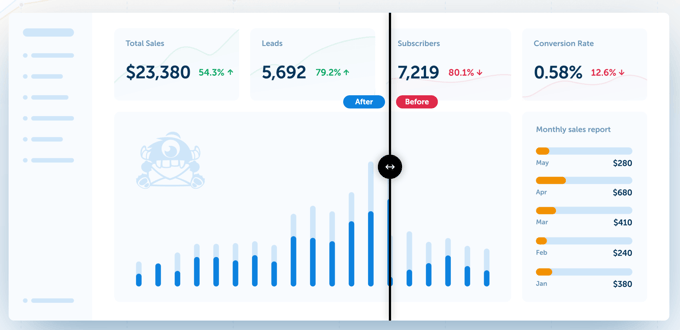
    For example, on the OptinMonster website, users can interact with a graphic by moving a slider. This lets them explore the difference our product can make to their conversion rates.

    Interactive Infographic With Slider

    Here are some more ways you can use interactive elements to improve your infographics:

    • Capture attention using animations, hover effects, and clickable elements that draw the eye and invite exploration.
    • Simplify complex information by breaking down data into manageable chunks that users can explore at their own pace, improving comprehension and recall.
    • Tell a story using interactive timelines, maps, or diagrams to create a narrative flow that keeps your audience engaged.

    Just like Apple uses interactive infographics to showcase its products, you can use them to captivate your audience, enhance your brand message, and drive conversions.

    Interactive Infographic on Apple's Website

    You can learn how by following this guide on how to create interactive images in WordPress.

    10. Let Users Download Interactive Lead Magnets

    Lead magnets are valuable freebies that you offer in exchange for an email address. They are one of the most popular ways to grow your list.

    But with every website out there offering downloadable PDFs, how do you make your lead magnets stand out from the crowd?

    The answer is to make them interactive. Interactive lead magnets transform the way people learn and engage with your brand. Instead of passively reading eBooks, your users can actively participate in an experience that delivers personalized insights.

    We’ve already explored the power of quizzes, calculators, and polls as lead magnets. But here are a few more ideas to spark your creativity:

    • Interactive buyer’s guides help your audience make informed decisions with clickable elements that reveal product comparisons, feature highlights, and customer reviews.
    • Product demos and virtual tours give potential customers a hands-on experience with your product through interactive simulations, 360-degree views, and clickable hotspots.
    • Mini online courses deliver valuable knowledge in bite-sized, interactive lessons, complete with quizzes, progress tracking, and gamified elements.
    • Behind-the-scenes experiences offer exclusive access to your creative process, company culture, or product development journey through interactive videos, timelines, or tours.
    Offer Interactive Lead Magnets

    This is easier than you might think. Specialized lead magnet tools like Beacon or Thrive Leads can integrate with your email marketing service for easy delivery.

  • 12 High-Converting Landing Page Examples That Actually Work

    12 High-Converting Landing Page Examples That Actually Work

    You know your product is great, but for some reason, your landing page just isn’t converting visitors into customers. It’s frustrating, isn’t it?

    I’ve designed and analyzed tons of landing pages across my career. And I’ve seen first-hand how many website owners and marketers struggle to actually convert their users.

    But what if I told you that with a few strategic tweaks, you could transform that underperforming landing page into a conversion powerhouse? That’s exactly what we’re going to explore today.

    Note: This is a guest post by John Turner, the co-founder of SeedProd, a popular drag-and-drop page builder plugin for WordPress. This is an expert column where we invite a WordPress expert to share their experiences with our readers.

    High-Converting Landing Page Examples That Actually Work

    There’s no better way to learn than from real-world examples, and I’ve found some true gems for you. Here’s a list of landing page examples we are going to look at today:

    1. WPForms
    2. Hostinger
    3. Surfshark
    4. Trainwell
    5. PushEngage
    6. Scentbird
    7. OptinMonster
    8. Bellana
    9. All in One SEO (AIOSEO)
    10. HelloFresh
    11. Lead Guru
    12. Visser Labs

    1. WPForms

    If you are looking to create a Google ad landing page, then I’ve found a great example to take inspiration from.

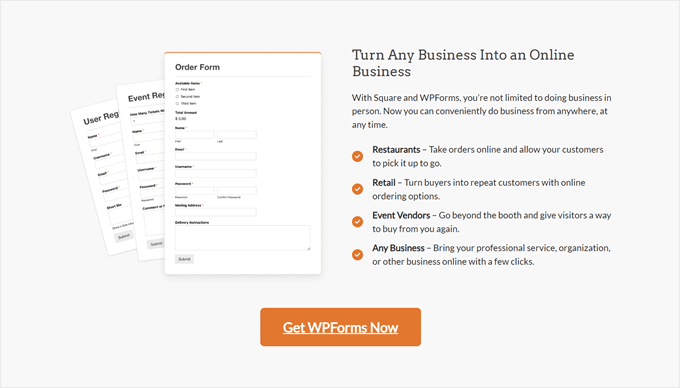
    WPForms ran a PPC ad campaign for the search keyword ‘Square payments plugin’, and they saw a massive 36% increase in conversions.

    Here’s why their landing page works so well. First, the design is crisp and sharp, and the copy is straight to the point.

    WPForms' call-to-action button

    It’s exactly what you want for a PPC landing page. They understand that visitors from ads are often ready to take action, so they’ve removed any unnecessary information that might slow down the decision-making process.

    What stands out to me is how well they’ve aligned their keywords and landing page content. When a visitor clicks on an ad for a ‘Square Payments plugin,’ that’s exactly what they see on the landing page. No confusion, no wasted clicks.

    They’ve also placed the ‘Get WPForms Now’ call-to-action button throughout different parts of the page. This is a smart move to make sure that no matter where a visitor is on the page, they’re never far from the next step.

    What you can learn from WPForms: With PPC, you’re spending money for every click. Make sure to match your content to your ad keywords and keep your call to action within easy reach to maximize your return on investment.

    Other than that, I recommend tracking your ad performance using a tool like Google Analytics. You don’t want to make improvements on your landing pages blindly. Instead, use data to focus on efforts that are most likely to boost conversions.

    2. Hostinger

    Hostinger's WordPress hosting landing page

    Converting visitors is important, but you also want people to feel comfortable and confident when buying from you. I’ve found that overselling is a surefire way to make potential customers skeptical.

    Hostinger‘s landing page strikes a great balance between selling and building trust.

    First, let’s talk about the ‘Ask AI’ chatbot button. This is a smart way to give quick answers to visitors’ questions, making it easier for them to decide. The 30-day money-back guarantee also helps people feel safer about trying the service.

    Hostinger's AI feature in WordPress hosting landing page

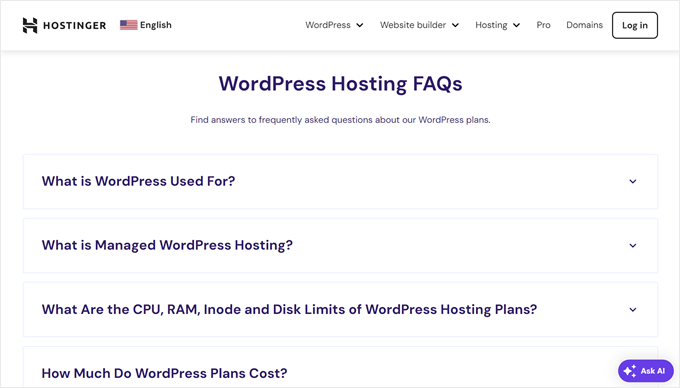
    The FAQ section also addresses common questions upfront, which is important for eliminating hesitation.

    From WordPress usage to pricing details, they’ve covered all the bases.

    Hostinger's FAQ section

    What you can learn from Hostinger: Businesses selling technical services should focus on building trust alongside their sales pitch. You will want to anticipate questions and address them on your landing page to remove any doubt about buying your product.

    3. Surfshark

    Surfshark's affiliate landing page

    Keeping things simple on your landing page can be incredibly effective. In fact, one study shows that when a page goes from 400 to 6,000 elements (like text, titles, and images), the chances of people converting can drop by 95%.

    Surfshark’s affiliate landing page is a great example of simplicity.

    The top part of the page is clean and uncluttered, with no distracting navigation menu to pull visitors away from the main message. The bright call-to-action button is impossible to miss because it contrasts well enough with the rest of the design.

    What really catches my eye is how they’ve personalized the page. By mentioning Mrwhosetheboss, the channel where this affiliate link appears, they instantly create a connection with visitors who have come from that source.

    As you scroll down, you’ll find a slider showcasing rotating testimonials from popular YouTubers. This clever use of social proof quickly builds trust and credibility.

    Surfshark's rotating testimonials

    Social proof is a powerful tool to persuade potential customers, which is why page builders like SeedProd have a similar rotating testimonials feature. It’s an effective way to show off positive feedback while saving valuable space on your landing page.

    What you can learn from Surfshark: Tailoring content to your visitors can make them feel seen and create an instant connection with them. When that happens, they’re more likely to engage with your page and trust your brand.

    Personalization isn’t as complicated as you might think. If you want to implement this strategy, WPBeginner has a guide on how to add dynamic content in WordPress (including personalized campaigns).

    4. Trainwell

    Trainwell's landing page

    While looking at landing page examples, I’ve seen countless long, scrolling pages packed with information. In reality, that’s not always a good practice, and Trainwell proves that less can be truly more.

    They’ve fit everything important onto a single screen so that no scrolling is needed. It’s a bold move that pays off because users can just focus on the essential information without distractions.

    Even in this limited space, they’ve managed to include powerful social proof. They’ve prominently displayed ‘LOVED BY 39,000+ CLIENTS!’ along with a 4.9-star rating.

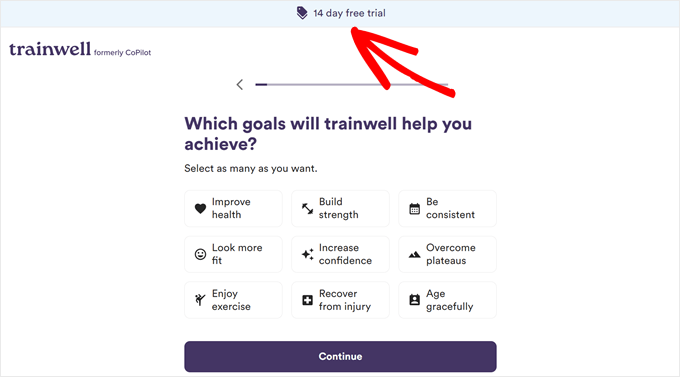
    When the ‘Find my trainer’ button is clicked, it leads to a simple survey that will match users with the right personal trainer. The 14-day free trial banner at the top of the survey is a smart way to address potential hesitation.

    Trainwell's survey

    What you can learn from Trainwell: Make the most of a limited space with a clear call to action and social proof elements. Also, perks like a free trial can ease customers into signing up, making them feel like there’s less risk in purchasing from you.

    5. PushEngage

    In digital marketing, timing is key. If you strike at the right moment, then you could turn a simple campaign into a big success. PushEngage‘s landing page for Notix users shows how to do this well.

    They made this page knowing Notix was closing down, targeting users who needed a new service fast.

    What’s great about this landing page is they used ‘Notix alternative’ in their main headings. This best practice can help your landing page show up in relevant searches and improve your ad quality scores.

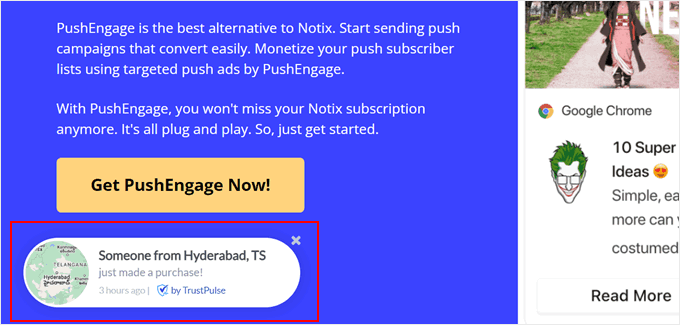
    Another aspect I want you to take note of is how they use social proof. They display live notifications with TrustPulse, showing recent purchases from various locations. This clever tactic creates a sense of ‘If others are buying, maybe I should too!’

    PushEngage's social proof notification

    To top it off, they also share customer case studies with real metrics.

    Case studies provide concrete, measurable results that potential customers can relate to. They are more credible than using testimonials alone because they show real-world applications and outcomes for your product or service.

    PushEngage's case study section in the landing page

    What you can learn from PushEngage: When making a competitor landing page, use their name in your headings where relevant, but don’t just stuff keywords. Also, I recommend thinking outside the box and finding ways to present measurable social proof rather than just users’ opinions.

    6. Scentbird

    Scentbird's landing page

    Did you know that one brand boosted its conversion rates by over 300% just by adding a countdown timer? This feature taps into a powerful psychological principle called scarcity.

    When we see time ticking away, our brain tells us the opportunity is limited. This creates a sense of urgency that can push us to make decisions faster, and Scentbird uses this tactic brilliantly.

    It’s not just about the time running out, though. They’ve paired it with a significant discount: 55% off. This combination of time pressure and perceived value is a powerful mix for driving conversions.

    We’re naturally wired to avoid missing out on good deals, and this setup tells our brain, ‘Act now, or you’ll regret it later!’

    What’s clever is how they balance this urgency with clear information about how their service works. This addresses potential hesitations without distracting from the main call to action.

    How Scentbird works

    What you can learn from Scentbird: Urgency tactics like countdown timers are powerful for limited-time offers. By creating a sense of FOMO (fear of missing out), you can motivate visitors to act quickly and increase conversions.

    7. OptinMonster

    OptinMonster is a powerful lead-generation software that helps businesses turn website visitors into subscribers and customers. But even as a lead generation tool, they still needed help with their landing page.

    My team worked on improving their landing page with SeedProd. With our page builder, the OptinMonster team was able to create a new landing page for their PPC campaign in less than 30 minutes, and the results were impressive.

    The new page is pretty simple but includes several key features designed to engage and convert visitors. An animated headline grabs attention quickly, while an embedded video explains the product more in detail.

    OptinMonster's animated headline

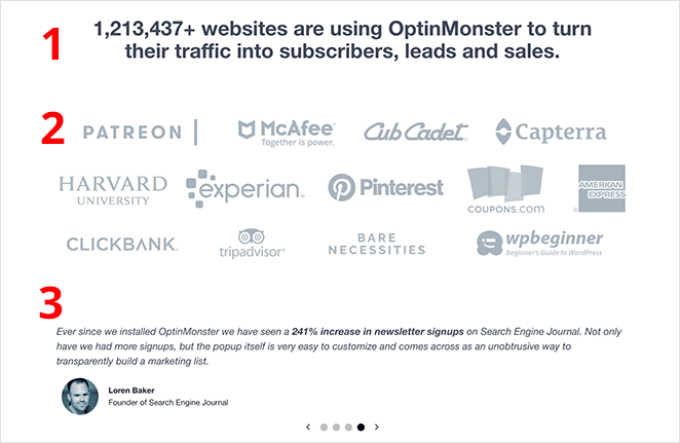
    They also use multiple forms of social proof, including statistics, brand logos, and a testimonial carousel, to build trust with potential customers. These changes make the page more compelling and credible.

    The results? OptinMonster reduced their cost per acquisition by 47.20%, increased conversions by a whopping 340%, and improved their click-through rate by 13.30%.

    OptinMonster's landing page made with SeedProd

    What you can learn from OptinMonster: Sometimes, you can ditch the fancy features and just stick to the basics. So long as you include an attention-grabbing element, explain your product clearly, and build trust with social proof, you’re on the right track.

    I actually broke down the formula for a successful landing page in another WPBeginner article. If you want to read my take on it, check out the anatomy of a high-converting landing page.

    8. Bellana

    Bellana's landing page

    Bellana’s landing page is the perfect example of how to create a strong first impression. Their full-screen video background instantly showcases the beauty of Bali, which is a great way to sell high-end real estate investments.

    Instead of pushing for a quick sale, they let visitors imagine themselves in this luxurious setting with the immersive visual. The clean design has a subtle logo and a noticeable but not pushy ‘Schedule a Call’ button.

    I’ve found that this emotional connection is crucial for big-ticket purchases. When customers can picture the lifestyle or benefits of a high-value service, they’ll feel more emotionally invested and motivated to take the next step in the buying process.

    At the bottom, you’ll find a form to contact the business owner. This smart placement lets visitors build desire before they’re asked to take action.

    Bellana's contact form

    What you can learn from Bellana: Remember, your landing page doesn’t always need to convert immediately. Sometimes, it’s about making a lasting impression that leads to big sales later.

    A visually stunning, immersive experience can be more persuasive than a page cluttered with text and calls to action. Don’t be afraid to let your product speak for itself before asking for the sale.

    9. All in One SEO (AIOSEO)

    Let’s say you run a SaaS company that sells a project management tool. To promote it, you might run a search ad campaign to target keywords like ‘project management software’ or ‘project management tool.’

    Here’s an idea I want you to try: create separate landing pages for each of your core product features.

    This approach broadens your reach because many people search for specific solutions such as ‘easy task assignment’ or ‘time tracking for teams’ rather than a complete software suite.

    All in One SEO (AIOSEO) is a WordPress SEO plugin that nails this strategy. Their headline and above-the-fold call-to-action focus on internal linking, which is one of the many features this plugin offers.

    This works because it meets users where they are in their journey. Someone looking for an internal linking tool might not be ready for a full SEO suite, but you can capture their interest with a targeted solution.

    AIOSEO's internal linking feature explanation

    What’s more, it opens the door for upselling. Once users see how well your feature works, they might be interested in exploring your full software package.

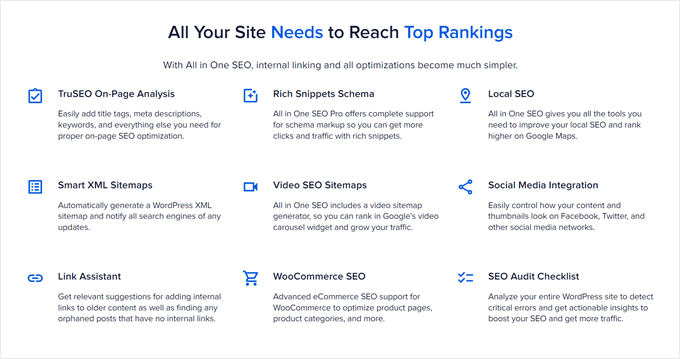
    That’s exactly what AIOSEO does. After explaining their internal linking tool in detail, they go on to show the other SEO features the plugin comes with. Since this part is slightly text-heavy, the team uses feature boxes with icons to make it more readable.

    AIOSEO's plugin features

    What you can learn from AIOSEO: Creating targeted landing pages for each of your product’s features helps you capture a broader audience. Then, you can meet their specific needs and potentially convert users who might not have initially considered your full package.

    10. HelloFresh

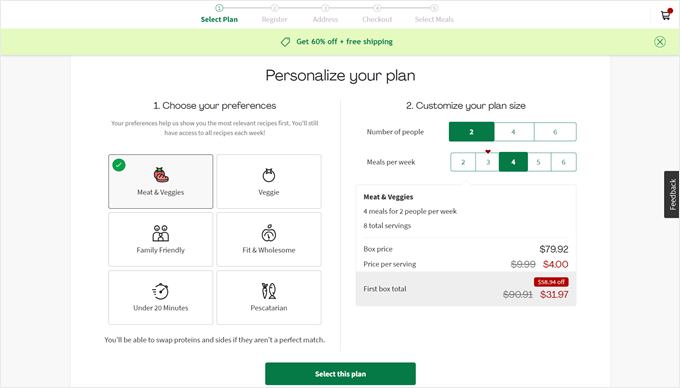
    HelloFresh's landing page

    I love how HelloFresh’s landing page immediately starts the signup process when someone opens it. This smart approach keeps people interested and immediately shows what the users can get from their service.

    The page breaks down the signup into multiple steps, which is a great practice to increase form completion.

    Also, notice how they show the discount offer in the floating banner. It’s an excellent way to remind people that they’re getting a good deal and encourage them to sign up.

    What you can learn from HelloFresh: Sometimes, you can show users what they will get by buying from you instead of telling them in your own words. HelloFresh does this well by immediately involving visitors in the signup process.

    11. Lead Guru

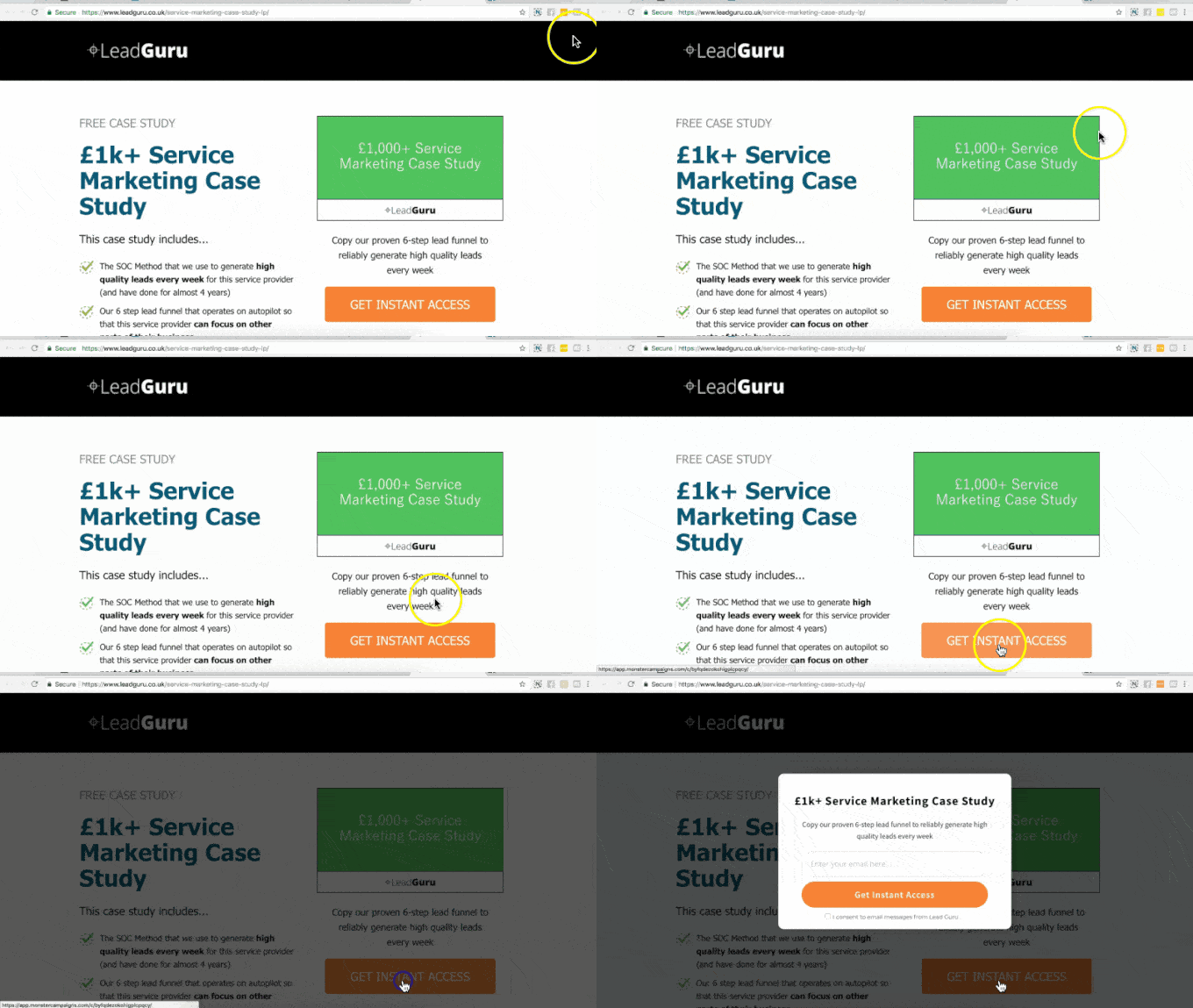
    Lead Guru's landing page

    Lead Guru optimized their squeeze landing page with just one small change.

    Using OptinMonster, they swapped out a regular form for a special button called a MonsterLink. This button, when clicked, opens a lightbox popup with the opt-in form.

    It’s a clever use of the Zeigarnik Effect, which is a psychological principle that suggests people are more likely to complete tasks they’ve already started.

    The results paid off big time. Before, 55% of visitors would sign up, but with the popup opt-in form, 81.8% of people who clicked it signed up. That’s a 26% increase overall!

    They also added an exit-intent popup to capture organic traffic that might otherwise leave without converting. In my experience, this is a smart move to maximize the value of every visitor. It gives you one last chance to turn a lost opportunity into a lead.

    What you can learn from Lead Guru: Try breaking your signup process into two steps. Instead of showing a full form right away, you could use a button that opens a lightbox popup form when clicked. This can make your page less scary and get more people to sign up.

  • Why You Should Avoid Webflow (+ Use This Alternative Instead)

    Why You Should Avoid Webflow (+ Use This Alternative Instead)

    Recently, Webflow has faced criticism for forcing large websites on its platform to switch to expensive enterprise plans. This has left many users frustrated and searching for better alternatives.

    At WPBeginner, we understand the importance of selecting a flexible and affordable website-building platform. That’s why we are here to help you pick the right option for building your website.

    In this article, we will dive into the issues surrounding Webflow, highlight its pros and cons, and offer a superior alternative.

    Why you need to avoid Webflow and move to a better alternative

    The Problem With Webflow and Similar Hosted Platforms

    In recent weeks, Webflow has faced significant backlash for forcing large websites on their platform to switch to expensive enterprise plans.

    This controversy gained widespread attention after Nico Cerdeira of Failory.com highlighted the issue on social media. Other users then expressed frustration over these unexpected cost increases and the lack of flexibility in hosting options.

    The problem with Webflow and similar hosted platforms goes beyond just pricing.

    These platforms often lock users into proprietary systems, making it difficult to migrate their websites elsewhere.

    For established websites, the migration process can be particularly challenging, time-consuming, and costly, further trapping them into an unsatisfactory situation.

    Additionally, as websites grow, users frequently run into scalability issues and limitations in customization options.

    This situation has left many website owners questioning their choice of platform and seeking more flexible and cost-effective alternatives.

    Pros and Cons of Webflow

    Users often weigh the pros and cons when choosing Webflow and similar hosted website builders. Let’s take a look at these considerations before discussing a superior alternative.

    Pros of Webflow

    • User-Friendly Visual Editor: Webflow offers an intuitive visual editor that makes it easy for users to design and customize their websites without writing code.
    • Built-in Hosting and Security: With Webflow, hosting and security are integrated into the platform. This makes things simple for users who are not familiar with managing these aspects.
    • Good for Small Websites: Webflow is well-suited for smaller projects where the built-in tools and templates can be utilized effectively.

    Cons of Webflow

    • High Costs: The cost of using Webflow can escalate quickly, especially for larger websites that are forced into expensive enterprise plans.
    • Limited Flexibility and Customization: Webflow’s proprietary system often restricts users, limiting their ability to customize their websites fully.
    • Vendor Lock-In: Migrating away from Webflow can be difficult, particularly for established websites with significant content and customization.

    Considering these factors, let’s look at the best alternative to Webflow for building any kind of website.

    Why WordPress Is The Best Alternative to Webflow?

    WordPress is the world’s most popular website builder, powering over 43% of all websites on the internet.

    Note: When we say WordPress, we are referring to the self-hosted WordPress.org, not WordPress.com. For details, see our article on the differences between WordPress.org and WordPress.com.

    Here is why you should choose WordPress as an alternative to Webflow:

    1. Cost Effectiveness

    With self-hosted WordPress, you control the costs.

    While WordPress itself is free, you will need to pay for hosting, a domain name, and, optionally, other third-party tools and services.

    The major expense will typically be hosting. The good news is that you can get high-quality hosting at very low prices due to fierce competition in the hosting industry.

    We recommend Bluehost for small—to medium-sized websites. You can get started for as low as $1.99/mo, with a free domain name included.

    Bluehost website

    For larger websites, we recommend SiteGround or WP Engine. These managed WordPress hosting providers offer more server resources and a premium hosting experience for growing sites.

    Other WordPress expenses include third-party tools, services, WordPress plugins, or themes you may use.

    Unlike Webflow, where you pay a set price for a fixed set of features, WordPress allows you to use free tools and plugins and only spend money on features you actually need.

    For a more detailed breakdown, see our guide on the costs of building a WordPress website and how to save money for sustainable long-term growth.

    2. No Forced Upgrades

    Unlike Webflow, WordPress does not force you into expensive enterprise plans as your site grows. Instead, you can scale your hosting plan according to your needs and budget.

    For instance, if your website exceeds your shared hosting resources, then you could upgrade to a VPS hosting plan or managed WordPress hosting plan instead of moving to an enterprise plan.

    In many cases, you can also boost WordPress performance by caching and managing your site’s resource usage.

    For more details, look at our guide on how much traffic WordPress can handle.

    Once your website reaches performance limitations (like overused bandwidth or memory), then you can easily upgrade resources to the next plan.

    3. Flexibility and Customization

    WordPress gives you access to thousands of third-party plugins, website designs (themes and templates), marketing tools, and more.

    Unlike Webflow, which offers a fixed set of features with each plan, WordPress allows you to add any feature to your website regardless of your hosting plan.

    WordPress Plugins & Themes

    WordPress plugins allow you to expand your website and add new functionality.

    For instance, let’s say you started with a simple blog and now want to sell a course on your website. To do so, you will simply need to install MemberPress and add the course subscription to your site.

    Need an online store? Just install and activate WooCommerce (the most popular eCommerce platform in the world) and start selling products.

    If you are just starting and can’t afford to buy premium plugins, then you can easily find free alternatives. There are currently over 59,000+ free plugins and 12,000 free WordPress themes that you can use.

    For more ideas, see our expert pick of the best WordPress plugins.

    4. Easy No-Code Design Tools

    Many people start with Webflow due to its easy drag-and-drop design capabilities.

    While the user interface may look great, your design choices and website-building capabilities are actually quite limited. You can only use a small set of templates and the features available inside the Webflow’s editor.

    On the other hand, WordPress offers easier drag-and-drop tools with more design choices.

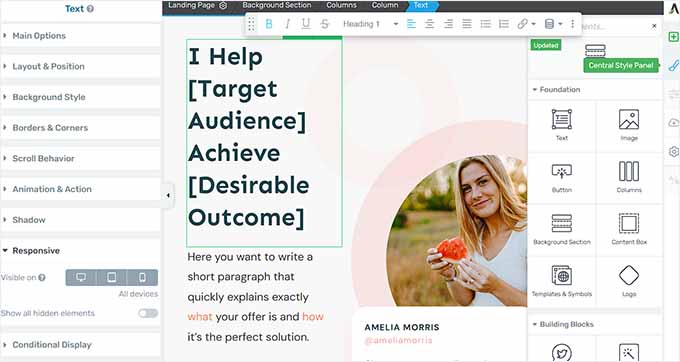
    Thrive Architect Builder

    Here are some of the best WordPress page builders:

    All these tools offer no-code solutions where you can visually design your website with simple point-and-click editing.

    Customize your SeedProd theme

    Each one also offers ready-made templates you can use as a starting point for your website design. They have a wide range of templates suitable for all kinds of sites.

    In addition, they work with top WordPress plugins, so you are not limited to the features available in the design tool.

    For more details on how to do this, you can see our tutorial on how to make a WordPress website.

    Bonus Tip: Need help with your website design? Take a look at our WordPress Website Design service. For a small fee, our expert team will help you set up a professional WordPress website with your own custom branding.

    5. Marketing & Growth Tools

    Due to WordPress’s immense popularity, all top marketing and growth tools work really well with it.

    For instance, you can use any of the top email marketing service providers (just pick one that suits your budget and business needs).

    Additionally, use growth tools like OptinMonster to capture leads, build email lists, boost sales, and convert visitors into customers.

    WordPress is also more SEO-friendly out of the box than Webflow, but you can take things even further.

    With plugins like All in One SEO for WordPress, you can set up a professional SEO framework for your website within minutes. It even has a free version called All in One SEO Lite that you can use.

    For more practical examples, see our guide on growing your business online on a smaller budget.

    You can find more details in our in-depth Webflow vs. WordPress comparison, where we have also analyzed localization, support, and advanced integrations for both platforms.

    Moving From Webflow To WordPress

    Want to move away from Webflow to WordPress? Luckily, setting up a WordPress website is incredibly easy.

    First, you will need to sign up for a WordPress hosting provider. For small to medium websites, we recommend Bluehost.

    They are offering WPBeginner readers a discount on hosting and a free domain name. You can get started for just $1.99 per month.

    Bluehost is one of the biggest hosting companies in the world and an officially recommended WordPress hosting provider.

    Why We Recommend Bluehost

    At WPBeginner, we have worked with dozens of top hosting companies over the years. Among them, Bluehost has consistently performed well in our rigorous testing and detailed analysis. (See our complete Bluehost review)

    Alternative: Hostinger ($2.69 per month + Free domain name)

    If you have a larger website with significant traffic and lots of content, then we recommend starting with SiteGround or WP Engine.

    They are both managed WordPress hosting providers, offering premium hosting services for medium to large websites.

    For more hosting options, see our expert pick of the top WordPress hosting providers, which includes a thorough comparison of their performance, features, and pricing.

    Getting Started With WordPress

    Most hosting companies automatically install WordPress upon sign-up or offer a one-click installer when you log in to your hosting account.

    If you need help, then just follow our step-by-step WordPress installation tutorial, and you’ll be all set in minutes.

    Moving Your Data from Webflow to WordPress

    Unfortunately, moving your data from Webflow to WordPress is not as straightforward.

    If you have a smaller website, then you can download your data to your computer and manually upload it to your new WordPress website. You can follow our tutorial on how to migrate from Webflow to WordPress for detailed instructions.

    For larger websites, you can contact our WordPress Emergency Support service. Our on-demand WordPress support service lets you hire professional WordPress developers to help you with your specific needs.

  • How to Build Trust and Make Money With Ethical Affiliate Marketing

    How to Build Trust and Make Money With Ethical Affiliate Marketing

    Are you looking to make money with affiliate marketing?

    Adding compelling product recommendations to your blog content can boost your revenue by 30%. But you need to earn the trust of potential shoppers before they will click on those affiliate links.

    They need to know that your website is legitimate, the products you recommend will do what you claim, your affiliate partners are above board, and they won’t lose their money through fraud.

    This all comes down to brand credibility. The most successful affiliate marketers do this by establishing themselves as experts who can be trusted in a specific niche or area.

    In this article, I’ll show you some of my favorite ways to build trust and make money using ethical affiliate marketing practices.

    Note: This is a guest post by Blair Williams, the founder of Pretty Links, a popular all-in-one affiliate link management plugin. This is an expert column that we publish every Thursday, where we invite a WordPress expert to share their experiences with our readers.

    How to Build Trust and Make Money With Ethical Affiliate Marketing

    I will cover quite a few topics in this post. Here’s a handy list so you can jump to the section you are most interested in:

    1. Create a Professional-Looking Affiliate Marketing Site
    2. Choose Reputable Affiliate Partners With Quality Products
    3. Clearly Disclose Your Affiliate Relationships
    4. Create Helpful Content Showing How Your Products Solve Problems
    5. Integrate Friendly Affiliate Links Naturally Within Your Content
    6. Introduce Yourself to Your Audience on Your About Page
    7. Make It Easy for Visitors to Contact You
    8. Demonstrate That Others Trust You and Your Recommendations
    9. Show Your Users That You Respect Their Privacy

    Create a Professional-Looking Affiliate Marketing Site

    First impressions matter. When someone first visits your website, it should give a clear signal that you are a credible source of information and recommendations. A sloppy or spammy-looking website is a huge red flag.

    The best way to achieve that is to create a self-hosted WordPress blog.

    That’s because WordPress is easy to use and supports a wide range of affiliate marketing tools and plugins that add the features you need.

    For example, plugins like Pretty Links and ThirstyAffiliates give you a centralized affiliate link management system right in your WordPress dashboard. This saves time that you can better spend creating content and marketing your products.

    You can also easily customize the look and feel of your blog using one of the best themes for affiliate marketing. These give you full control over your website’s layout and color scheme so you can match your brand and business niche.

    However, if you’d like some expert help creating your site, then affordable professional website design services are also a good option.

    Choose Reputable Affiliate Partners With Quality Products

    In my experience, it is better to recommend a few quality products that you believe in than a huge list of products that you know nothing about.

    This is one reason the average affiliate marketer only promotes 1-10 products at a time. (Source)

    So, you should choose products you use yourself that come from reputable affiliate partners. Because you trust and are familiar with each product, your audience will sense your passion as they read your detailed content and personal observations.

    This targeted approach lets you tailor your recommendations to the needs and interests of your audience, giving you a better chance of successful conversions.

    On the other hand, promoting products you haven’t used or don’t believe in can be seen as unethical and can also damage your reputation in the long term.

    Clearly Disclose Your Affiliate Relationships

    One of the quickest ways to earn your visitors’ trust is to be transparent about any links you could make money from. Affiliate link disclosures are also legally required by the Federal Trade Commission (FTC) and other regulatory bodies around the world.

    Disclosing where you can make money builds a bridge of trust between you and your audience.

    Link disclosures should be clear and visible. You can place them near the beginning of your content or close to your affiliate links. Plus, they should be short and easy to understand.

    For example, many small businesses and affiliate blogs will place an affiliate link disclosure right beneath the featured image at the beginning of each blog post.

    Example of an Affiliate Disclaimer

    I find that the best disclosure messages speak directly to the target audience using informal language. Personal messages will earn more trust than using a boilerplate disclaimer with legal jargon.

    I also recommend creating a dedicated disclosure page on your site to show your readers that transparency is your priority. Individual link disclosures can link to this page, allowing your users to see all of your affiliate connections in one place.

    WordPress affiliate plugins like Pretty Links make it easy to add an affiliate disclosure to each blog post automatically by filling in a few settings. This notice will include a link to your affiliate disclosure page.

    Create Helpful Content Showing How Your Products Solve Problems

    The best way to encourage your visitors to click your affiliate links is to create useful content that educates them about the value your products offer and the problems they can solve.

    That content can include case studies, comparisons and reviews, tutorials, and blog posts. It can be in written or video form or a combination of the two.

    I always recommend writing from your own experience and highlighting your positive and negative experiences with each product. Your content will be more credible if you talk about the methods you used to test the products along with your personal insights.

    Plus, using first-person language can show your readers that you’ve actually tested out the items you recommend. Here’s an example from an affiliate review article on WordPress payment plugins:

    WPForms affiliate review

    You can also include other information that inspires trust in the product, such as usage statistics, satisfaction ratings, awards, and other data.

    When you genuinely endorse products you personally use, your recommendations come across as more authentic and trustworthy. Your audience can sense your passion and genuine belief in the product’s benefits.

    Creating useful content like this will help you build relationships with potential customers at each stage of their user journey, and establish you as an authority and expert in your niche.

    Helpful content and reviews will attract new users to your website on a long-term basis. As the reader becomes convinced that the product can help them, they will be incentivized to click the affiliate links you placed within the content.

    That being said, you will need to make it easy for readers to find your affiliate links.

    The Wirecutter blog does this well. Their content includes helpful reviews and comparisons of products they have tested. Additionally, throughout the content, they include product boxes and affiliate links in just the right places to maximize clicks.

    Wirecutter Affiliate Content Example

    You can improve your click-through rate (CTR) by using links that are short, clear, and readable.

    Most internet users are concerned about fraud and will immediately notice links that look suspicious. So, it’s important to use link URLs that inspire trust.

    Long links can look confusing and make users hesitate or feel overwhelmed. The same goes for unreadable links that make the destination unclear.

    With an affiliate link plugin like Pretty Links, you can choose to leave your links uncloaked so your visitors can see where they are going. Or you can create short links like this:

     yourwebsite.com/refer/macbook-air-13 

    Not only is this link short and readable, but it also uses the website’s branding. This is another way to reassure users and improve the credibility of your affiliate links.

    Introduce Yourself to Your Audience on Your About Page

    It’s hard to trust a stranger. An About page is a great way to introduce your business to potential customers.

    This page can give some details about your business, brand, and team. You can use it to outline your commitment to promoting the products you believe in and acknowledge that you participate in affiliate marketing.

    Your About page is an excellent opportunity to build trust with customers by explaining how your background relates to your blog niche. The more transparent you are, the bigger the chance your visitors will do business with you.

    The ‘About Brevo‘ page is a great example. They include a brief description of their history, a video of how they can help you, and a quote from the founder. They go on to include some usage statistics, introduce the team, show off their awards, and more.

    Example of an Effective About Page

    By creating a similar page, you can educate potential customers about your business and position yourself as a reliable and trustworthy brand.

    For more details, you can see this tutorial on how to create a custom page in WordPress.

    Make It Easy for Visitors to Contact You

    A well-designed Contact page is another valuable way to build trust with potential customers.

    The easier it is for customers to get in touch with you, the more trustworthy you will appear. So make sure your Contact page includes a business email address, a handy contact form, and links to your social media profiles.

    Customers will feel more confident about buying your recommended products if they can reach out to you with their questions and concerns.

    Be sure to respond to their inquiries quickly and professionally. Take time to compose answers that are detailed and helpful, and provide additional resources where possible.

    This demonstrates that you value your audience and are committed to supporting them.

    Demonstrate That Others Trust You and Your Recommendations

    If your website visitors are still a little uncertain, then demonstrating that other people trust your blog and your recommended products will go a long way toward reinforcing your brand’s credibility. This is called social proof.

    Potential customers will feel more at ease with buying products if they know that someone else has already tried them and are happy with the result. That’s why 87% of buying decisions start with careful research.

    And one of the best ways to do this is to display positive testimonials from genuine customers who have bought and used the products you recommend.

    For example, you can use a tool like Smash Balloon Reviews Feed Pro to find product reviews from sites like Trustpilot, Google, and Facebook. Then, you can show the positive testimonials within your affiliate product reviews.

    You can see how the Smash Balloon website uses its own plugin to display testimonials from Twitter, WordPress, and elsewhere automatically.

    I also suggest asking your own readers to send you their testimonials and positive experiences with your affiliate blog. This feedback can show other visitors that your word can be trusted.

  • 14 Ways to Increase Average Order Value With WordPress

    14 Ways to Increase Average Order Value With WordPress

    Are you looking for ways to encourage customers to spend more money in your online store? You should immediately start tracking the average order value (AOV) metric.

    Focusing on AOV is an effective way to grow a business, especially if you are running an eCommerce store. While working closely with numerous online stores over the last decade, I have tested a ton of strategies to see what increases AOV and what doesn’t.

    From this experience, I can show you 14 ways that are sure to increase average order value with WordPress to improve your bottom line.

    Note: This is a guest post by Chris Klosowski, the president of Easy Digital Downloads, the best digital eCommerce plugin for WordPress. This is an expert column that we publish every other Thursday, where we invite a WordPress expert to share their experiences with our readers.

    Ways to Increase Average Order Value With WordPress

    What Is Average Order Value (AOV)?

    Running an online store is all about meeting the needs of your customers while covering your costs and making a profit. Luckily, there are quite a few ways you can increase your bottom line.

    For example, you can try to increase the amount of traffic coming to your website or encourage more of your visitors to make a purchase. This will increase the number of conversions or transactions in your store, leading to more revenue.

    A different approach is to try to increase the amount of money you make from each individual transaction. This is known as ‘average order value’ or AOV and is the topic of this article.

    AOV is all about how much your customers are spending per order. You can calculate it by dividing your total revenue by the number of orders you received.

    Here’s the formula for calculating AOV:

     AOV = Total Revenue / Number of Orders 

    For example, let’s say your online store generated a total revenue of $10,000 from 200 orders in a month. Your AOV would be:

     AOV = $10,000 / 200 orders = $50 per order 

    Understanding and analyzing your AOV can help you gain valuable insights into your eCommerce business. You can then use these insights to make data-driven decisions that improve your profitability and overall success.

    Overall, if you sell multiple digital products, then focusing on increasing your average order value can be an easy way to grow your business.

    With that being said, to increase your store’s average order value, you simply need to give your customers a reason to spend more.

    Let’s take a look at 14 ways you can increase average order value with WordPress.

    1. Track the Average Order Value (AOV) Metric on Your Online Store

    Your first step is to start tracking AOV on your WordPress website. You can use this data to learn which strategies are working and which aren’t.

    My team makes this simple in Easy Digital Downloads by offering built-in reporting so that you don’t have to set up separate tracking software and analytics solutions. All you have to do is go to Downloads » Reports in your WordPress dashboard.

    WooCommerce also lets you easily find AOV within their dashboard.

    Tracking AOV in Easy Digital Downloads

    For eCommerce tracking, I highly recommend setting up eCommerce tracking using Google Analytics on your WordPress site.

    2. Get Your Pricing Structure Right

    Finding the right pricing structure for your products is crucial. It needs to cover your costs and let you make a profit while also offering fair prices that encourage customers to make a purchase.

    There’s a lot to consider here. So, my team created a detailed guide on the Easy Digital Downloads blog that will help you structure your digital product pricing for success.

    Optimizing your pricing structure may involve some experimentation. Sometimes, you might find that lowering your price raises your AOV because it makes it easier for your customers to purchase more products.

    But you won’t know what is working if you don’t measure it. Tracking your store’s AOV metric is a great way to discover what is working and what isn’t.

    3. Offer Product Bundles

    When considering the pricing structure of your store, don’t limit your thinking to individual products. Bundling different combinations of products can help your customers feel they are getting extra value.

    In my last expert column, I mentioned that product bundling makes it easier for customers to make a purchasing decision. Better still, it can encourage them to purchase more, increasing your average order value.

    For example, one of our customers, SmashBalloon successfully uses bundling to encourage their customers to try their products in a bundle for a heavily discounted price.

    bundle aov

    Bundles offer your customers a bulk discount that typically costs 60-80% of the total value of those products. The right combinations of products will cater to the user’s tastes, needs, and budget.

    For instance, you could bundle products that are often purchased together. A gaming store might bundle a console together with a game and controller, or you could bundle an eBook with its audiobook version.

    Bundles can also encourage customers to purchase more products than they were planning. Someone who just wants to purchase a few stock photos of home offices may be tempted by an affordable ‘Home Office Bundle’.

    Bundle Example

    4. Offer Payment Plans

    Sometimes, your customers can only make a small purchase simply because they don’t have enough money to buy more right now.

    ’Buy Now Pay Later’ payment plans allow users to make the purchase now and pay for it over time. At the same time, your store will receive the full amount right away.

    Currently, 35% of consumers use pay-later plans for most of their purchases.

    Because they make it easier for your customers to make a purchase, these plans help improve conversions and your store’s AOV.

    If you’re selling digital downloads, you can use payment options like Klarna and Afterpay to set up Buy Now Pay Later with Easy Digital Downloads. Alternatively, you could use the WP Simple Pay plugin to offer a pay-later payment option with other eCommerce solutions.

    5. Make It Easy to Check Out

    A lengthy or confusing checkout process can overwhelm customers, meaning they spend less time and effort on their purchases or even quit before completing the payment. An easy checkout process encourages customers to spend more.

    Simplifying the process reduces the cognitive load on customers by reducing the amount of brainpower needed. It lets buyers focus on completing the purchase without feeling overwhelmed, which may lead to them adding more items to their cart.

    You can reduce friction by offering multiple payment options in various currencies, allowing your customers to check out as guests without needing to create an account, and including clear instructions.

    EDD includes these options on its fast-loading checkout page. You can choose an extension to add the payment methods you wish to use, including Stripe, PayPal, and many others.

    The Easy Digital Downloads Checkout Form

    You can also customize the checkout page in WooCommerce and other eCommerce plugins to optimize it for conversions and increased AOV.

    6. Offer Upsells and Cross-Sells

    In my experience, one of the most effective ways to encourage customers to spend more money when making a purchase is using order bumps. This is when you offer the buyer extra products or deals during checkout.

    Industry reports estimate that order bumps contribute to 35% of Amazon’s total revenue. They do it well, and it pays off.

    Take a look at a screenshot of how a WordPress theme company can upsell a related product.

    checkout-cross-sells

    The main types of order bumps are upsells and cross-sells. Here are some examples to help you see the difference:

    • In a paint shop, an upsell would be to encourage a customer to buy UV-resistant paint instead of normal paint. It costs more initially, but lasts much longer, offering better value and saving money in the long term.
    • A cross-sell would be to offer the customer other products they will need while painting their house. These might include paint brushes, rollers, drop sheets, paint trays, and more.

    This is simply good customer service. You are making sure the customer purchases the product they actually need, and they have everything they require to do the job. They appreciate it.

    It also helps you increase the visibility of products that aren’t purchased frequently. And because the customer spends more money on the order, it increases your AOV.

    It’s easy to add order bumps to your online store using the Easy Digital Downloads cross-sell and upsell extension, which is available for paid members.

    It lets you add other digital products to your product pages and checkout page. This can generate some impulse purchases, allowing you to boost the average order value.

    This is also super easy to set up in WooCommerce stores with a plugin like FunnelKit. For more details, just see the WPBeginner guide on how to create an order bump for WooCommerce.

    7. Promote Products With High Margins

    While you are recommending products to your customers, it helps to showcase and promote items with higher profit margins.

    Compared to your other products, high-margin products will generate more profit per unit sold.

    By promoting them strategically, you can increase your overall profit even if the sales volume remains the same or even decreases slightly. This can lead to a higher AOV without requiring an increase in the number of orders.

    If you have a digital product store, then you can use the EDD Recommended Products extension to prominently display your high-margin products on your downloads and checkout pages.

    Amazon does something like this on its product pages by displaying ‘People who viewed this also viewed’ and ‘People who bought this also bought’ recommendations. These can encourage customers to purchase additional products they are interested in.

    Amazon Recommends Products on Its Product Pages

    Another approach is to bundle high-margin products with related lower-margin ones. This can incentivize customers to purchase the bundle and potentially increase their overall spending.

    8. Offer Smart Coupons

    Smart coupons are a great way to get more sales, keep your customers happy, and encourage brand loyalty. They can motivate your customers to add more items to their cart so that they qualify for a discount.

    For example, you could encourage customers to spend more by offering a free gift or free shipping when their cart total reaches a certain amount.

    Or you can create ‘buy one get one’ (BOGO) coupons to convince shoppers to add more items to their cart. Or when they buy a certain item, you can offer them a second item at a discounted price instead of free.

    Offer Additional Products at a Reduced Rate to Encourage Buying

    The EDD Discounts Pro extension lets you create advanced discounts that are automatically applied to the checkout screen based on specific conditions.

    Alternatively, if you have a WooCommerce store, then you can create smart coupons with the Advanced Coupons plugin. It lets you create all kinds of coupons, rewards, and discounts to get more sales and grow your business.

    9. Optimize the User Journey

    I have already touched on improving the checkout experience in your online store, but there are plenty of other ways you can optimize the user journey to improve customer experience.

    A smooth and positive customer journey fosters a sense of trust and satisfaction. This can encourage customers to spend more and return for future purchases.

    FunnelKit, formerly WooFunnels, is a WordPress sales funnel builder that lets you optimize the path users take on your website to become customers. It lets you create a one-click checkout, offer one-click upsells, use beautiful page layouts, and much more.

    WooFunnels One Click Upsell

    Customers have a positive experience on a website that’s easy to navigate and find the products they need. This helps them feel more confident about their purchases and complete larger orders.

    10. Use of the Fear of Missing Out (FOMO) to Create Urgency

    Creating a sense of urgency and excitement can encourage customers to purchase immediately to avoid missing out on a valuable opportunity. This is known as FOMO, or the fear of missing out, and is a well-known sales tactic.

    When using FOMO strategies, you need to be genuine and transparent. If your customers sense that you are trying to manipulate them by creating a false sense of urgency, then you may lose their trust.

    Urgency is typically created by running a limited-time holiday sale, such as on Black Friday. The customer needs to make a purchase before the sale is over to get the discount.

    When running a limited-time discount, I recommend displaying a countdown timer to make sure customers act before the offer expires.

    Countdown Timer Example

    Scarcity is another way to create a sense of urgency. For example, you can inform customers when stock is low or offer exclusive limited edition products.

    11. Use Social Proof to Earn Trust

    New customers may be reluctant to spend much money in your online store. They simply don’t have a reason to trust you yet.

    In fact, 92% of consumers are hesitant to make a purchase when there are no customer reviews available.

    This is the power of social proof, where potential customers can be strongly influenced by the experiences of people who already made a purchase and had a good experience with your store.

    This means that you can earn the trust of new customers by displaying product reviews and testimonials on your website from genuine customers. Once you gain the trust of new visitors, they will be much more confident about adding items to their carts.

    Smash Balloon Reviews Feed Pro demo

    EDD users can do this using the Reviews extension. This lets you enable customer reviews with star ratings on the products you choose.

    Alternatively, you can use other leading WordPress social proof plugins like Smash Balloon Reviews Feed Pro and TrustPulse.

    12. Create Loyalty Programs

    Many of my customers successfully use loyalty programs to encourage shoppers to spend more. When you award extra points for orders over a certain amount, you can increase the average order value just as effectively as cross-selling and upselling.

    Think of a Starbucks Rewards card. Every time you buy a drink, you are closer to a free coffee.

    Starbucks Loyalty Card

    EDD offers several extensions that can help you create a loyalty program, such as the Purchase Rewards extension.

    This lets you reward customers with a discount code after making a purchase. You can set a minimum purchase amount that will encourage them to add more to their cart.

    On the other hand, WooCommerce users can easily create a loyalty program with the Advanced Coupons Loyalty Program plugin. For more recommendations, see our expert picks for the best WooCommerce points and rewards plugins.

    13. Recover Abandoned Carts

    Most online stores have huge numbers of users leaving their sites from the checkout page. On average, a massive 69% of shoppers are abandoning their carts. Why not try to get some of them back and recover those lost sales?

    These customers showed genuine interest in your products, which makes them valuable leads. Remind them of their abandoned cart and offer some incentives to complete the purchase. You might successfully convert them into paying customers, and this can contribute to your AOV.

    You may be able to catch them just before they leave your site. OptinMonster’s exit-intent technology studies mouse movements to know when someone is about to leave your site, and shows a popup at that exact moment.

    Exit intent example

    If an abandoning visitor has already left your site, then you can send them a push notification using PushEngage. Or you can send an automated email using EDD’s Recapture extension to regain their attention.

    You can offer the customers an incentive to complete the purchase and present them with relevant upsell or cross-sell options, such as adding complementary products to their cart or offering a bundle discount. This is particularly effective if you use a personalized approach.

    These targeted suggestions can encourage them to spend more, potentially increasing the overall order value.

    For more details, you can see these guides on how to reduce cart abandonment in WordPress and how to send abandoned cart emails.

  • What Is Google E-E-A-T? A Detailed Guide to WordPress Websites

    What Is Google E-E-A-T? A Detailed Guide to WordPress Websites

    Perhaps you have heard about Google’s E-E-A-T guidelines and are wondering what they mean for your WordPress website.

    Google’s search algorithm and guidelines are constantly changing and evolving to make sure that search engine results pages (SERPs) prioritize quality content that’s helpful and accurate. Although E-E-A-T is not a direct ranking factor, Google wants to serve results with strong E-E-A-T.

    In this article, I’ll explain what E-E-A-T is all about and how you can implement it on your website.

    Note: This is a guest post by Benjamin Rojas, the president of All in One SEO, the best WordPress SEO plugin on the market. This is an expert column that we publish every other Thursday, where we invite a WordPress expert to share their experiences with our readers.

    What Is Google E-E-A-T?

    What Is E-E-A-T?

    E-E-A-T stands for Expertise, Experience, Authoritativeness, and Trustworthiness.

    These are four overlapping factors they look for when looking for reliable and trustworthy sources of information to rank near the top of search engine results pages.

    Google's E-E-A-T Diagram

    The ‘Experience’ factor in E-E-A-T was introduced in a Google update in 2022. Before that, it was simply known as E-A-T.

    Here’s how each factor contributes:

    • Expertise lets a writer demonstrate a deep understanding of a topic, such as when they have training or qualifications in the field.
    • Experience allows an author to write content based on first-hand experience, allowing them to provide more accurate and helpful information.
    • Authoritativeness is when a writer is respected by recognized experts in the field or writes for a website that has a strong reputation for reliability.
    • Trustworthiness comes from unbiased and objective content found on a website that is transparent about its sources and funding and concerned about the safety and security of its readers.

    To satisfy the E-E-A-T principle, you need to add these factors to your WordPress website.

    Note that E-E-A-T is not the only consideration. To ensure your website ranks well, you need to develop a comprehensive SEO strategy.

    How Does Google E-E-A-T Affect SEO?

    It’s easy to spread misinformation written by people who don’t have any expertise or experience with the topics they are writing about, which makes content you discover on the web less-trust worthy.

    That’s why Google has implemented E-E-A-T guidelines. Google doesn’t want to promote misinformation to its users. So they use the E-E-A-T principle to assess whether a webpage can be considered a reliable and trustworthy source of information.

    This is particularly important when misinformation can affect the reader’s health, safety, happiness, or financial security. This is what Google calls YMYL.

    What Is YMYL?

    YMYL stands for ‘Your Money or Your Life.’ This is Google’s term for describing the types of topics where misinformation has the most serious consequences, such as finance and health.

    This includes topics such as:

    • Health and wellness, such as medical and health sites that offer health advice, medical information, content about drugs, fitness routines, and more.
    • Finance and money, including finance sites that offer advice, investment information, advice on tax law, and similar.
    • News and current events sites that report on news and international events, science and politics, natural disasters and emergency preparedness, and more.
    • Government and law websites that inform people about legal issues, official rulings, voting, social services, and related topics.
    • Shopping and e-commerce sites that offer product reviews and comparisons and offer products for sale.

    If your website covers topics like these, then you need to minimize the risk of harm your content presents so users can trust the information you provide.

    Also, be aware that Google will be even more careful to make sure that your content is accurate and reliable, so it is essential that you demonstrate E-E-A-T on websites that fall into the YMYL category.

    How Does E-E-A-T Help SEO?

    E-E-A-T isn’t an official ranking factor. That means that it doesn’t impact your site’s SEO directly.

    Instead, it is part of Google’s Search Quality Evaluator Guidelines. This is a 168-page PDF manual for Quality Raters. This is a worldwide team of people who evaluate the quality of search results and give Google feedback so they can improve their algorithms.

    These factors, including E-E-A-T, can help boost your SEO indirectly.

    So strong E-E-A-T signals can contribute to your website being ranked higher in queries. This is especially true for high-competition keywords that are about YMYL topics.

    Levels of E-E-A-T

    Unfortunately, there is no way to measure the E-E-A-T score for your website.

    However, Google’s guidelines give a clear idea of what websites with different levels of E-E-A-T look like:

    1. Websites with very high E-E-A-T contain high-quality articles that show evidence of topic knowledge and expertise. These authors and websites are the most trusted sources on the internet for a particular topic.
    2. Websites with a high level of E-E-A-T offer content that displays first-hand experience and expertise on a topic. These pages are considered trustworthy or very trustworthy.
    3. Web pages that lack appropriate E-E-A-T may have a good reputation in other ways, but lack experience in the topic they are about. This could be a reputable cooking website with an article on tax, or someone reviewing a restaurant they had never visited.
    4. Websites with the lowest E-E-A-T will look and feel spammy and offer a poor user experience. The main content may be obstructed and it may contain malicious downloads.

    You should aim to have a high level of E-E-A-T on your website, and this will take time.

    With that being said, here are some tips on how you can meet Google’s E-E-A-T content guidelines to give your WordPress site’s SEO a big boost:

    1. Create High-Quality Content That Is Helpful and Informative
    2. Continue to Write Fresh Website Content
    3. Address Knowledge Gaps in Your Content
    4. Keep Your Content Up to Date
    5. Talk About First-Hand Experiences in Your Content
    6. Manage Your Website’s Online Reputation
    7. 7. Showcase the Experience & Expertise of Your Business and Team
    8. 8. Showcase the Experience & Expertise of Individual Authors
    9. Boost Author SEO Using All in One SEO
    10. Claim Your Google Knowledge Panel
    11. Earn Recognition From Other Experts
    12. Have Experts Review Your Website Content
    13. Build Trust by Building Authoritative Backlinks
    14. Look After Your Site’s Technical SEO

    1. Create High-Quality Content That Is Helpful and Informative

    Google’s E-E-A-T guidelines are there to encourage web content that is helpful, accurate, and relevant. Your starting point is to create that type of information.

    That means that the original content you write should aim to help people rather than influence search engines. It should answer their questions, provide useful advice, and satisfy their needs.

    You can achieve that by ensuring your content is accurate, well-researched, and written by experts or individuals with proven knowledge.

    It should be well-structured and follow best practices for writing blog posts.

    For example, you should introduce the topic in a clear way, break up your content with headings, and add images and videos to engage with your users.

    Make sure you write comprehensive, in-depth articles on topics that are central to your industry or niche. This cornerstone content can help you establish your authority on those topics and build your reputation in the industry.

    2. Continue to Write Fresh Website Content

    Experts don’t run out of things to say. Instead, they continue to have fresh experiences where they glean insights they can write about.

    By adding new content to your website, you demonstrate to Google that your website is alive and well-maintained. It also shows that you are continuing to learn, grow in expertise, and gain new experiences.

    It’s a good idea to brainstorm new content ideas on a regular basis and plan your editorial calendar ahead of time. You can get new content ideas using online blog post idea generators and checking out your competition’s websites.

    Also, when you perform a Google search, other relevant topics that you can write about will be suggested. You may also see a ‘People also ask’ section on the search results page that shows related questions that people want answers to.

    People Also Ask Section on Search Results Page

    3. Address Knowledge Gaps in Your Content

    One important aspect of planning new content for your website is identifying knowledge gaps. These are topics that your audience is looking for, but you (and perhaps your competitors) haven’t covered them yet.

    Filling a knowledge gap and bringing something new to the table is an effective way to demonstrate E-E-A-T. It could be new information that hasn’t been covered or a new perspective based on your own unique experience.

    To do this, you will need to perform a content gap analysis.

    For example, you can use Semrush’s Keyword Gap tool to discover keywords that your competitors are ranking for but you are not. This will provide a list of seed keywords you can use to create content ideas.

    Perform Keyword Gap Analysis

    Next, you will need to optimize your existing blog posts to fill those gaps or add new articles that cover those topics to your content calendar.

    4. Keep Your Content Up to Date

    Things change. Content that was accurate and helpful in the past won’t always stay that way. Over time, these articles will become less relevant and attract less traffic. This is known as content decay.

    You should regularly review your articles and update any information that is out of date and no longer accurate. It’s a good idea to check and update each article on a regular schedule, such as every 6 months.

    You can find decayed content that needs to be updated using SEO tools such as All in One SEO. You need to identify posts with a significant drop in traffic.

    For example, the Content Performance report in All in One SEO can identify the top losing posts in terms of content performance.

    Find Decaying Content Using AIOSEO's Content Performance Report

    You can now use AIOSEO’s built-in SEO recommendations to optimize your decaying content to boost your rankings again.

    5. Talk About First-Hand Experiences in Your Content

    You should demonstrate that the content comes from personal experience rather than internet research. This means talking about your unique, first-person experiences in your posts.

    For example, if you are reviewing a restaurant, you should talk about your visit, describe the service you received, and let your readers know how the meal tasted.

    Google will pick up on phrases like these as signals that you have personal experience:

    • In my experience…
    • In our tests…
    • When we tried…
    • We found that…

    If you tested a product, you should include the measurements and statistics of your tests. You can also talk about subjective assessments based on your use of the product, such as what it felt like to use, whether you enjoyed it, and specific ways you found it helpful.

    Also, make sure you use first-person pronouns like ‘I’ or ‘we’ rather than ‘she’ or ‘they’ to demonstrate that you are talking about your own experience and expertise, not someone else’s.

    Finally, it is best to use original screenshots and images in your posts, such as a photo of the equipment you are using, or the end result of a tutorial you are writing. Google tends to reward originality, and it’s another way to demonstrate your personal experience

    6. Manage Your Website’s Online Reputation

    A brand with a negative reputation lacks credibility.

    Building a positive brand begins with creating a quality website that you own and control. It allows you to build trust, market yourself, and manage your online reputation.

    You can make sure your visitors remember your brand by creating a logo that is clear, relevant, and displayed in the header. You can also choose a matching color scheme to boost your website’s appeal.

    However, managing your reputation goes beyond your own site to social networks and review platforms. You need to monitor social platforms for negative mentions or reviews and respond in a prompt and professional way.

    You can also display positive reviews and testimonials on your website. Tools like Smash Balloon Reviews Feed Pro will find and filter testimonials from multiple review platforms and automatically display them on your site.

    Add Testimonials

    7. Showcase the Experience & Expertise of Your Business and Team

    There’s no better way to demonstrate your experience and expertise than to state it clearly. Be specific and accurate as you highlight your qualifications, experience, and achievements in your industry or field, and don’t misrepresent yourself.

    Many websites do this on an About page or Team page.

    An About page tells visitors about the purpose of your website and business, as well as its mission and values. It lets them know what they can expect on your site, and being transparent about who you are will build trust.

    If you have a multi-author website, then you could use a Team page instead. Here you can list the names of your writers along with their qualifications and experience. Make sure you include photos of each team member, or perhaps a single photo of the entire team.

    Example of an About Page

    You should include a contact form on this page or a separate Contact page, along with icons that link to your social media profiles. Visitors will be able to trust you more easily if they can see it is easy to contact you to ask questions or verify the information on your site.

    Make sure that you include these pages in your site’s navigation menu so they are easy to find.

    8. Showcase the Experience & Expertise of Individual Authors

    You can also improve E-E-A-T on your website by showcasing the experience and expertise your authors have in their profiles. Introducing your readers to the people who wrote each post can help build credibility.

    You can add E-E-A-T signals such as education, job title, employer, categories of expertise, and more. This will make it easier for Google and other search engines to identify your credentials.

    This information can be automatically displayed on the posts they write using an author info box. Your visitors can then see their qualifications without needing to visit your About page.

    Example of an Author Info Box

    There are plenty of author bio box plugins that can be used to enhance the profiles of your team members, and many of them are free.

    9. Boost Author SEO Using All in One SEO

    The quickest way to start demonstrating the experience and expertise of your authors is by using All in One SEO’s powerful Author SEO addon.

    This is specifically designed to improve E-E-A-T by adding important signals such as education, employer, and job title to your author bios.

    Add E-E-A-T signals to author profiles

    You can also add areas of expertise, which lets search engines and readers know that you’re knowledgeable about the topics you write about.

    All of this author information is added as schema markup that makes it easy for search engines to find and understand when ranking your content.

    You can also display the information to your website visitors using its built-in author blocks.

    10. Claim Your Google Knowledge Panel

    When looking at search results, you will sometimes see a panel on the right of the screen displaying information about a company, person, or product. This is a Google knowledge panel.

    Here’s an example of a Google knowledge panel for the tech company Apple. It shows the company’s logo and website, information taken from Wikipedia, a list of related products, and much more.

    Example of a Google Knowledge Panel

    Knowledge panels may also display author and business information from your website if you added it using schema markup, such as when using All in One SEO’s Author SEO addon mentioned earlier.

    Knowledge panels stand out in search results and bring more traffic to your site. They are also good for brand visibility and show users that Google finds your website credible and trustworthy.

    If you are signed in to a Google account related to your business, then Google will display a button that lets you claim your business’s knowledge panel and verify that it belongs to you. This lets you choose a featured image for the panel and suggest edits to Google.

    11. Earn Recognition From Other Experts

    E-E-A-T signals don’t just come from the experience and qualifications of your team members. You can also earn recognition from other experts from outside of your team.

    The easiest way to do that is to add citations from recognized industry experts to your content. You can link to official studies, research papers, and even tweets and blog posts by experts.

    This is especially helpful for validating the accuracy of your content when you touch on topics outside of your team’s expertise. It demonstrates to Google and your readers that you place genuine value on accuracy and care enough to check your facts.

    Another strategy is to invite an expert to write a guest post on your blog or ask if you can interview them and publish the interview on your blog.

    12. Have Experts Review Your Website Content

    Another way to establish credibility and ensure accuracy is to have experts review your content. This strengthens your E-E-A-T signals by showing that your content has been fact-checked.

    You can use All in One SEO’s Author SEO addon to add a reviewer to your articles.

    Boost E-E-A-T by Having an Expert Review Your Posts

    This is an important way to boost E-E-A-T for YMYL articles where you need to demonstrate that your content is accurate and up-to-date.

    Backlinks are an essential element in creating E-E-A-T content because they demonstrate that others find your content valuable and helpful.

    These are links from other websites back to your own. When a website with high authority links to your content, it is seen as a vote of confidence that you are an expert in your field.

    The more backlinks to one of your posts, the more authoritative it becomes.

    You can grow the number of backlinks to your site by writing quality content that people want to share with their friends and clients, and by building relationships with influencers and other website owners in your industry.

  • .Org vs .Com: Which is the Better Domain Extension?

    .Org vs .Com: Which is the Better Domain Extension?

    Are you trying to decide whether .org vs .com is the better domain extension?

    There are many types of domains, but the most popular are .org and .com. While often taken for granted, a site’s domain extension affects how others view your brand and how easy it is for users to find your site.

    In this post, we’ll compare .org vs .com and highlight when to use each. That way, you’ll know which domain extension is right for your needs.

    .Org vs .Com: Which is the Better Domain Extension?

    What are Domain Extensions, and Why Should You Care?

    Domain extensions, also known as top-level domains (TLDs), are the last part of a domain name, appearing after the dot.

    Take WPBeginner, which uses the .com extension, while a site like WordPress uses .org. (There is a .com for WordPress, but it is a commercial product, not open source.)

    To understand how a domain name works, you have to know how it interacts with the Domain Name System (DNS).

    When entering a website address, the DNS looks up the URL (wpbeginner.com) and finds the hosting server’s numerical IP address where the website lives.

    We use domain names rather than typing the IP address because they’re much easier for humans and search engines to use and remember. In addition to the domain name itself, the domain extension can tell visitors what your website is about.

    For example, .com is designed for commercial websites, while .org is meant for non-profit organizations.

    When potential customers see your web address, they might make assumptions about your business based solely on your URL.

    With that in mind, we’re going to highlight the differences between a .org and .com domain extension and which is better for your website. Click on any of the links below to jump to a specific section.

    • What is a .org Domain Extension?
    • What is a .com Domain Extension?
    • Differences Between .org and .com
    • When Should You Use a .org Extension?
    • When Should You Use a .com Extension?
    • Which Extension is Better
    • How to Use .org or .com Domain Extensions

    What is a .org Domain Extension?  

    The .org extension stands for organization and was created for nonprofit organizations and charities to provide valuable information.

    Generally, .org websites are used to raise awareness, accept online donations, and search for volunteers. Thus, when visitors see a .org domain name, that’s what they come to expect.

    That said, anyone can register a website with the .org domain extension, even if the website isn’t part of a nonprofit organization.

    However, businesses can still benefit from the .org domain when linked to the company’s charitable arm, while other domain names help protect the brand.

    What is a .com Domain Extension? 

    The .com extension is the most popular domain extension and is used by commercial businesses.

    Nowadays, .com has become the default domain extension for general-purpose websites, whether or not they have commercial intent.

    With that in mind, the idea of .org being only for nonprofits has stuck around a lot more than .com being only for businesses.

    Differences Between .org and .com

    As we said above, neither .org nor .com has special requirements to register, even though they were both made for different purposes and users expect different things from them.

    Still, there are a few major differences between them that we’ll go into below.

    Availability

    The overwhelming popularity of .com has made it challenging to find and choose the best domain names with the extension. With many desirable domains either in use or parked, some people turn to other domain name extensions to get the URL they want.

    Before you jump to other TLDs, you should start by looking at our free business name generator tool. It gives you clever ideas you can use for your domain name. Just make sure your domain name accurately represents your business and what you do.

    For instance, let’s say you want to start a recipe blog.

    Using our handy business name generator, you can find useful domain names like thedailyrecipes.com.

    domain name generator

    You can see in the screenshot above, that many simple .com addresses are already taken.

    In contrast, far fewer .org domains are taken. In fact, there are 161.1 million .com domains registered compared to only 10.6 million .org registrations.

    Because of its lower demand, .org is also much cheaper to get. That’s the opposite of many .com domain names because they are becoming more expensive because of high demand.

    Example of .com vs .org domain extension

    Credibility and Trustworthiness

    Because the .org extension was intended for nonprofit organizations and is still used by many of the most well-known charities and philanthropic groups, this TLD still elicits a high degree of trust. When applied to the right site, it adds more credibility than the .com extension.

    That said, it depends on what your site is used for. If you start an online store using a .org TLD, most people may be confused by your domain extension since visitors may expect to land on a nonprofit site.

    This can lead to a high bounce rate and lower engagement, which also hurts your SEO.

    If you own a .org site, your website should align with your target audience and their expectations of a nonprofit mission-driven organization.

    The .com extension is still a more widely trusted domain than other TLDs because of its familiarity. In fact, .com domains are 33% more memorable, and when people try to remember a URL, they’re 3.8 times more likely to assume it ends in .com.

    It’s also important to keep in mind that other factors determine whether a site is credible. For example, a site using HTTPS means it has active SSL encryption, which is more secure for keeping users and their data safe.

    Traffic

    If you’re looking specifically for branding and discoverability, .com is the best choice. If you want your potential customers to find you, .com is the most natural extension for your visitors to type in. That’s why we use the .com domain extension here at WPBeginner and for our other products.

    48% of websites use .com versus only 5% for .org. Consumers view .com as the de facto default extension. Thus, you’re more likely to get people to remember a .com domain, which can increase direct traffic.

    Of course, .org domains will likely rank higher for nonprofit-related keywords.

    However, some mobile devices include a .com button on their keyboards, which makes them a more mobile-friendly option as well. Users can press and hold the .com button for other extensions like .org to appear.

    When Should You Use a .org Extension?

    While everyone can register a .org extension, it may not be the best choice for everyone. Here are a few examples of when using .org is the best choice:

    • Charity, community, and nonprofit organizations: .org domains have historically been linked to nonprofit and humanitarian causes. Internet users have come to associate .org domains with charities and nonprofits. This extension can enhance the credibility of an organization as it signals a commitment to serve others.
    • Open-source websites: While open-source software companies aren’t generally seen as nonprofits, they commonly use .org extensions. They do so to tell the public their software or user network is available for free. WordPress.org is an example of this.
    • Informational websites: .org websites are known for providing valuable, unbiased information that helps people learn about important issues.

    When Should You Use a .com Extension?

    The best domain extension mainly depends on the type of website you plan to create. Here’s a quick look at when to use .com:

    • Business websites: .com has a wide general appeal and is commonly used for commercial purposes making it the appropriate choice for just about any for-profit business. This works for just about any type of business and includes companies of all sizes, including small businesses and startups.
    • Ecommerce stores: .com is widely used and trusted, which can instill confidence in shoppers. For example, if given the choice, a user is more likely to purchase from an online store that uses .com than a .xyz or .biz.
    • Blogs and Personal Brands: .com is simply easy to remember and better for branding, helping you reach a broader audience.

    Which Extension is Better

    When running a small business, .com will do the trick. The extension generally performs better for SEO and helps to boost your online presence more than other domain alternatives.

    It’s also seen as the default domain extension and is the go-to choice for online businesses, personal websites, publications, and blogs.

    The only downside to .com is availability. With billions of websites on the internet, your desired URL may not be available in .com.

    In that case, you have to weigh your options. Is altering your brand name or adding additional words to get the .com domain extension worth it?

    For some, they rather keep their original name or idea and choose .org instead. Some even go for .net as an alternative.

    With that in mind, we recommend using domain name generators or a site like Nameboy to help you find the right URL for your business. Since having a .com can affect your audience’s perception of your brand and traffic, it’s a good idea to find a .com URL that works for you. 

    Of course, there are also other TLD alternatives like .edu, .biz, .gov, and .net. If you’re creating multilingual websites or region-specific websites, make sure to use the right country code, such as .co.uk and .ca.

    Ultimately, the choice is yours, but .com is best for most new website owners.

  • Sucuri vs CloudFlare (Pros and Cons)  Which One is Better?

    Sucuri vs CloudFlare (Pros and Cons) Which One is Better?

    Due to an increased emphasis on website security in today’s digital landscape, one of the most common requests we’ve gotten from readers is to do a pros and cons analysis of Sucuri vs CloudFlare to explain which one is better. Sucuri and CloudFlare are online services that offer website firewall, CDN, and DDoS protection services. In this article, we will compare Sucuri vs Cloudflare with pros and cons to find out which one is better.

    Sucuri vs CloudFlare (Pros and Cons)

    Even the most secure websites on the internet are vulnerable to distributed denial of service attacks (DDoS), hacking attempts, and malware injection.

    As a WordPress site owner you can use some security best practices like password protecting admin directory, limiting login attempts, adding two factor authentication, etc.

    However these tips only work on software level which leaves your website mostly open to other types of attacks. These attacks can cause financial damage, data loss, poor search rankings and bad user experience.

    Sucuri and CloudFlare offer a website application firewall (WAF).

    This means that all your website’s traffic goes through their server scanners. If a request looks malicious, then the firewall would block it before it even reaches your website.

    On the surface, these two services look nearly identical, but there are some key differences.

    In this comparison, we’ll focus on:

    • Features
    • Pricing
    • Malware Removal Service

    By the end, you’ll know exactly which platform is best for you.

    Ready? Let’s compare Sucuri vs Cloudflare.

    Features

    In this section, we will look at the features offered by Sucuri and CloudFlare.

    It’s important to note that both services offer different plans that come with different set of features.

    As a user, make sure you’re not a victim of their marketing site because not all plans come with all the features.

    CloudFlare Features

    CloudFlare is best known for their free CDN service. They specialize in mitigating DDOS attacks using their Website Application Firewall product. CloudFlare keep your site available to users during an attack or under heavy traffic when your server is not responsive.

    Their website firewall blocks suspicious traffic before it even reaches your website. The firewall also extends to form submissions which protects your website from comment spam and registration spam.

    CloudFlare website firewall

    CloudFlare also offers free and custom SSL certificates with all their plans. Free and pro plans only allow you to use CloudFlare issued certificate. For custom certificate you will need to upgrade to their Business or Enterprise plan.

    While CloudFlare offer a free option that includes CDN, most other features including their Website Application Firewall require a paid plan.

    CloudFlare doesn’t offer server scanning service to detect malware. It also doesn’t offer a malware removal guarantee if you were to be hacked on their watch.

    Sucuri Features

    Sucuri is one of the most reputable website security and monitoring service. They offer comprehensive website monitoring, scanning for malware, DDoS protection, and malware removal services.

    Sucuri offers CloudProxy, a website firewall and load balancing service. It blocks suspicious traffic from reaching your website by effectively blocking DDoS attacks, code injection, bad bots, and other website threats. See our case study of how Sucuri helped us block 450,000 attacks in 3 months.

    Sucuri offers integration with the free Let’s Encrypt SSL for their basic plan. You can also use custom SSL certificates with their professional and business plans.

    Sucuri CloudProxy

    Sucuri scans your website regularly for file changes, code injection, and malware. They clean up hacked sites, with support for all popular CMS software like WordPress, Joomla, Drupal, etc.

    Winner: Sucuri is a clear winner because they offer a better combination of tools and services (Website Firewall + Load Balancing + Malware Cleanup / Hack Repair).

    Pricing

    Pricing is an important factor for many small businesses.

    Here, we will compare the different pricing plans offered by CloudFlare and Sucuri, so you know exactly what you’re getting for your money.

    FREE is not always better :)

    CloudFlare Pricing Plans

    CloudFlare offers a free CDN service for all. They don’t charge you for the bandwidth which means you will be able to use their free CDN regardless of your traffic volume.

    However, this free plan does not come with the website application firewall. Your website may benefit from CDN, but it will not be properly protected against DDoS attacks, spam, bad traffic, etc.

    For their web application firewall, you need the Pro plan which costs $20 / month (this is what you need for improved security).

    This pro plan does not include advanced DDoS mitigation and custom SSL. For those features, you will need their Business plan which costs $200 per month.

    Sucuri Pricing Plans

    Unlike CloudFlare, Sucuri doesn’t offer a free plan. Their website security stack plan starts at $199.99 for an year, which is cheaper than CloudFlare’s pro plan.

    This basic plan includes full website monitoring, website application firewall, DDoS protection, malware removal, and free LetsEncrypt SSL certificate.

    Instead of excluding features from lower level plans, Sucuri uses priority as an incentive for their higher paying plans.

    For example, malware removal estimated time for basic plan is 12 hours, 6 hours for professional plan, and 4 hours for business plan. However, the actual cleanup timings are way faster than that for all customers.

    They offer 24/7 support as part of all plans. Their business plan subscribers can also use the Live Chat support.

    Winner: Sucuri is an obvious choice for small businesses when it comes to pricing. CloudFlare Pro costs $240 / year vs Sucuri cost $199 / year and offer more features. To unlock same features, you’d have move up to CloudFlare’s $2400 / year plan. Sucuri’s most expensive plan is at $499 / year.

    Malware Removal Service

    Apart from denial of service attacks, malware and code injections are the most common threats faced by WordPress site owners.

    Let’s see how both services protect your website against those common threats.

    Website security and malware removal

    CloudFlare – Security and Malware Removal

    CloudFlare free version is basically a content delivery network which helps make your website fast.

    The website security firewall comes with their paid plan. It includes CloudFlare’s ready to use custom rules set. These rules protect your site from common code injection hacks, XSS JavaScript exploits, and form submissions.

    However, they do not offer file change detection, malware scanning, blacklist monitoring, and many other security features. You can add third-party apps for malware scanning, but these services will cost you additional fees.

    Sucuri – Security and Malware Removal

    Sucuri is a security focused company. They specialize in monitoring websites and protecting them against malware and other attacks.

    Sucuri’s website application firewall protects you against DDOS, SQL injections, XSS JavaScript injections, comment and contact form spam.

    However, if something crosses all those security barriers and somehow reaches your website, then Sucuri offers to clean up your website (for free).

    If you already have a website affected with malware, then Sucuri will clean that up as well.

    Winner: Sucuri – For combining website application firewall with monitoring, malware protection, and clean up services.

    Conclusion

    CloudFlare and Sucuri both offer protection against DDoS attacks on your website. CloudFlare does a little better in the content delivery network area.

    Sucuri fares better in the overall features, better security monitoring, and lower prices. If you are using a CMS like WordPress, then Sucuri is what you need.

  • Why You Should NOT Remove Dates from Your WordPress Blog Posts

    Why You Should NOT Remove Dates from Your WordPress Blog Posts

    When I started WPBeginner back in 2009, I made a decision to not include dates on any of my blog posts. I did that because I thought I was clever than the rest. My theory was that WPBeginner is NOT a blog. It is a resource like the WordPress codex or Wikipedia neither of which have dates on their articles. Besides my thought was that removing the dates from blog posts would trick the users into thinking that my content is evergreen. Boy was I dead wrong. In the recent months, I’m noticing a trend that more and more internet marketers and self-proclaimed “SEO experts” are advising their users to remove dates from their WordPress blog posts. In this article, I will provide in-depth details on why I chose not to include dates at first and what changed my mind later. I will also cover if/what are the SEO impacts of having dates on your blog posts (post-penguin and panda). Lastly, my goal is that after reading this entire posts you would understand that your problem is not with dates, rather it is with published date. I have found a solution that would please you, your users, and search engines.

    Reasons Behind Removing or Not Including Dates

    When I first started WPBeginner in 2009, I always saw it as a resource site similar to the WordPress Codex or Wikipedia. If you have used either of the two, then you know that they do not have time-stamp or dates on their entries. You are probably wondering what could be the possible advantage of that? Well, as users we have a built-in prejudice towards outdated content. The moment we see a date, we are programmed to classify it in one of the two categories: outdated OR relevant. In theory just because the content is old doesn’t mean it is not relevant, but users make that assumption. As a blogger that thought was disturbing for me because I wanted everyone to read my content. So what did I do? I decided not to include dates on my blog posts. My thought was that people read Wikipedia even when it has relevant information which may or may not be up to date. Since the user never know the original published date, they give it a benefit of doubt.

    Wrong Way

    In the past few months, I have seen numerous internet marketers and SEO’s giving out their verdict against having dates on blog posts. Each have their own reasons, but all follow along the same buzz-word evergreen content. When popular blogs like CopyBlogger decide to remove dates, it sets an example for others to follow.

    I have gone down this road already, and I can tell you why it is a wrong path.

    Why I Would Never Remove Dates Again

    I don’t make the same mistake twice. Not having dates at first was a mistake, and I don’t think I would be repeating that mistake. My hope is that after reading this, you would do the same. When starting WPBeginner, my main priority was to help users with my WordPress tutorials. Like other bloggers, I wanted to think that my content was evergreen. But in reality it is NOT. Even though I go back and update articles, it is just not possible to keep everything up to date all the time.

    In the beginning, I had no issues or complaints regarding the date. However, 6 months down the road I started receiving emails from users complaining about an older article. At first, I would simply go and update the article right away. However as the site grew, updating all articles seemed to become more and more unlikely. It came to a point where I would receive several emails, tweets, or facebook messages regarding the dates on a regular basis. It took me a year and half to give up on my stubbornness and add the dates in the post.

    Hindsight

    In hindsight, I realized how big of a disservice I was doing to my users and the larger WordPress community by not having dates on the site. I wanted to help WordPress beginners, but sometimes I ended up misguiding them or causing more confusion because they didn’t know that they were looking at an older screenshot or tutorial.

    Overtime, I have also learnt that very few posts are evergreen. You always learn something new and your methods change. It hits you when someone quotes your own words at a session where you are speaking and contradicting an older post. Guess what, if that post doesn’t have a date on it, then you can’t say well that article is old.

    Bottomline is if you truly value your readers, then you would not remove dates. Blogs by the very definition are meant to be outdated. Whether you have dates or not, you still show your posts in a reverse chronological order. If you truly believe that your content is evergreen, then why don’t you change that order and display posts in a random order (yup now that’s a challenge).

    Wait, how could I be satisfied by knowing that my blog posts are outdated? Doesn’t google penalize outdated content? Am I missing out on readers because of user prejudice towards older posts? Well I’m satisfied because I have found an alternative way to display dates that keep me and my readers happy. I suppose it keeps the search engines happy too.

    New Dates Method, Readers, and Search Engines

    I realized that my problem was not with dates. It was with “published date” feature because it didn’t accurately reflect the amount of work I put into the site. Published date feature is relevant for books because book authors don’t go an update the original book. They come out with version 2 instead. As a blogger, I personally go back to update one or two posts every day on WPBeginner yet that post still shows published on older date. Well luckily, WordPress also has the ability to show “last updated date” which in my opinion was the solution I needed all along.

    Working Time

    In the post mete data of WPBeginner, we have decided to replace published date with the last updated date. The code looks like this:

      Last updated on <time datetime="<?php the_modified_time('Y-m-d'); ?>"><?php the_modified_time('F jS, Y'); ?></time>  

    The modified time function in WordPress checks for the last time you went an updated the post. If the last time you updated the post was the time you published it, then it shows the date you published it on. However, if you went back to update that post six months later, then it will show the last updated date.

    I believe that in today’s world, last updated date is more valuable to readers than the actual published date. The published date is irrelevant when you have gone ahead and rewritten the whole article.

    Now as for search engines, if you think that removing dates from your design would trick them, then you are very naive. Your WordPress sitemap contains the last modified date of each article, and chances are that you probably have submitted your sitemap into Google Webmaster Tools. I personally write for my users, and I value their thoughts a lot more than some search engine. However, the code above follows proper schema markup that tells search engines the last updated time of the post. Yes that means that Google will show the last updated date next to your entry rather than the original published date.

    Lastly, the modified time feature satisfies me as a blogger. I hold myself to a pretty high standard, and I know that my users don’t let me slip either (Thank you everyone for being hard on me). Even though all blogs are meant to be outdated, WPBeginner audience do not allow for that. We get regular reports on outdated articles, and we do our best to update them as soon as we can. If you see an outdated article, then please let us know by tweeting at us @wpbeginner or by using the contact form.

    Yup this solution keeps everyone happy.

    Everyone is Happy

    Today, I still see WPBeginner as more than a blog. I see it as the best WordPress resource site, and by adding date I think I have made it even better. Having time relevance doesn’t make us a bad resource rather it makes us a more helpful resource site. My hope is that with my opinion, I have convinced you to not remove dates from your WordPress blog posts. I am always open to feedback and criticism. Please share your thoughts on this topic in the comments below.

  • Is this the Future Product Placement Model in Free WordPress plugins?

    Is this the Future Product Placement Model in Free WordPress plugins?

    Up until recently, product placement in free WordPress plugins has always been a challenging task. We have seen numerous methods utilized by developers. Some included banner ads on the plugin options page, others released “lite” versions of the plugins, some used lightbox popups in the backend to promote, but none of those methods were as appealing as the one we see emerging. It was first done by Automattic in their Jetpack plugin, and now WooThemes is following the lead with their newest creation called WooDojo. Since there is no name for this product placement model, we will take the liberty of calling it “The Teaser Model”. You are probably wondering what is this Teaser Model? Basically the teaser model allows you to list a bunch of features into one big dashboard where you can simply activate the ones you want. However, some features in the list will be commercial. So you see what the options does, but you have to pay to get it.

    The most interesting aspect of “The Teaser Model” is that it is a really creative way for commercial plugins to enter the WordPress plugins repository. Note: Commercial plugins are NOT allowed in the plugin repository (and unlike commercial themes, there is no commercial plugins listing on WordPress.org).

    So let’s take a look at exactly what this “Teaser Model” entails and how this can be abused.

    We will use Jetpack as an example case-study. So when you first activate Jetpack (a FREE plugin), it does NOT work right off the bat. You MUST have a WordPress.com account for it to work. So when you access the Jetpack screen, you will see a list of all available features. In between a bunch of FREE options, there is VaultPress (a paid plugin promo).

    Jetpack Teaser Model

    It is important to note, that we have nothing against VaultPress. As a matter of fact, we use it on our sites. So basically, once you connect to WordPress.com all other features will become available except for VaultPress (Because you have to buy it).

    We noticed this a while ago and thought this was creative. But recently with the launch of WooDojo, we think this idea has potential of becoming the next trend. Here is a look at how Woo is doing their product placement:

    WooDojo Teaser Model

    Now while they are only promoting their other FREE plugins, this idea has potential. We wouldn’t be surprised if WooCommerce (that has a good number of paid extensions) actually adapt the widget style look for their backend (up-selling the PAID extensions).

    So you are wondering how this model could be abused creatively? Basically any PAID plugin can use this model to work their way into the repository, get new user-registration (emails etc), and up-sell their paid products.

    Anyone can simply require users to “Connect” with their site. Connecting would mean the user MUST create an account (free account, but you can upsell the paid options on the membership page). Even if it is a FREE account, you can STILL collect their emails. The user has no choice but to connect otherwise the plugin will not work. Once they have connected to your service, you can implement one-click buy/install features. Since you have their email address (because they are your user), you can use it to up-sell your new products.

    Do you think this is the future of product placement in Free WordPress plugins? Would love to hear the community’s thoughts on this. It would also be interesting to see if more developers shift their development model this way. Rather than creating numerous small plugins, should they bundle all of their products into one place? This would also influx the count of downloads because often people might download the plugin just for one feature out of the many that it may offer. But the total download count will be significantly higher.
  • Does WordPress Admin Bar Needs a More Dropdown?

    Does WordPress Admin Bar Needs a More Dropdown?

    If you have been playing around with WordPress 3.3 (Live Demo included) like us, then you have probably adapted to the new admin bar. Quite honestly, we love the new admin bar design. It is very clean looking (until plugin authors break it). As a plugin author, you have a lot of freedom, but you also have a huge responsibility. There are hooks available for plugin authors to add dashboard widgets, admin bar menus etc. But what happens when a lot of plugin authors start adding their items into the admin bar? We end up with utter chaos for users with smaller resolution (not mobile). Majority of us developers are using screen sizes over 1600px. But there are still users that are on 1200px or 1024px resolutions. Heck even with 1600 resolutions, all it takes is 10 plugins to break the admin bar. Take a look at the screenshot below:

    Break WordPress Admin Bar

    O and if you have 10 plugins adding to the admin bar on a resolution like 1200px or so. You will have the menus drop to the second line as well along with the Howdy area.

    So what do we propose?

    We need to have an admin bar menu called “More” as a drop down. Similar to how Google has it.

    More Dropdown in Google Bar

    In this more drop down, all plugins will be dropped there. This would allow plugin authors to stick to a specific user-interface (UI) which will deliver a better user experience. This will also prevents any inconsistency. If you notice in the first screenshot above W3 Total Cache plugin is shown after the search. That is just inconsistent. Frederick probably had his permission level to be 1000 or something to ensure that his plugin ends up on the last spot (which will guarantee it more exposure). Up until WordPress 3.2, it was great. But with WordPress 3.3, the search is no longer floated right, which makes it look weird for beginners.

    All we are saying is that we need a more consistent user-interface.

    Next issue is how do we prevent abuse with the more dropdown? Plugin authors are just adding their items to the admin bar thinking it is important. But it doesn’t matter what they think. Users should have a choice in this matter. Just because we are using the plugin WP-Bitly doesn’t mean that all of our editors have to see “Shortlink” menu in the admin bar. There should be a way to remove a menu item from the admin bar if the user doesn’t want it there.

    What do you think? Do we need a more dropdown for the WordPress admin bar? Would love to hear your thoughts.