Author: Byron

  • Whats New in WordPress 5.3 (Features and Screenshots)

    Whats New in WordPress 5.3 (Features and Screenshots)

    WordPress 5.3 was released just a few hours ago. It will be the last major WordPress release of 2019.

    This release is packed with some new features and lots of improvements including a brand new default theme.

    In this article, we will show you what’s new in WordPress 5.3 and which features you should try after updating your websites.
    What's new in WordPress 5.3

    WordPress 5.3 is a major release, and unless you are on a managed WordPress hosting service, you’ll have to manually initiate the update.

    Important: Don’t forget to create a complete WordPress backup before starting the update.

    A Design and User Interface Upgrade

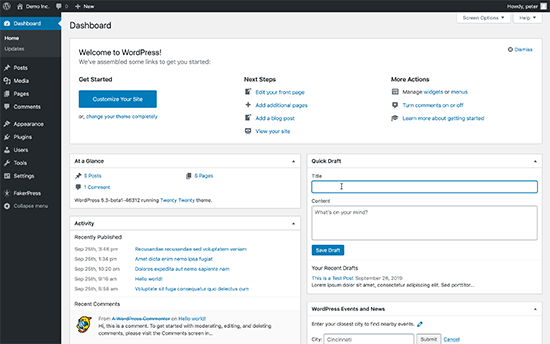
    WordPress 5.3 comes with several changes in the overall appearance of the WordPress user interface. These changes are not highly noticeable, but they bring coherency to the overall appearance of the admin area.
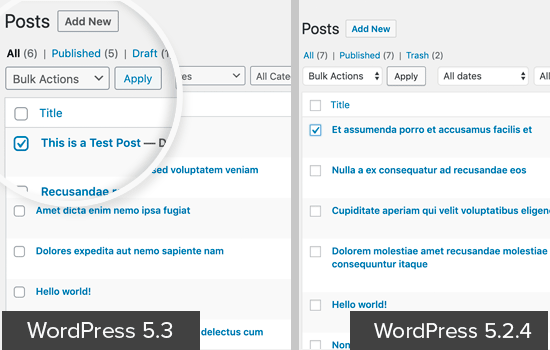
    Form fields in WordPress 5.3 UI

    The new user interface adds borders around form fields to make them more noticeable. It also improves the accessibility of the WordPress admin area to make it a good experience for all users.

    Twenty Twenty The New Default WordPress Theme

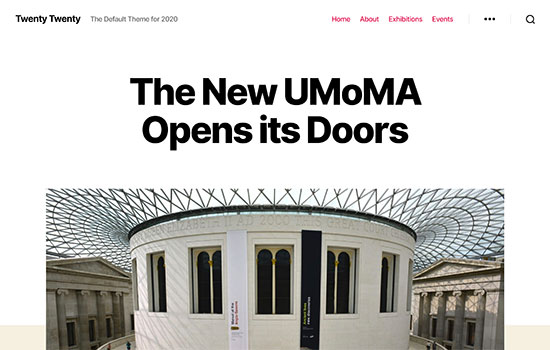
    WordPress traditionally releases a new default theme each year which is usually named after the year. WordPress 5.3 now ships with Twenty Twenty as the new default WordPress theme.
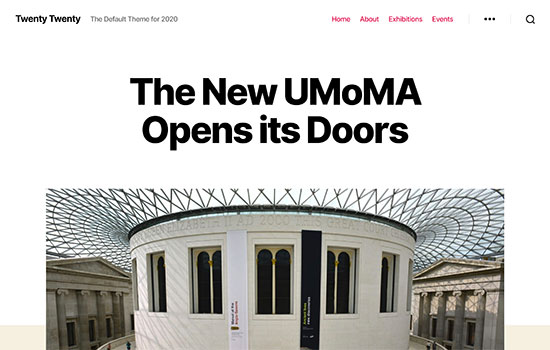
    Twenty Twenty the new default theme in WordPress 5.3

    This new theme is designed to take full advantage of the WordPress block editor. It allows you to easily create beautiful content layouts for your articles and pages.

    Twenty Twenty uses the Inter typeface (font), which looks great for headlines. It also looks great on smaller screens and provides a better reading experience across devices.

    It is a single column WordPress theme which means there is no sidebar for your blog posts or pages. It does have a widget ready area at the bottom.

    You can also use the cover or the fullwidth template with your posts and pages. The full-width template works really well not just with block editor but also with other page builder plugins.

    Overall, this is a beautiful theme suitable for both business websites as well as personal blogs.

    New Features in The WordPress Block Editor

    In 2018, WordPress released a new editor interface code-named ‘Gutenberg’. This new WordPress content editor, completely changed the writing interface in WordPress.

    Subsequent WordPress releases has continued to improve upon it, and WordPress 5.3 will come with tons of enhancements to the block editor.

    Here are a few block editor changes in WordPress 5.3 that you’d find useful.

    The Group Block

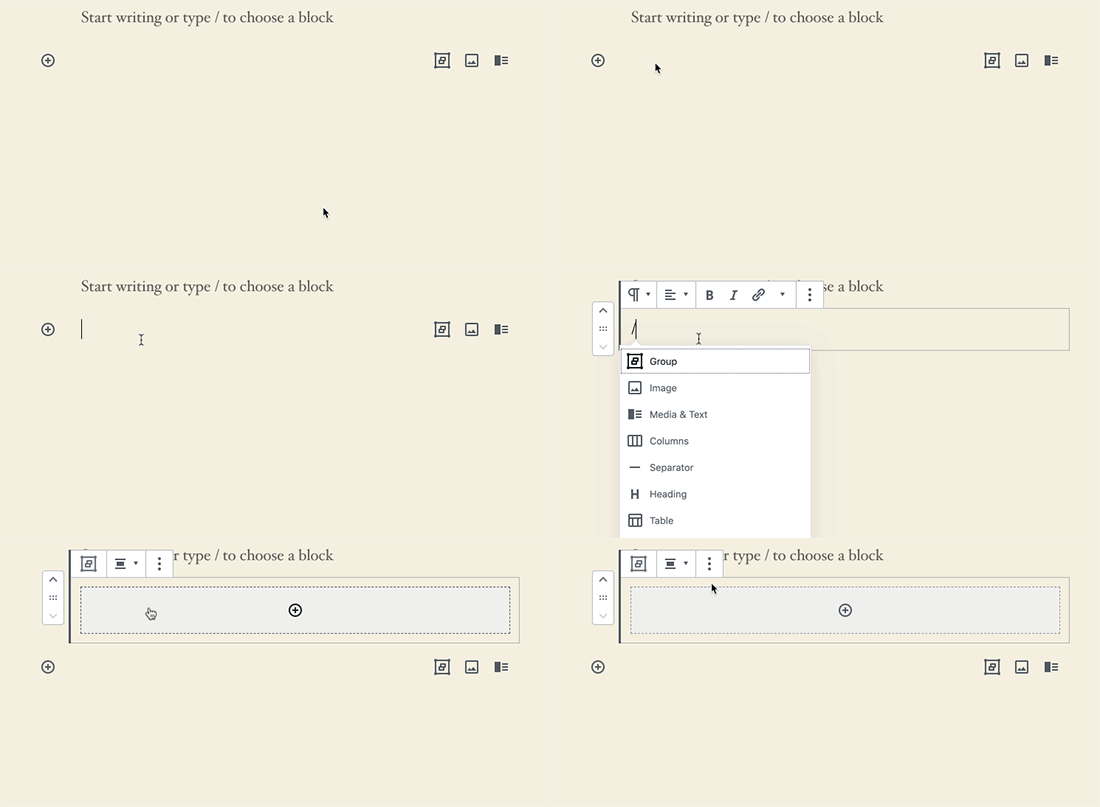
    The group block allows you to group blocks together. This handy block helps you organize your layout by dividing it into different groups.
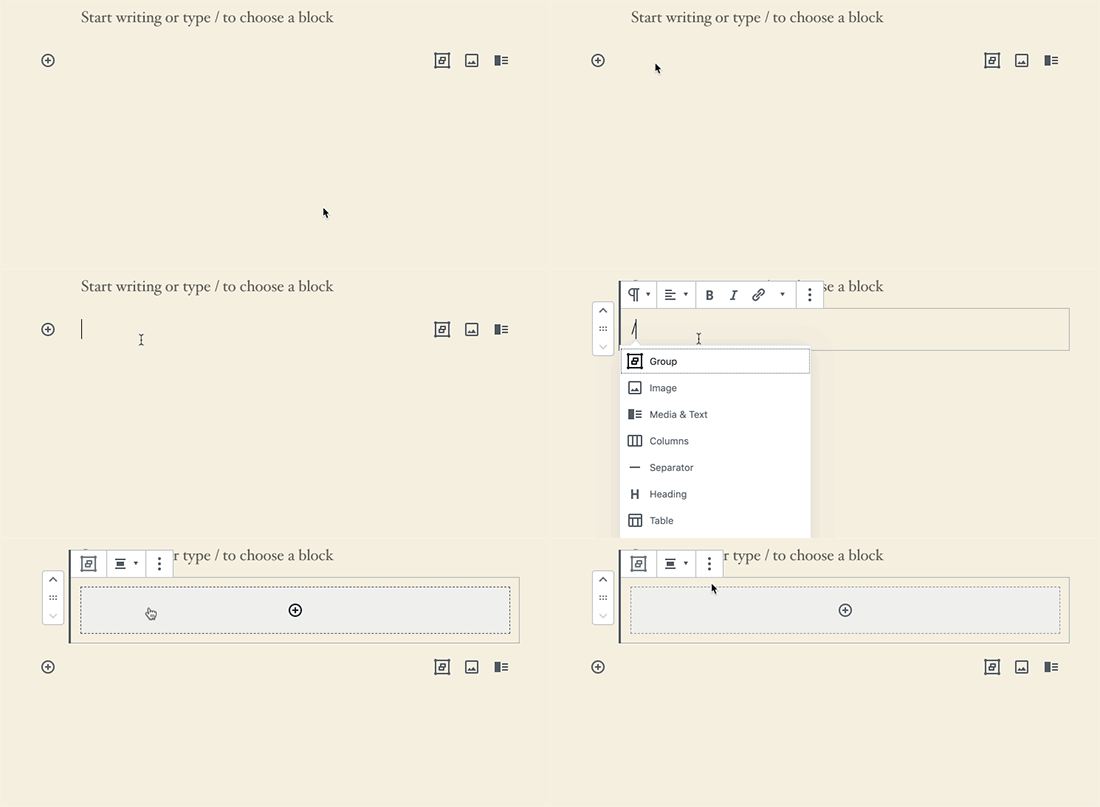
    Adding group block in WordPress 5.3

    You can set the group width to be wide or full-width, and choose a background color for the group container.

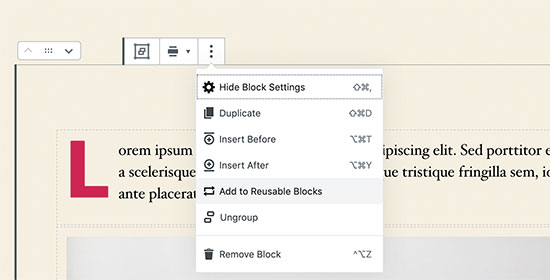
    You can add new blocks into a blank group or select multiple blocks, and add them to the group. This allows you to interact with these blocks together. For example, you can put different blocks into one group, and then save it as a reusable block.

    The Columns Block

    Columns provide another way to create interesting layouts in the WordPress editor. WordPress 5.3 comes with some major changes to the columns block.

    First, you can set a layout for columns and adjust their width.
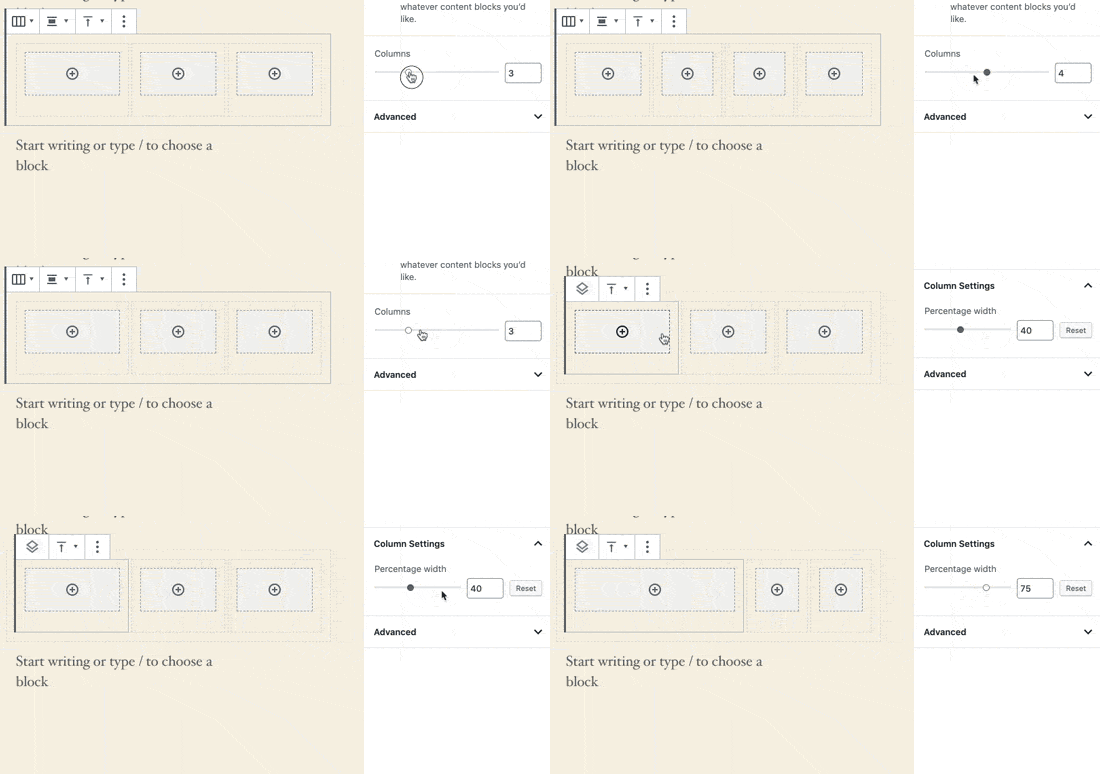
    Adjusting columns width

    Secondly, you can set an individual column to be wider, and the rest of the columns will automatically adjust.

    The placeholder to add blocks inside a column is now clearly visible making it easier to use.

    You can also set vertical alignment for columns. This means you no longer need to add spaces for proper alignment of content in each column.

    Vertical alignment

    Improved Button Block

    WordPress 5.3 makes it easier to add button in posts or pages with an improved button block which will allow you to select border-radius yourself.

    New button block

    You can also open button links in a new window and make it nofollow if needed.

    Block Previews

    The block editor in WordPress 5.3 shows a block preview. However, the preview is only available when you are using the Add new block icon on the top.
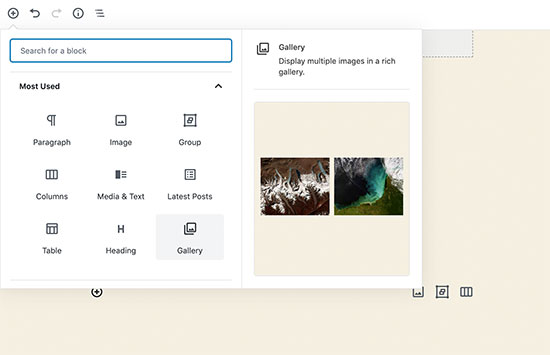
    Block preview in WordPress 5.3

    Heading Colors

    WordPress 5.3, now lets you choose a color for sub-headings inside your articles.
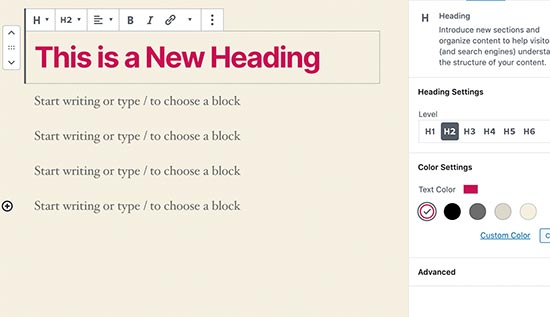
    Change heading colors

    Reorder Gallery Images

    The new and improved gallery block in WordPress 5.3 allows you to reorder images inside the gallery.
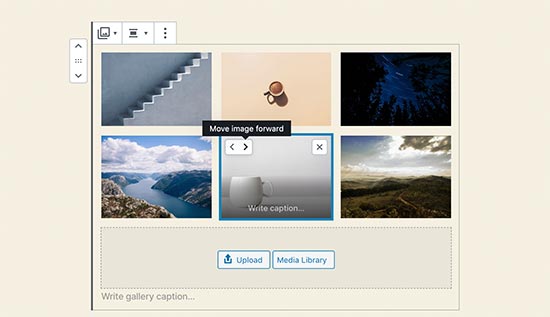
    Reorder gallery images

    Image Block Styles

    Image block now lets you choose a style for your images. Currently, it ships with two styles: Default and Circle mask.
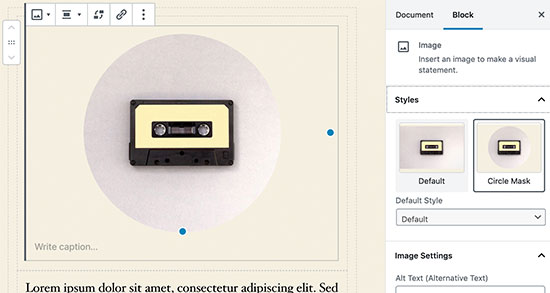
    Image block settings in WordPress 5.3

    Improved Table Block

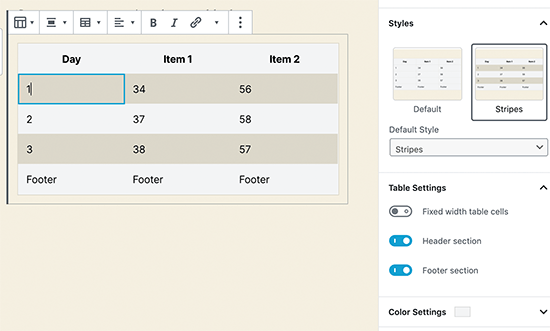
    Table block in WordPress 5.3 has some much-needed improvements. You can now select styles and add stripes to table rows. You can also add header and footer rows.
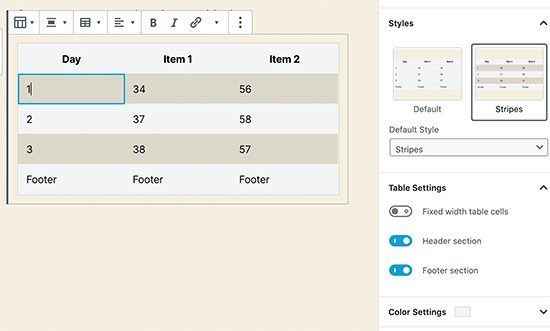
    Table block

    Improved Latest Posts

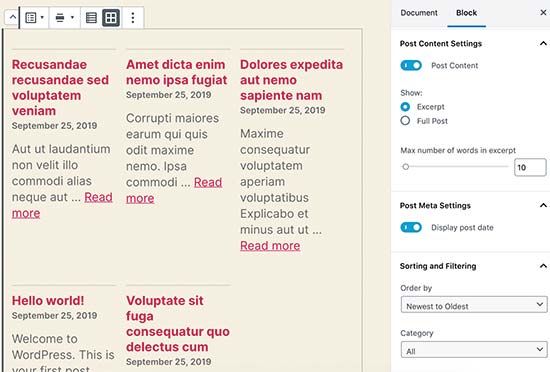
    Previously, the latest posts block only added a list of links to recent posts. WordPress 5.3 allows to add the latest posts with excerpts and display them in a grid layout.
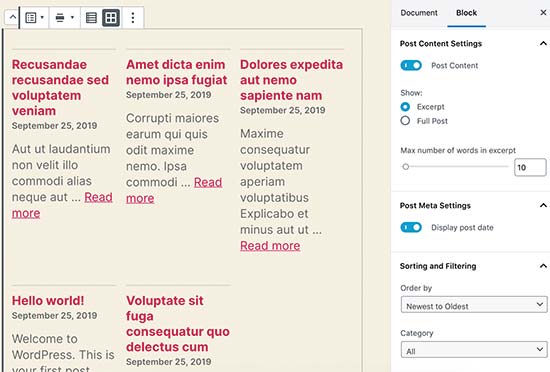
    Latest Posts in WordPress 5.3

    It does not show featured images for the latest posts. For an alternative method, see our guide on how to show recent posts with thumbnails.

    The Block Editor is Now Even Faster

    The WordPress editor relies heavily on PHP and JavaScript. While PHP only runs on your WordPress hosting server, JavaScript runs on your user’s browser.

    A big task for the WordPress core team is to keep the editor interface smooth and responsive no matter how many blocks and content you add.

    In WordPress 5.3, the block editor team has shaved off 1.5 seconds of loading time while testing with 1000 blocks and 36,000 words long post.

    Improved Image Uploads in WordPress 5.3

    Previously when you uploaded large images from your phone or camera, there was always a chance that your server would time out before the upload could finish.

    WordPress 5.3 has addressed this issue. It will now automatically save the image creation process and allow you to resume uploads without breaking anything.

    WordPress also fixed the image rotation issue using the EXIF metadata which is something added by your camera or phone to the original image.

    You can now use very large image sizes in WordPress posts and pages.

    Improved Site Health Reports in WordPress 5.3

    WordPress introduced a site health score feature with WordPress 5.1. This helped website owners improve WordPress speed and performance and address common WordPress security issues.

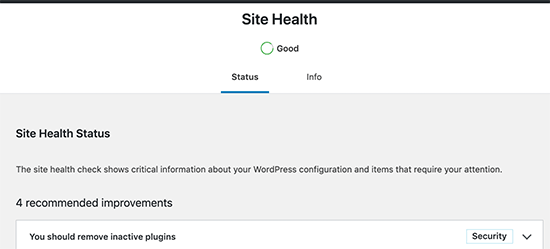
    It showed a site health score in percentages, which was a bit arbitrary and confusing to beginners. WordPress 5.3 has replaced it with a status message like ‘Should be improved’ and ‘Good’.
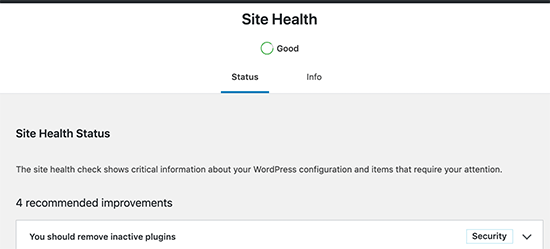
    Site Health score in WordPress 5.3

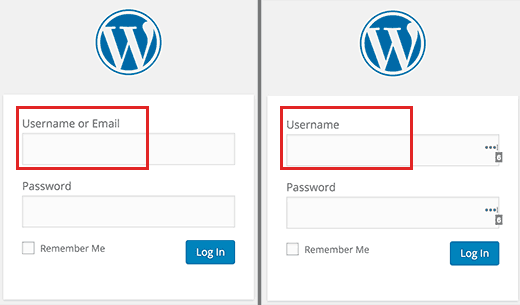
    Show Password Button on Login Screen

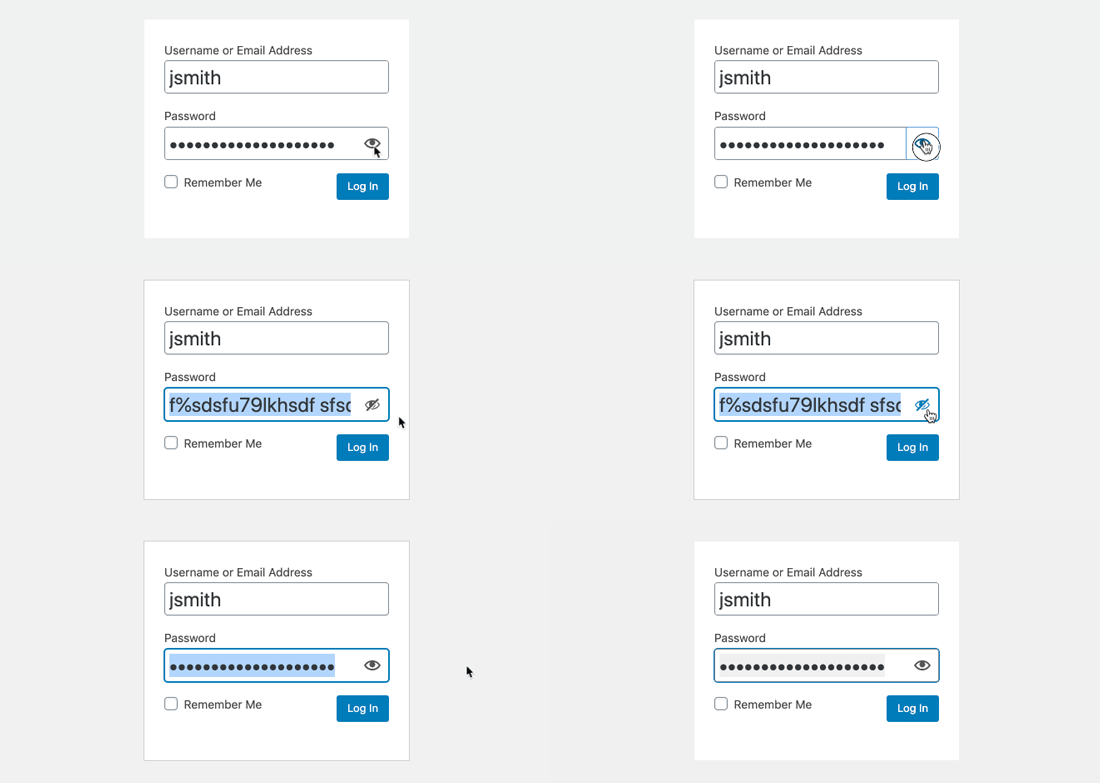
    WordPress 5.3 adds a show password button on the WordPress login screen. This is a really handy tool and makes it easier to type complex passwords, or see that you have entered a password correctly.
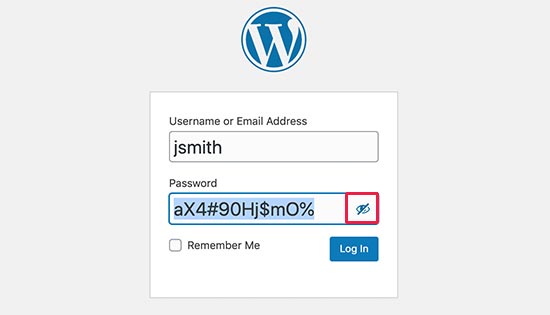
    WordPress Admin Email Address Verification

    Previously, WordPress allowed you to simply change the admin email address from Settings » General page.

    This address is very important as WordPress sends password reset and other notification emails to the address.

    WordPress 5.3, now makes it mandatory to verify the new email address to ensure that you don’t miss those future emails.
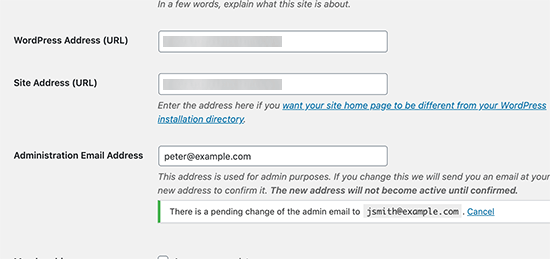
    Verify site admin email address

    Note: Please make sure that you’re using a WordPress SMTP plugin, so your WordPress site emails actually make it to your inbox. See our guide on how to fix WordPress not sending email issue.

    Under The Hood Changes

    WordPress 5.3 brings ton of features and improvements targeted towards developers. The following are some of the most significant under the hood changes.

    WordPress 5.3 offers a better way to discourage search engines from indexing a website when you check the option ‘Discourage search engines from indexing this website’ option. (#43590)

    Improved compatability with PHP 7.4. (#47441, #47704, #47746, #47783)

    Better handling of date and timezone functionality, which will allow developers to use them more efficiently in their projects. (See details)

    On a WordPress multisite network, developers can filter sites by status. (#37392, #37684)

    Multisite will now store database version as meta (#41685)
  • Whats Coming in WordPress 5.3 (Features and Screenshots)

    Whats Coming in WordPress 5.3 (Features and Screenshots)

    WordPress 5.3 is expected to be released on November 12, 2019. It will be the last major release of the year and will ship with some significant improvements.

    We’ve been following the development closely and testing the first beta to try out new features that are on the way.

    It is packed with new features, block editor improvements, and user interface update. There are also many more behind the scene improvements for developers as well.

    In this article, we will show you what’s coming in WordPress 5.3 with features and screenshots.

    Features and screenshots of the upcoming WordPress 5.3

    Note: You can try out the beta version on your computer or on a staging environment by using the WordPress Beta Tester plugin.

    WordPress 5.3 is still under development, which means features can still change and may not make into the final release.

    Having said that, let’s take a look at what’s coming in WordPress 5.3.

    A New Default WordPress Theme

    This release will come with a new default WordPress theme called Twenty Twenty. This beautiful theme is designed by Anders Norén, and it is based on Chaplin, a free WordPress theme, released earlier on the WordPress.org theme directory.

    The most elegant part of this new theme is the typography. It comes with Inter typeface (font), which comes in various widths (bold, italics, extra bold). The font works really well for headlines, making them more prominent and crisp. It also looks great on smaller screens.

    Above the fold area in Twenty Twenty

    Twenty Twenty will enable users to take full advantage of the WordPress block editor and create gorgeous content layouts for their posts and pages.

    Blog post layout in Twenty Twenty

    It includes a cover and a full-width template for posts and pages. There are two navigation menus on top, a social links menu at the bottom, and two separate menus for mobile screens.

    The theme features a single column layout, which means there is no sidebar to the left or right of your content. However, it does include two widget-ready areas at the bottom.

    And yes, it works with all best WordPress page builders as well.

    Design and User Interface Updates

    WordPress 5.3 will introduce several changes in the overall appearance of the WordPress user interface. These changes are not drastic and some users might not notice them at all. However, they will bring coherency to the overall appearance of the admin area.

    Appearance changes in WordPress dashboard

    The goal here is to improve color contrasts on form fields and buttons, add a new color palette, and combine the look and feel of the editor and rest of the WordPress admin screens.

    Better highlighting of form fields

    It will also improve the accessibility of the WordPress admin area and make it a fun experience for all users.

    The New and Improved Blocks

    There are many changes coming to the Gutenberg block editor in this release.

    Aside from the improvements to several existing Gutenberg blocks, the overall user interface and experience is also improved with new animations and visual hints.

    Group blocks together

    You can now create groups of blocks and interact with them as a group.

    Adding a group block in WordPress 5.3

    You can simply add a group block and start adding blocks inside it, or you can drag and drop existing blocks into the group, or ungroup them if you want.

    This allows you to save multiple block items as a single reusable group block, so you can apply a background color to the group, insert item before or after the group, and duplicate it.

    Group block interactions

    Improved Image block

    The new image block now allows you to select a style for images. Currently, it ships with two styles: Default and Circle mask.

    Image block styles

    Improved Columns block

    The columns block now asks you to choose a layout for your columns or adjust the width of each column from columns settings.

    Column width and pattern

    The add new block placeholder inside each column is also cleanly visibly, making it easier to create complex multi-column layouts.

    Improved Table block

    Table block will also be improved in WordPress 5.3. You will now be able to select styles and add stripes to your table rows.

    The new table block in WordPress 5.3

    The improved table block also allows you to add header and footer rows to your table.

    Improved Button block

    If you want to add button in posts or pages, then you’ll love the improved button block which will allow you to select border-radius yourself.

    Improved button block in WordPress 5.3

    You can also set the target and add rel attribute to the link, which means you can open button links in a new window and make it nofollow if needed.

    Improved latest posts block

    Currently, the latest posts block simply adds a list of your recent posts. In WordPress 5.3, the latest posts block will also allow you to add excerpts and control excerpt lengths as well.

    Latest posts block in upcoming WordPress 5.3

    However, it still does not show post thumbnails. See our guide on how to show recent posts with thumbnails for instructions on how to do that.

    Other notable changes to the block editor

    As you know that the new WordPress editor is written in JavaScript and PHP. Keeping it fast and usable for all users is a big task.

    The block editor team has been able to make it even faster for the upcoming WordPress 5.3. They have shaved off 1.5 seconds of loading time while testing with 1000 blocks and 36,000 words long post.

    New Social Links Block in The Editor

    WordPress 5.3 will have a brand new social links block to easily add social media icons inside your WordPress posts and pages.

    New social links block in WordPress 5.3

    You can add or remove icons you want to add, link them to your social media profiles, and even select from a list of social media websites to add.

    Related: See our tutorial on how to add fast social share buttons with total share counts for your posts and pages.

    Improved Image Uploads in WordPress 5.3

    Uploading images from your mobile phones or digital cameras to WordPress is not a good experience. Usually, those images have huge file sizes, which require more time and WordPress hosting resources to finish the upload.

    WordPress 5.3, will improve that situation and automatically save upload and image creation process. This means your uploads will not break in the middle, and WordPress will be able to resume upload to finish it.

    It will also fix image rotation using the EXIF metadata which is something added by your camera or phone to the original image.

    Last but not least, this will allow you to use very large image sizes in your WordPress posts and pages. This means that your images will look beautiful and crisp.

    WordPress Admin Email Address Verification

    Currently, you can just go to Settings » General page and change the default WordPress admin email address.

    This address is very important as WordPress sends password reset and other notification emails to the address. WordPress 5.3, will make it mandatory to verify new email address to ensure that you don’t miss those future emails.

    Verify admin email address

    Its extremely important that you’re using the WP Mail SMTP plugin along with a SMTP service to make sure that your admin emails are actually being delivered. See our guide on how to fix WordPress not sending email issue.

    Site Health Report in WordPress 5.3

    Site Health feature was introduced in WordPress 5.1. It basically helps website owners keep an eye on the performance and WordPress security issues that may affect their site.

    WordPress 5.3 will bring some changes to the feature. Most importantly, it will stop showing site health score in percentage.

    Site health score will be shown as a status in WordPress 5.3

    Instead, it will now show users site health check score as ‘Should be improved’ and ‘Good’.

    You can still get a 100% site health score in WordPress by clearing all the tests mentioned on the Status tab.

    Under The Hood Improvements in WordPress 5.3

    WordPress 5.3 brings many improvements for developers. Following are some of those under the hood changes.

    WordPress 5.3 will offer a better way to discourage search engines from indexing a website when you check the option ‘Discourage search engines from indexing this website’ option. (#43590)

    The upcoming release will also improve WordPress compatability with PHP 7.4. (#47441, #47704, #47746, #47746, #47783)

    WordPress 5.3 will come with improved handling of date and timezone functionality, which will allow developers to use them more efficiently in their projects. (See details)

    A show/hide password toggle will now be available on WordPress login screens on both mobile and desktop devices. (#42888)

    Show / hide password on WordPress login screens

    WordPress Multisite changes in 5.3

    If you’re using WordPress multisite for creating a multisite network, then you will find these improvements very helpful.

    Developers can now filter sites by status (#37392, #37684)

    Multisite will now store database version as meta (#41685)
  • Say Hello to RafflePress  The Best WordPress Giveaway and Contest Plugin

    Say Hello to RafflePress The Best WordPress Giveaway and Contest Plugin

    During the WPBeginner 10th birthday giveaway, many of you asked me about which WordPress plugin are we using to run the contest? It was a new plugin that my team had built called RafflePress, but it wasn’t available to the public.

    But now it is.

    Today, I want to introduce you to RafflePress, a WordPress giveaway plugin that’s both EASY and POWERFUL. I believe it’s hands down the best WordPress giveaway / contest plugin in the market.

    Every smart marketer knows that giveaways are an incredibly powerful hack to quickly increase your website traffic, grow your social media following, and get more email subscribers.

    So why aren’t more WordPress website owners using giveaways?

    That’s because there wasn’t a single good WordPress giveaway plugin available. The few that were available either didn’t have all the features, or they weren’t optimized for performance meaning they would significantly slow down your website, if not crash it entirely.

    This left business owners to explore the SaaS software market for giveaways. Now while these SaaS giveaway platforms were good, they were extremely expensive.

    One popular platform that we used charged $1000 per year for all their features. Another popular giveaway platform charged $3588 per year. This is very expensive for most small businesses.

    So I worked with John Turner from SeedProd (one of our portfolio companies) to finally build a WordPress giveaway plugin that’s easy, powerful, and most importantly affordable for small business owners.

    You can start with our free plugin, RafflePress Lite which is 100% free and has all the basic features that you will need.

    For those of you who want all the features that RafflePress has to offer such as viral sharing, email marketing integrations, bonus actions, and more, then you should check out RafflePress Pro.

    See the video overview of RafflePress below:

    Subscribe to WPBeginner

    How Does RafflePress Work?

    RafflePress helps you turn your website visitors into brand ambassadors. As a result, you get more website traffic, email subscribers, and social media engagement FASTER without buying any paid ads!

    Once you setup your viral giveaway with RafflePress, it helps you capture visitor’s attention with the free gifts that you’re offering … and what happens next is AMAZING.

    To enter the giveaway, website visitors must use their email address. This helps you grow your email list.

    RafflePress incentivizes your website visitor to share the giveaway to get more entries into the contest. This helps you increase social media engagement.

    The word-of-mouth marketing helps you get more traffic, FASTER!

    This results in more followers, more sales, and more revenue!

    How does RafflePress Work

    RafflePress is a tool that we built for WPBeginner because we know how effective this technology is. If you’re serious about growing your website traffic, social media followers, or your email list, then you need RafflePress.

    Limited Time Special

    If you’re interested in the premium version of RafflePress, then you’d be crazy to miss out on this deal.

    Like any other premium plugin, RafflePress license require annual renewal for updates and support.

    However for limited time only, we’re offering an ULTIMATE lifetime license for our early supporters.

    What that means is that you get grandfathered in, so you don’t ever have to pay for annual updates and support while still enjoying every new feature that we will ever release.

    Get RafflePress NOW!

    Use this RafflePress coupon code: wpbeginner20 to get an additional 20% off your purchase.

    This is a limited time launch special, and it will expire so take advantage of it while it lasts.

    RafflePress Features

    • Drag & Drop Giveaway Builder
    • Viral Giveaway Templates
    • Responsive Mobile Friendly Giveaway Widget
    • 1-Click Entry + Fraud Protection
    • Viral Sharing (Refer a Friend)
    • Social Media Integrations
    • Email Marketing & CRM Integrations
    • Giveaway Landing Page
    • Tracking and Reporting

    What makes RafflePress stand out is our goal focused giveaway actions that help you get more subscribers, get more social engagement, and get more website traffic.

    RafflePress Actions

    Get More Subscribers Actions:

    • Visit us on Facebook
    • Follow us on Twitter
    • Visit us on Instagram
    • Follow us on Pinterest
    • Visit our YouTube Channel
    • Join an Email Newsletter

    Get More Social Engagement Actions:

    • Refer a Friend (Viral)
    • View Facebook Post / Video
    • View Instagram Post / Video
    • Watch a YouTube Video

    Get More Website Traffic Actions:

    • Tweet a Message
    • Share a Facebook Message
    • Visit a Page
    • Answer a Question
    • Invent Your Own

    RafflePress also seamlessly integrate with your favorite email marketing services like Constant Contact, MailChimp, AWeber, Drip, Active Campaign, and Zapier.

    RafflePress Integrations

    After reading this feature list, you can probably imagine why RafflePress is the best WordPress contest plugin in the market.

    Ready to grow your website traffic with viral giveaways? RafflePress takes only a few minutes to setup, and there is a risk-free 14 day money back guarantee.

    Get RafflePress Now

    Limited Time Special

    If you’re interested in the premium version of RafflePress, then you’d be crazy to miss out on this deal.

    Like any other premium plugin, RafflePress license require annual renewal for updates and support.

    However for limited time only, we’re offering an ULTIMATE lifetime license for our early supporters.

    What that means is that you get grandfathered in, so you don’t ever have to pay for annual updates and support while still enjoying every new feature that we will ever release.

    Get RafflePress NOW!

    Use this RafflePress coupon code: wpbeginner20 to get an additional 20% off your purchase.

    This is a limited time launch special, and it will expire so take advantage of it while it lasts.

  • Whats New in WordPress 4.9

    Whats New in WordPress 4.9

    WordPress 4.9 was released just few hours ago. It is the second and last major WordPress release of 2017 with some exciting new features and enhancements. In this article, we will show you what’s new in WordPress 4.9 and which features you should try after updating your websites.

    What's new in WordPress 4.9

    4.9 is a major WordPress release, and unless you are on a managed WordPress hosting service, you will have to manually initiate the update.

    Important: Don’t forget to create a complete WordPress backup before starting the update.

    New Theme Browsing Experience in The Customizer

    WordPress 4.9 brings several improvements to the customizer. These changes offer a better user experience and a new set of tools for developers.

    Previewing and changing themes directly from customizer is now more user friendly. You can view all your installed themes in the preview panel and click on the live preview button to load them in customizer.

    Browsing themes in customizer

    You can also browse and search WordPress.org themes and install them directly from customizer.

    Install and preview WordPress.org themes directly from customizer

    Save and Schedule Changes in The Customizer

    WordPress 4.9 brings changesets to theme customizer. It is like post revisions but for your theme changes. You can store changes without applying them.

    Save theme draft

    This new feature also allows you to easily share a preview of those changes with anyone. Simply copy the preview URL and send it to any user. They will be able to see the new changes without login.

    Share customizer changes preview

    WordPress 4.9 also allows you to easily schedule theme changes to be automatically published later.

    Schedule theme changes in customizer

    Theme developers will now be able to use these new changes in the customizer JS API. These changes will allow them to add better controls, beautiful outer panels, and display notifications on screen.

    Better notifications in customizer

    New Gallery Widget in WordPress 4.9

    WordPress 4.8 introduced new media widgets which included rich text, audio, image, and video. WordPress 4.9 builds up on that with the introduction of the new gallery widget.

    This new widgets allows you to create a native WordPress gallery and add it to your WordPress sidebar or any widget ready areas.

    New gallery widget in WordPress 4.9

    Just like the native WordPress galleries, this widget is also limited in terms of functionality. If you want a more powerful gallery with albums, then you need to look at a third-party plugin like Envira Gallery.

    Add Media Button in Text Widget

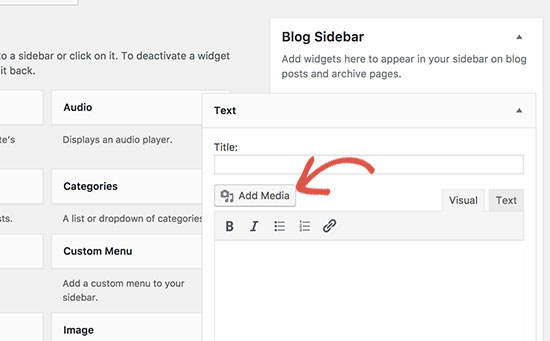
    The text widget in WordPress 4.8 came with plain text and HTML tabs. However, if you wanted to add an image in sidebar text widget, then you still had to write the HTML code.

    WordPress 4.9 has fixed this by adding the ‘Add Media’ button in the text widget. Now you can easily select or upload an image directly inside the text widget.

    Add Media button in text widget

    OEmbed Support Outside Post Content

    Previously automatic embeds didn’t work in areas other than post content. With WordPress 4.9, oEmbeds will now work in text widgets and other areas as well.

    oEmbed in sidebar widgets

    Shortcode in Sidebar Text Widgets

    WordPress didn’t allow shortcode execution in text widgets. Users had to explicitly enable shortcodes in text widgets. WordPress 4.9 will finally change that and users will be able to add shortcodes in text widgets out of the box.

    Shortcodes in sidebar widgets

    New Code Editing Experience in WordPress 4.9

    WordPress allows you to add HTML/CSS code at various places like theme editor, custom CSS panel, or in custom HTML widget.

    Previously, these areas were plain text boxes and didn’t look or act like a proper code editor.

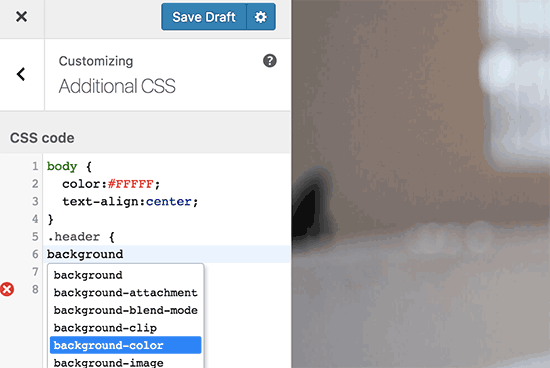
    WordPress 4.9 has changed that by adding syntax highlighting, code suggestions, and auto-completion into those areas.

    Code editing in WordPress 4.9

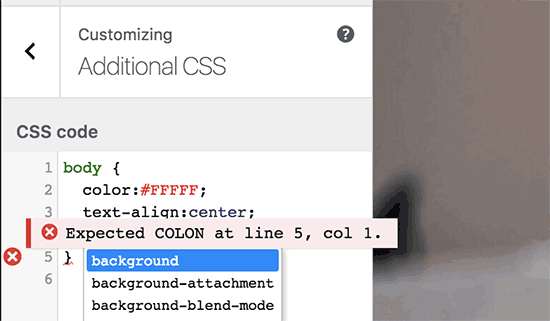
    If you have ever faced syntax error when editing your theme, then this enhancement will automatically fix many common mistakes that cause such errors.

    Error highlighting

    If you don’t want to use the syntax highlighting feature, then you can still easily disable it. Simply go to your profile page and uncheck the syntax highlighting option.

    Disable syntax highlighting

    One of the big usability issues beginners faced was directly making changes from WordPress built-in editor without fully understanding the consequences. A slightest mistake would lead to a syntax error and making their websites inaccessible.

    WordPress 4.9 now shows a warning to users when they access the editor.

    Theme editor warning

    It will also show users helpful tips and point them to custom CSS panel in the customizer.

    However, many users access the editor not to make changes but to quickly look up code. Particularly when they are working on child themes. To help those users, the editor will now recursively show files and folder in the sidebar for easier browsing of all files in a theme folder.

    Files and directories in theme editor

    Under The Hood Changes

    WordPress 4.9 also brings several great changes for developers as well. Here are some of those under the hood improvements.

    Better mapping for theme widgets and navigation menus after switching themes. #39693, #39692

    Removal of SWFUpload library from the core. #41752

    Require a confirmation link in an email to be clicked by admin when a user attempts to change their email address. #16470

  • Whats Coming in WordPress 4.9 (Features and Screenshots)

    Whats Coming in WordPress 4.9 (Features and Screenshots)

    WordPress 4.9 is expected to be released on November 14th, 2017. We got our hands on the first beta version to checkout the new features and changes that are coming. In this article, we will show you what’s coming WordPress 4.9 with features and screenshots.

    What's coming in WordPress 4.9

    Note: You can try out the beta version on your computer or on a staging environment by using the WordPress Beta Tester plugin.

    It is still under development, so some features may not make it to the final release.

    Save and Schedule Theme Changes in Customizer

    WordPress 4.9 will introduce saving theme customizations as draft. Now when you make changes to a theme using the customizer, you will have an option to save your changes as a draft instead of making them live.

    Save theme changes as draft

    This new feature will also allow you to share the preview of changes with a url. You can send this URL to any user, and they will be able to see your website with the changes made in that particular draft.

    Share customize changes with URL

    Want to publish your theme changes at a specific time? WordPress 4.9 will also allow you to schedule changes.

    Schedule theme changes

    The New Gallery Widget

    WordPress 4.8 brought media widgets including rich text, audio, image, and video. WordPress 4.9 will introduce the new gallery widget.

    It will allow you to create a native WordPress gallery and add it to any widget ready areas.

    The new Gallery widget in WordPress 4.9

    However if you want a more powerful gallery with albums, then you need to look at a third-party plugin like Envira Gallery.

    Add Media Button in Text Widget

    The newly introduced text widget came with visual and plain text editors. However, if you wanted to add an image, you still had to write HTML code.

    WordPress 4.9 will fix this by adding the ‘Add media’ button on top of the text editor. This will allow users to easily add images inside the rich text widget.

    Add media button in the text widget

    Improved Code Editing Experience

    WordPress 4.9 will bring a much better code editing experience. You will see an enhanced code editor while editing code in custom CSS, theme editor, or plugin editor.

    This code editor comes with syntax highlighting, code suggestions, and auto-completion.

    Code editing in WordPress 4.9

    If you have ever faced syntax error when editing your theme, then this enhancement will automatically fix many common mistakes that cause such errors.

    Error highlighting in new code edior

    Don’t like syntax highlighting? It can be easily disabled from your user profile page.

    Disable syntax highlighting

    Miscellaneous Changes

    These under the hood changes are likely to make into the final WordPress 4.9 release.

    Better mapping for theme widgets and navigation menus after switching themes. #39693, #39692

    Removal of SWFUpload library from the core. #41752

    Recursively search for files in plugin and theme editors. #6531

  • Whats Coming in WordPress 4.8 (Features and Screenshots)

    Whats Coming in WordPress 4.8 (Features and Screenshots)

    The schedule for WordPress 4.8 is released. It will be the first major WordPress release of 2017. We have been following the development closely, and we are excited to report that the final version is expected to be released around June 8, 2017. In this article, we will show you what’s coming in WordPress 4.8 with features and screenshots.

    What's coming in WordPress 4.8

    Note: You can try out the beta version on your computer or on a staging environment by using the WordPress Beta Tester plugin.

    The official beta release will happen on May 12th, which means no more new features will be added until the final release of WordPress 4.8. However, some of the features in beta may not make it into the final release.

    Visual Editor in The Text Widget

    By default WordPress comes with a plain text widget. This widget contains a simple text box where you can add text and HTML code.

    Beginners who are not familiar with HTML were unable to add links or use basic formatting in the text widget. This will change in WordPress 4.8.

    The new text widget comes with a simple visual and text editor. Similar to the one you see on the post edit screen.

    New text widget in upcoming WordPress 4.8 with visual and text editor

    This will allow beginner users to easily add links, create lists, or make text bold / italic without writing any HTML code.

    The New Image Widget

    Right now, if you want to display an image in WordPress sidebar, you will have to write HTML or use a plugin.

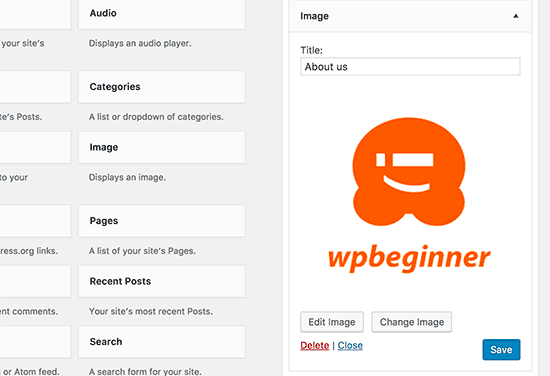
    WordPress 4.8 will introduce an image widget which will allow users to easily add images into the sidebar. You will be able to upload an image right from the widget or select any image from the WordPress media library.

    Image widget in upcoming WordPress 4.8

    Clicking on the select image will open the WordPress media uploader popup where users can upload or select an image. After inserting the image, users will be able to see a preview of the image in the widget area.

    Image widget preview

    The New Video Widget

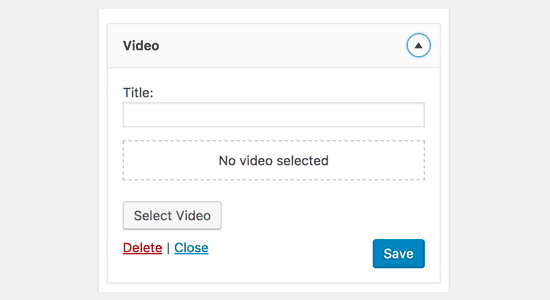
    Similar to the image widget, WordPress 4.8 will also introduce the Video widget. It will allow users to easily upload videos to their sidebar or display any video from YouTube, Vimeo, or any other oEmbed provider.

    New video widget in upcoming WordPress 4.8

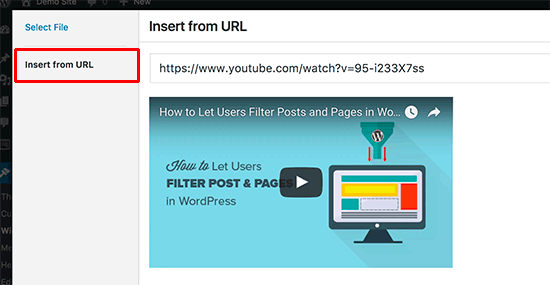
    Note: we recommend that you should never upload videos to your WordPress site. Instead, you should use a video hosting provider like YouTube or Vimeo. Simply click on the ‘Select Video’ button in the widget, and then click on ‘Insert from URL’ link.

    Insert video URL inside Video widget

    Add the URL of the video you want to embed and then click on the ‘Add to widget’ button. The media uploader popup will disappear, and you will see a thumbnail preview of your video inside the widget.

    WordPress News and Events Dashboard Widget

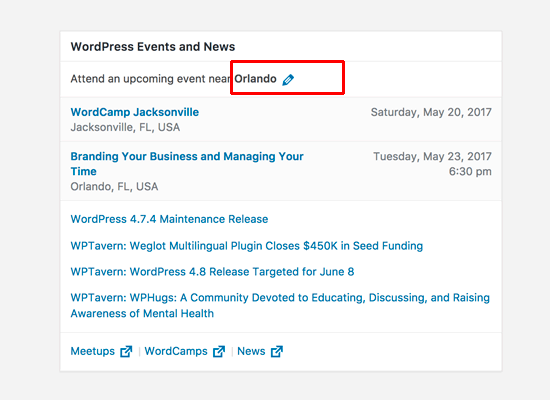
    WordPress 4.8 will also introduce the WordPress Events and News dashboard widget. It will appear on your WordPress dashboard page and will contain information about WordPress news as well as WordPress events near your location. It will replace the older WordPress news widget which only showed WordPress news.

    WordPress news and events widget

    If you have multiple users on your website, then the widget will show them events based on their location. It will automatically try to detect a user’s location by sending their timezone, locale, and IP address to api.wordpress.org.

    Users can also edit the location to manually enter their location or view events from any other location.

    Under The Hood Improvements

    These updates improve significant parts of the WordPress core but are mainly intended for developers.

    The customizer pane will now be proportionally sized on larger screens. #32296

    User’s name prominently displayed on edit user screen. #28182

    New function get_term_parents_list() will be introduced as taxonomy agnostic version of get_category_parents(). #17069

  • Whats New in WordPress 4.7

    Whats New in WordPress 4.7

    WordPress 4.7 was released just a few hours ago. It is the last major release of the year 2016, which brings some exciting new improvements and several bug fixes. In this article, we will show you what’s new in WordPress 4.7 and which features you should try after updating your websites.

    What's new in WordPress 4.7

    4.7 is a major WordPress release, and unless you are on a managed WordPress hosting service, you will have to manually initiate the update.

    Important: Don’t forget to create a complete WordPress backup before starting the update.

    Twenty Seventeen – A New Default Theme

    Twenty Seventeen - The new default theme in WordPress 4.7

    WordPress 4.7 is the last release of the year. It is a WordPress tradition to release a new default theme each year named after the year.

    Meet Twenty Seventeen.

    This beautiful default theme comes with focus on business websites instead of blogs. It even comes with starter content to help new users start a WordPress website in minutes.

    Twenty Seventeen is flexible enough to be used as a blog theme as well. Perhaps the most noticeable thing about Twenty Seventeen is crisp typography, which looks great on all screens.

    Other noticeable features include large featured images, full screen header video and images, and graceful mobile-first design. All these elements make Twenty Seventeen a great starter theme for any kind of website.

    Video Header Support in WordPress 4.7

    Video headers support

    WordPress 4.7 brings video header support for themes. Many free and premium themes were already allowing users to add full screen videos. The video header feature will make it easier for theme developers to integrate it with in customizer with live preview.

    Users can upload their own videos in mp4 format, or add a YouTube video. We recommend adding a video using YouTube. See our article on why you should never upload videos to your WordPress site.

    Starter Content Support for Themes

    Starter content added by Twenty Seventeen theme in WordPress 4.7

    Some premium WordPress themes allowed their customers to import starter content when they purchased a theme. The purpose of this content is to immediately setup a site for users with dummy content, which they can later edit to meet their own needs.

    WordPress 4.7 brings similar functionality to the WordPress core and themes. Themes can now automatically add starter content on fresh sites.

    A user will need to just visit the theme customizer and the starter content will be displayed. However, this starter content will not be saved until a user clicks on the save button.

    PDF Previews in WordPress 4.7

    PDF thumbnail previews in WordPress 4.7

    WordPress 4.7 generates thumbnail previews for PDF files and displays them in media library. Previously, when you added a PDF document WordPress showed a generic document icon. Users had to use different PDF plugins for thumbnail previews.

    This feature creates an image for the first page of PDF document during upload. This image is then stored in different sizes and is displayed in media library, media upload popup, and attachment pages.

    Edit Shortcuts in Customizer Preview

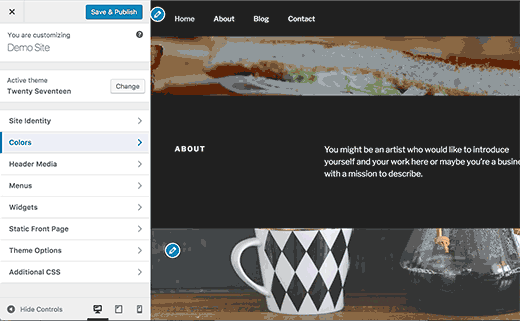
    Edit shortcuts in WordPress themes

    WordPress 4.7 also brings ‘Edit Shortcuts’ in customizer preview. These edit shortcuts are small blue icons placed on editable items in your theme’s live preview.

    This will be immensely helpful to new users who can now just point and click to edit an item.

    Don’t be surprised if you don’t see edit shortcuts for your theme. It is a new feature and it may not be available with your current theme.

    Add Custom CSS in Live Preview

    Custom CSS support in WordPress 4.7

    Sometimes you may need to quickly add some CSS to your WordPress site. Previously you had to add custom CSS to your theme or child theme‘s stylesheet. WordPress 4.7 allows you to directly add custom CSS using Customizer and view live preview of your changes.

    However, this custom CSS is specific to the WordPress theme you are currently editing. If you want to apply custom CSS regarless of which theme you are using, then see our guide on on how to add custom CSS in WordPress.

    Admin Language Control

    Users can switch admin area language from their profiles in WordPress 4.7

    WordPress 4.7 allows users to switch the admin area language from their user profile. You will still need to install the languages before users can switch them.

    Editor Improvements in WordPress 4.7

    Post editor changes in WordPress 4.7

    The post editor in WordPress is where users spend most of their time creating content. Each WordPress release strives to improve the editing experience by making it more easier and intuitive.

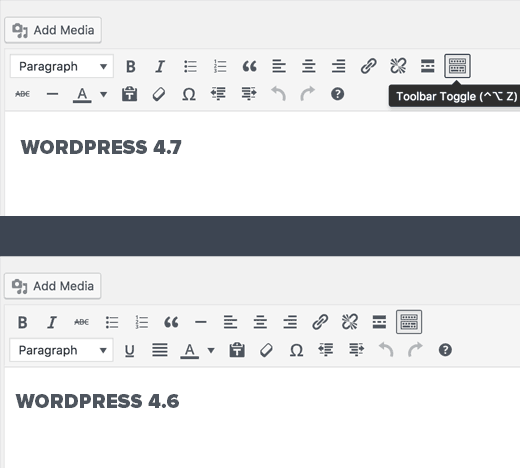
    WordPress 4.7 brings some important changes to the editor. Users can now see keyboard shortcuts in tooltips and drop down menus.

    The paragraph and heading selector menu will now appear in the top bar. The underline button has been removed, and the strikethrough and horizontal line buttons are moved to the kitchen sink bar.

    Under The Hood Changes

    WordPress 4.7 brings lots of exciting changes for developers as well. Here are some of those under the hood improvements.

    Post Type Templates in WordPress 4.7

    WordPress has custom page templates which allows users and theme developers to create different layouts for pages in WordPress. 4.7 brings this functionality to all post types including custom post types. (#18375)

    Rest API Content Endpoints

    Rest API Endpoints make their way into WordPress 4.7. (#38373)
    Locale Switching

    If the content of your website is displayed in a different locale than the one set in admin area, then WordPress will show the toolbar in the language of the content page. (#26511)

    Accessible Alt Text for Images

    WordPress automatically used file names as title and alternate text for images added in WordPress. Starting from 4.7, WordPress will now leave the alt text field blank if a user does not make any changes to the title or alt text fields when uploading an image. (#34635)
  • Sucuri vs CloudFlare (Pros and Cons)  Which One is Better?
    Sucuri vs CloudFlare (Pros and Cons) Which One is Better?

    Due to an increased emphasis on website security in today’s digital landscape, one of the most common requests we’ve gotten from readers is to do a pros and cons analysis of Sucuri vs CloudFlare to explain which one is better. Sucuri and CloudFlare are online services that offer website firewall, CDN, and DDoS protection services. In this article, we will compare Sucuri vs Cloudflare with pros and cons to find out which one is better.

    Sucuri vs CloudFlare (Pros and Cons)

    Even the most secure websites on the internet are vulnerable to distributed denial of service attacks (DDoS), hacking attempts, and malware injection.

    As a WordPress site owner you can use some security best practices like password protecting admin directory, limiting login attempts, adding two factor authentication, etc.

    However these tips only work on software level which leaves your website mostly open to other types of attacks. These attacks can cause financial damage, data loss, poor search rankings and bad user experience.

    Sucuri and CloudFlare offer a website application firewall (WAF).

    This means that all your website’s traffic goes through their server scanners. If a request looks malicious, then the firewall would block it before it even reaches your website.

    On the surface, these two services look nearly identical, but there are some key differences.

    In this comparison, we’ll focus on:

    • Features
    • Pricing
    • Malware Removal Service

    By the end, you’ll know exactly which platform is best for you.

    Ready? Let’s compare Sucuri vs Cloudflare.

    Features

    In this section, we will look at the features offered by Sucuri and CloudFlare.

    It’s important to note that both services offer different plans that come with different set of features.

    As a user, make sure you’re not a victim of their marketing site because not all plans come with all the features.

    CloudFlare Features

    CloudFlare is best known for their free CDN service. They specialize in mitigating DDOS attacks using their Website Application Firewall product. CloudFlare keep your site available to users during an attack or under heavy traffic when your server is not responsive.

    Their website firewall blocks suspicious traffic before it even reaches your website. The firewall also extends to form submissions which protects your website from comment spam and registration spam.

    CloudFlare website firewall

    CloudFlare also offers free and custom SSL certificates with all their plans. Free and pro plans only allow you to use CloudFlare issued certificate. For custom certificate you will need to upgrade to their Business or Enterprise plan.

    While CloudFlare offer a free option that includes CDN, most other features including their Website Application Firewall require a paid plan.

    CloudFlare doesn’t offer server scanning service to detect malware. It also doesn’t offer a malware removal guarantee if you were to be hacked on their watch.

    Sucuri Features

    Sucuri is one of the most reputable website security and monitoring service. They offer comprehensive website monitoring, scanning for malware, DDoS protection, and malware removal services.

    Sucuri offers CloudProxy, a website firewall and load balancing service. It blocks suspicious traffic from reaching your website by effectively blocking DDoS attacks, code injection, bad bots, and other website threats. See our case study of how Sucuri helped us block 450,000 attacks in 3 months.

    Sucuri offers integration with the free Let’s Encrypt SSL for their basic plan. You can also use custom SSL certificates with their professional and business plans.

    Sucuri CloudProxy

    Sucuri scans your website regularly for file changes, code injection, and malware. They clean up hacked sites, with support for all popular CMS software like WordPress, Joomla, Drupal, etc.

    Winner: Sucuri is a clear winner because they offer a better combination of tools and services (Website Firewall + Load Balancing + Malware Cleanup / Hack Repair).

    Pricing

    Pricing is an important factor for many small businesses.

    Here, we will compare the different pricing plans offered by CloudFlare and Sucuri, so you know exactly what you’re getting for your money.

    FREE is not always better :)

    CloudFlare Pricing Plans

    CloudFlare offers a free CDN service for all. They don’t charge you for the bandwidth which means you will be able to use their free CDN regardless of your traffic volume.

    However, this free plan does not come with the website application firewall. Your website may benefit from CDN, but it will not be properly protected against DDoS attacks, spam, bad traffic, etc.

    For their web application firewall, you need the Pro plan which costs $20 / month (this is what you need for improved security).

    This pro plan does not include advanced DDoS mitigation and custom SSL. For those features, you will need their Business plan which costs $200 per month.

    Sucuri Pricing Plans

    Unlike CloudFlare, Sucuri doesn’t offer a free plan. Their website security stack plan starts at $199.99 for an year, which is cheaper than CloudFlare’s pro plan.

    This basic plan includes full website monitoring, website application firewall, DDoS protection, malware removal, and free LetsEncrypt SSL certificate.

    Instead of excluding features from lower level plans, Sucuri uses priority as an incentive for their higher paying plans.

    For example, malware removal estimated time for basic plan is 12 hours, 6 hours for professional plan, and 4 hours for business plan. However, the actual cleanup timings are way faster than that for all customers.

    They offer 24/7 support as part of all plans. Their business plan subscribers can also use the Live Chat support.

    Winner: Sucuri is an obvious choice for small businesses when it comes to pricing. CloudFlare Pro costs $240 / year vs Sucuri cost $199 / year and offer more features. To unlock same features, you’d have move up to CloudFlare’s $2400 / year plan. Sucuri’s most expensive plan is at $499 / year.

    Malware Removal Service

    Apart from denial of service attacks, malware and code injections are the most common threats faced by WordPress site owners.

    Let’s see how both services protect your website against those common threats.

    Website security and malware removal

    CloudFlare – Security and Malware Removal

    CloudFlare free version is basically a content delivery network which helps make your website fast.

    The website security firewall comes with their paid plan. It includes CloudFlare’s ready to use custom rules set. These rules protect your site from common code injection hacks, XSS JavaScript exploits, and form submissions.

    However, they do not offer file change detection, malware scanning, blacklist monitoring, and many other security features. You can add third-party apps for malware scanning, but these services will cost you additional fees.

    Sucuri – Security and Malware Removal

    Sucuri is a security focused company. They specialize in monitoring websites and protecting them against malware and other attacks.

    Sucuri’s website application firewall protects you against DDOS, SQL injections, XSS JavaScript injections, comment and contact form spam.

    However, if something crosses all those security barriers and somehow reaches your website, then Sucuri offers to clean up your website (for free).

    If you already have a website affected with malware, then Sucuri will clean that up as well.

    Winner: Sucuri – For combining website application firewall with monitoring, malware protection, and clean up services.

    Conclusion

    CloudFlare and Sucuri both offer protection against DDoS attacks on your website. CloudFlare does a little better in the content delivery network area.

    Sucuri fares better in the overall features, better security monitoring, and lower prices. If you are using a CMS like WordPress, then Sucuri is what you need.

  • Whats New in WordPress 4.6

    Whats New in WordPress 4.6

    WordPress 4.6 was released just a few minutes ago. It is the second major release of the year 2016, and brings some exciting new improvements and fixes several bugs. In this article, we will show you what’s new in WordPress 4.6 and which features you should try after updating your websites.

    What's new in WordPress 4.6 (Features and Screenshots)
    4.6 is a major WordPress release, and unless you are on a managed WordPress hosting service, you will have to manually initiate the update.

    Important: Don’t forget to create a complete WordPress backup before starting the update.

    Native System Fonts in WordPress 4.6

    WordPress started using Open Sans from Google Fonts project, as the default font so that the admin interface looks the same on different platforms and devices. However, this meant a tiny compromise on speed and relying on a third party project.

    Since 4.6, WordPress will now use your native system font for the admin area. This will make WordPress load faster and feel like your native device and platform.

    Here is a screenshot of admin area in Safari web browser on macOS using system font San Francisco.

    Native system fonts in WordPress 4.6

    This change only affects user interface elements inside WordPress admin area. It will not affect content areas like post editor which uses your theme’s editor stylesheet for fonts.

    Shiny Updates for Plugins & Themes

    Previously, when you installed a plugin or theme from WordPress.org, it showed you a progress screen. This added a page load and increased the time spent on installing plugins and themes.

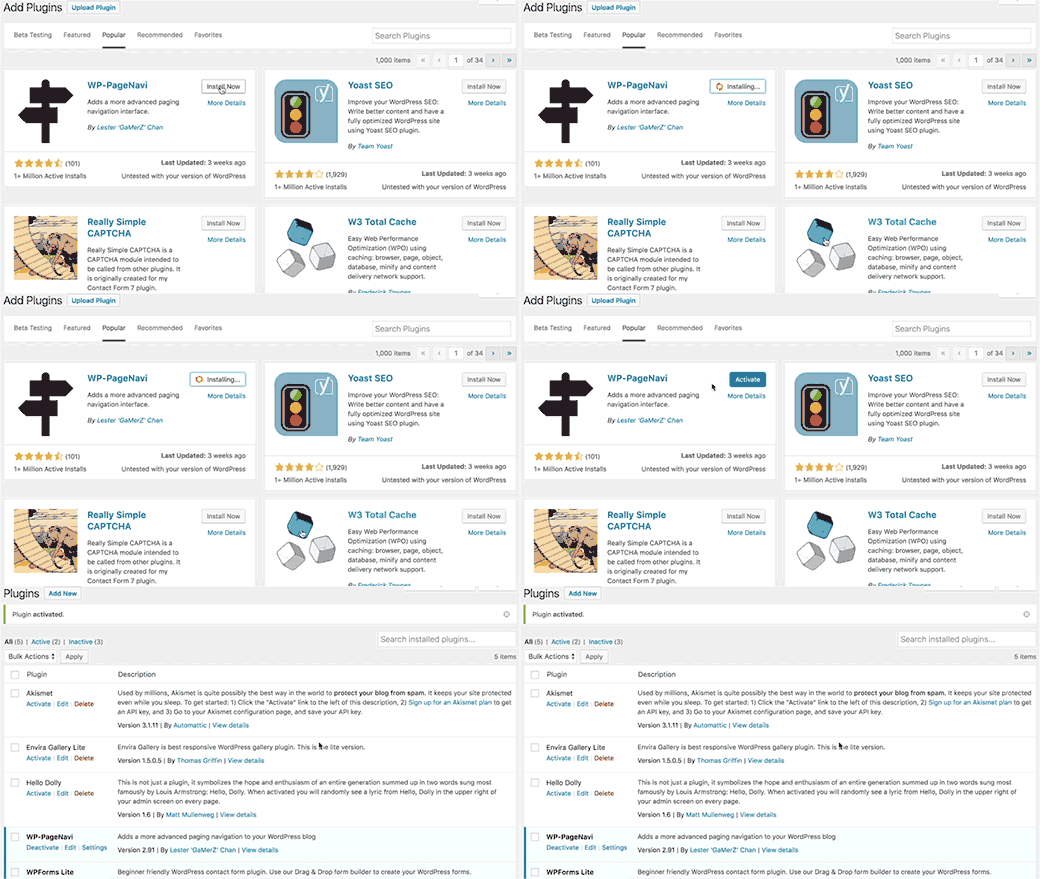
    WordPress 4.6 makes it faster to install and update your WordPress plugins and themes without leaving a page.

    Plugin installation in WordPress 4.6

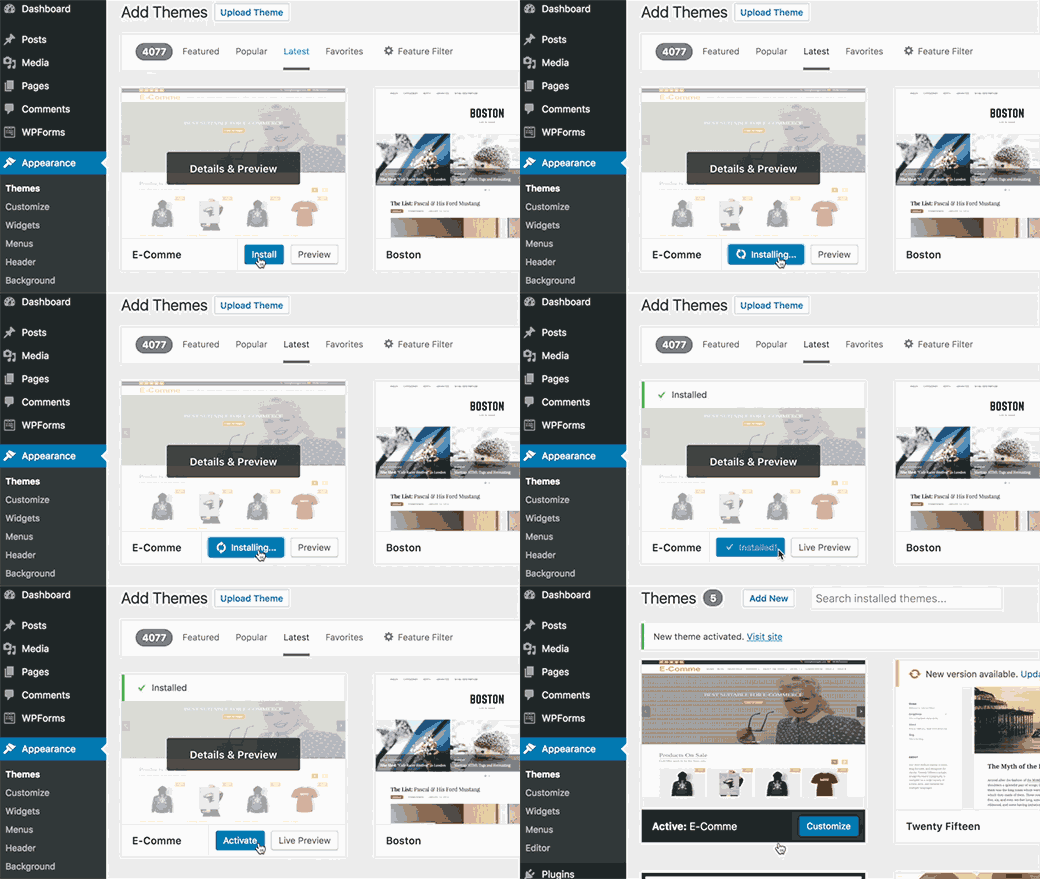
    This animation shows installation of a theme from WordPress.org themes directory.

    Installing theme from WordPress themes directory in WordPress 4.6

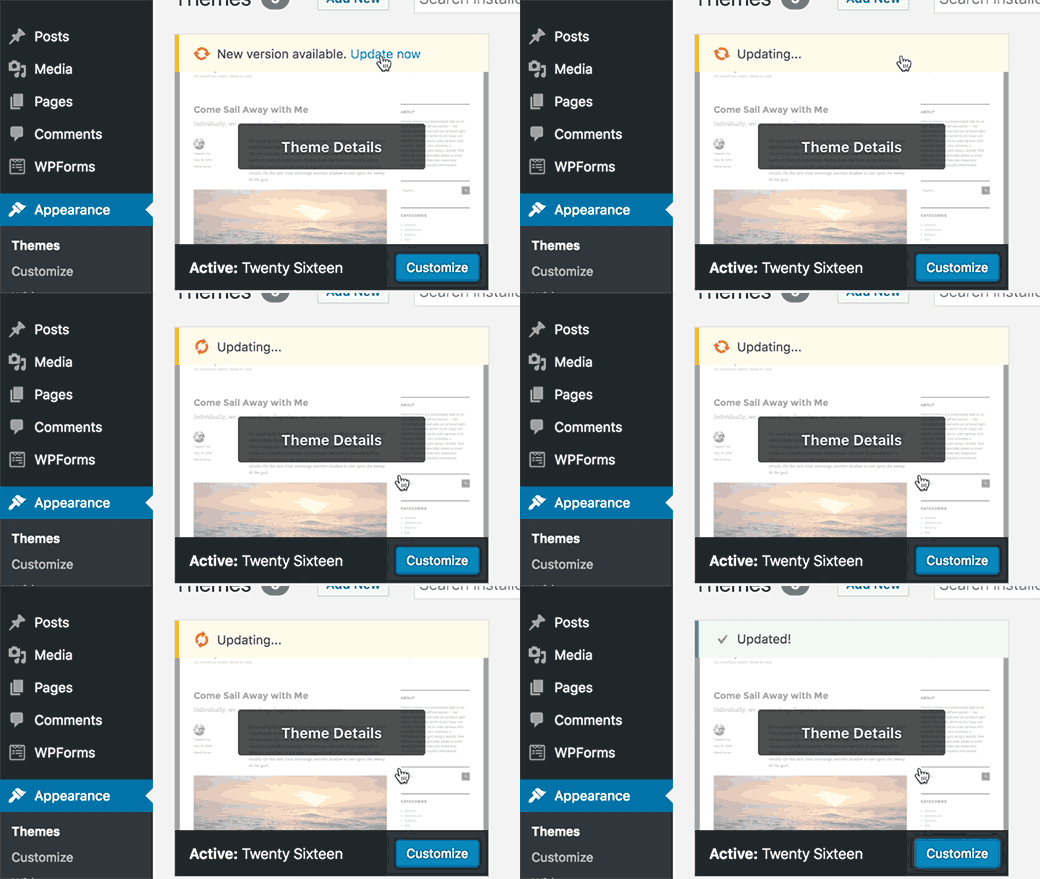
    Themes will also be using these faster updates. This animation shows how the new theme update process looks like in WordPress 4.6.

    Faster theme updates

    Editor Enhancements in WordPress 4.6

    Each new version of WordPress brings improvements and new features to the post editor. WordPress 4.6 introduces some cool new enhancements to the edit screen.

    Highlighting Broken Links in Visual Editor

    Sometimes users end up adding a broken link or improper URL in a post. If you publish the post, then that misspelled link goes live too.

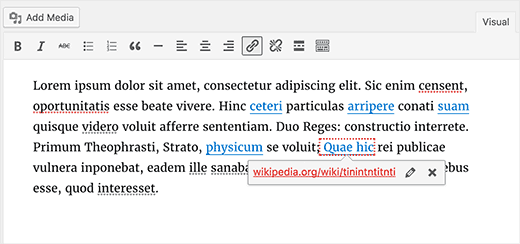
    Since 4.6, WordPress will now attempt to check for broken or poorly formatted links when you are using the Visual Editor. If a link is broken, then it will highlight the linked anchor text with red dots, showing the link URL in red.

    Broken link highlighter in WordPress 4.6

    Better Auto-Save and Recovery

    WordPress 4.6 comes with a better disaster recovery mode for the auto-save feature in the post editor. Previously, when users disabled revisions, it affected restoring drafts from browser cache and autosave feature.

    This issue is now fixed and users will be able to easily restore posts from browser backups and autosave.

    A Better Looking Import Screen

    WordPress makes it super easy to import content from Blogger, Tumblr, and several other platforms using the Importer plugins located at Tools » Import page.

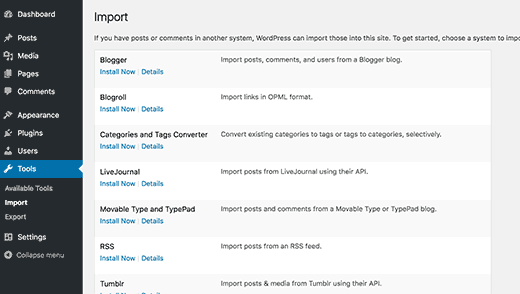
    WordPress 4.6 makes the import screen more readable and accessible.

    Import screen in WordPress 4.6

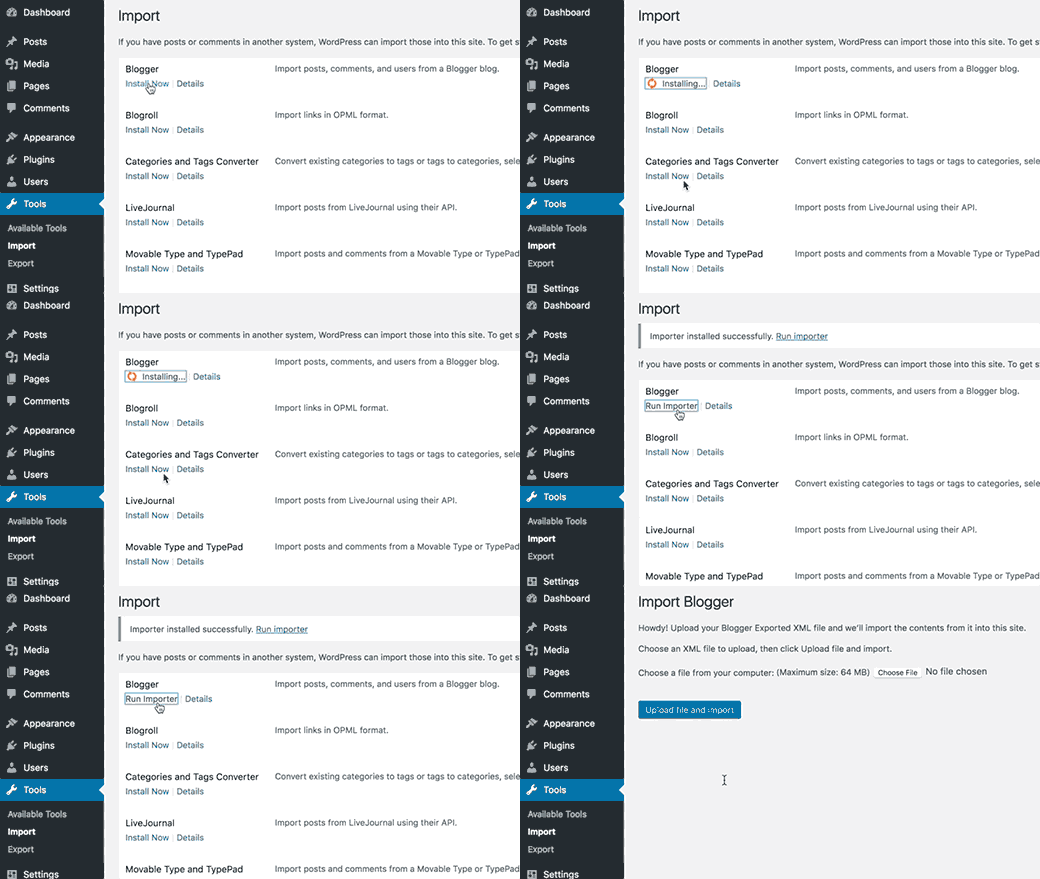
    It also uses shiny updates to install importer plugins in the background. This means no more popup to install importer plugin and no extra page load to show you the progress.

    Installing an importer plugin in WordPress 4.6

    Localization and Translation Improvements

    Translations from WordPress.org hosted community translations will now be given preference over the translations included with the plugin.

    The jQuery UI date picker is now displayed with proper locale.

    Declension of comment numbers, and months in different languages are now properly handled.

    Under The Hood Improvements

    WordPress 4.6 also brings lots of new improvements for developers. Here are some of those under the hood improvements.

    Resource Hints

    Resource hints is a new W3C specification, which allows browser to connect and prefetch resources to improve performance. (#34292)

    Improved Meta Registration

    WordPress 4.6 introduces register_meta() function for the registration of meta keys. It works like register_post_type() function and allows developers to use a standard way to work with metadata. (#35658)

    Persistent Comment Cache

    WordPress 4.6 allows comments to be cached as a persistent object type. This means comment cache is properly validated and updated when there are changes. (#37613)

    WP_Post_Type Class

    WordPress 4.6 introduces the new WP_Post_Type class. It changes $wp_post_types to an array of WP_Post_Type objects. This provides methods to handle post type supports, rewrite rules, meta boxes, hooks, and taxonomies. (#36217)

    WP_Term_Query Class

    The new WP_Term_Query class in WordPress 4.6 provides a better structure for generating term queries. (#35381)

  • Whats Coming in WordPress 4.6 (Features and Screenshots)

    Whats Coming in WordPress 4.6 (Features and Screenshots)

    The beta version of WordPress 4.6 has been released. We followed the development closely and excited to report that the final version is expected to be released around August 16, 2016. In this article, we will highlight what’s coming in WordPress 4.6 with features and screenshots.

    What's coming in WordPress 4.6

    Note: You can try out the beta version on your computer or on a staging environment by using the WordPress Beta Tester plugin.

    This is the beta release, which means no more new features will be added until the final release of WordPress 4.6. However, some of the features in beta may not make it into the final release.

    Shiny Updates in WordPress 4.6

    When users installed a new plugin or theme, or updated one, they usually saw a progress screen. This progress screen added one more page load and was a bit distracting.

    WordPress 4.6 will introduce shiny updates. Users will now be able to update and install plugins and themes without being redirected to the progress screen.

    Shiny updates in WordPress 4.6

    Native System Fonts in WordPress Admin Area

    WordPress started using Open Sans font in WordPress admin area to offer a consistent look across different devices and platforms. However, this meant that WordPress to rely on an external third party source. This also increased page load times of admin area, and affected speed.

    With WordPress 4.6, the admin area will revert back to using the system fonts. This means that your WordPress admin area may look slightly different on different platforms.

    Here is a screenshot of admin area in Safari web browser on macOS using system font San Francisco.

    Native System Fonts

    These are the system fonts that will be used in WordPress admin area on different platforms and environments.

    • apple-system for Safari and Firefox on macOS and iOS
    • Helvetica Neue on macOS prior to 10.11
    • BlinkMacSystemFont for Google Chrome on macOS
    • Segoe UI for Windows
    • Roboto for Android and Chrome OS
    • Oxygen-Sans for KDE
    • Ubuntu for Ubuntu
    • Cantarell for GNOME
    • sans-serif, the standard fallback

    Note: This change only affects the UI elements of WordPress admin area. It will not content areas like post editor which uses your theme’s editor stylesheet for fonts.

    Editor Improvements in 4.6

    Most WordPress users spend more time on post editor than any other admin screen on their site. Improving post editing experience always takes priority in new WordPress releases.

    Improved Auto Save Feature

    WordPress 4.6 brings improvements to autosave feature in WordPress. Previously, when users disabled revisions, it also affected restoring posts from autosave feature.

    WordPress 4.6 will fix this issue and users can restore WordPress posts from browser backups and autosave even when they have revisions disabled.

    Highlighting Broken Links

    If you are using the visual editor to write posts, then adding a broken URL will be highlighted.

    As soon as you add a link, WordPress will check if the link is valid. If you take the cursor to the linked text, then you will see the link in red color instead of the usual blue.

    Broken links will be highlighted in WordPress 4.6

    Under The Hood Improvements

    These updates improve significant parts of WordPress core but are mainly intended for developers.

    Standardized Metadata Registration

    WordPress 4.6 brings register_meta() function for the registration of meta keys. This function works like register_post_type() function. It allows plugins and theme developers to use a standardized way to work with meta data stored with posts, users, comment, or terms object types. (#35658)

    New WP_Post_Type Class

    WordPress 4.6 will introduce the new WP_Post_Type class. It changes $wp_post_types to an array of WP_Post_Type objects. This provides methods to handle post type supports, rewrite rules, meta boxes, hooks, and taxonomies. (#36217)

    New WP_Term_Query Class

    Similar to WP_Query, WP_User_Query, and WP_Comment_Query classes, WP_Term_Query in WordPress 4.6 will provide a better structure for generating term queries. (#35381)

    WP_Site_Query and WP_Network_Query Classes

    For WordPress multisite networks, the new WP_Site_Query and WP_Network_Query classes allow querying sites and networks with lazy loading. (#35791, #32504)

  • WP.org to WordPress

    WP.org to WordPress

    Over the last year and a half, if you typed in the domain wp.org, then you were redirected to WPBeginner. This was an unexpected and unpleasant surprise for many because you really wanted to visit WordPress.org, home of the popular content management system. Today, I’m pleased to announce that we have donated the domain to the WordPress Foundation.

    For majority of you, this doesn’t mean anything and life goes on as usual. For those who’re more involved in the WordPress community, this is a huge deal because now you can type wp.org in your Tweets, Slack messages, Facebook statuses, etc without cursing at me or WPBeginner.

    I know this redirect was frustrating because many of you tweeted at me or sent us angry emails. To all of you and even those who took the high road, I want to apologize for my actions.

    Now you’re probably wondering what changed?

    The short answer is A LOT.

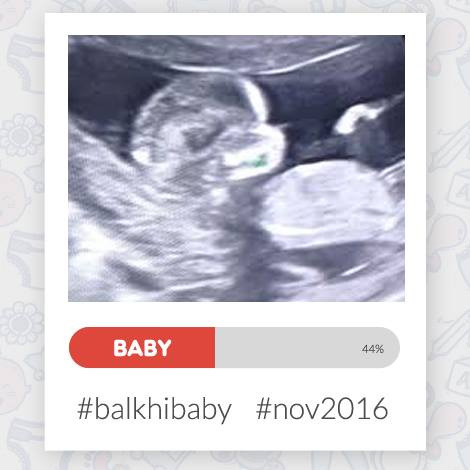
    My wife and I are pregnant with our first baby. This has given me a new perspective on life as whole.

    Balkhi Baby

    From ironing out a new will to working on expanding my life insurance coverage, there’s a lot happening. For the first time in my life, I’m thinking about unforseen circumstances. Some of you who’re older and much wiser will call this “growing up”.

    I wrote down all the things that are very important to me, and among the top after my family is WordPress. It is my extended family, and you can see that if you meet me at any of the WordCamps. I have been using WordPress for the last 10 years and WPBeginner has been around for almost 7 years.

    In other words, WordPress has been part of me for 40% of my life.

    As I think about all what WordPress has done for me, donating wp.org to the WordPress Foundation is the least that I could do.

    WordPress is far bigger than one person or one organization. That’s the reason why the WordPress Foundation exists. Now if something is to happen to me, at least I know this domain won’t be auctioned off to the highest bidder (rather it’ll be safe at home) with the Foundation.

    My only regret is that I didn’t do this sooner. But I’m glad that I did now.

    Life teaches us new lessons every day, and I’m sure I’ll be learning a lot with the new baby.

    I want to thank everyone who has supported me, and I look forward to continue serving the WordPress community.

    Yours Truly,

    Syed Balkhi
    Founder of WPBeginner

  • Whats New in WordPress 4.5

    Whats New in WordPress 4.5

    WordPress 4.5 named “Coleman” was released just a few minutes ago. It is the first major WordPress release of 2016, and comes with some exciting new features. In this article, we will show you what’s new in WordPress 4.5, and which features you should try after updating your websites.

    What's New in WordPress 4.5 (Features and Screenshots)

    This is a major WordPress release, and unless you are on a managed WordPress hosting service, you will have to manually initiate the update.

    Important: Don’t forget to create a complete WordPress backup before starting the update.

    Theme Logo Support

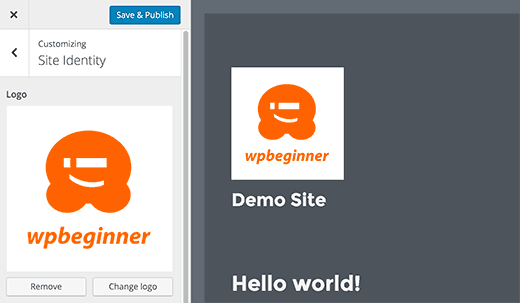
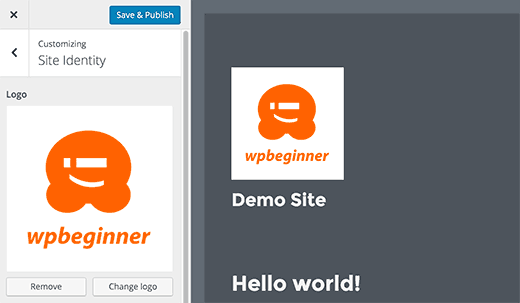
    Adding a logo to your site from customizer has been a long awaited feature. Many premium WordPress themes allowed users to set logos from theme options, but there was no standard way to do it.

    With WordPress 4.5, theme developers are now able to enable theme support for logo. This will allow users to set a logo for their website using the customizer.

    Theme support for logo in WordPress 4.5

    Remember it is a theme feature, which means that it needs to be defined by your theme. If a theme does not support this feature, then you will not be able to see it in customizer.

    Better Previews for Site Icons

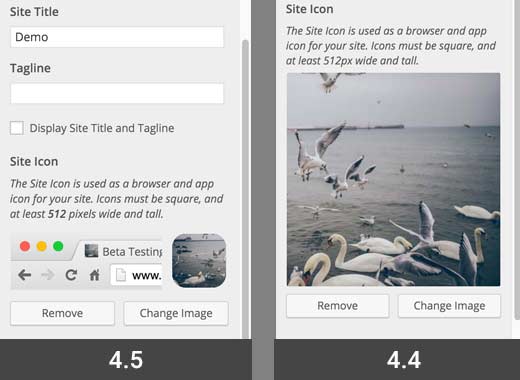
    Site Icons were introduced in WordPress 4.4. This feature allows users to set a favicon and application icon for their websites.

    WordPress 4.5 brings a slight improvement to the feature. Up till 4.4.2, you only saw the preview of site icon when setting the image. With 4.5, you also see a preview under site identity panel after you have set the site icon.

    Site icon preview

    Responsive Previews in Customizer

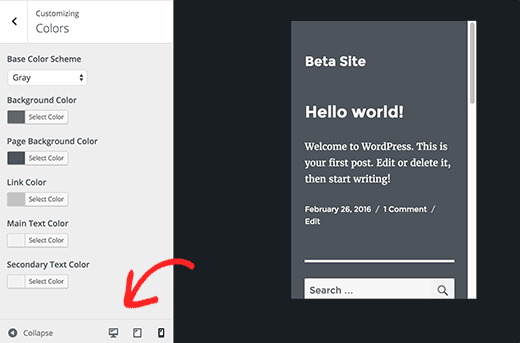
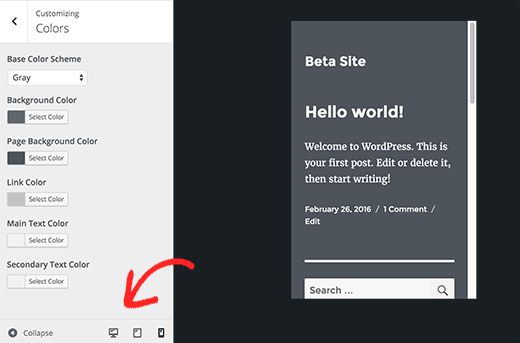
    Customizer in WordPress 4.5 comes with responsive live previews for desktop, tablet, and mobile devices.

    Simply click on the device icon to switch the view between devices. This will give you a generic idea of how your site would look on different screens.

    Responsive previews in WordPress 4.5

    Optimized Image Generation Performance

    Responsive images were one of the major improvements in WordPress 4.4, which allowed WordPress to show smaller image sizes to users on smaller screens.

    WordPress 4.5 takes it to a new level by improving the performance of how WordPress generates image sizes.

    Previously, WordPress used 90 for the image quality when compressing images. Now it will use 82, which produces nearly identical images with much smaller sizes.

    Improved Comment Moderation Screen

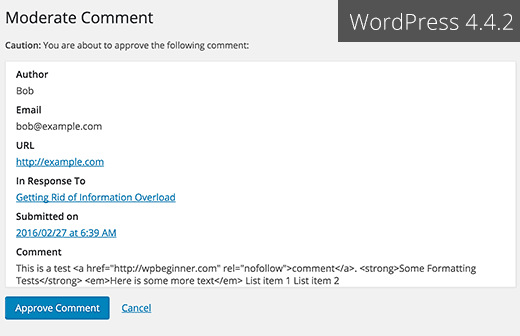
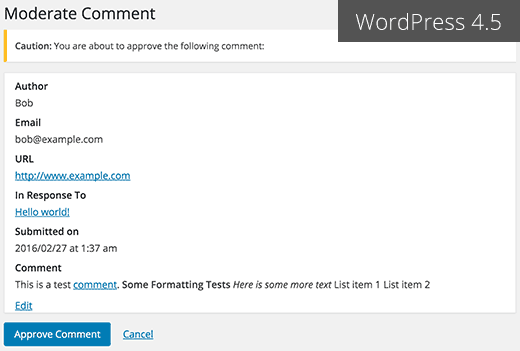
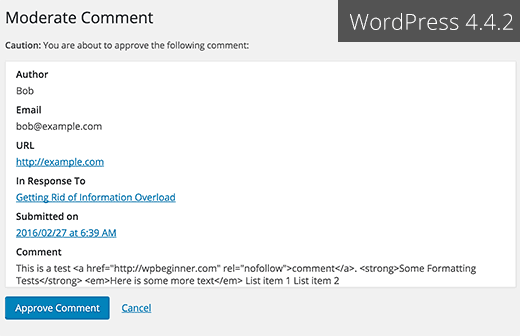
    WordPress 4.5 cleans up the comment moderation screen and makes it more usable. Until 4.4.2, when you clicked on the link in comment moderation notification email, you saw a page like this:

    Old comment moderation page in WordPress 4.4 and earlier

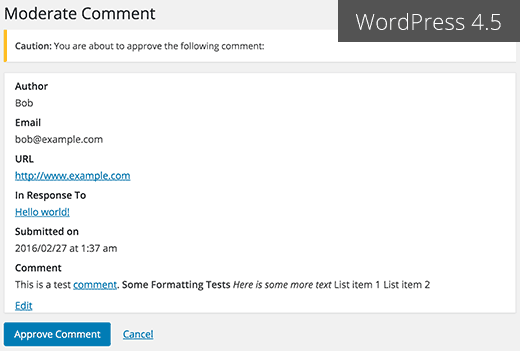
    This page didn’t allow you to edit a comment and if it also ignored plain HTML formatting used in a comment.

    This is how the comment moderation screen looks in WordPress 4.5.

    New comment moderation screen in WordPress 4.5

    Same Domain Links in Comments will not have Nofollow attribute

    Previously, all links added into comment content area had nofollow attribute added to them by default.

    WordPress 4.5 will not add nofollow attribute to links pointing to the same domain.

    If you or your users add link to a post or page on your site in the comment text, then WordPress will not add nofollow to it.

    However, if a user add your link in the URL field when submitting comment, then WordPress will add nofollow and external attributes to the link.

    See how you can disable website/url field in WordPress comment form.

    Visual Editor Enhancements

    Most WordPress users spend most of their time writing content. This makes visual editor one of the most important areas in the overall WordPress user experience.

    WordPress 4.5 builds on some existing improvements and adds a few new ones to make writing faster and more enjoyable.

    Inline Link Editor

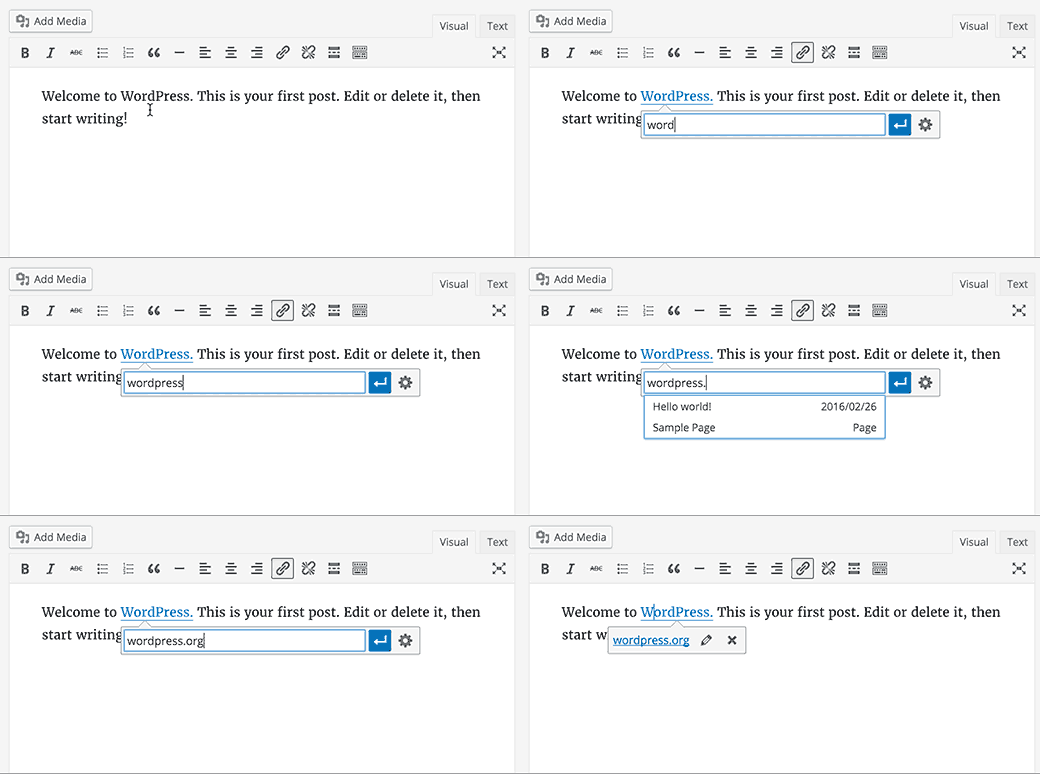
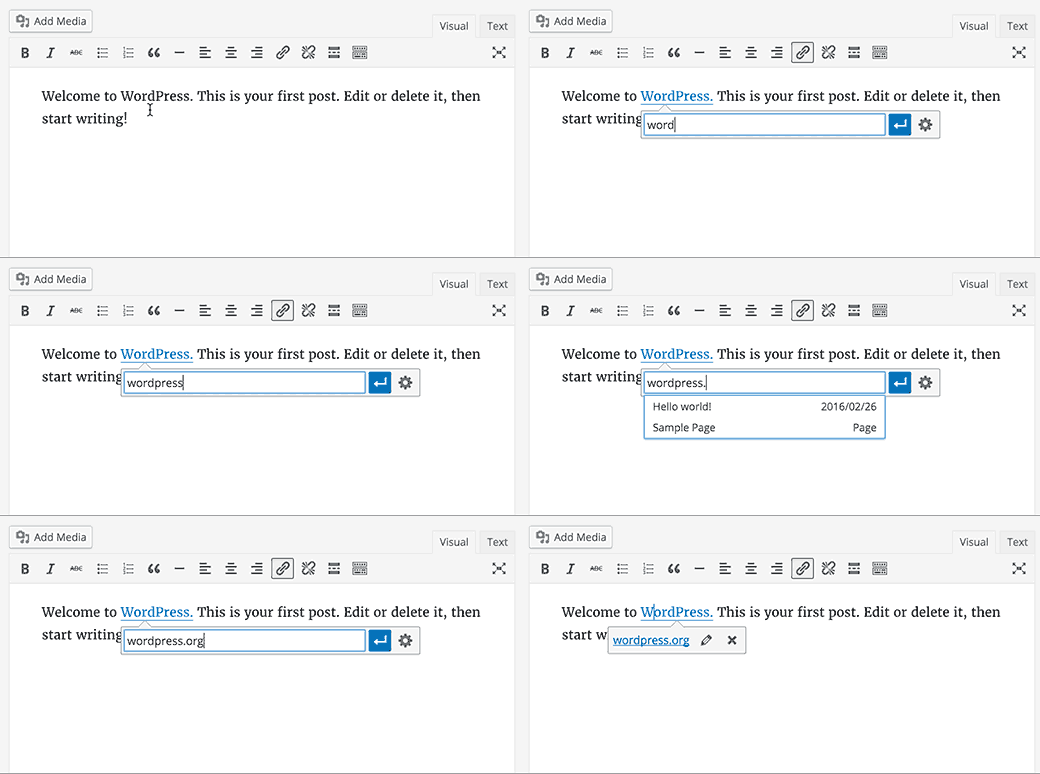
    One of the keyboard shortcuts in WordPress is CTRL+K (Command+K on Mac), which allows you to insert links in posts. Until 4.4.2, it opened the insert link popup which was a bit distracting.

    In WordPress 4.5, pressing CTRL+K shows an inline insert link menu. Simply type the URL and continue writing your post without removing hands from keyboard.

    Inline link editing in WordPress 4.5

    New Inline Text Shortcuts

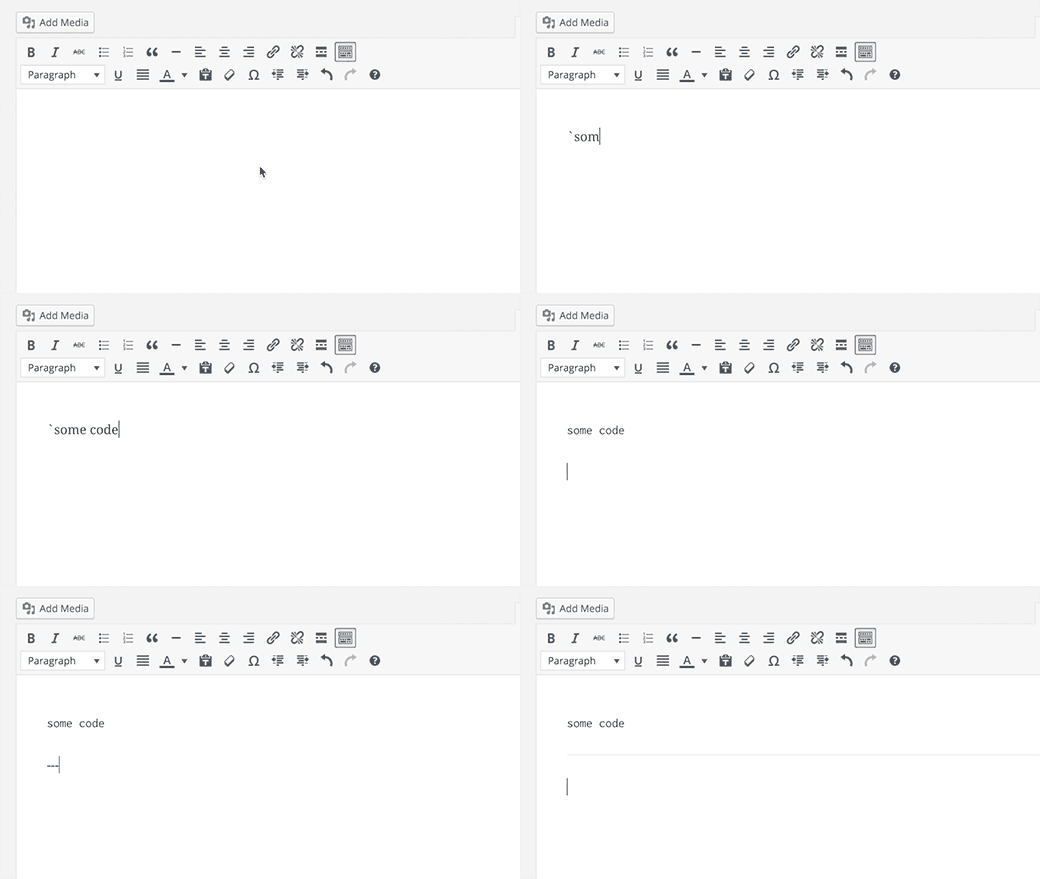
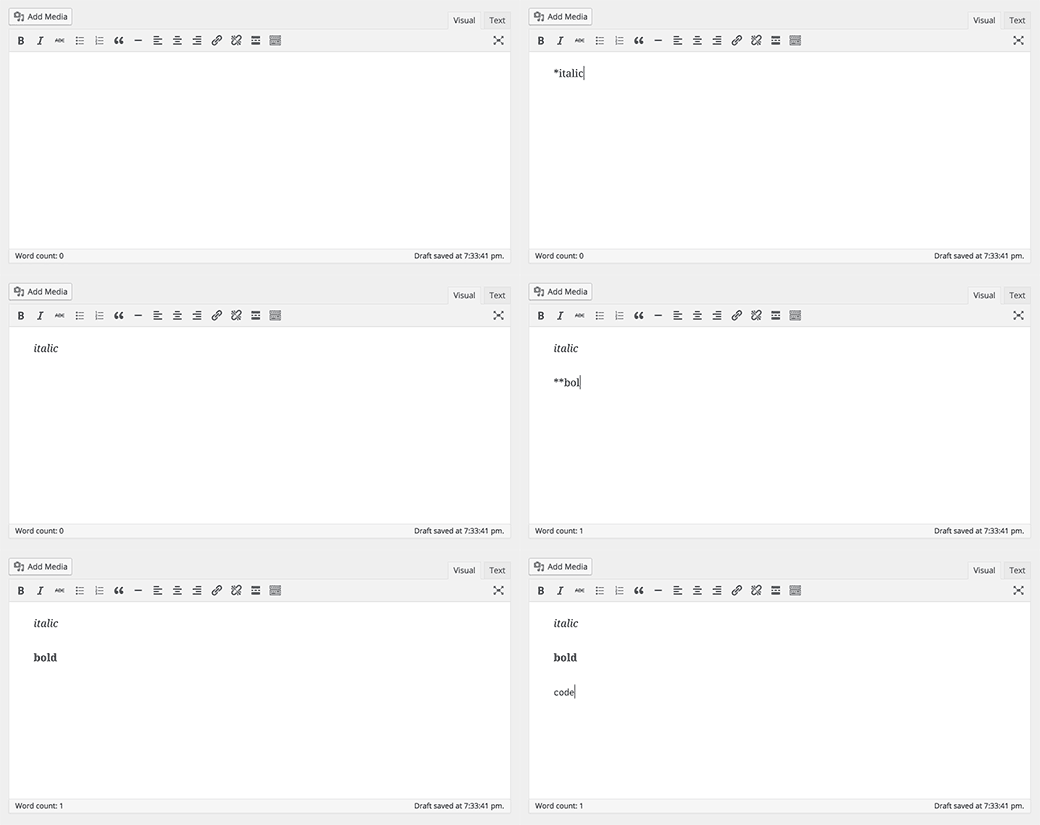
    Inline text shortcuts were introduced in WordPress 4.3. These shortcuts allow you to quickly add formatting markup while writing posts.

    WordPress 4.5 allows you to use three or more dashes — to add a horizontal line. You can also use backticks `code` to add code.

    We reported in what’s coming in WordPress 4.5, that there will be shortcuts for bold and italic too. Unfortunately, those shortcut patterns didn’t make it into 4.5.

    new inline shortcuts in WordPress 4.5

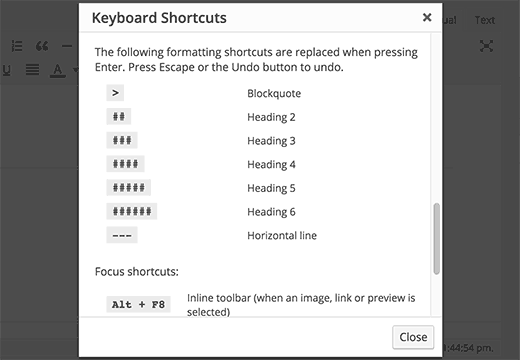
    You can see a full list of shortcuts available in WordPress by clicking on the help icon in the visual editor.

    Keyboard shortcuts modal

    For those of you who don’t want to use these shortcuts, you can disable inline text shortcuts in visual editor.

    Login With Email

    Many online services like Facebook, Twitter, etc. let you sign in not only by using your username but also with your email address.

    While you can easily forget your username, most people don’t forget their email address.

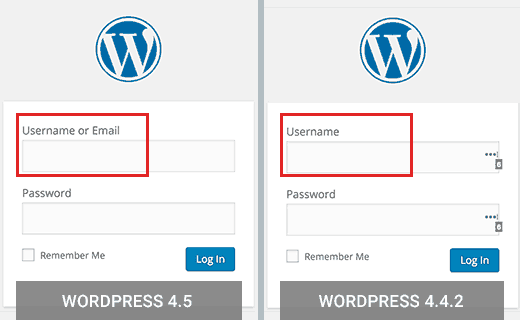
    WordPress 4.5 allows users to sign in using either their username or email address as username.

    Login with email support in WordPress 4.5

    If you were using a plugin to allow user log in with email in WordPress, then you can safely deactivate that plugin.

    Under The Hood Improvements

    WordPress 4.5 also brings some exciting new improvements for developers.

    Updated Libraries – WordPress 4.5 comes with new versions of bundled libraries for Underscores, Backbone, jQuery, and jQuery Migrate.

    Selective Refresh in Customizer – Previously, some changes in customizer required entire page reload. WordPress 4.5 comes with a framework to allow selective refresh in the customizer. It is fast and will allow developers to do great things with live previews. (#27355).

    Customizable Embed Templates – WordPress 4.4 introduced embeds which allowed users to embed posts from their own and other WordPress blogs. WordPress 4.5 makes embed templates customizable so that theme authors can adjust embed display to match their theme. (#34561)

    WP_Site Class – WordPress 4.5 comes with WP_Site class for multisite WordPress installs. (#32450)

    Script Loader – WordPress 4.5 introduces wp_add_inline_script() which makes it easier to add inline scripts. (#14853, #35873)

  • WPForms  Most Beginner Friendly WordPress Contact Form Plugin

    WPForms Most Beginner Friendly WordPress Contact Form Plugin

    Not a single day goes by where someone doesn’t ask us about what is the best WordPress contact form plugin? With so much demand and the recent WPBeginner survey responses, it became clear that we needed to build a WordPress forms plugin. So we did.

    Today, we are extremely proud to announce the launch of WPForms, a drag & drop WordPress form builder that is hands-down the most beginner friendly WordPress contact form plugin in the market.

    Now with just a few clicks, you can easily create a beautiful contact form, email subscription form, payment form, and other type of online forms without writing a single line of code.

    Since a lot of our audience is churches, non-profits, and startups who don’t necessarily have a budget to afford a premium plugin, WPForms Lite is 100% free and has all the basic features that you will need.

    For those who want all the features that WPForms has to offer such as multi-page forms, payment integrations, marketing integrations, conditional logic, and more, then you should check out our premium version.

    See the video overview of WPForms below:

    Subscribe to WPBeginner

    WPForms Features

    Unlike other contact form plugins, WPForms is not built from a feature-first mindset rather it’s built from a user-experience first mindset.

    What that means is that you can actually use all the features that WPForms comes with without having to hire a developer or learning how to code.

    We literally took the pain out of creating online forms and made it easy. Below are some of the features why smart business owners, bloggers, designers, and even developers love WPForms, and you will too.

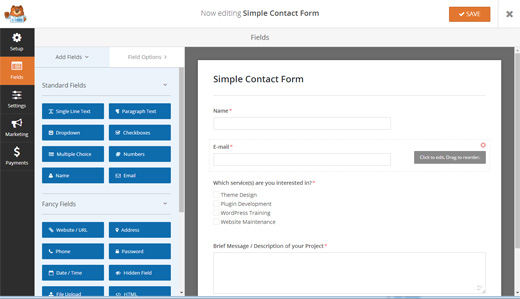
    Drag & Drop Online Form Builder

    WPForms Online Form Builder

    We built WPForms with WPBeginner users in mind, so our goal was to make everything extremely easy to use.

    Our drag & drop online form builder allows you to create WordPress forms in minutes. You can easily add custom form fields, rearrange them, and basically create a complete form in 5 minutes or less (no coding required).

    Pre-Built Form Templates

    Form Templates

    We believe in creating smart workflows that make complex tasks easy.

    Most other contact form plugins require you to build your form from scratch, but the truth is that it’s often not necessary unless you absolutely want to.

    WPForms comes with pre-built form templates to help you save time. You can add, remove, or re-arrange fields as necessary.

    Whether you’re looking to create a simple contact form, request a quote form, donation form, payment order form, or a subscription form, we have a form template for you.

    Mobile Ready, SEO Friendly, and Optimized for Speed

    WPForms is 100% responsive and mobile-friendly.

    Since speed is crucial for user experience and SEO, we optimized every query on the front-end and the back-end to ensure maximum speed.

    You can embed your forms on any page with optimized title and description giving you all the flexibility you want from a contact form plugin.

    All the Fields & Features that You Need

    WPForms Features

    WPForms has all the fields and features that you are looking for.

    From radio buttons to file uploads to multi-page forms, it can do everything you need it to do.

    You can easily integrate your forms with an email marketing service like MailChimp or AWeber. You can collect payments for bookings and orders with PayPal (Our Stripe integration is coming soon).

    The best part is that you can do all of this without hiring a developer.

    See the full list of WPForms features along with videos of each.

    Why did we build WPForms? (History)

    Our founder and CEO, Syed Balkhi, has a great behind the scenes of WPForms blog post that goes into details on why we built WPForms.

    To keep the story short, the most popular WordPress contact form plugin, Contact Form 7, has over 4 million active installs.

    This is their version of “simple and flexible”:

    Contact Form 7 UI

    So why is it so popular? Because a lot of users can’t afford to purchase a premium option, and Contact Form 7 is free.

    Now you have a much better alternative that’s actually easy to use and free: WPForms Lite.

    Our mission for WPForms is to build a WordPress forms plugin that’s EASY for beginners, marketers, and business owners who are not tech savvy.

    A quote from Syed Balkhi’s blog post explains it all:

    We made simple tasks EASY rather than letting the complex tasks define how hard simple will be.

    Limited Time Special

    If you’re interested in the premium version of WPForms, then you’d be crazy to miss out on this deal.

    Like any other premium plugin, WPForms licenses require annual renewal for updates and support.

    However for limited time only, we’re offering an ULTIMATE lifetime license for our early supporters.

    What that means is that you get grandfathered in, so you don’t ever have to pay for annual updates and support while still enjoying every new feature that we will ever release.

    Get WPForms NOW!

    Use this WPForms coupon code: WPB10 to get an additional 10% off your purchase.

    This is a limited time launch special, and it will expire so take advantage of it while it lasts.

  • Whats Coming in WordPress 4.5 (Features and Screenshots)

    Whats Coming in WordPress 4.5 (Features and Screenshots)

    The beta version of WordPress 4.5 was released last week. We followed the development closely, and we are excited to report that WordPress 4.5 is expected to be released during the second week of April, 2016. In this article, we will highlight what’s coming in WordPress 4.5 with features and screenshots.

    What to expect from upcoming WordPress 4.5

    Note: You can try out the beta version on your computer or on a staging environment by using the WordPress Beta Tester plugin.

    This is the beta release, which means no more new features will be added until the final release of WordPress 4.5. However, please know that some of these features may not make it into the final release.

    Theme Logo Support

    Adding theme logo from customizer is a long awaited feature. WordPress 4.5 will add theme logo support to WordPress core.

    Many premium WordPress themes already allow users to upload custom logo using their own options panel. With the core support for the feature, it would become possible for users to do that from the theme customizer.

    Theme Logo Support in upcoming WordPress 4.5

    Themes would be able to define support for logo with size values like this:

      add_image_size( 'twentysixteen-logo', 1200, 175 );  add_theme_support( 'site-logo', array( 'size' => 'twentysixteen-logo' ) );  

    If a theme does not support this feature, then it will not be visible in the customizer.

    Visual Editor Improvements

    Majority of WordPress users spend most of their time creating content. Anything that can make the writing experience better and faster is always a good thing.

    WordPress 4.5 will bring some new improvements to the visual editor, which will improve the writing experience for users.

    Inline Link Editing

    WordPress comes with some great time saving shortcuts, which all help you write faster. One of these shortcuts is CTRL+K (Command+K on Mac), which allows you to insert links in posts.

    This shortcut opens the insert link popup, which is a bit distracting.

    With WordPress 4.5, pressing CTRL+K will show an inline insert link menu. Simply type the URL and continue writing your post without removing hands from keyboard.

    Inline link editing in WordPress 4.5

    More Inline Text Shortcuts

    Inline text shortcuts were introduced in WordPress 4.3. They allowed users to quickly add formatting markup by using simple text shortcuts.

    WordPress 4.5 is introducing more shortcuts like `code` for code and **bold** for bold.

    New inline text shortcuts in WordPress 4.5

    For those users who don’t like these shortcuts, here is how to disable inline text shortcuts in visual editor.

    Improved Moderate Comment Screen

    Many bloggers spend a lot of time moderating comments in WordPress. Comment moderation is a necessary evil that we all have to tolerate in order to combat comment spam in WordPress.

    WordPress sends you an email notifications when there is a new comment submitted. Clicking on the approve, spam or trash link in the email will take you to a screen where you can see that comment with a button to perform the desired action.

    This screen does not allow you to edit a comment. It also does not show you any formatting in comment text, which isn’t pleasant.

    Moderate comment screen in WordPress 4.4.2

    With WordPress 4.5, you will get to see an improved screen. It will show you the formatting in comment text as it would appear in the browser. It will also have a link to edit the comment.

    Moderate comment screen in upcoming WordPress 4.5

    Responsive Preview in Customizer

    WordPress 4.5 will bring another cool addition to the customizer. You would now be able to see responsive previews of your site directly in the customizer.

    You can click on the device icon at the bottom to switch the view between devices. Currently it shows Desktop, tablet, and mobile device previews. This gives you a generic idea of how your site would look on these devices.

    Responsive previews in customizer

    Optimized Image Size Generation

    WordPress introduced responsive images in WordPress 4.4. This means that since 4.4, users on smaller screens get to see a smaller image appropriate for their screen.

    This feature is great as it not only improves performance of websites on smaller screens, it also saves them money on data plans.

    WordPress 4.5 will improve this further more. It will optimize images further to reduce their site upto 50% without any visible quality loss.

    We still recommend saving images optimized for web for best results.

    Allow Users to Login Using Email Address

    It is hard to keep track of all the usernames we use across all the different sites. This is why many popular sites like Facebook, Twitter, and others allow their users to use their email address as username.

    While you can easily forget your username, most people don’t forget their email address.

    In the past, WordPress didn’t allow users to login with email by default. This is expected to change in WordPress 4.5.

    Since each WordPress user on your site already has an email address associated with their account, they will now be able to use their email address to login.

    WordPress 4.5 will allow users to login with email address

    Developer Features

    WordPress 4.5 will bring many under the hood improvements for developers. Here are some of the exciting improvements for developers:

    Selective Refresh in Customizer – In customizer if a change has to be applied the entire page has to be reloaded. WordPress 4.5 will come with a robust framework allowing selective refresh in the customizer. This will make it incredibly fast, and it will allow developers to do great things with live previews. (#27355)

    Customizable Embed Templates – WordPress 4.4 also introduced embeds which allowed users to embed posts from their own and other WordPress blogs. WordPress 4.5 will make the embed templates customizable so that theme authors can have custom displays. (#34561)

    WP_Site Class – WordPress 4.5 will come with WP_Site class for multisite WordPress installs. (#32450)

    Script Loader – Adding inline scripts will become easier with the introduction of wp_add_inline_script() in WordPress 4.5. (#14853, #35873)

  • Whats Coming in WordPress 4.4 (Features and Screenshots)

    Whats Coming in WordPress 4.4 (Features and Screenshots)

    Development for WordPress 4.4 started with full momentum immediately after the release of WordPress 4.3. We followed the development closely, and we are excited to report that it is expected to be released during the second week of December 2015. In this article, we will show you what’s coming in WordPress 4.4 with features and screenshots.

    WordPress 4.4

    Note: You can try out the beta version on your computer or on a staging environment by using the WordPress Beta Tester plugin.

    Twenty Sixteen – The New Default WordPress Theme

    Since 2010, WordPress comes with a new default theme for each year. Keeping up with this tradition, WordPress 4.4 comes with a new default theme for 2016, called Twenty Sixteen.

    Twenty Sixteen - Default theme in WordPress 4.4

    Twenty Sixteen features the traditional blog layout with a sidebar and content area. The design focuses on readability and elegant display on all devices.

    It comes with five color schemes Default, Dark, Grey, Red, and Yellow. Users can also choose their own colors to create unlimited color schemes.

    It supports custom headers, and has two menu locations one for site navigation and other for social links.

    Twenty Sixteen customizer

    Responsive Images Out of The Box

    Users access the web using lots of different kind of devices with different screen sizes, resolutions, pixel density, etc. Low resolution images look unimpressive on devices with larger screens and better displays. This compels site owners to use better quality images which increases the page size and effects download speeds.

    Responsive images in WordPress 4.4

    WordPress will now provide a better solution to address this problem by showing responsive images out of the box. This is done by using srcset attribute. This attribute allows client’s browsers to display an image based on device capabilities.

    The srcset attribute is added on the fly and is not stored in the database. This means all images you previously added will benefit from this feature.

    All images added to a post, featured images, attachment pages, and image galleries will be responsive out of the box. This will greatly improve page speeds and user experience on WordPress sites.

    Better Embeds

    WordPress users can automatically embed videos, Tweets, and Facebook status updates by simply entering their URL in a post. However, this feature was limited to only some sites that were whitelisted by the WordPress project.

    With WordPress 4.4, it would be possible for you to add embeds from any site that supports oEmbed. This also includes all WordPress sites.

    If you add a plain URL in your post from another WordPress site, then it will automatically embedded.

    Better embeds

    Note: Both sites should be using WordPress 4.4 or higher for embeds to work.

    If you were previously using a plugin to embed WordPress links as content cards, then you will not be needing those plugins anymore.

    Developer Features

    WordPress 4.4 will be coming with lots of under the hood improvements and changes. Developers will need to adjust code in some of their products.

    WordPress REST API (Phase 1)

    Finally, the underlying infrastructure for WordPress REST API plugin is added into core with WordPress 4.4. REST API allows WordPress developers to create new APIs or work on the existing WordPress APIs to in their own applications. With 4.4, plugin authors will be able to take advantage of REST API by adding custom end points.

    Taxonomy Term Meta Data

    Taxonomy term management has been going through some changes since last few releases. This enters into new stage with WordPress 4.4 which brings taxonomy term meta data capability into core. Terms in taxonomies (like categories and tags or any custom taxonomy) can now have meta data associated with them. (#14162)

    Comment Queries

    Comment queries will be split for better and faster performance. (#8071, #32619)